This guide explains how to use Bitdefender SecurePass to autofill passwords on iOS (iPhone and iPad). Before you can use autofill, you must configure Bitdefender SecurePass as your default password manager in iOS.
Before you begin
If you haven’t already set up SecurePass as your default password manager, follow the instructions in this guide:
Autofill Passwords with SecurePass on iOS
Once Bitdefender SecurePass is your default password manager on iOS:
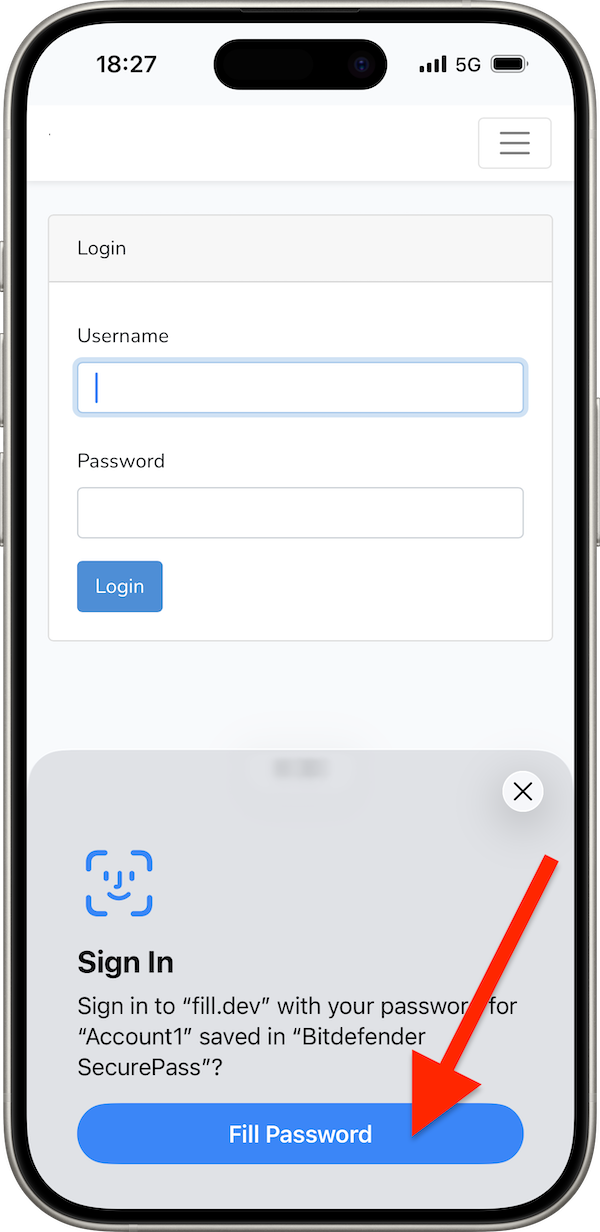
- Open an app or website and tap the username or password field.
- A Sign In prompt appears at the bottom of the screen, offering to sign in with the credentials saved in Bitdefender SecurePass.
- Tap Fill Password.
- Unlock your SecurePass vault using Face ID, Touch ID, or your iPhone/iPad passcode.
- Your saved username and password are filled, and you are automatically signed in.
Note: If the Sign In prompt doesn’t appear, make sure Bitdefender SecurePass is set as your default password manager and that you have saved credentials for the website or app.
With this setup, Bitdefender SecurePass automatically fills your saved credentials, making it faster and more secure to sign in to apps and websites on your iPhone or iPad.