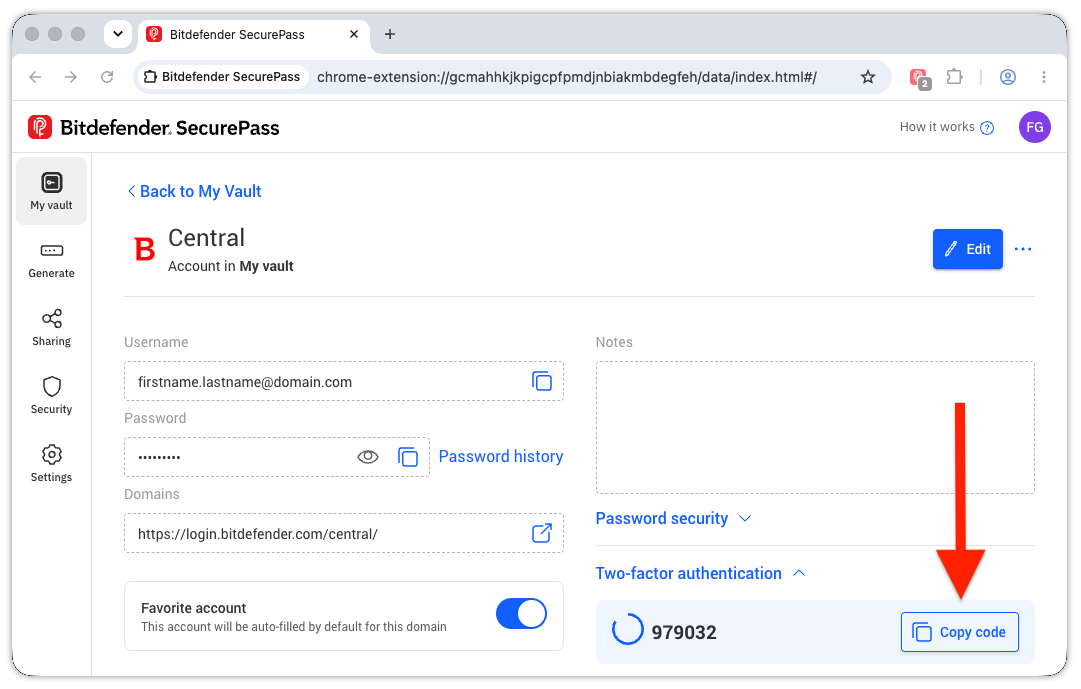
Two-factor authentication (2FA) is a security feature that adds an extra layer of protection to your accounts by requiring two forms of verification before granting access – typically your password and a time-sensitive code generated by an authentication app. By following these steps, you can use Bitdefender SecurePass as a two-factor authenticator app and manage your 2FA codes alongside your passwords.
Set Up Two-Factor Authentication (2FA)
Follow these steps to set up 2FA using Bitdefender SecurePass:
1. Enable Two-Factor Authentication for an Account
- Go to the security settings of the website or application for which you want to enable 2FA.
- Follow the prompts to enable two-factor authentication. You will typically be presented with a QR code or verification code during this process.
2. Edit Account in SecurePass
- Open the Bitdefender SecurePass app or web version on your device.
- Select My vault from the navigation menu.
- Open the account you want to configure for 2FA.
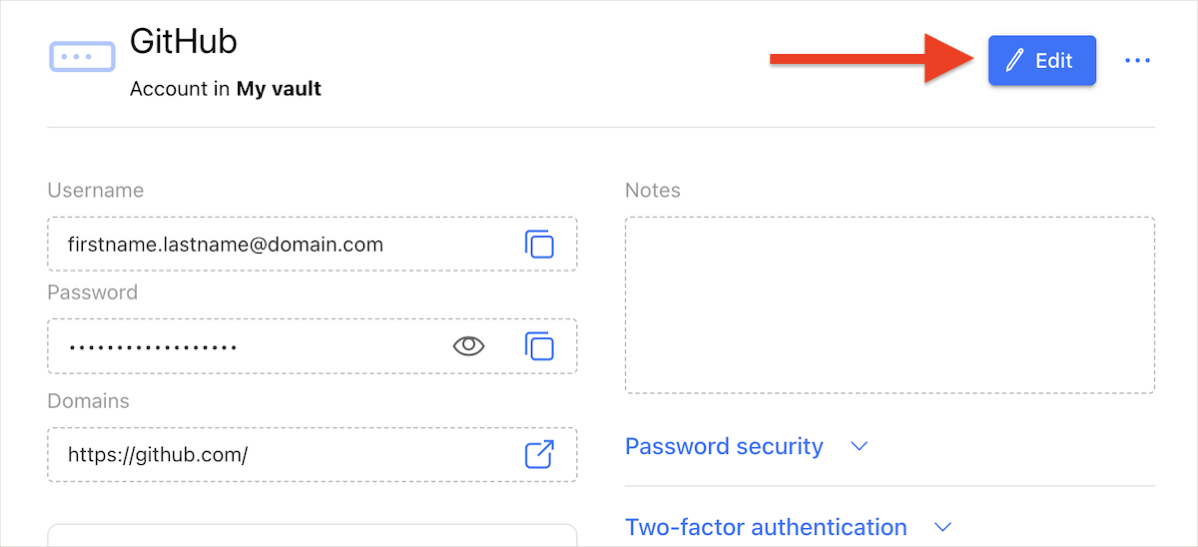
- Click the three-dot menu in the top right corner, then choose Edit.
- If the account isn’t already saved in SecurePass yet, click + Add > Account. For detailed instructions, please refer to: How to Manually Save Passwords in SecurePass.
3. Extend the Two-Factor Authentication Menu
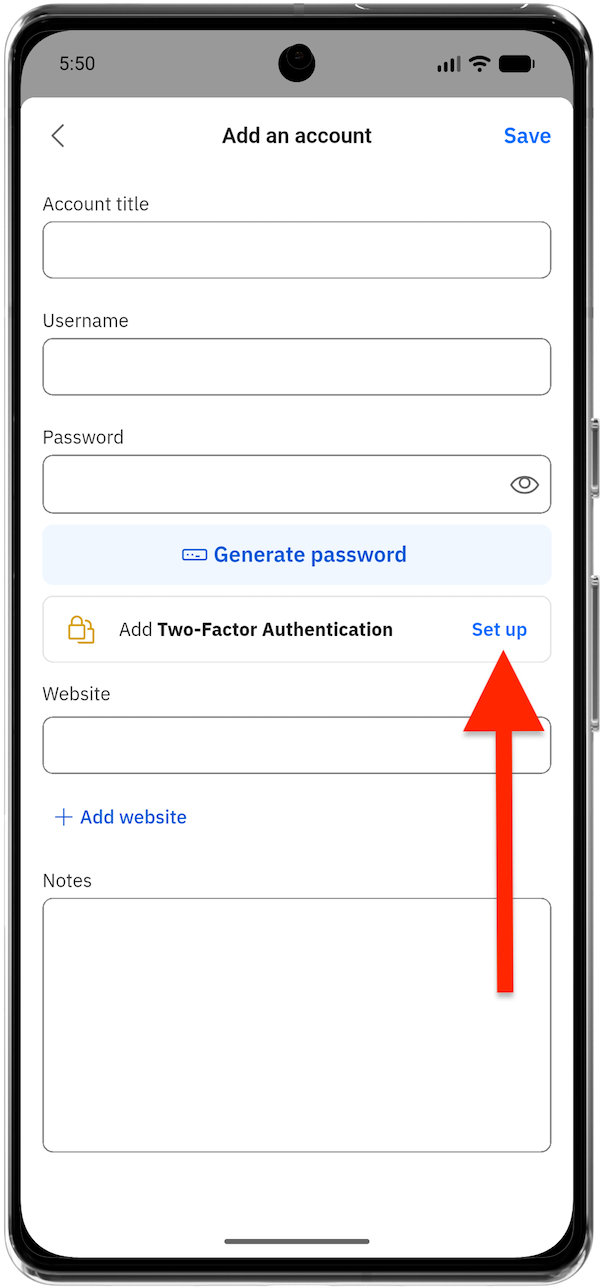
- In the mobile app:
- Tap Set up on the Add Two-factor Authentication option.
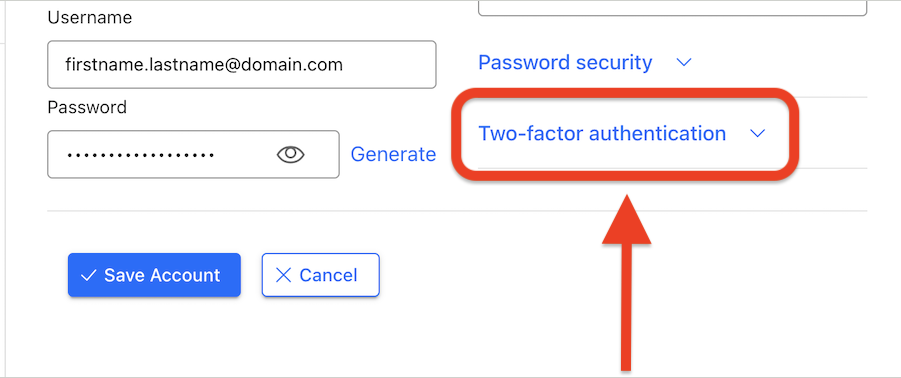
- In the browser version:
- Click the Two-factor authentication option on the right-hand side.
You’ll see options to Save key or Scan QR Code to set up the two-factor authentication key.
4. Scan the QR Code / Enter the code manually
- In the mobile app:
- Either tap Save key and enter the verification code, or
- Tap the Scan QR Code button then use your device’s camera to scan the QR code displayed on the website while enabling 2FA.
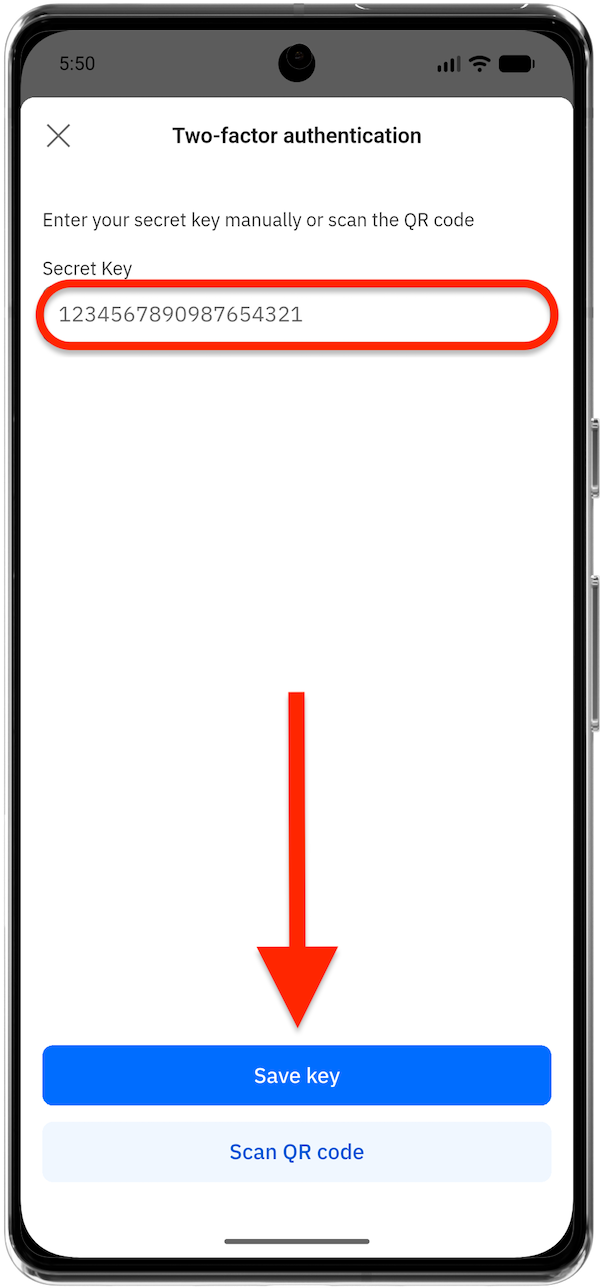
- In the browser version:
- Type the verification code displayed on the website while enabling 2FA.
- Click the Save key button.

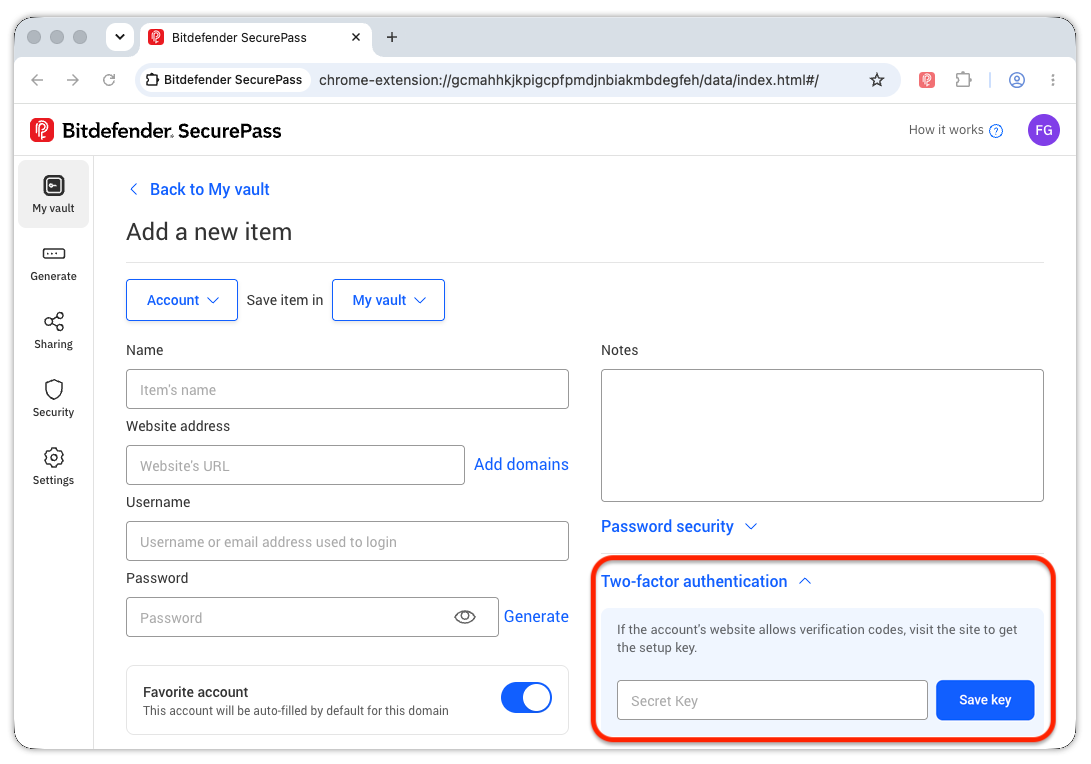
Once the key is saved, Bitdefender SecurePass will confirm successful two-factor authentication setup.
5. View Your 2FA Code
- After scanning the QR code, press View Code in Bitdefender SecurePass.
- A time-sensitive authentication code will be displayed.
6. Input the Code
- Go back to the account where you enabled 2FA and input the code from Bitdefender SecurePass to verify your setup.
7. Save Recovery Keys
- It’s recommended to download and save the recovery keys provided by the platform. These keys can be used as a backup in case you lose access to your authentication device.
8. Save the Account in Bitdefender SecurePass
- After completing the setup, press the Save Account button in Bitdefender SecurePass to finalize the process.
Use Bitdefender SecurePass as a 2FA Authenticator
Once you have enabled 2FA, here’s how to use Bitdefender SecurePass as a 2FA authenticator app when signing in:
- Sign in with username and password on the platform for which you’ve enabled 2FA.
- You will be prompted for an authentication code.
- Open the Bitdefender SecurePass app or browser version, go to the respective account in your vault, and scroll down to Two-Factor Authentication.
- Copy the displayed 2FA code and input it to successfully log in.
-
- In the mobile app:
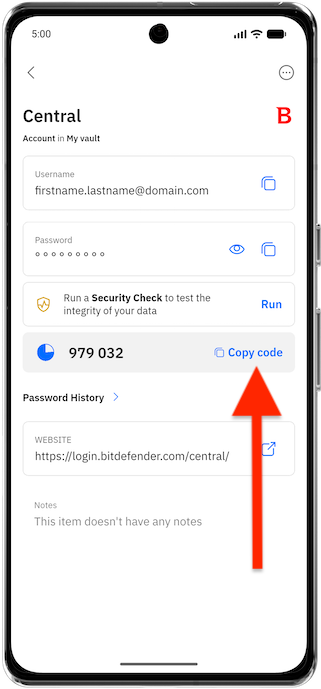
-
- In the browser version: