Your Dedicated IP is an add-on to your Bitdefender Premium VPN subscription. If your Premium VPN subscription expires, the Dedicated IP add-on is paused, and you can’t use it until your subscription is active again. When Premium VPN expires, the Bitdefender VPN app switches back to the free plan. Your Dedicated IP add-on remains on your account, but you can’t connect to it while it’s paused.
What you’ll see in the Bitdefender app
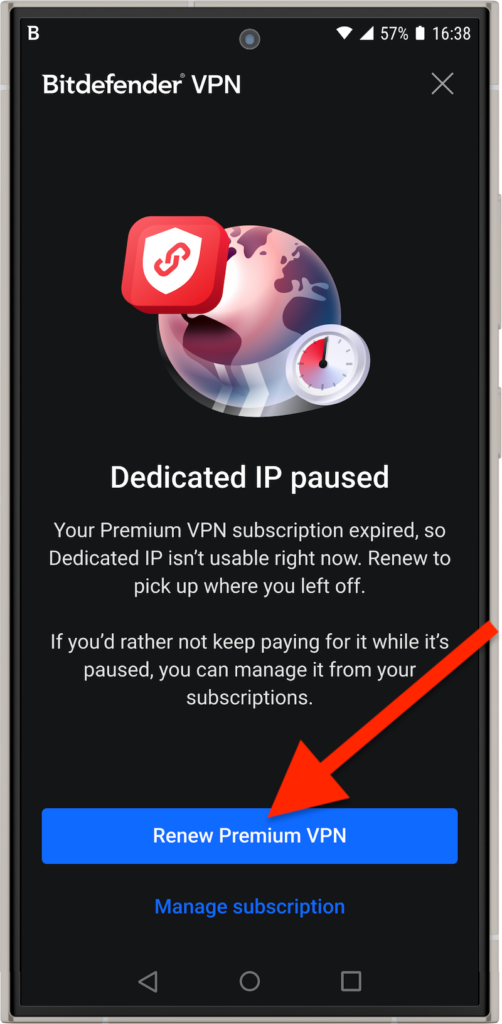
The app shows a Dedicated IP paused message: “Your Premium VPN subscription expired, so Dedicated IP isn’t usable right now. Renew to pick up where you left off.”
How to resume your Dedicated IP
 Step 1: Renew Bitdefender Premium VPN
In the Bitdefender VPN app, click Renew Premium VPN in the Dedicated IP paused message. Your browser opens the shopping cart. Follow the on-screen steps to complete the purchase.
- You can also renew Bitdefender Premium VPN from Bitdefender Central > My Subscriptions.
Tip: Sign in to Bitdefender Central with the same account you use in the Bitdefender VPN app. If you use a different account, the app won’t see your subscription.
Step 2: Activate the new subscription
If you bought Bitdefender Premium VPN from a different store, open the confirmation email and follow the activation steps. For details, see:
Step 3: Check your Dedicated IP
Reopen Bitdefender VPN and go to Settings > Advanced > Dedicated IP. The status should show Active, and you should be able to connect to your Dedicated IP again.
Note: The Dedicated IP add-on doesn’t appear in your Bitdefender Central account. Only your Premium VPN subscription is listed there. The add-on is managed through the store where you purchased it (Apple App Store or Google Play).
If you don’t want to keep the Dedicated IP while it’s paused
The Dedicated IP add-on is managed by the store where you purchased it, so you can cancel it only through that store, using the same store account you used for the purchase. You can’t cancel it from your Bitdefender Central account or from the Bitdefender VPN app.
If you bought it on iPhone or iPad (Apple App Store)
- Open the Settings app on your iPhone or iPad.
- Tap your name at the top of the screen and make sure you’re signed in with the Apple account you used to purchase the Dedicated IP.
- Tap Subscriptions, then select the Dedicated IP add-on.
- Tap Cancel Subscription. Learn more on Apple’s official website
If you bought it on Android (Google Play)
- Open the Google Play app on your Android device.
- Tap your profile icon in the top-right corner of the screen and make sure you’re signed in with the Google account you used to purchase the Dedicated IP.
- Open Payments & subscriptions > Subscriptions, then select the Dedicated IP add-on.
- Tap Cancel subscription. Learn more on Google’s official website
Note: If you can’t find the add-on, you may be signed in to a different store account. The receipt email from Apple or Google shows which account was used for the purchase.
Still not working? If the status remains paused after you renew, see the article My Dedicated IP Was Purchased but Is Not Active.