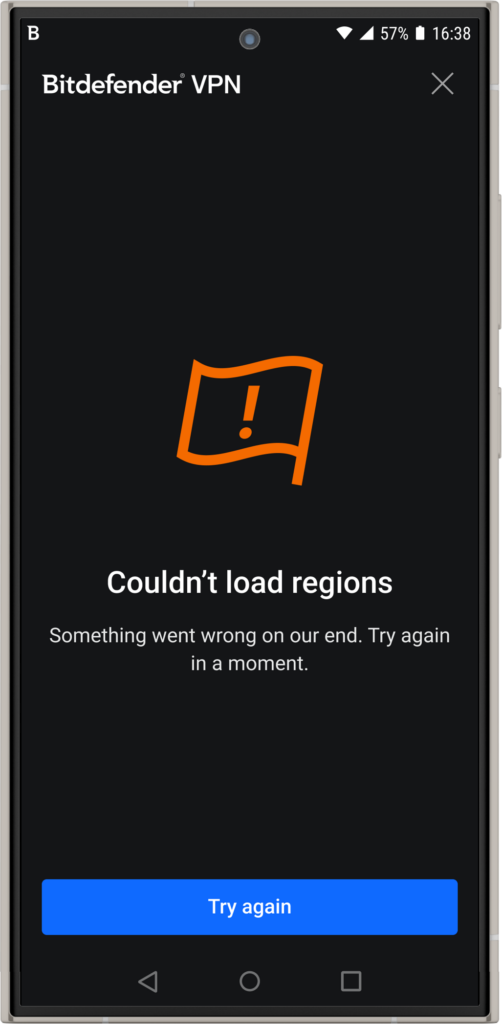
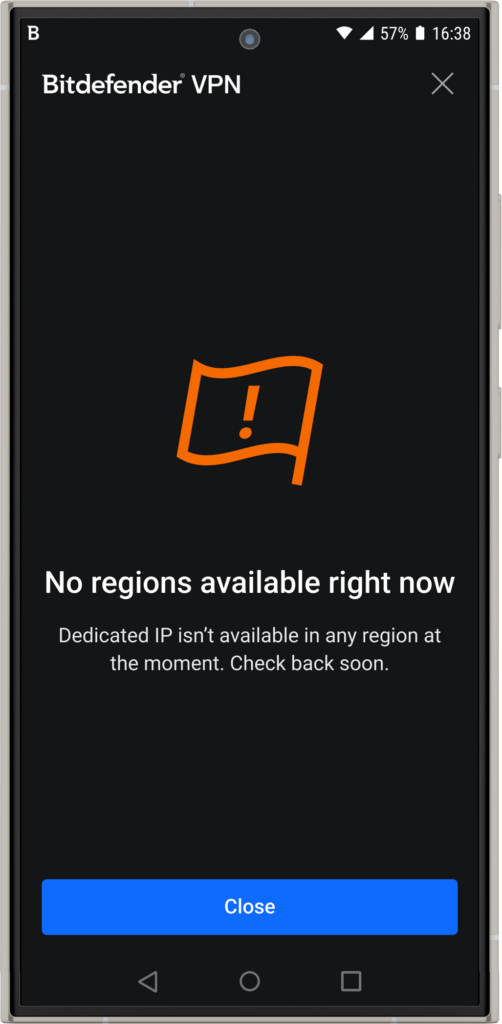
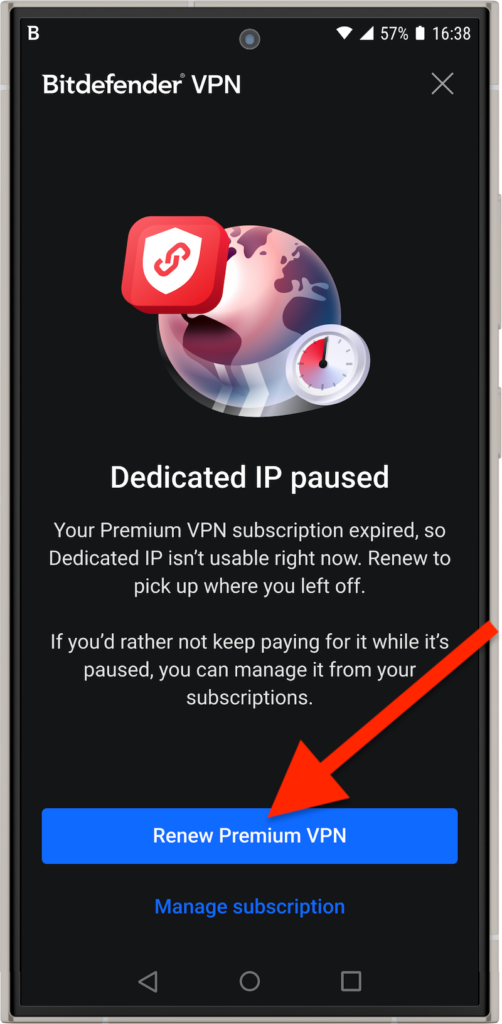
Dedicated IP gives your Bitdefender Premium VPN account a fixed IP address in a region you choose. This guide explains what a dedicated IP is, how it works in Bitdefender VPN, how to get and use one, and what happens if your subscription changes.
What does having a dedicated IP mean?
A dedicated IP is a unique IP address available for your use only. When you connect to a VPN, websites see the VPN server’s IP address instead of your actual internet IP address. Unlike a standard shared VPN IP, which is used by hundreds or thousands of people at the same time and changes periodically, a dedicated IP never changes and is reserved for you only, so you use the same VPN IP whenever you connect to that location.
A dedicated IP can make it easier to access websites or services that recognize your usual VPN IP addresses and reduce repeated CAPTCHA verification checks.
What is Dedicated IP in Bitdefender Premium VPN?
Dedicated IP is a monthly add-on to an active Bitdefender Premium VPN subscription. You choose one available region in the mobile app before you pay.
You don’t need to install anything or enter a code. After purchase, the dedicated IP automatically appears in the VPN app. It’s available on all your account’s devices, including devices you add later.
You can have only one Dedicated IP per subscription, in one region at a time. The IP is kept unchanged while the add-on and the Premium VPN subscription are active. If you cancel and buy Dedicated IP again later, you’ll receive a new IP.
How to Buy a Dedicated IP
To buy a dedicated IP for Bitdefender VPN, you need:
- A Bitdefender Premium VPN subscription. Dedicated IP requires a valid Premium VPN subscription and can’t be used without it.
- To be the account owner if you use a family or business Bitdefender subscription.
- The Bitdefender VPN mobile app. You can use the Dedicated IP location on your other account devices, but you must purchase the add-on on an Android or iOS device.
1. Open the Dedicated IP offer
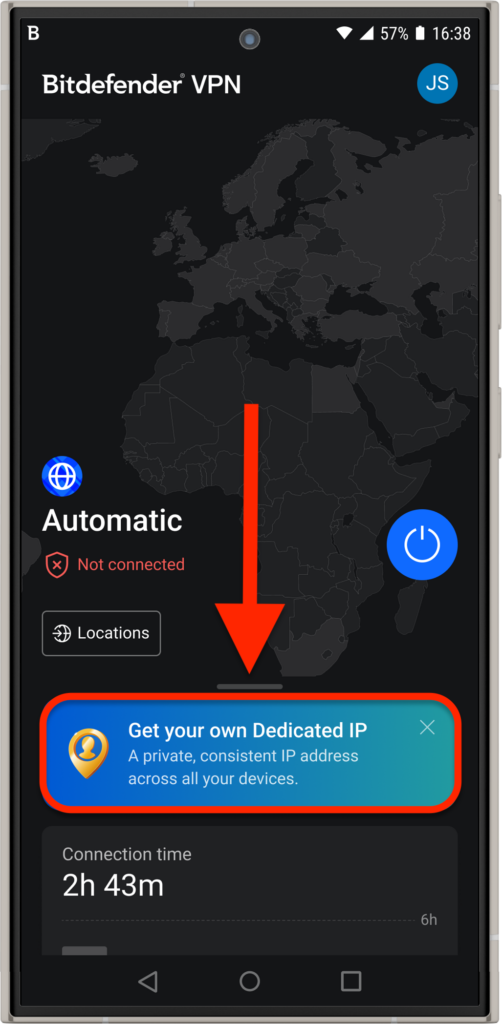
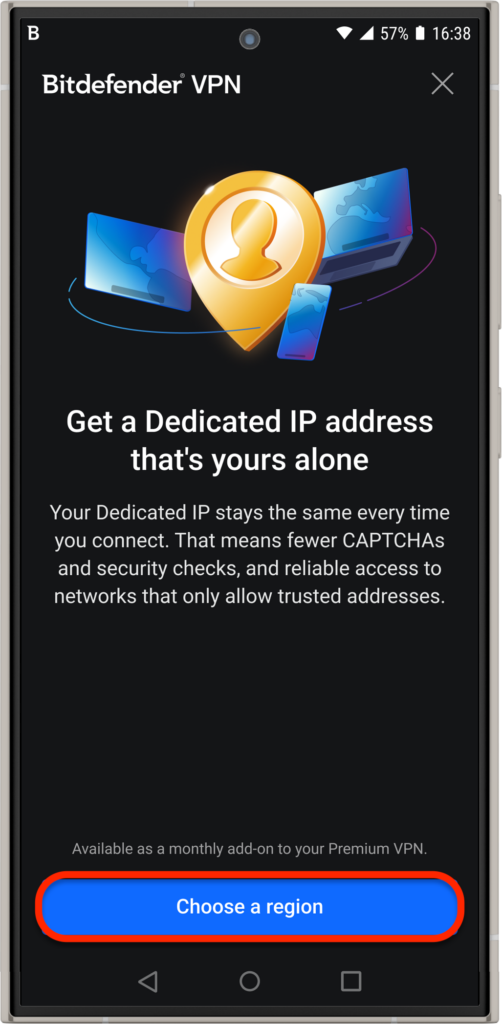
In the Bitdefender VPN mobile app, tap the Get your own Dedicated IP entry. You may find it on the VPN app’s main dashboard, in Locations, and in advanced Settings.
If the app shows an introduction to the feature, tap Check Dedicated IP.
2. Choose a region
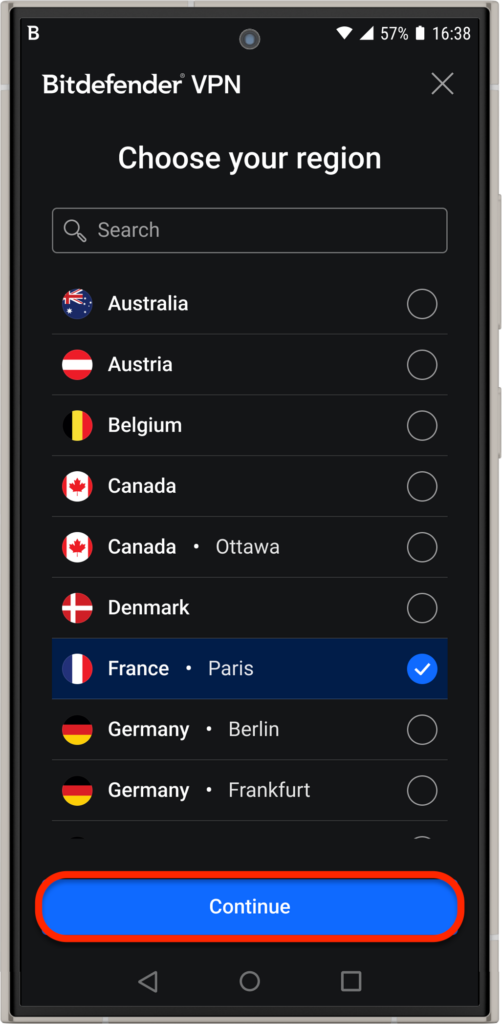
Tap Choose a region, select the desired location, and continue.
3. Subscribe
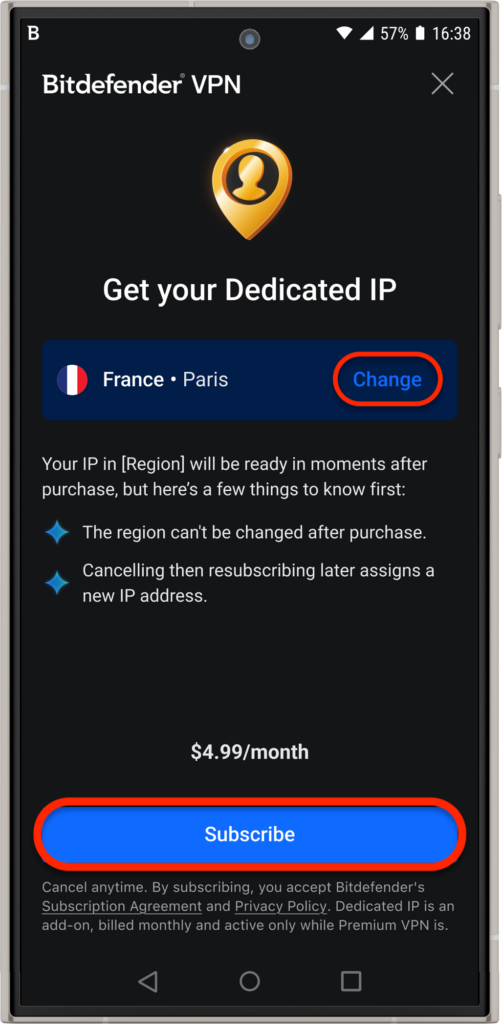
To modify the region before paying, tap Change, then choose another location.
You can’t change the region after making subscribing to dedicated IP. To use a different region once the payment is complete, cancel the add-on and purchase it again.
Then complete the purchase through the Apple App Store or Google Play.
4. Find your dedicated location
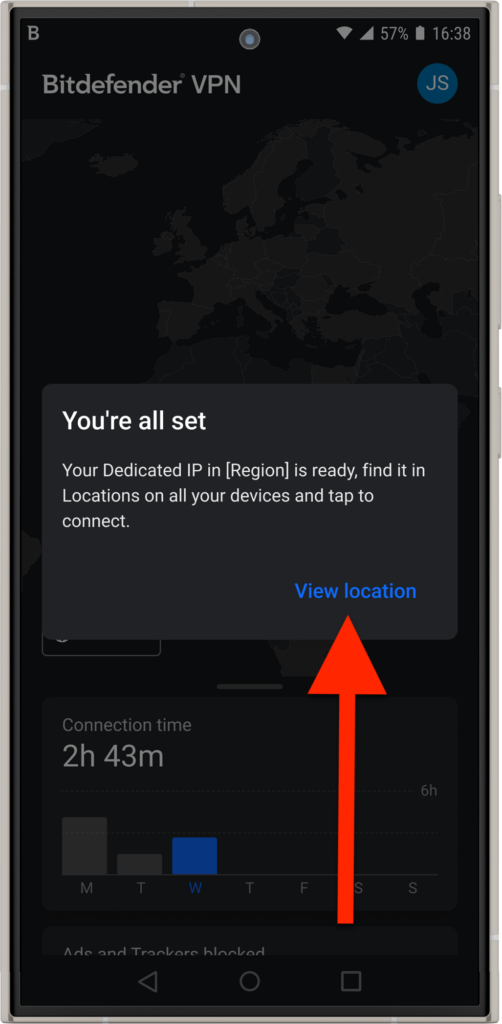
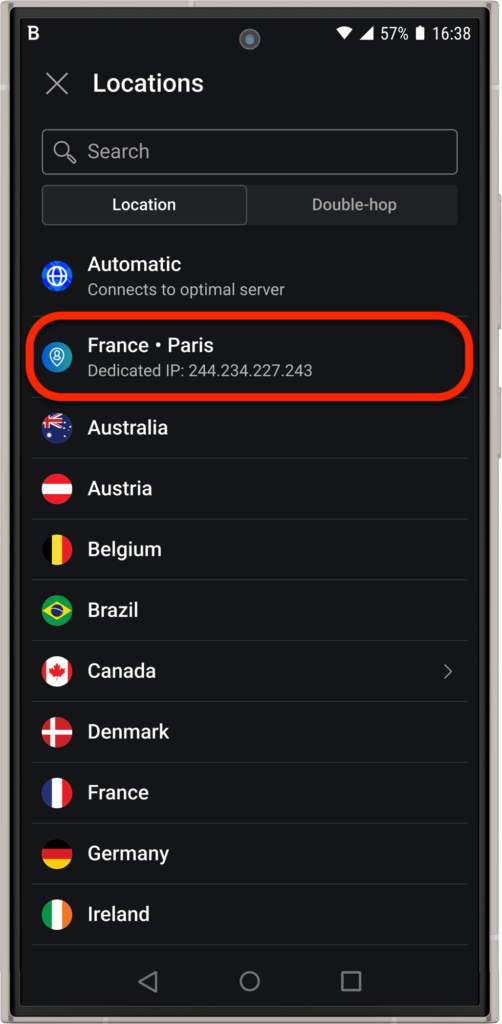
After completing the purchase, the Bitdefender app confirms that your Dedicated IP is ready and makes it available in Locations. Tap it to connect.
The location is also available automatically on your other account devices.
Manage your add-on and subscription
Dedicated IP renews monthly through the store where you bought it. To stop future billing, cancel the add-on in your Apple or Google subscription management settings.
Dedicated IP requires an active Bitdefender Premium VPN subscription. If Premium VPN expires while Dedicated IP still has paid time remaining, the dedicated location is paused and its IP is released. Renew Premium VPN to use Dedicated IP again. The add-on resumes after renewal for the number of validity days remaining at that time, but Bitdefender assigns a different IP address because the previous one was released.
If you remove a device or a family member, their access to the dedicated location is removed with the device or account. The location is removed from the account only when no devices remain assigned to it.