The Bitdefender Web Protection (Web Sage) extension for Windows keeps you safe online by scanning the websites you visit for malware and phishing attempts. It blocks dangerous websites, fake online stores and warns you about unsafe links directly in your search results. Bitdefender Web Sage supports the following web browsers:
- Microsoft Edge
- Google Chrome
After installing the Bitdefender App on your Windows PC, follow the steps below to add the Web Sage extension to your browser.
1. Open the Bitdefender App.
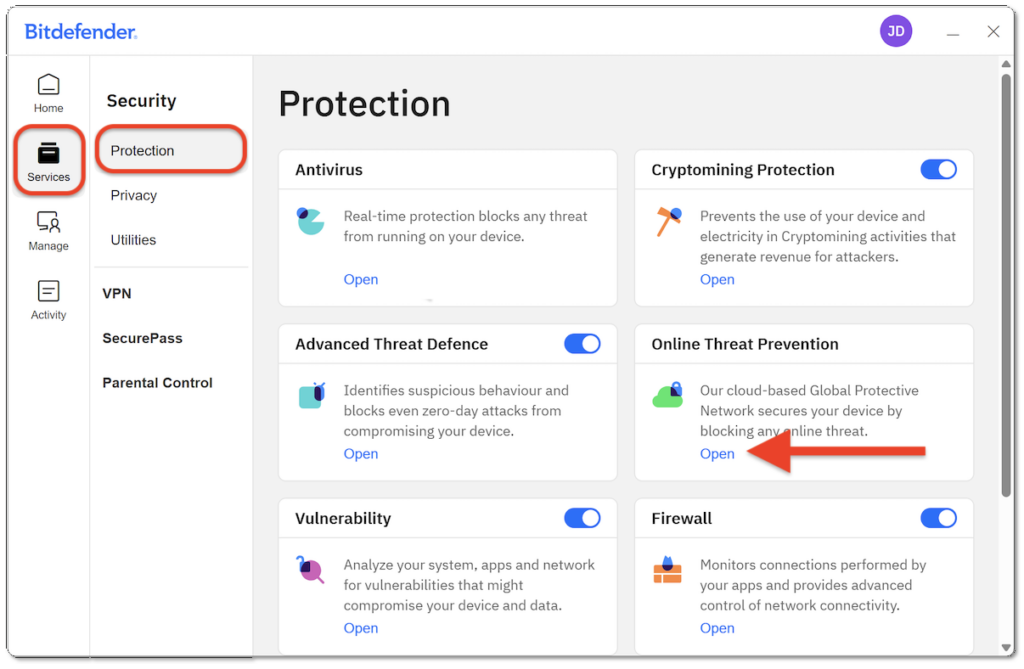
2. In the left-hand menu, go to Services → Security → open Online Threat Prevention.
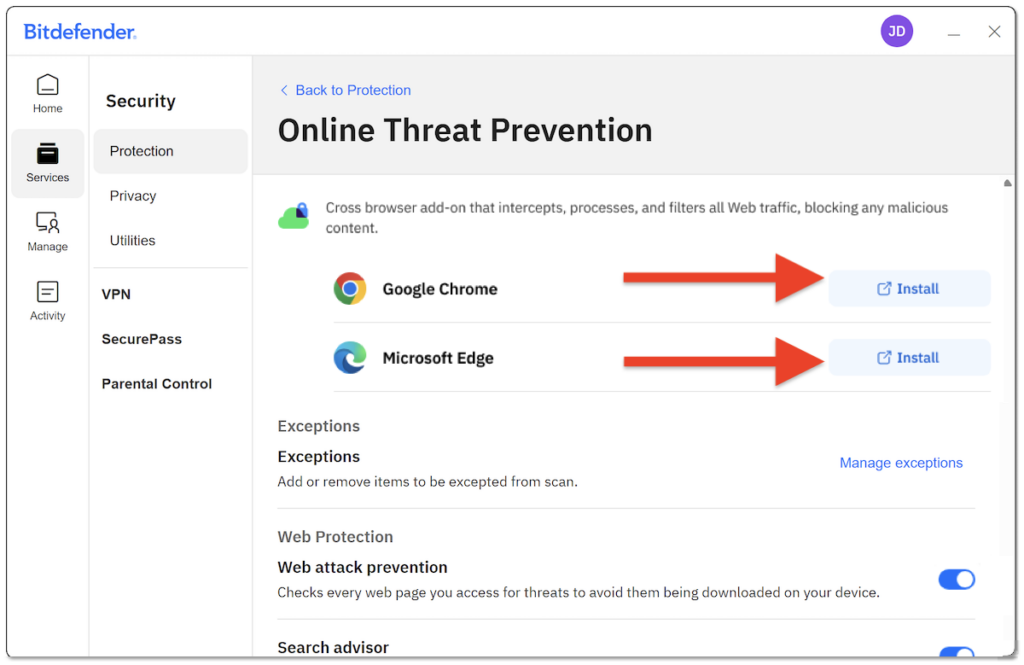
3. In the Online Threat Prevention panel, click Install next to your preferred browser (Chrome or Edge).
- Only supported browsers that are currently installed on your PC will appear in this list.
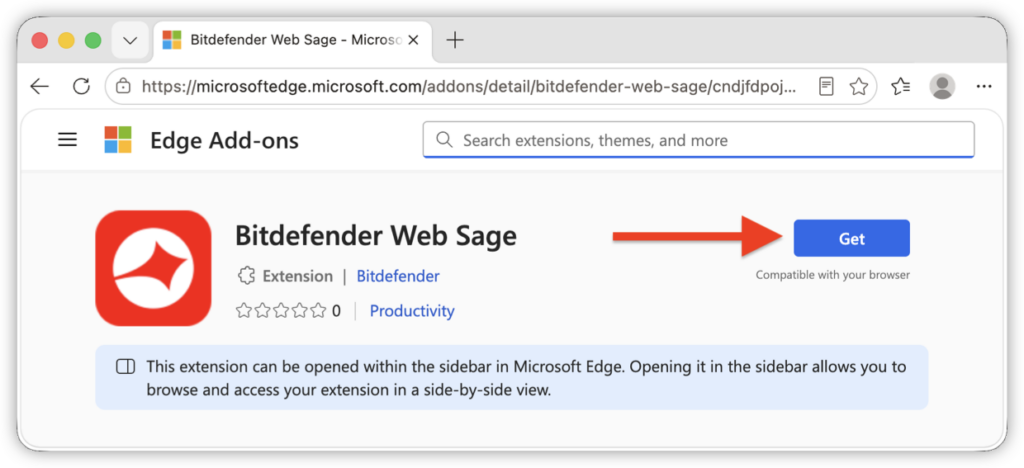
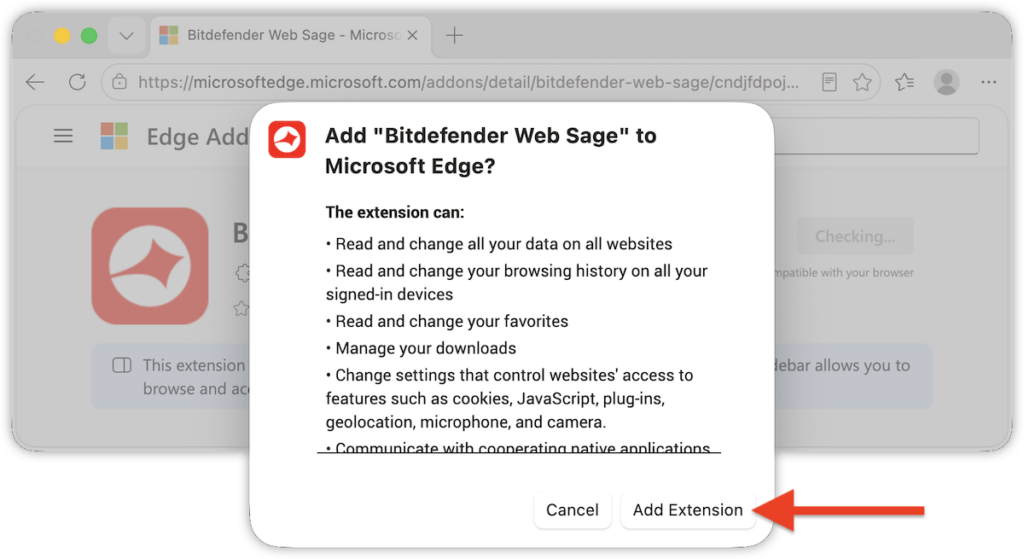
4. Follow the browser-specific instructions below to complete the installation.
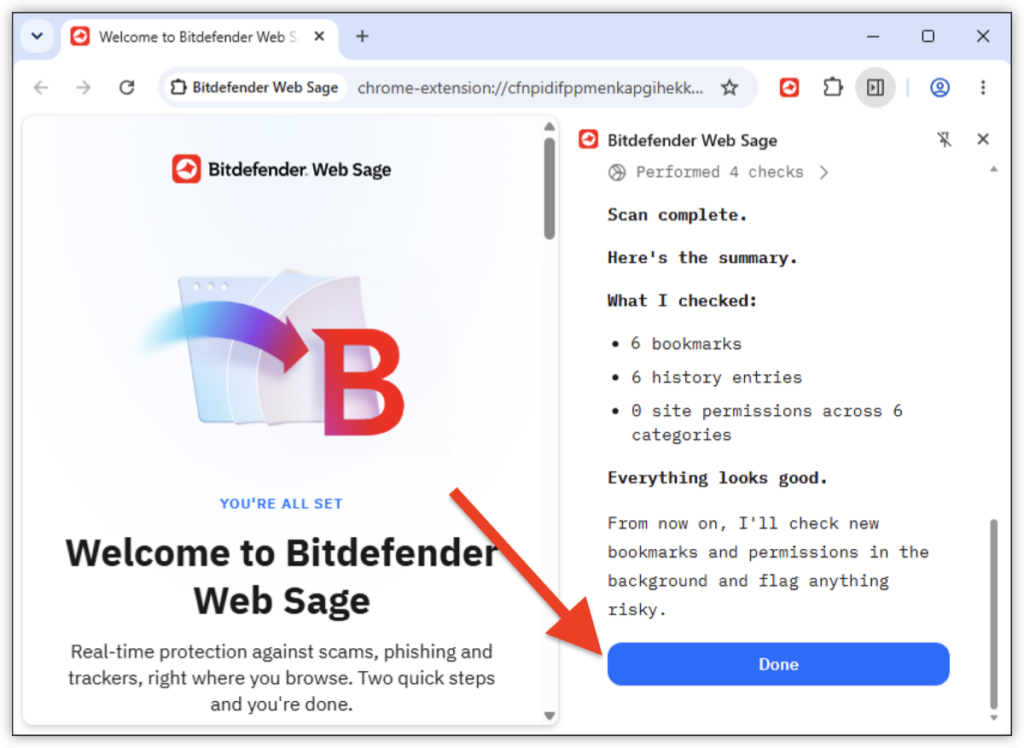
Chrome
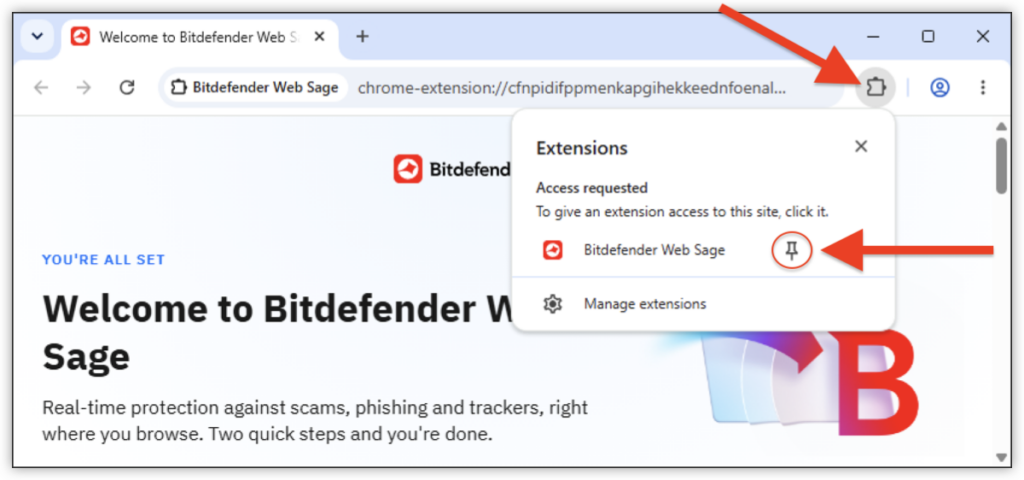
 icon near the address bar. Web Sage opens in the Google Chrome sidebar.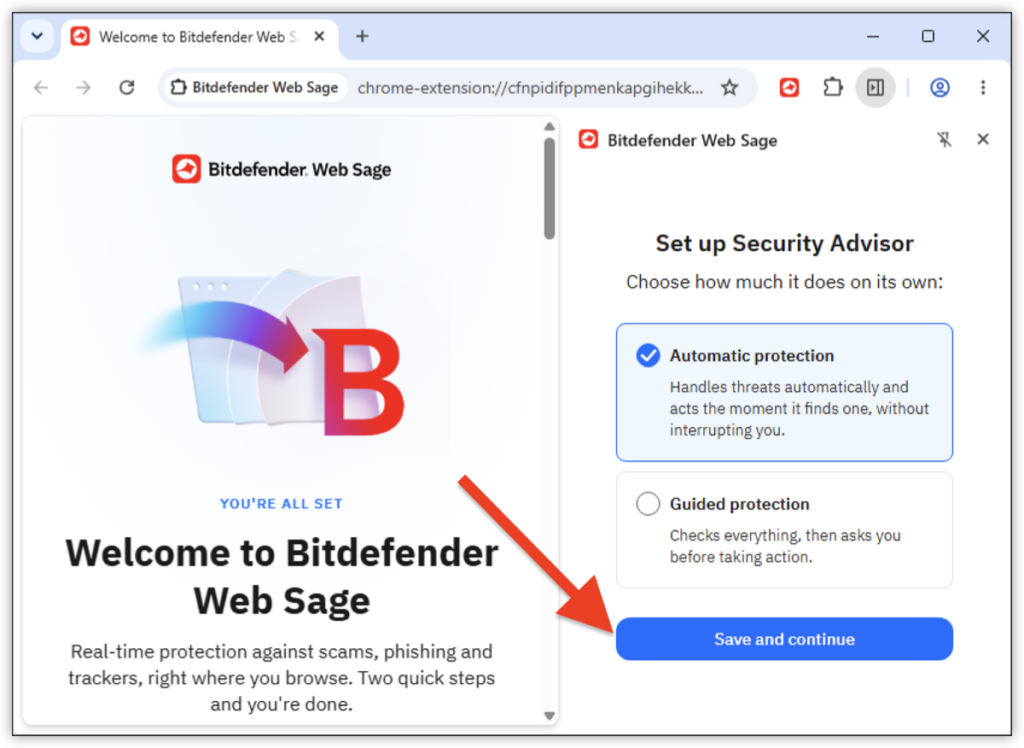
Edge
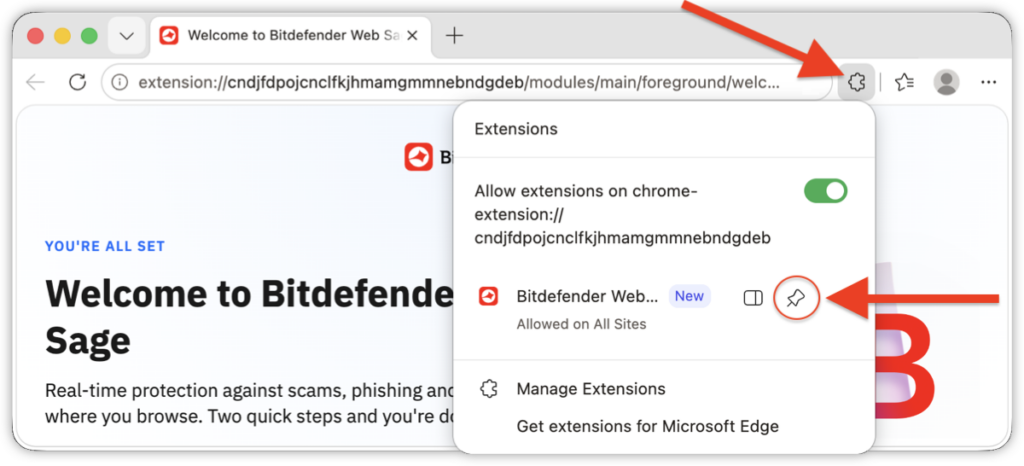
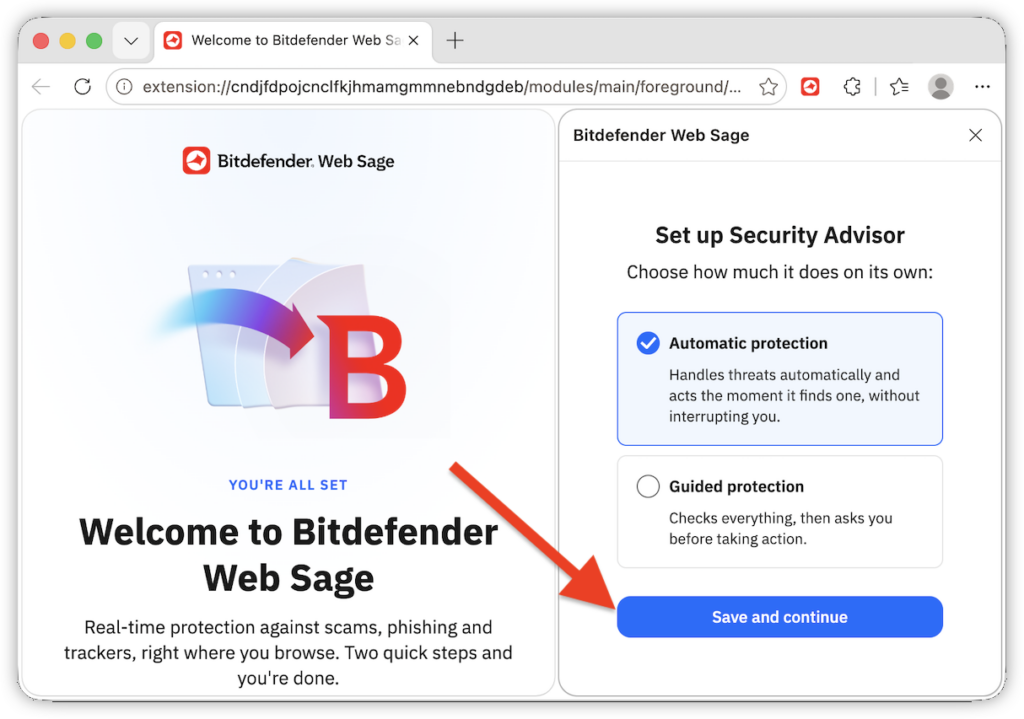
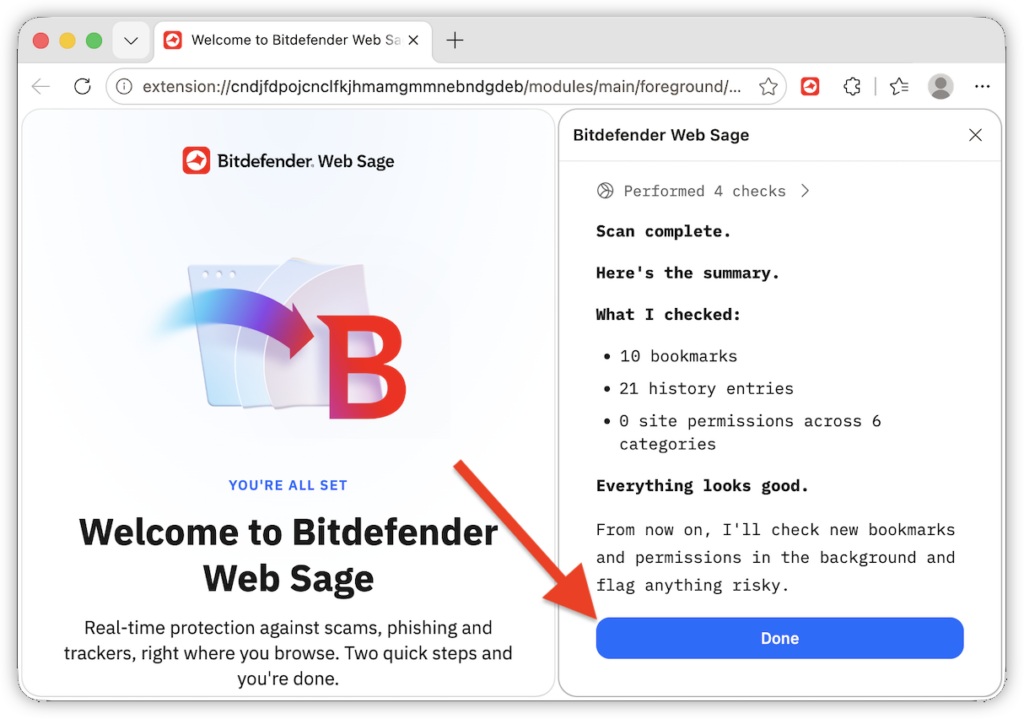
After completing the installation, the Bitdefender Web Sage dashboard shows the protection mode, feature status, and activity. From the bottom navigation, you can check the current page, view activity, or open settings.
For more information, see Bitdefender Web Sage: Frequently Asked Questions.