Bitdefender Web Sage checks pages in real time and blocks dangerous sites and fake online stores before they load. It also warns you about unsafe links directly in your search results. This guide shows you how to install the extension in Microsoft Edge or Google Chrome, sign in, and complete the initial Security Advisor setup. Select your browser below to view the steps.
Microsoft Edge
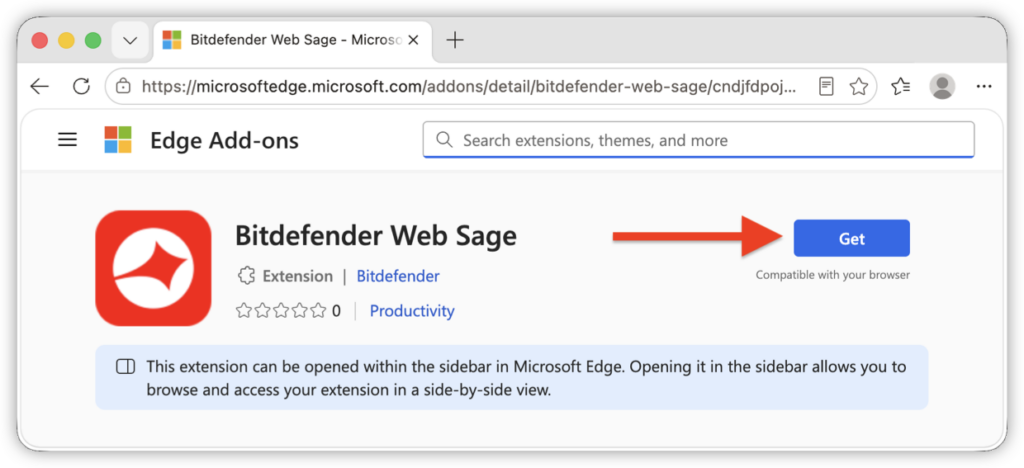
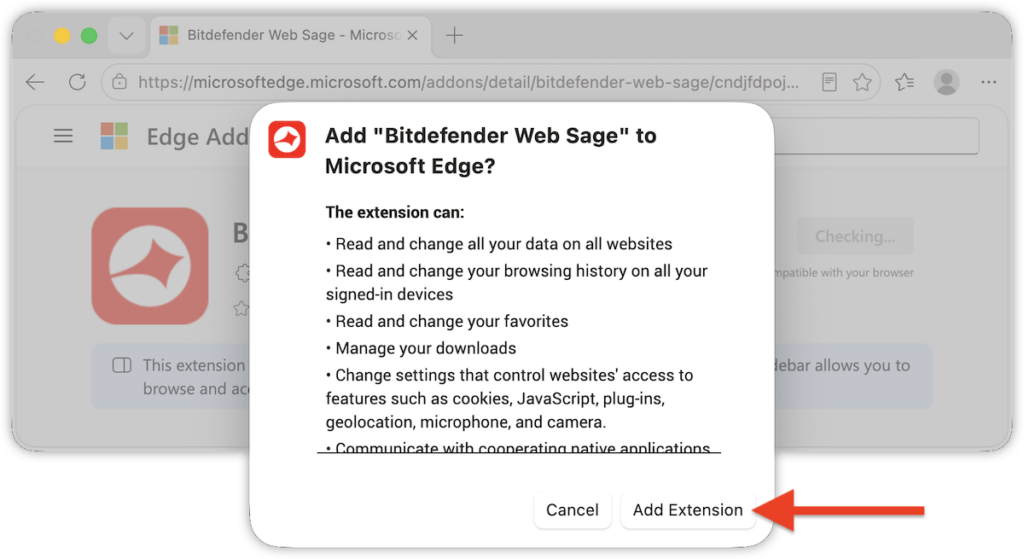
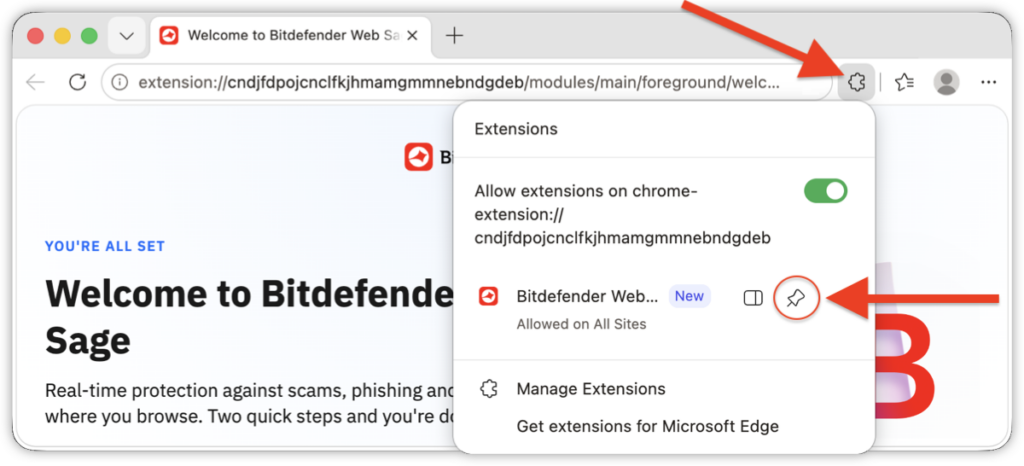
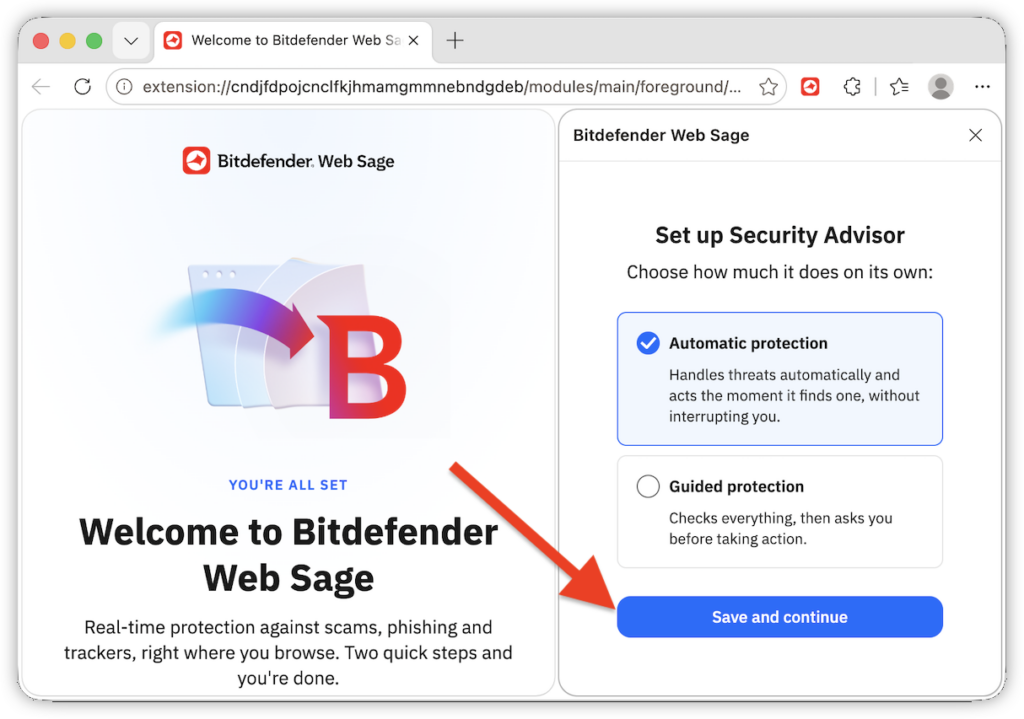
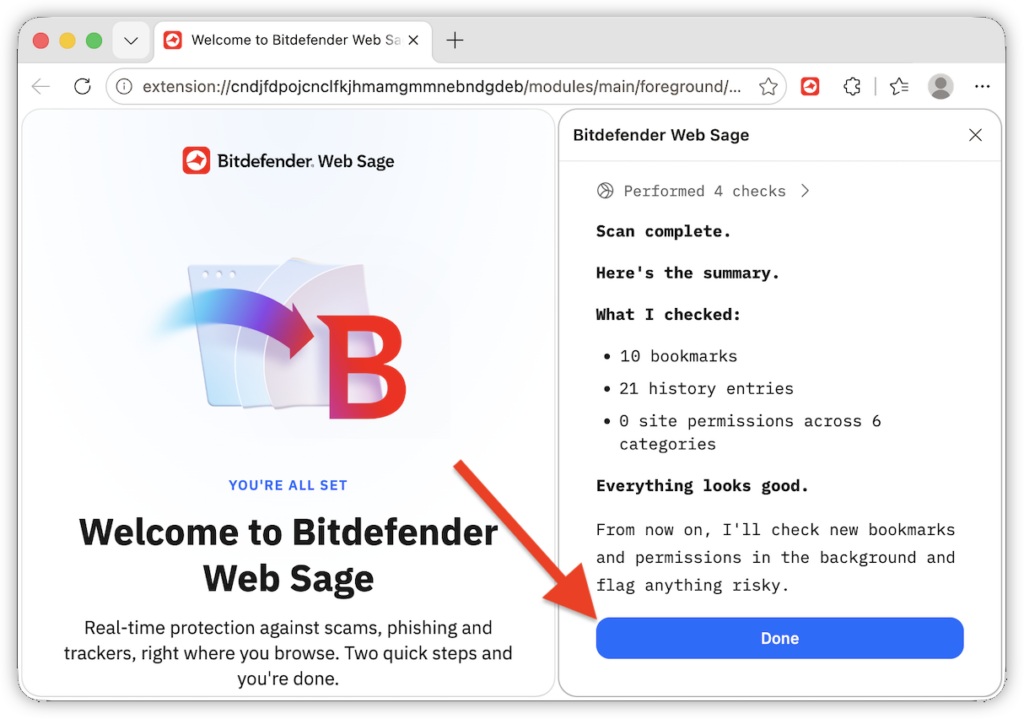
 icon near the address bar. Web Sage opens in the Microsoft Edge sidebar.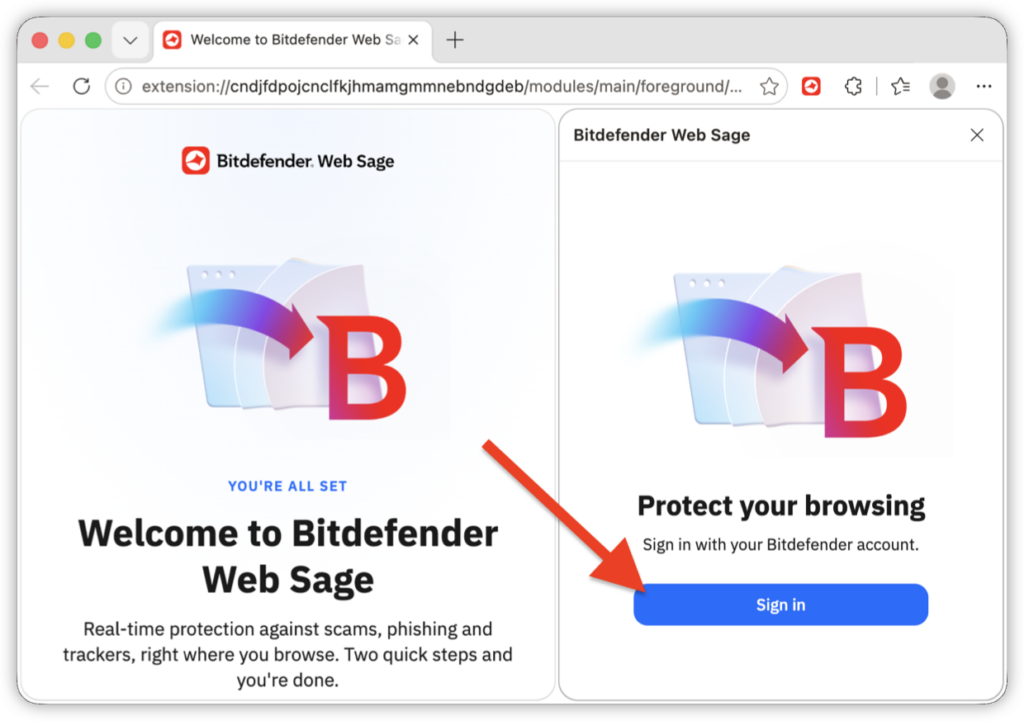
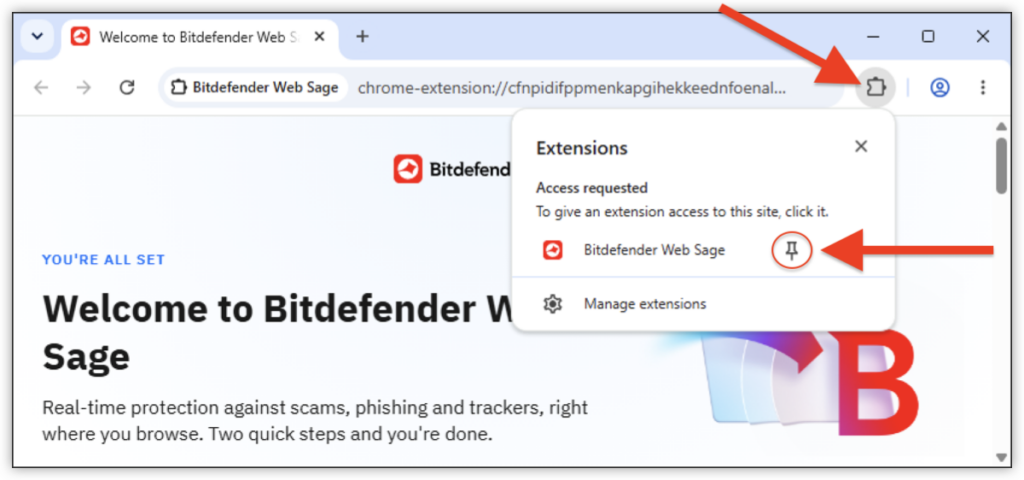
Google Chrome
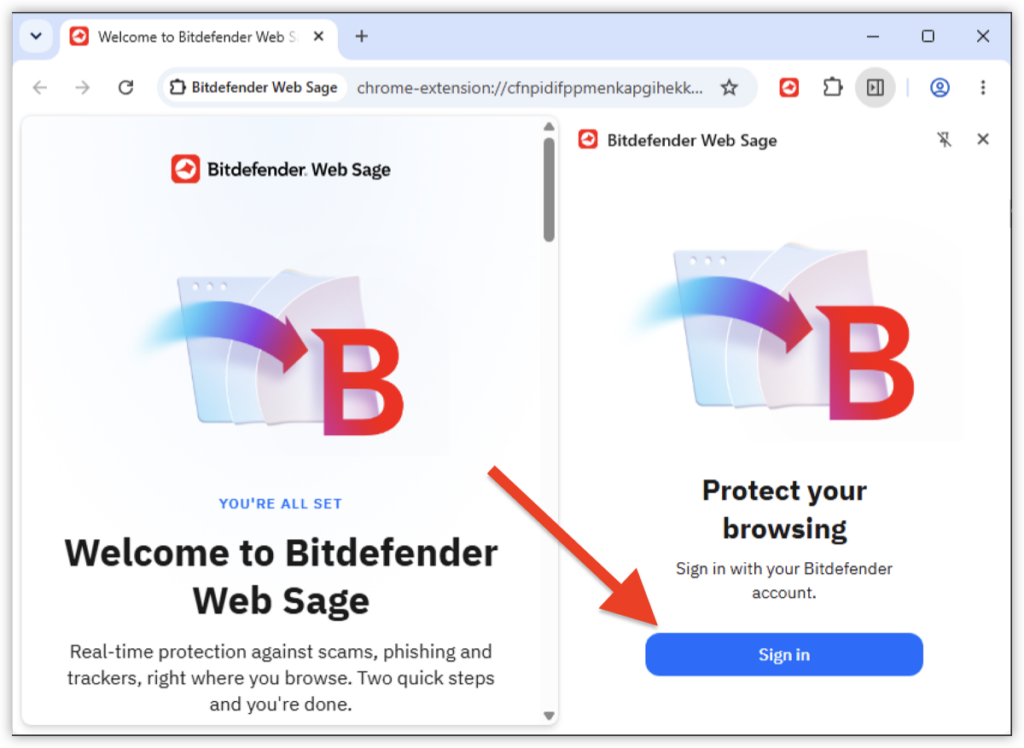
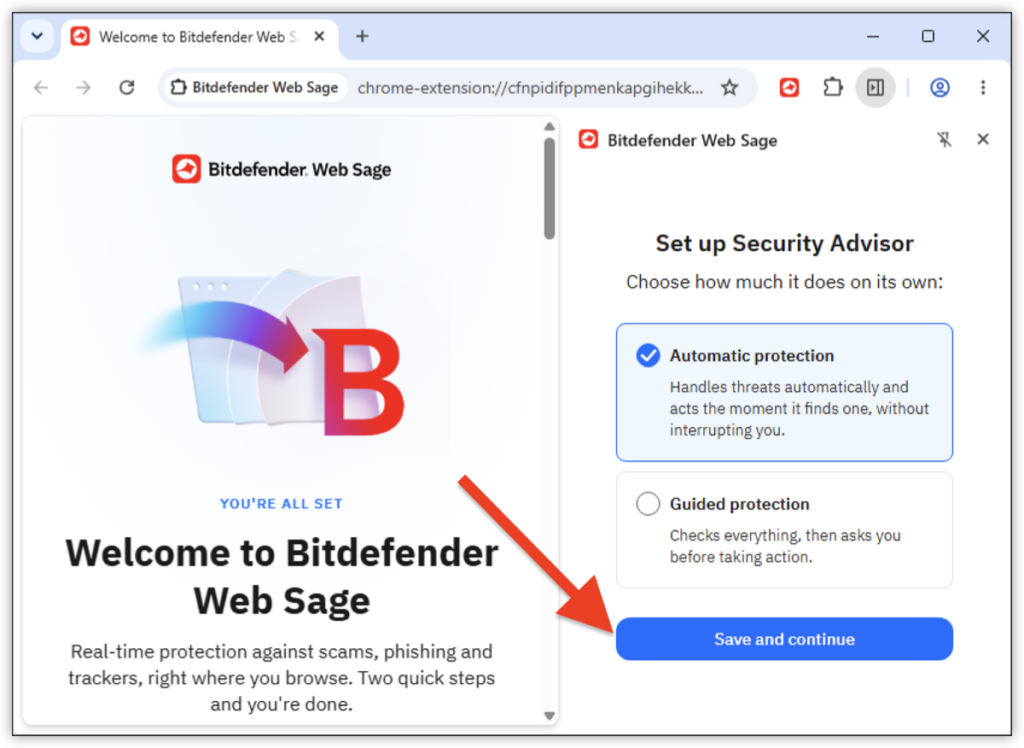
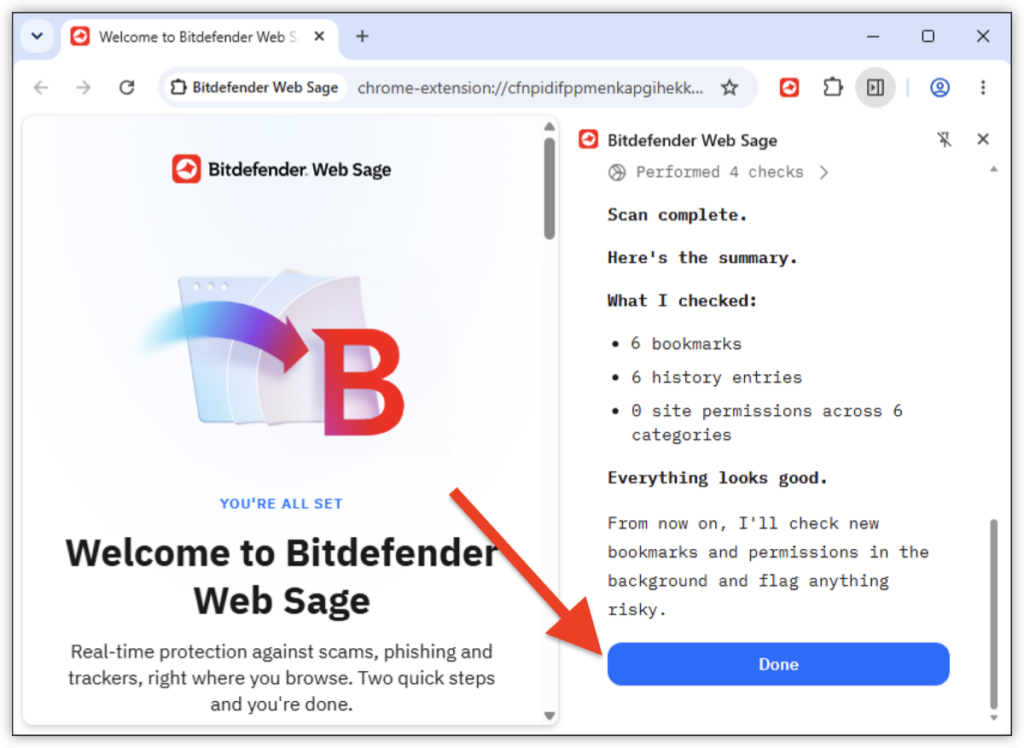
What you see after setup
The Web Sage dashboard shows the protection mode, feature status, and activity. From the bottom navigation, you can check the current page, view activity, open settings, or access your account.
For more information, see Bitdefender Web Sage: Frequently Asked Questions.