The Web Protection feature in Bitdefender Antivirus for Mac protects you from dangerous websites through the TrafficLight and Web Sage browser extensions. It blocks dangerous websites and warns you about unsafe links directly in your search results. The following web browsers are supported:
- Safari
- Google Chrome
- Mozilla Firefox
Once Bitdefender Antivirus for Mac is installed, follow the steps below to protect your internet browsers.
Install Web Protection (TrafficLight/Web Sage)
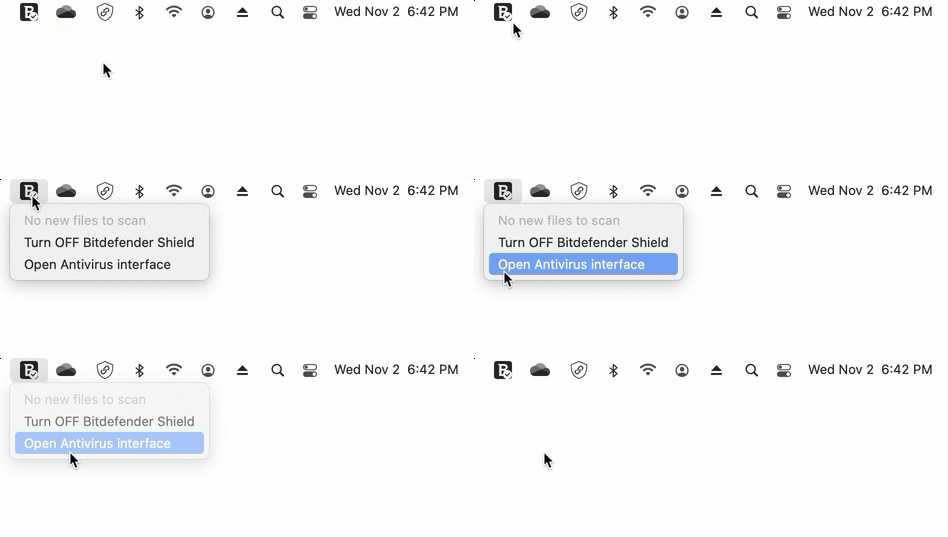
1. Start by bringing up Bitdefender Antivirus for Mac. To open the Bitdefender Antivirus for Mac app:
- Click the B icon in the menu bar at the top right of your screen.
- Select the Open Antivirus interface option.
2. Next, click Protection on the left-hand side of the Bitdefender interface.
3. Open the Web Protection tab and click on Get Extension next to your web browser: Safari, Chrome, or Firefox.
- Only supported browsers currently installed on your Mac computer will appear in the list.
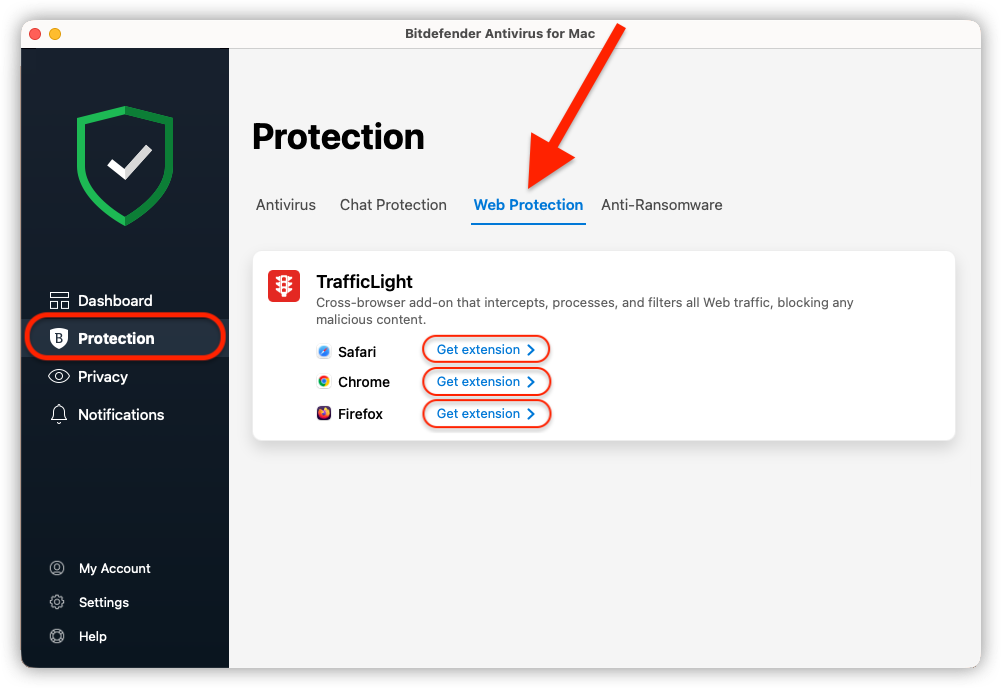
4. Follow the browser-specific instructions below to complete the installation.
Safari
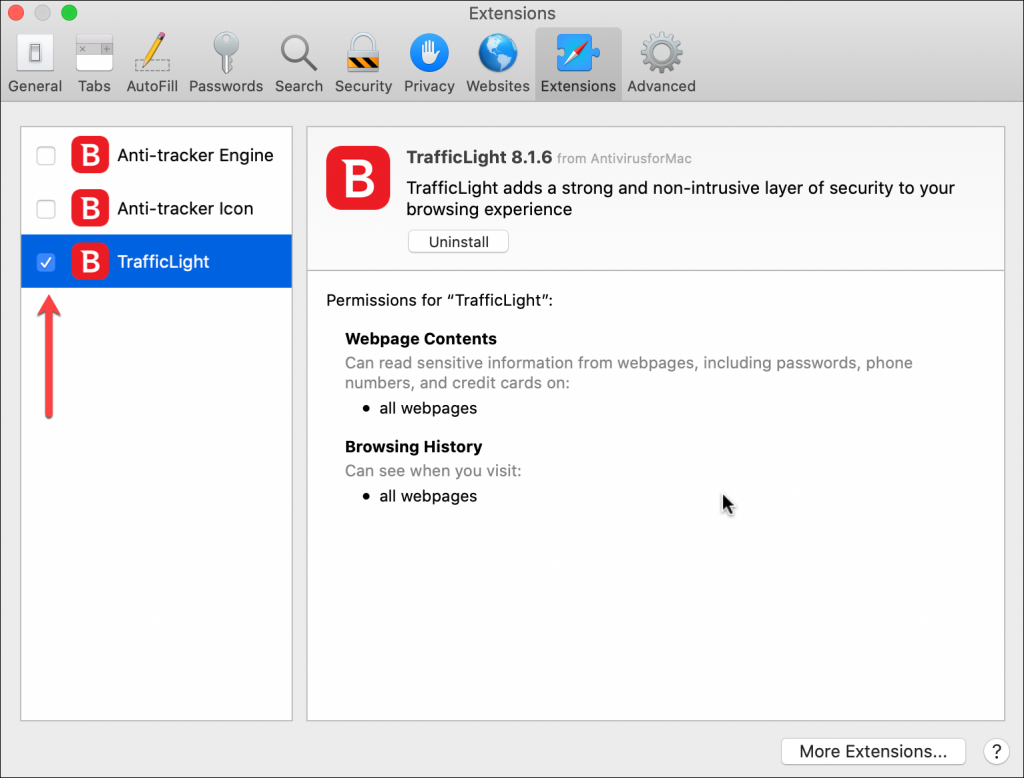
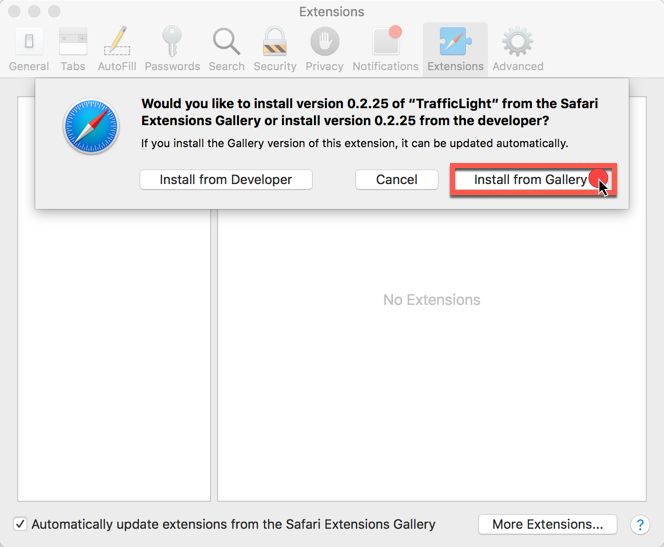
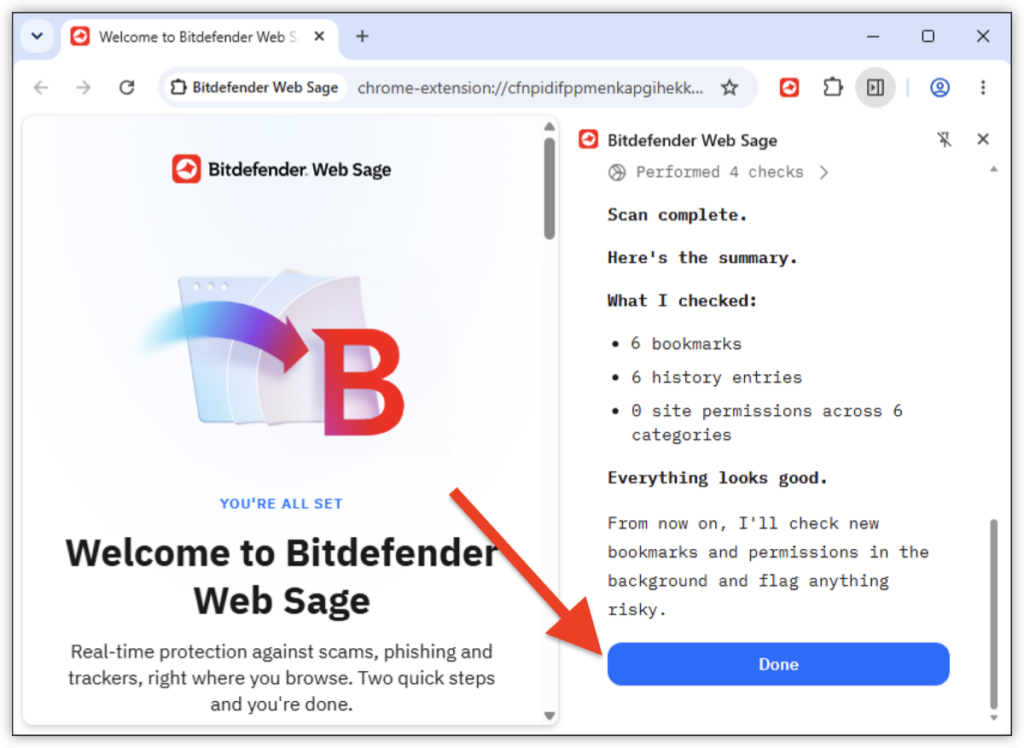
Chrome
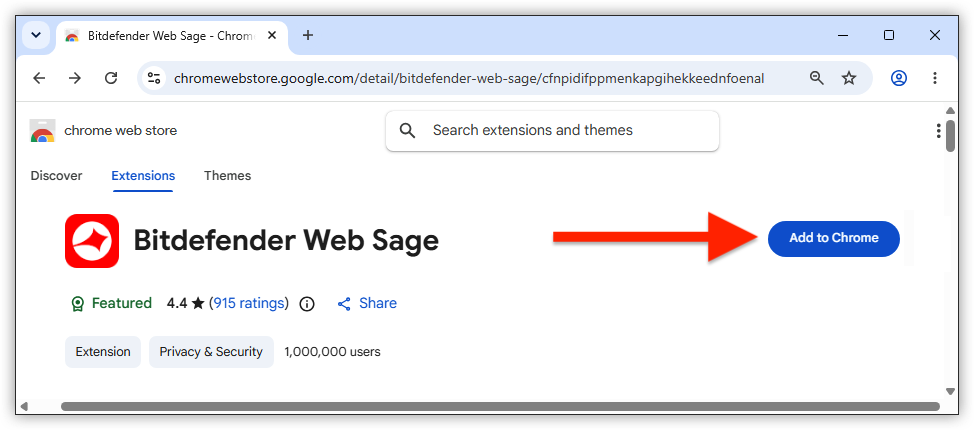
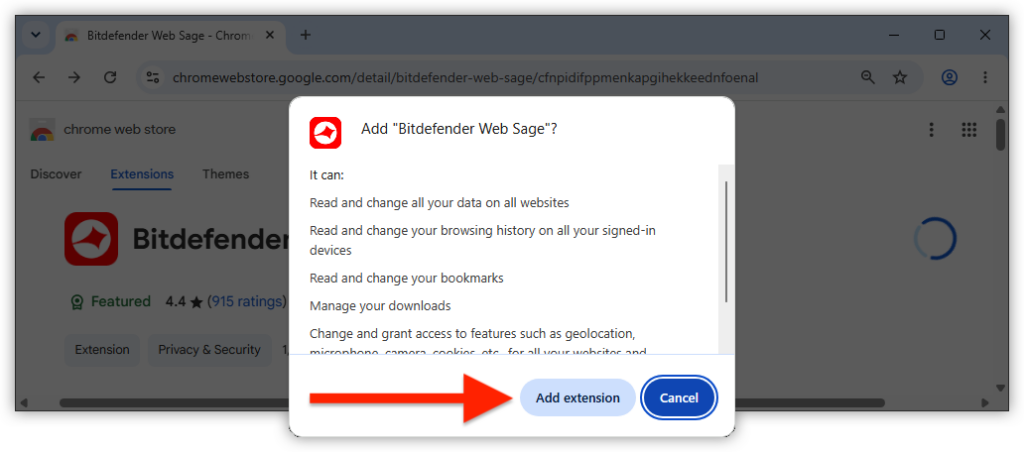
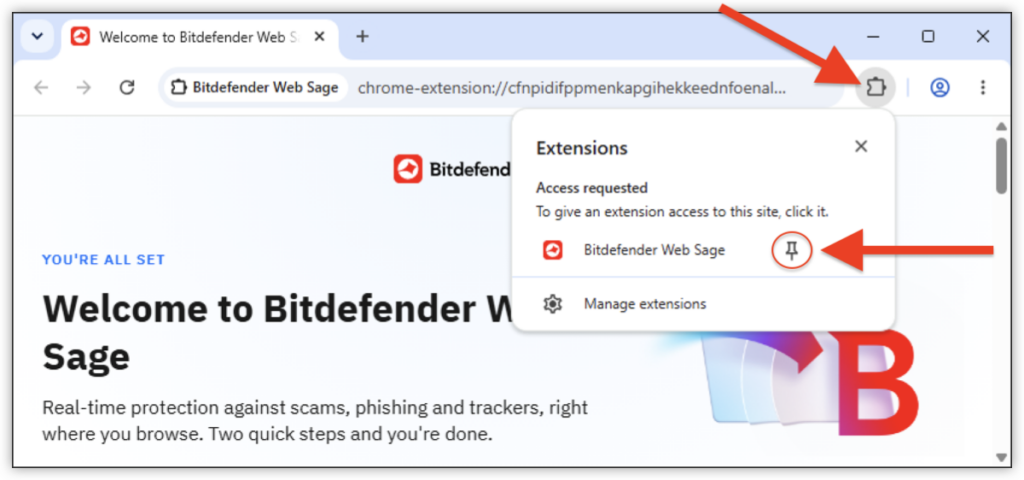
 icon near the address bar. Web Sage opens in the Google Chrome sidebar.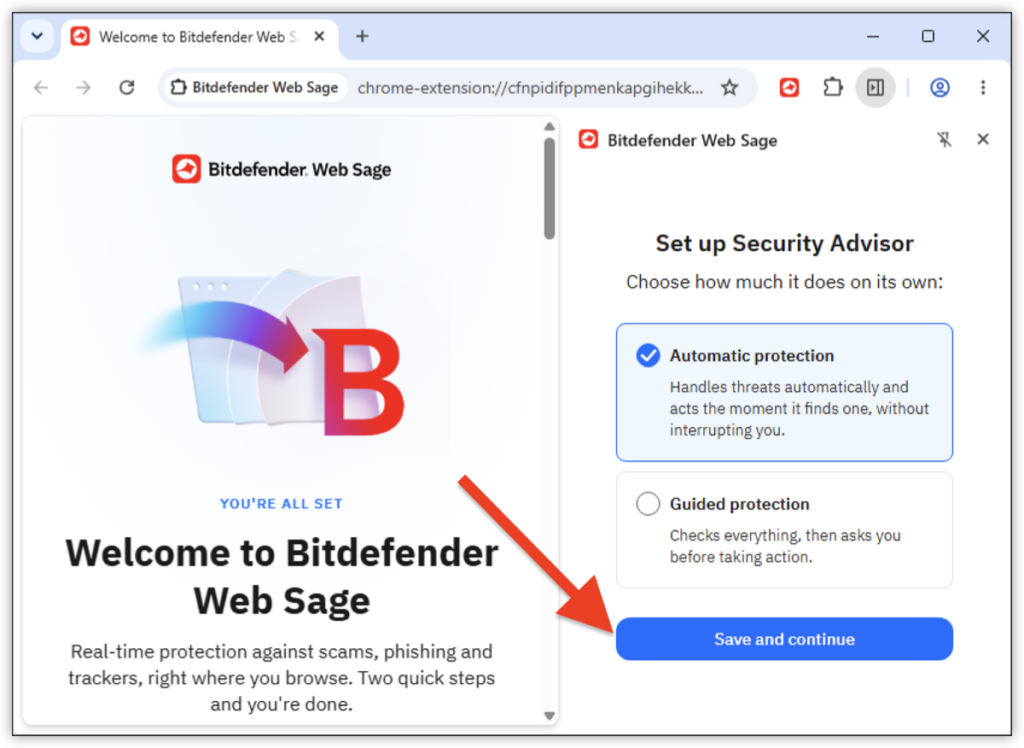
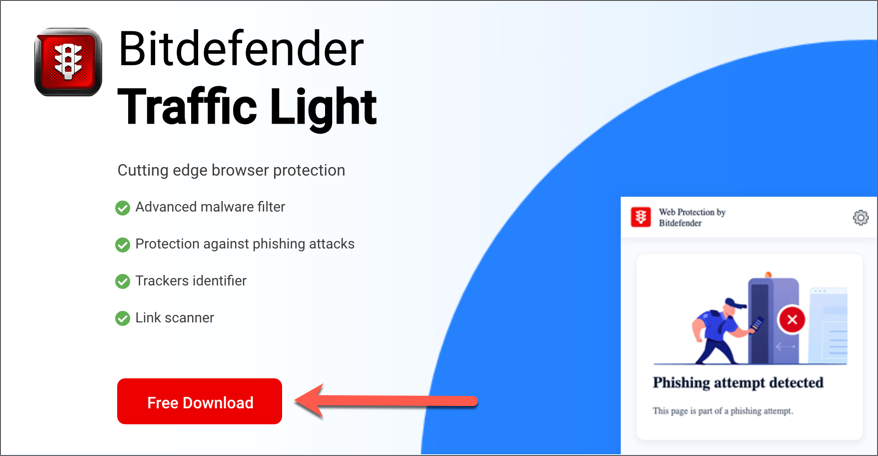
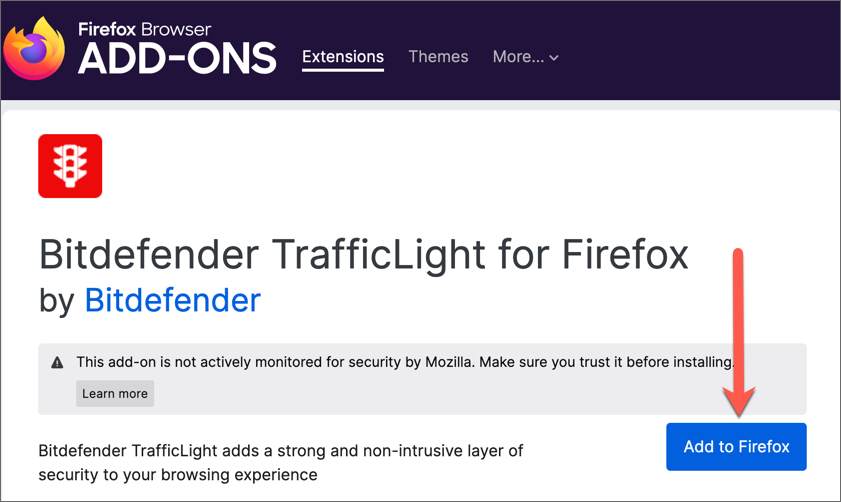
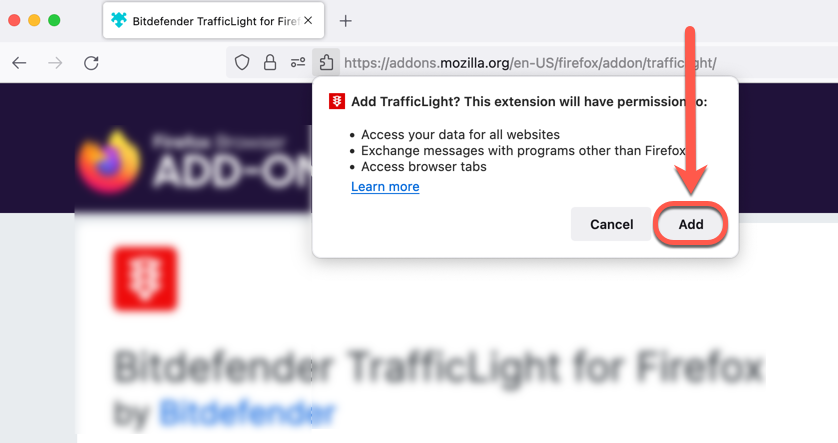
Firefox
Troubleshoot Installation issues
Here’s how to troubleshoot issues you might encounter when trying to install the Bitdefender TrafficLight or Bitdefender Web Sage add-on to your web browser:
- The Free Download button doesn’t work or doesn’t redirect to the extensions gallery page in Safari or Firefox.
- An error such as 404 or Too many redirects appears.
- On Safari you are redirected to the Extensions gallery, but there is no Install button.
Safari
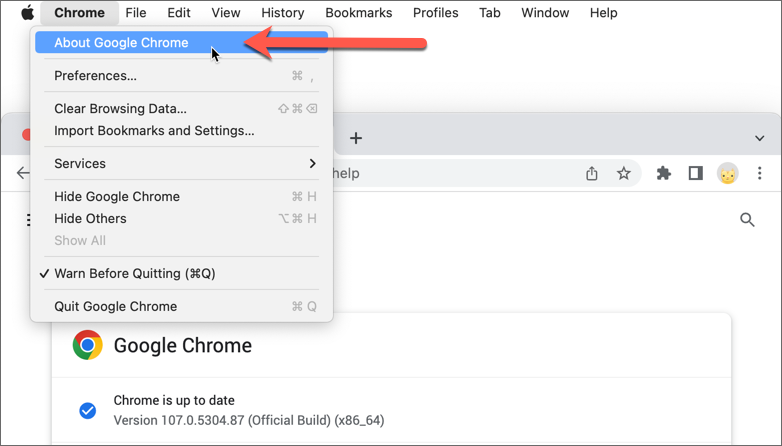
Chrome

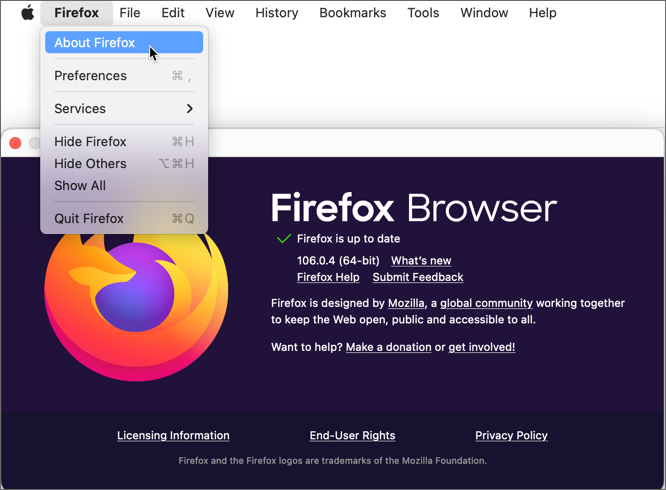
Firefox


After going through each of the steps outlined in this guide, if you are still unable to add Bitdefender TrafficLight to your web browser, contact our customer service team and attach the following data to your ticket:
- a screenshot of the error you see on the screen when installing TrafficLight
- a BDProfiler log (only if Bitdefender Antivirus for Mac is installed)
- details about other browser extensions & security solutions installed on your Mac and your internet connection (if a Firewall or Proxy is active, etc.)