When you use the VPN service in Bitdefender Hub for the first time on Android, your device will ask for permission before the app can create a secure VPN connection. This is a standard Android security feature designed to protect your privacy and ensure you remain in control of apps that can manage internet traffic on your device.
Follow the steps below to grant VPN permissions and enable the VPN service in Bitdefender Hub for Android.
Step 1: Start the VPN Connection
First tap the VPN connection button using any of the available methods described in this step-by-step guide: How to Connect to VPN in Bitdefender Hub for Android.
Step 2: Review the Permission Setup Screen
The Bitdefender Hub app will display a setup screen explaining that permission is required to connect to the VPN.
Tap Continue to proceed to the Android VPN connection request.
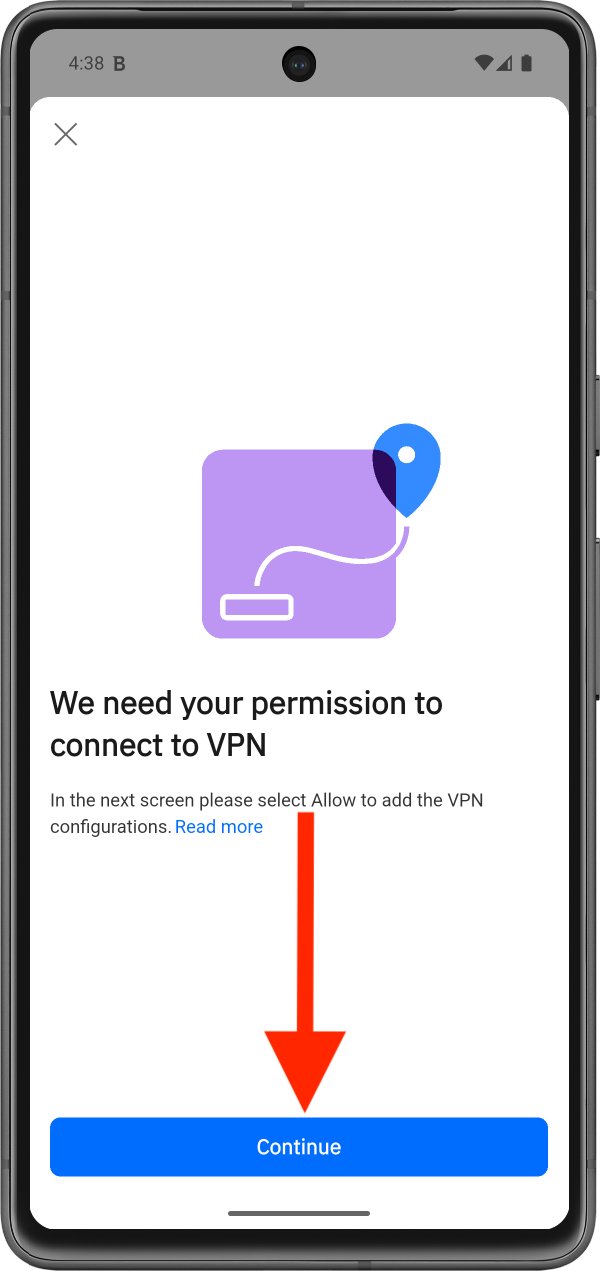
Step 3: Allow the VPN Connection
When the Android connection request popup appears, tap OK.
The message explains that Bitdefender Hub wants to set up a VPN connection that allows it to monitor network traffic.
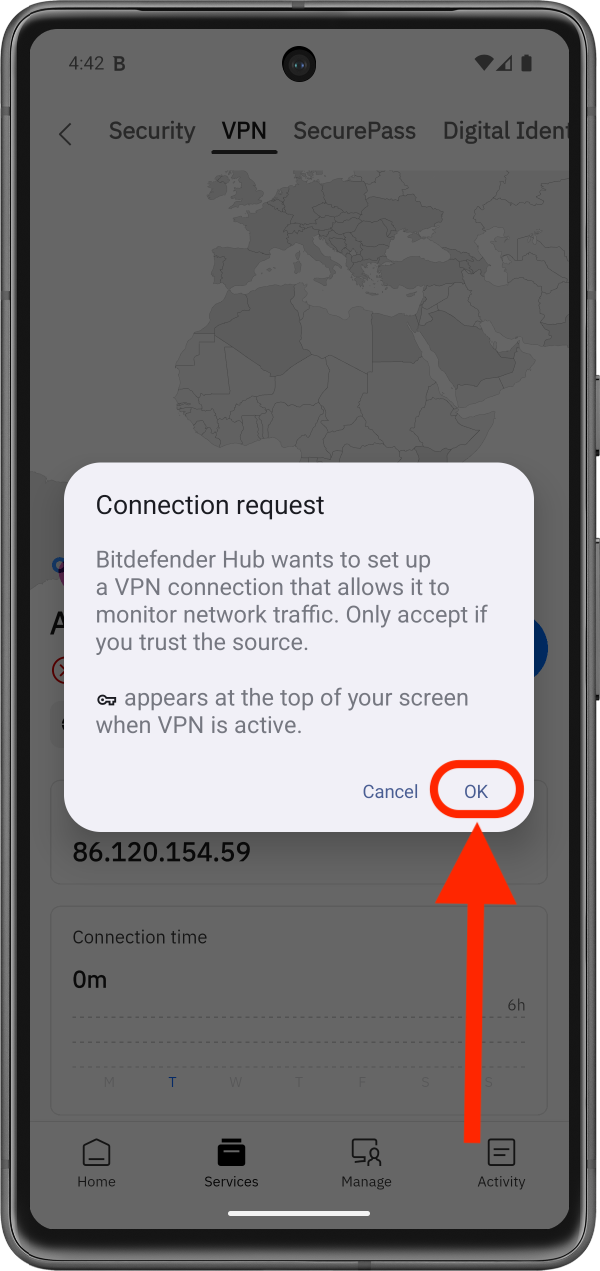
Once you tap OK, the necessary VPN permissions are granted, and you can start using the VPN service in the Bitdefender Hub app for Android.
VPN Connection Indicator
While the VPN is connected, a small key icon appears at the top of your Android screen.
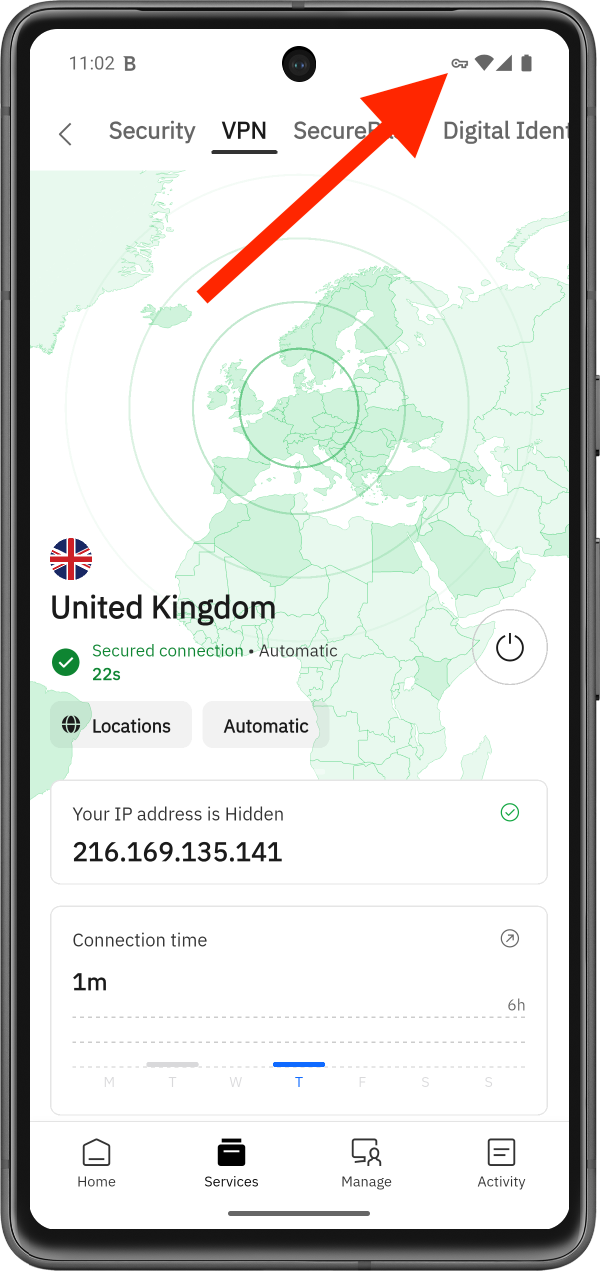
You can continue using your device normally while Bitdefender VPN runs in the background.