Bitdefender App for Windows and macOS lets you create your own Double-hop routes. A custom Double-hop route allows you to choose both VPN locations used by the connection.
This is useful when the predefined Double-hop routes do not match your preference. For example, you may want to create a route such as Finland > Sweden, Brazil > Colombia, or Algeria > Egypt.
What is a custom Double-hop route?
A Double-hop route has two parts:
- First location – the first VPN server your device connects to.
- Second location – the second VPN server your traffic uses before reaching the internet.
For example, if you create Finland > Sweden, your traffic first goes through Finland and then exits through Sweden.
Step 1: Open VPN
- Open Bitdefender App
 on your Windows or Mac computer.
 - In the left-side navigation menu, select Services.
- Select VPN.
 on your Windows or Mac computer.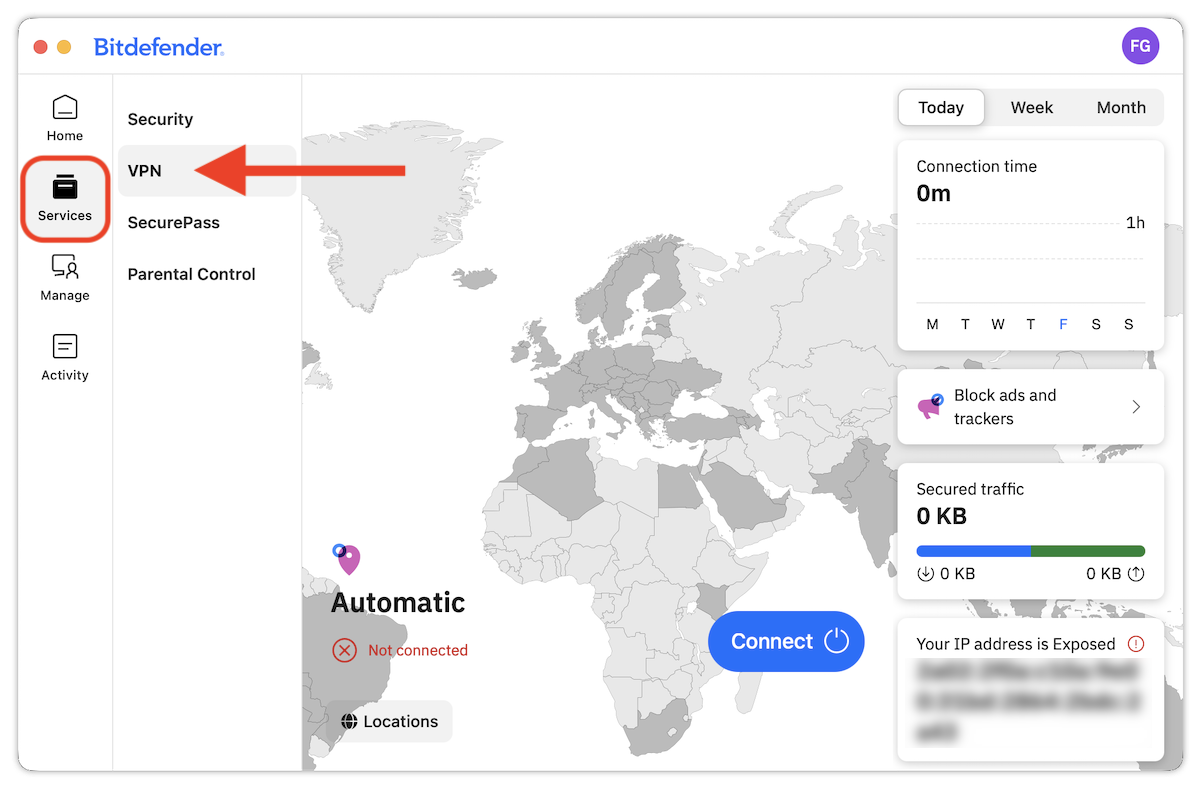
Step 2: Open Double-hop locations
- On the VPN screen, click Locations.
- When the right-side panel opens, select the Double-hop tab.
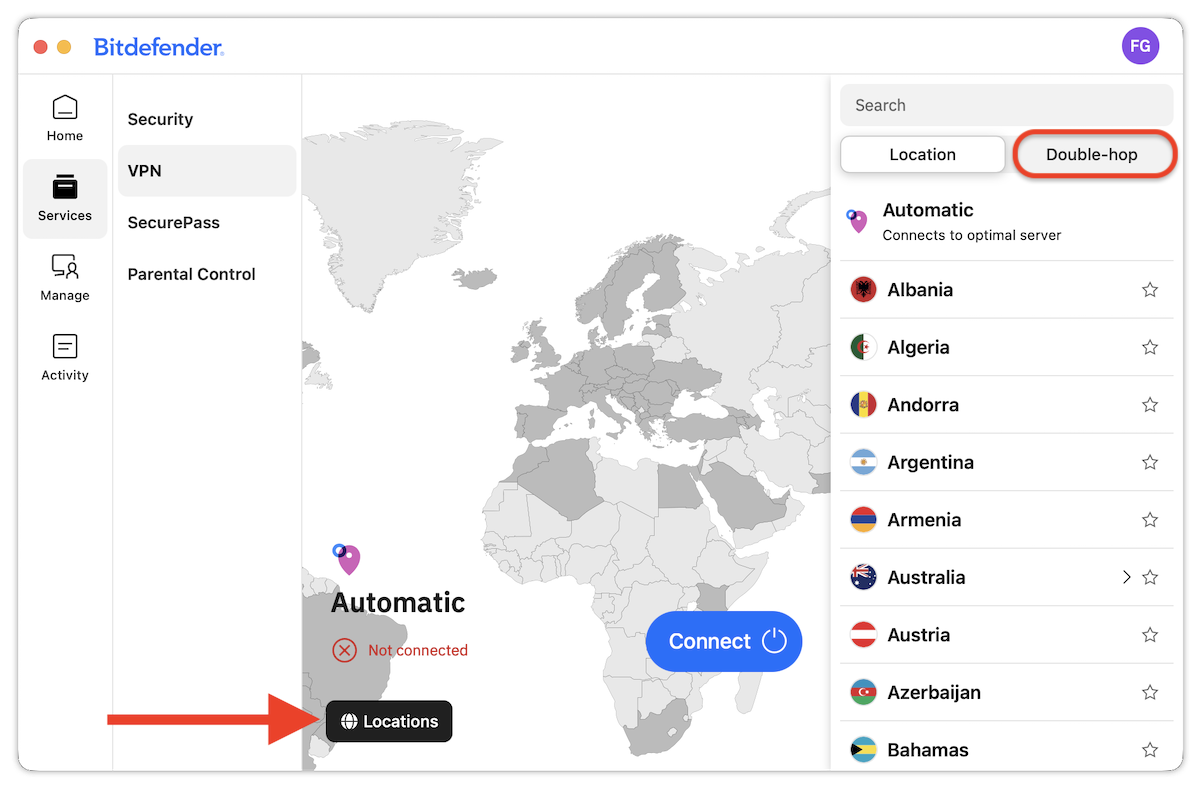
You will see predefined Double-hop routes and the option to create a custom route.
Step 3: Start creating a custom route
Scroll down and then click on + Create custom.
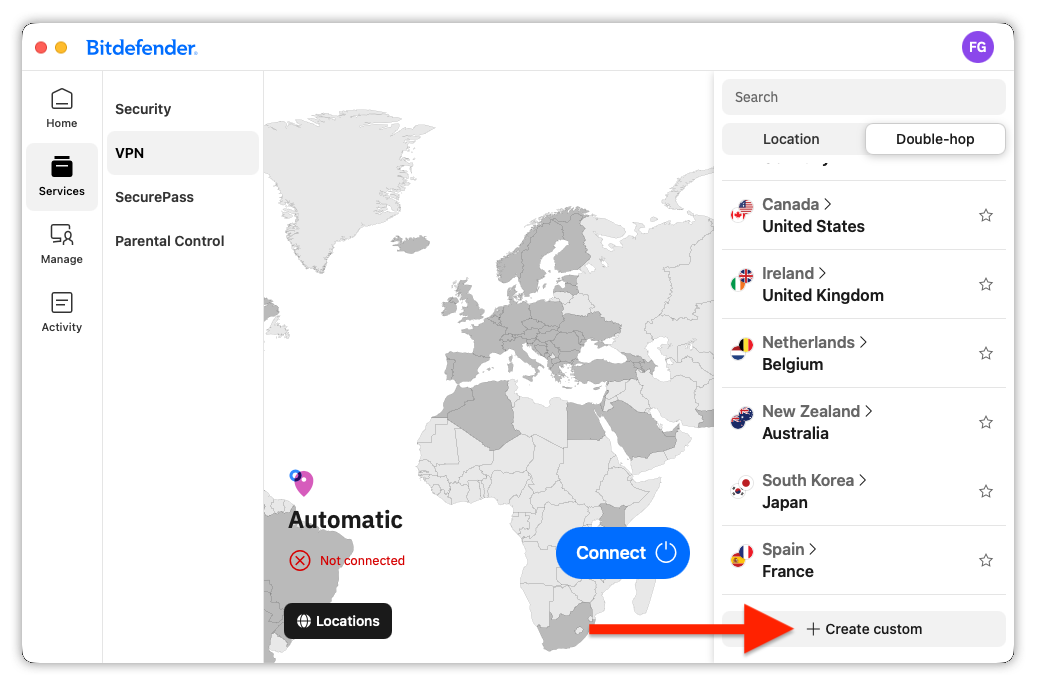
Step 4: Choose the first location
Bitdefender opens the Double Hop settings page under Account & Settings > VPN.
- Under First location, open the drop-down menu.

- Select the country you want to use as the first VPN location.
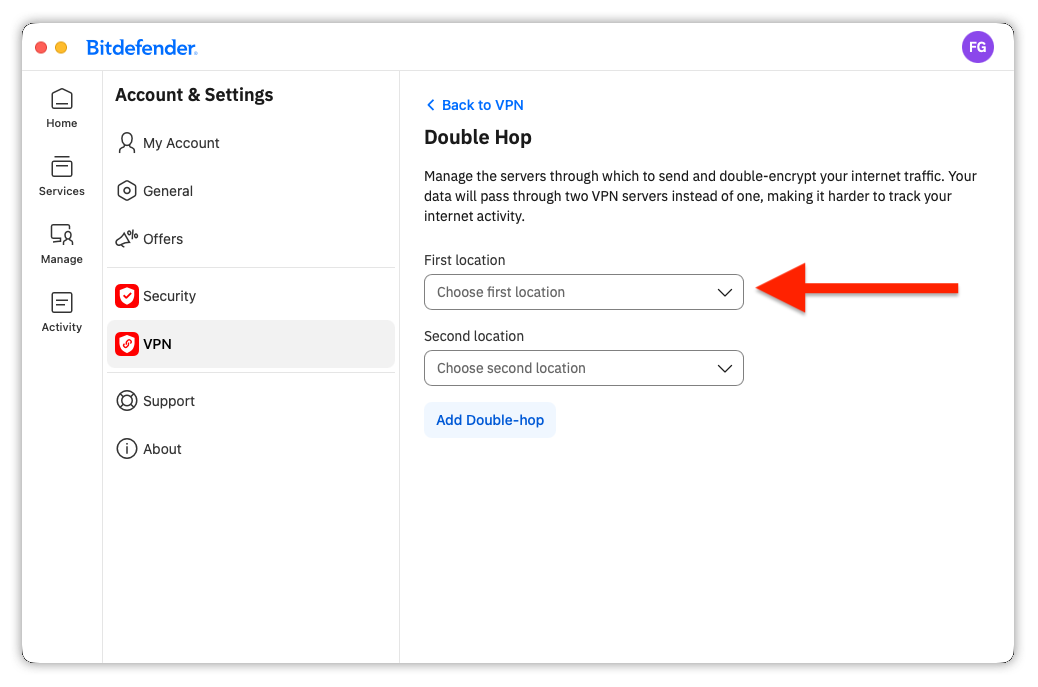
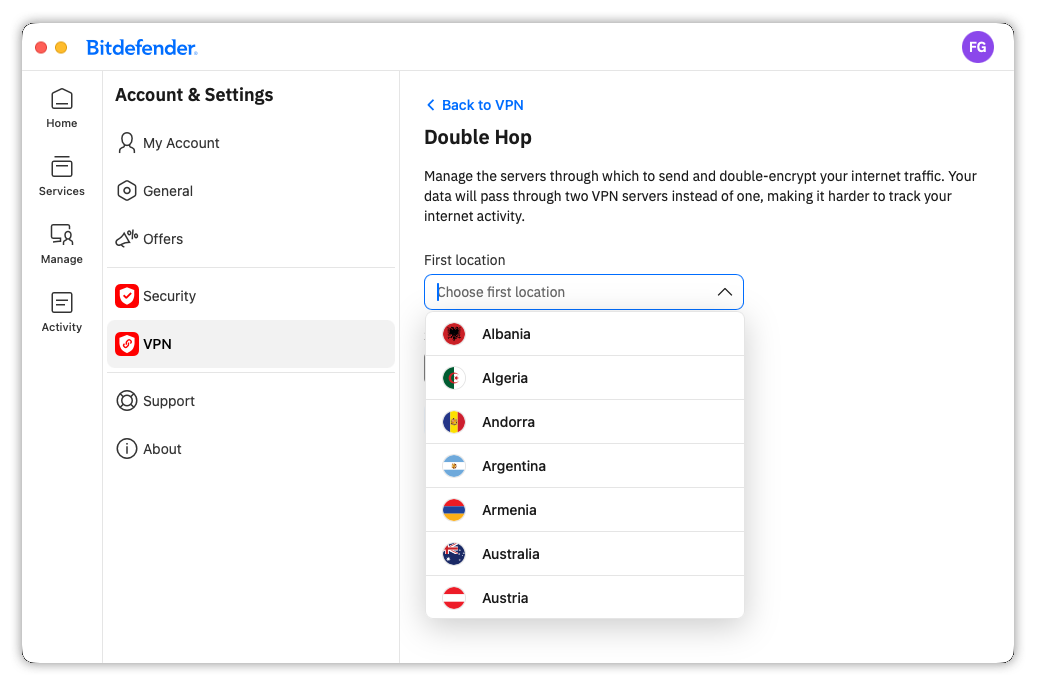
The first location is the first server your PC or Mac connects to in the Double-hop route.
Step 5: Choose the second location
- Under Second location, open the drop-down menu.
- Select the country you want to use as the second VPN location.
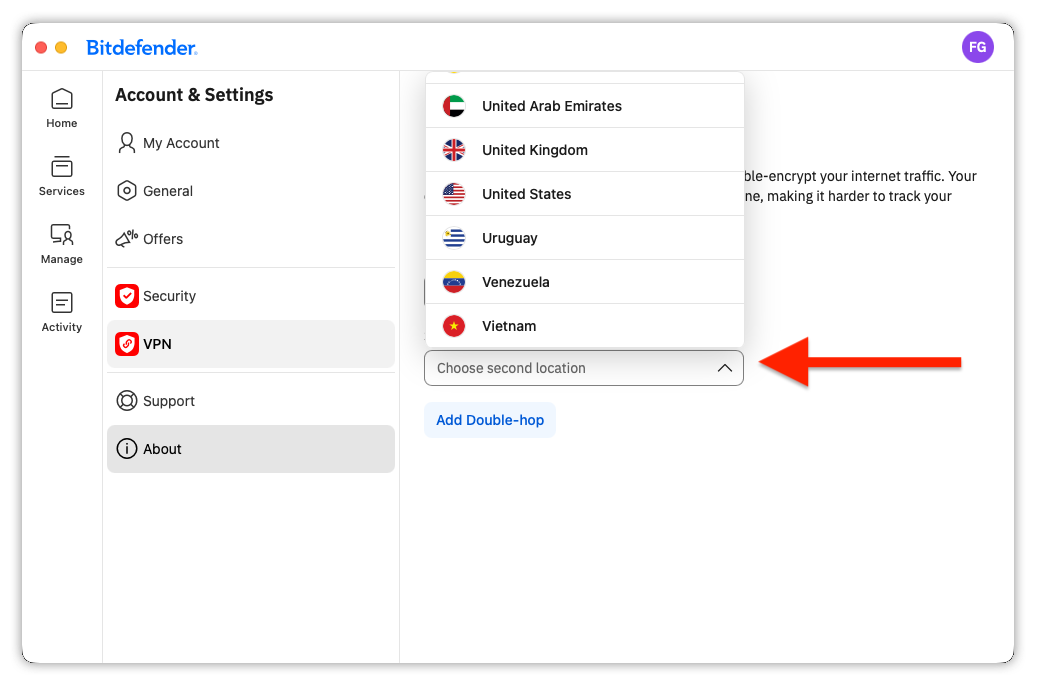
The second location is the final VPN location used before your traffic reaches the internet.
Step 6: Review any speed warning
If the selected locations are on different continents, Bitdefender displays the following warning:
Caution! Using servers located on different continents may slow down your connection speed.
You can still create the route, but the connection may be slower. For better performance, choose locations that are geographically closer.
Step 7: Add the custom route
- Click Add Double-hop.
- The new route is added to the Custom Double-hops section.
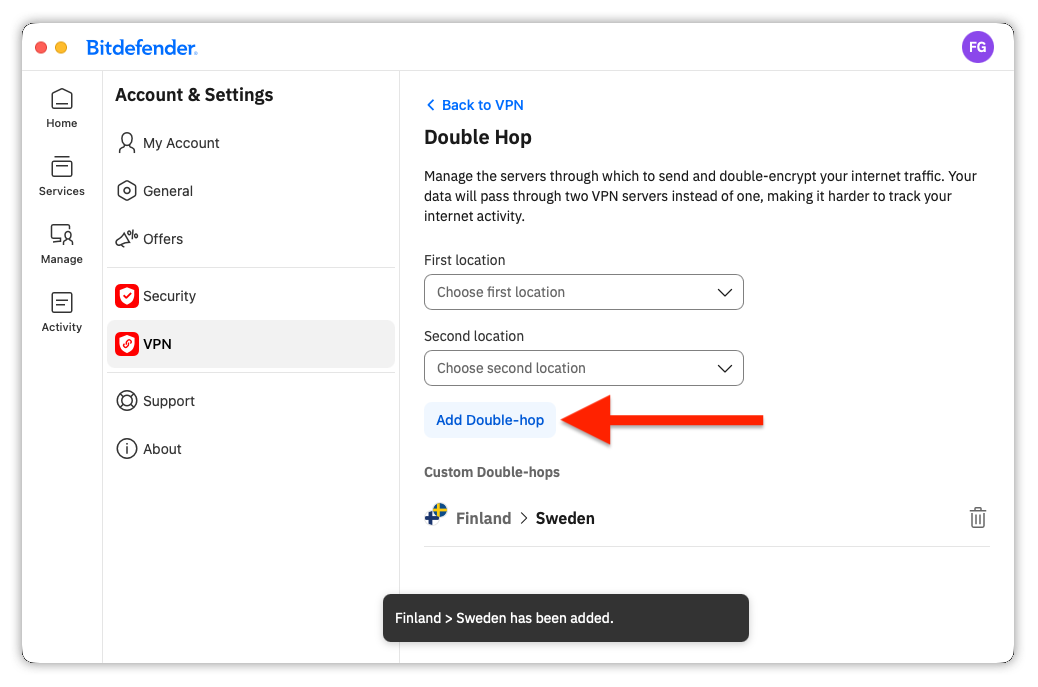
You can now connect to the custom Double-hop route from the VPN location list. For instructions, see – How to Connect to a Double-hop Route in Bitdefender App (Windows & macOS).
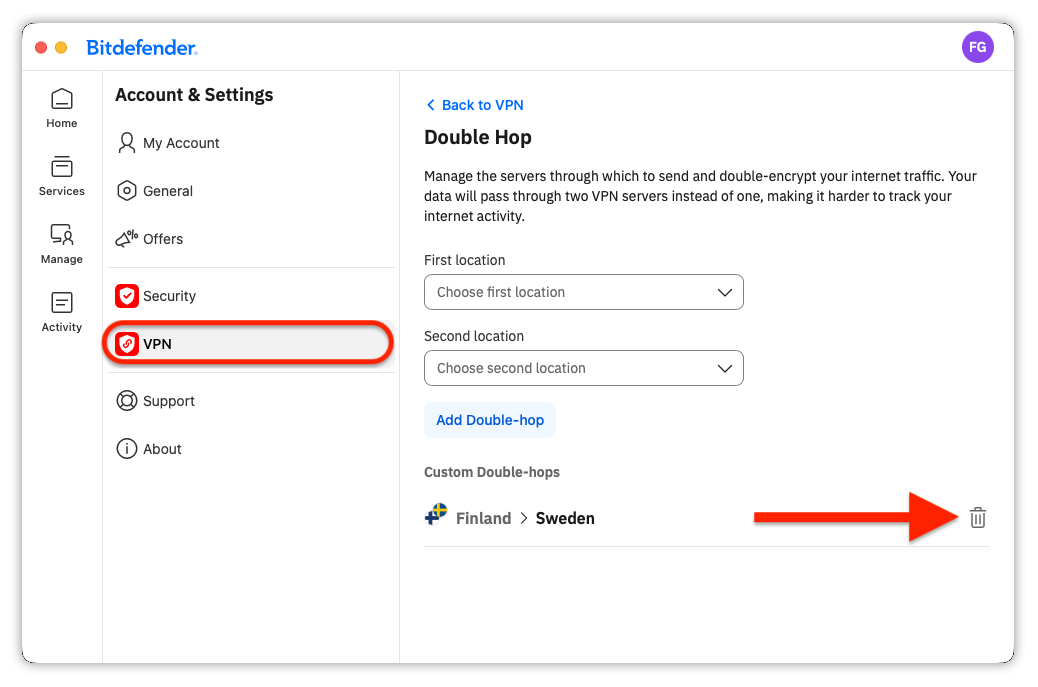
How to delete a custom Double-hop
You can remove a custom Double-hop route at any time:
- Open the Bitdefender app > profile icon > VPN > Double-hop > click the trash icon next to the custom route.