The new Bitdefender app update helps the owner of a Bitdefender Central account assign devices to the people who use them and protect family members in the new Bitdefender App/Hub role-based experience. Follow these steps to verify the account, assign devices, and add family members.
1. Start setup in the Bitdefender app
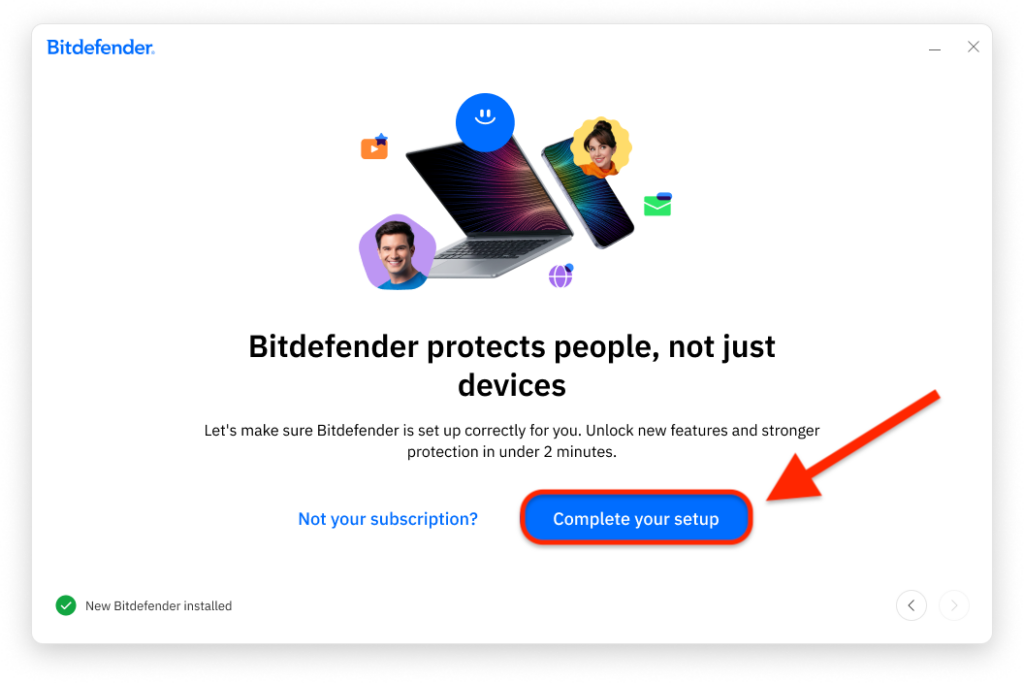
When the setup screen appears, click Complete your setup. Setup helps personalize protection and unlocks new features.
2. Verify the Bitdefender account
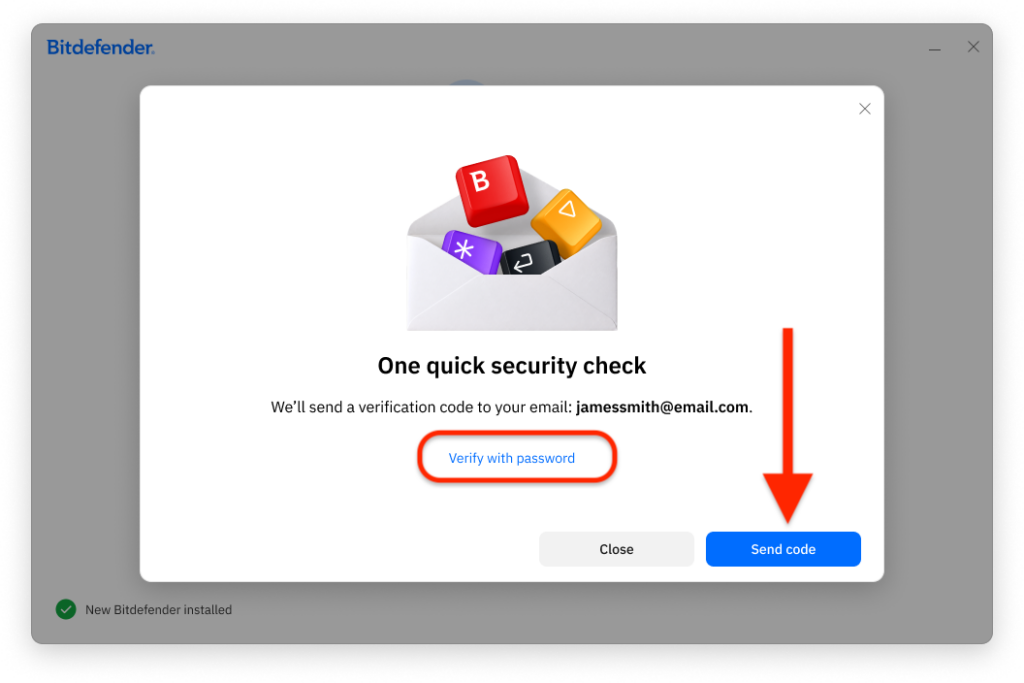
The app displays the email address associated with your Bitdefender Central account and asks you to complete a security check to verify that you’re the account owner
Click Send code to receive a verification code by email.
- To verify with your Bitdefender account password instead, click Verify with password.
Not the account owner? Your devices stay protected while you wait for an invitation from the account owner. After you receive it, you can complete your own setup, connect your devices to your identity, and unlock stronger protection.
3. Find the security code in your email
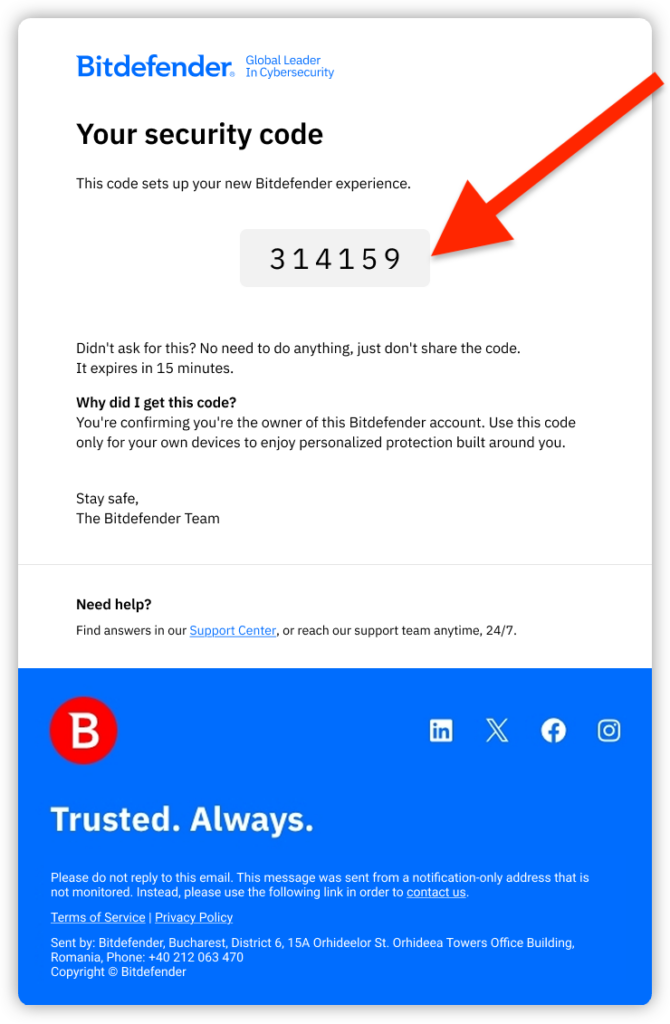
Open the Bitdefender email titled “Your security code” and note the six-digit code.
The code expires after 15 minutes.
4. Enter the code in the Bitdefender app
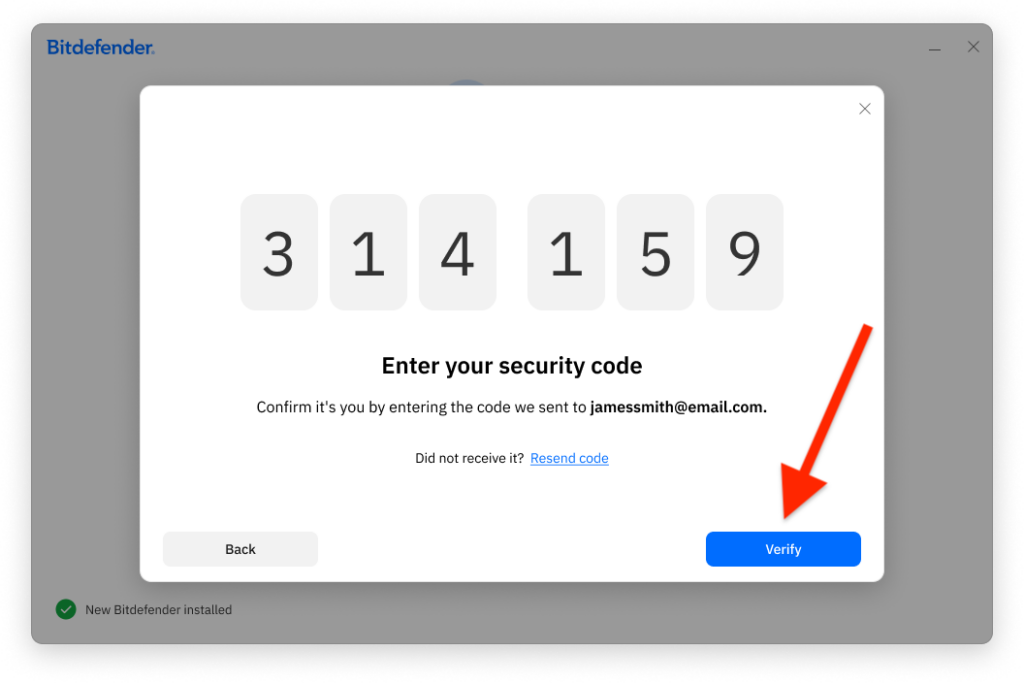
Enter the 6-digit code sent via email in the designated field in the Bitdefender app, then click Verify.
- If you haven’t received the email, click Resend code. Also, check your Spam or Junk folder.
5. Choose who uses each device
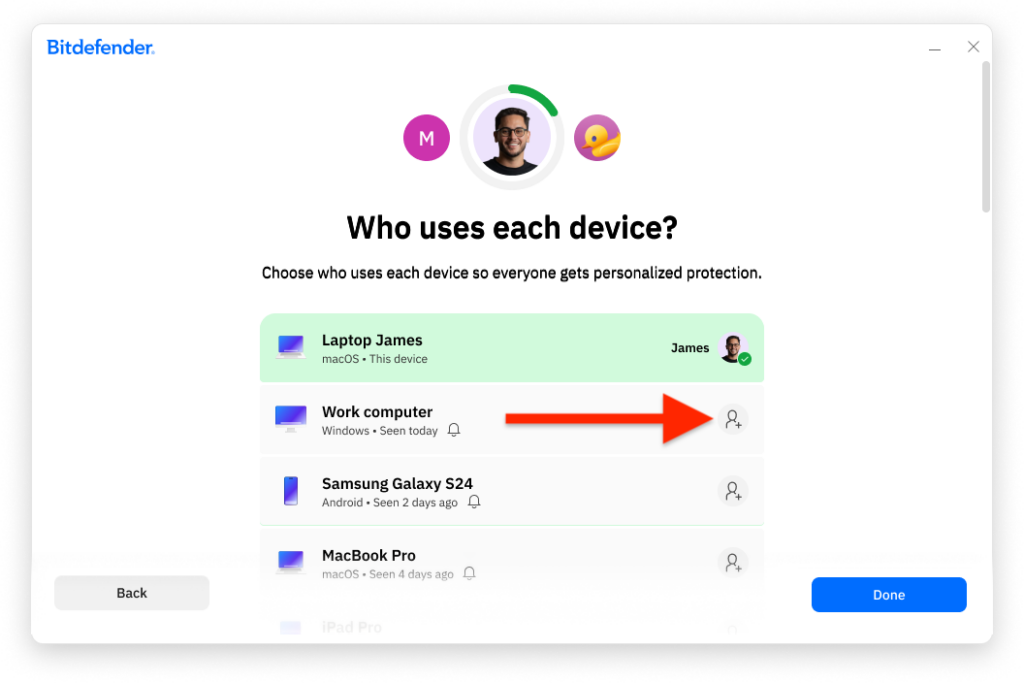
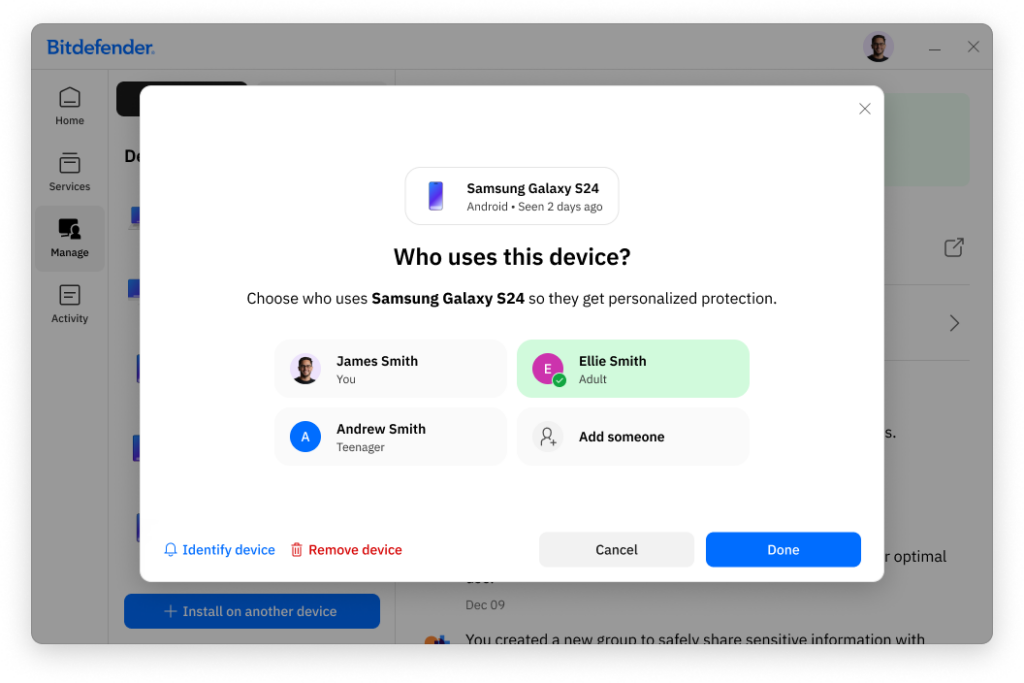
The Bitdefender app then shows the devices currently allocated to your account. Review the device list and identify which devices you use and which belong to someone else.
- Assign your own devices to yourself.
- For a device used by someone else, click the person icon next to that device to add or assign its user.
6. Add the people you protect
When prompted to add someone you’re protecting, select adult, teen, or child as applicable. The information you need to enter depends on the person’s age:
- Adult: Enter an email address; the name is optional. Adults are 18 or older and receive an email to finish setting up their own Bitdefender account.
- Teen: Enter an email address and date of birth; the name is optional. Teens are 16-18 and receive an email to finish setting up their own account.
- Child: Enter the child’s name, date of birth, and a parental PIN. Children are under 16. You manage their security and parental control features. The PIN is required to prevent the child from signing out or changing protection settings; set one PIN of 4-8 digits for all child profiles.
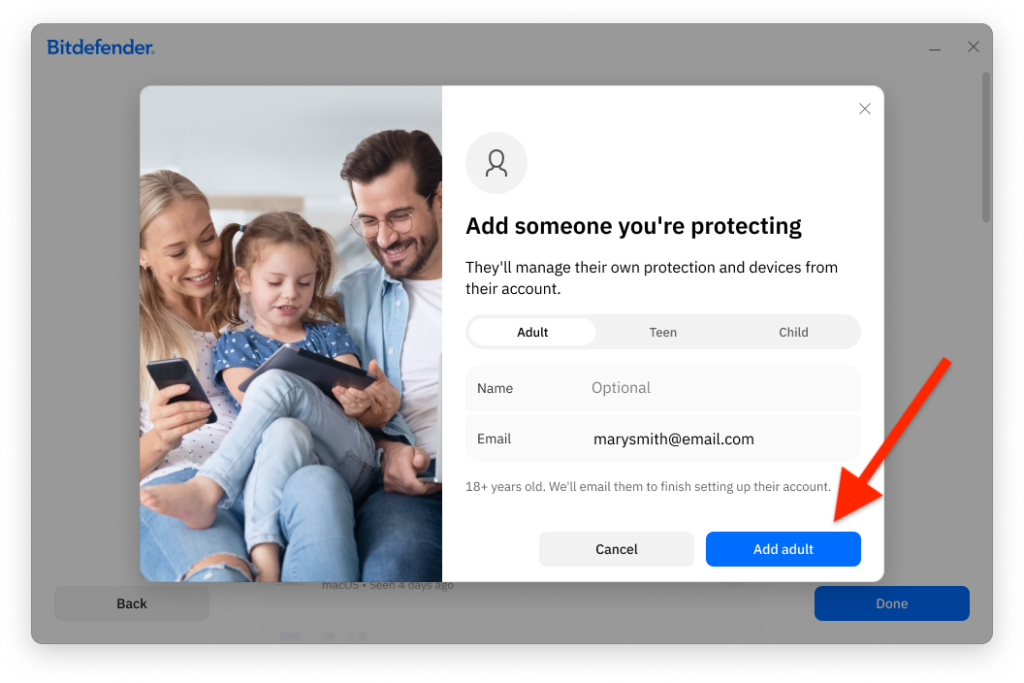
After you’ve assigned devices and added the people you protect, click Done in the Bitdefender app.
7. Accept the invitation as a family member
After the account owner adds an adult or teen, that family member has 30 days to accept the invitation. Check your email, accept the invite, and complete the setup process in a browser.
- If you already have a Bitdefender account associated with the invited email address, sign in.
- If you don’t have a Bitdefender account, create one using the same email address the invitation was sent to. For help, see How to Create a Bitdefender Central Account.
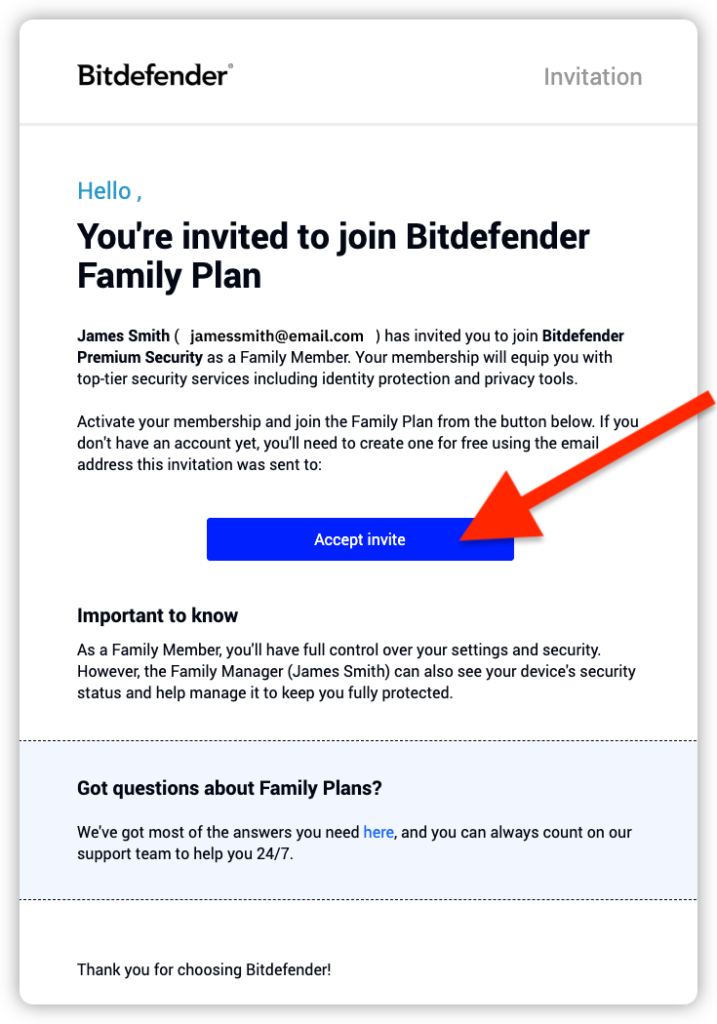
Invited family members share the account owner’s Bitdefender subscription. They don’t need to purchase a separate one. Each member has their own Bitdefender account. For more information, see the Bitdefender Family Plan Guide.
8. Complete the setup and assign any unassigned devices
Until a device is assigned to a person, a banner appears on the Bitdefender app dashboard and prompts you to finish setup.

To manage unassigned devices later, the account owner can open the Bitdefender app on their device and go to Manage → My Devices. Devices that still need an owner are labeled Unassigned. Click each one and assign it to a family member.
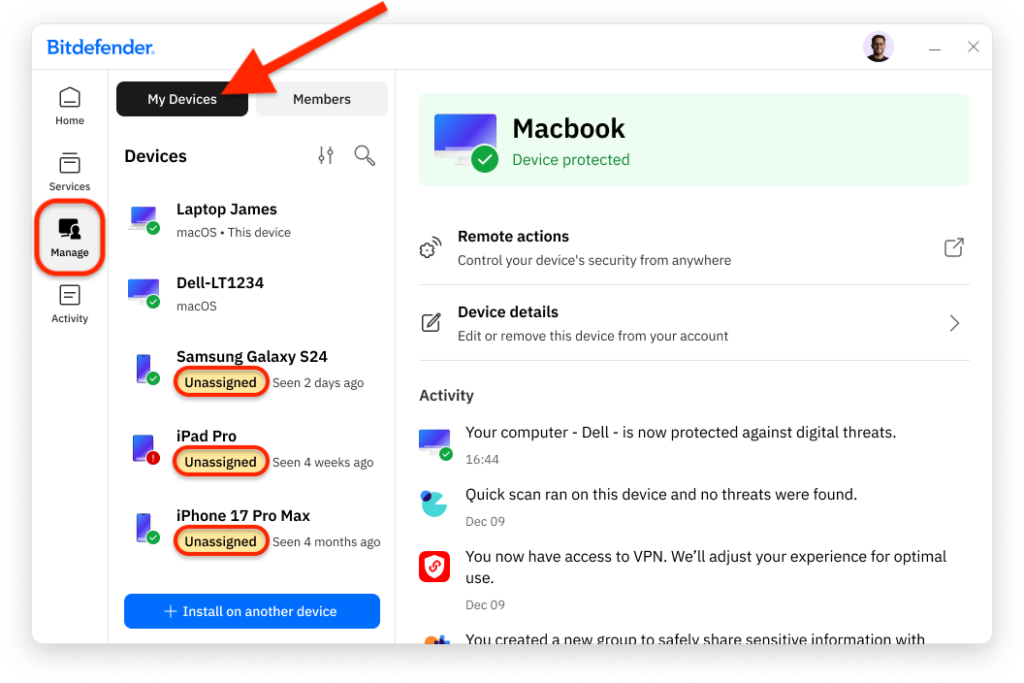
If you don’t recognize a device, click Remove device. This signs you out of your Bitdefender account on that device and leaves it unprotected.
Protection during Bitdefender setup
Your devices remain fully protected throughout the invitation and setup process. Some functions may be unavailable until the device is assigned to a person because the app initially has only a device-level view. Once Bitdefender setup is complete, the account can show the appropriate person-level view.