This article explains how to download, install, and configure Bitdefender Hub on Android devices. Once set up, the Bitdefender app will include all subscriptions active in your Bitdefender account. For details, see How do I activate my Bitdefender subscription?
System Requirements: Android 7 or later
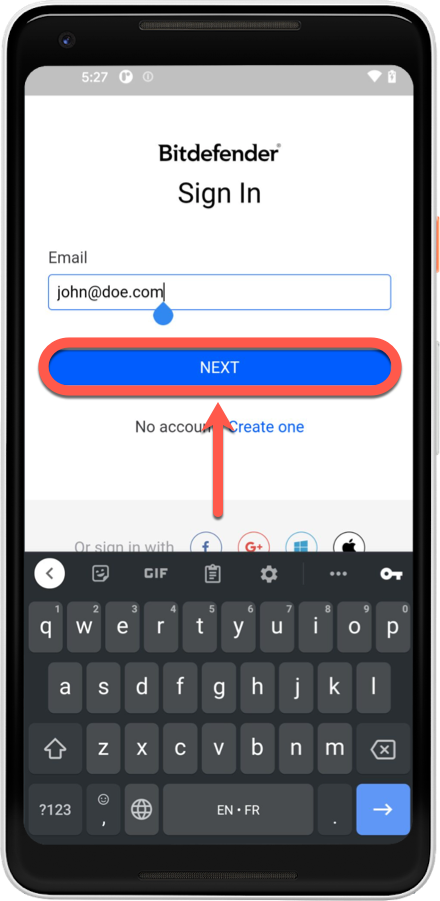
1. On the Android smartphone or tablet you want to protect, go to https://central.bitdefender.com and sign in to your Bitdefender Central account.
- If you don’t have an account, create one. See How to create a Bitdefender Central account.
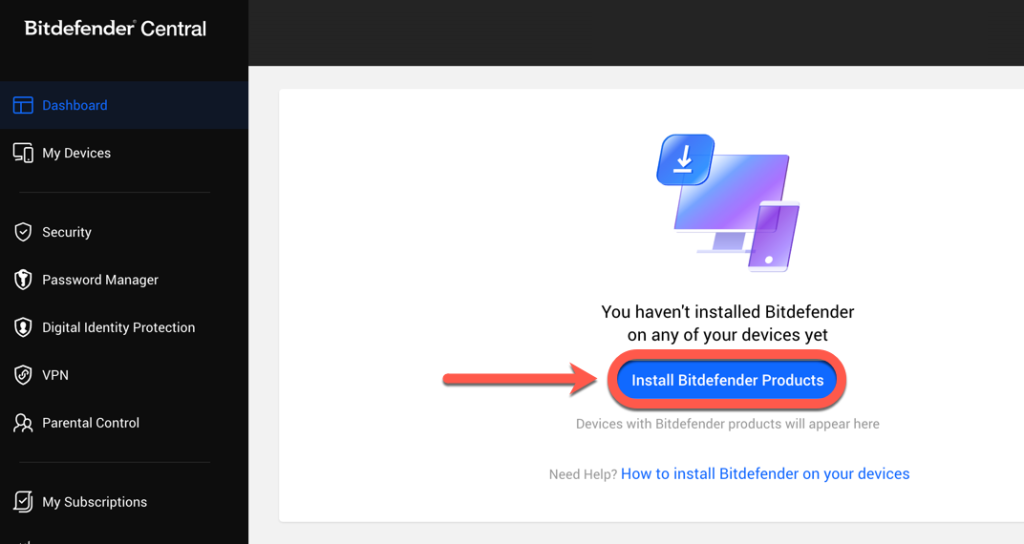
2. On the Bitdefender Central homepage, tap Install Bitdefender Products.

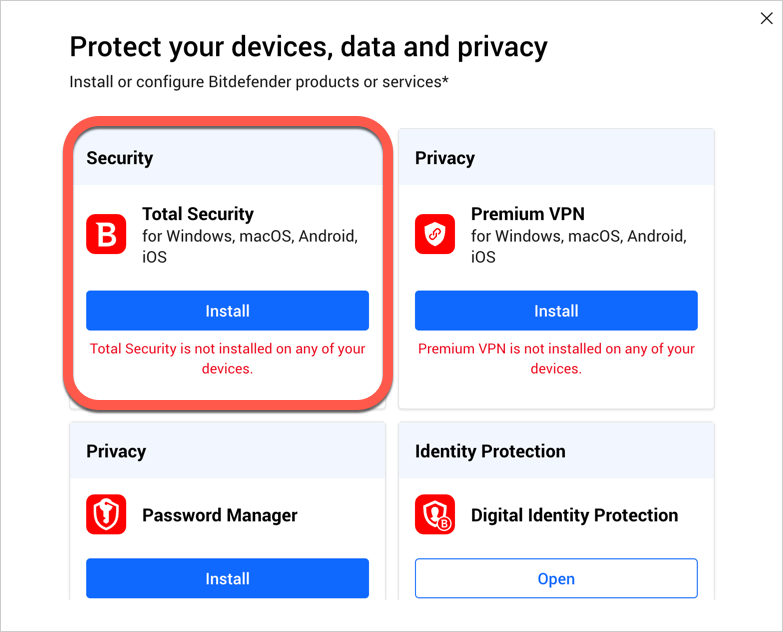
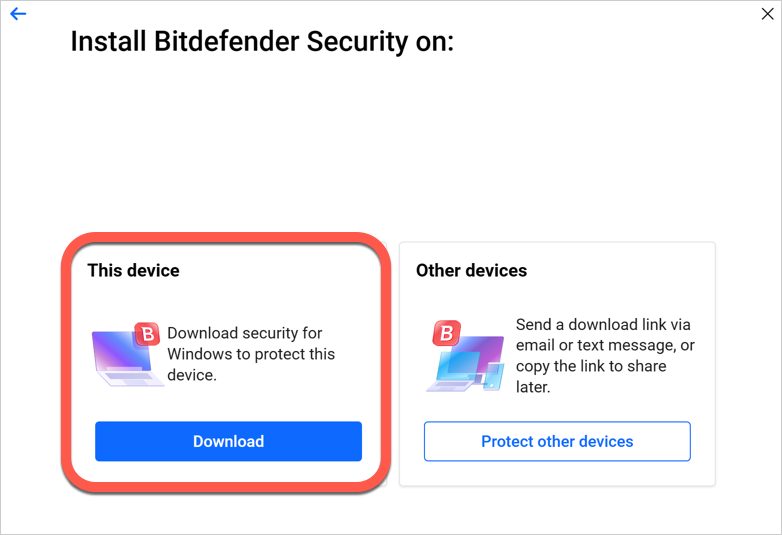
3. In the window that appears, tap Download.
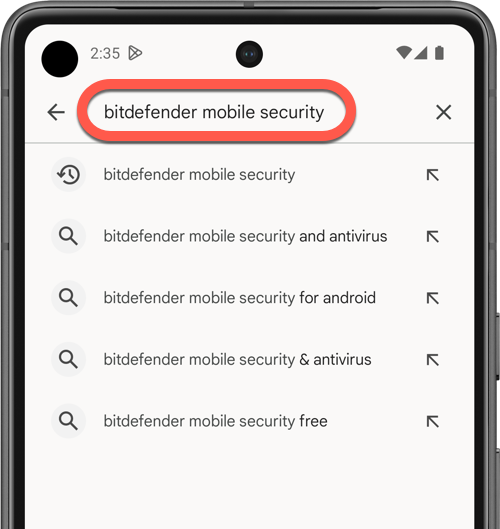
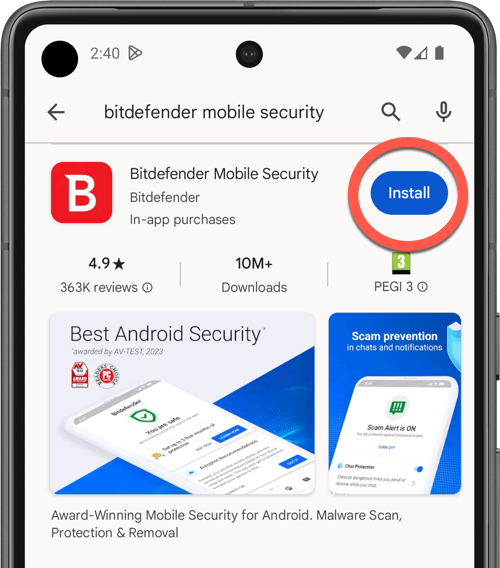
4. You will be redirected to Google Play. Tap the Install button to download and install Bitdefender Hub.
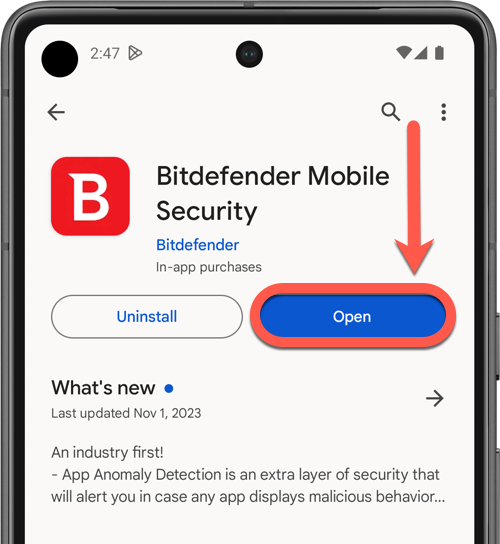
5. Once the installation is complete, open the Bitdefender Hub app.
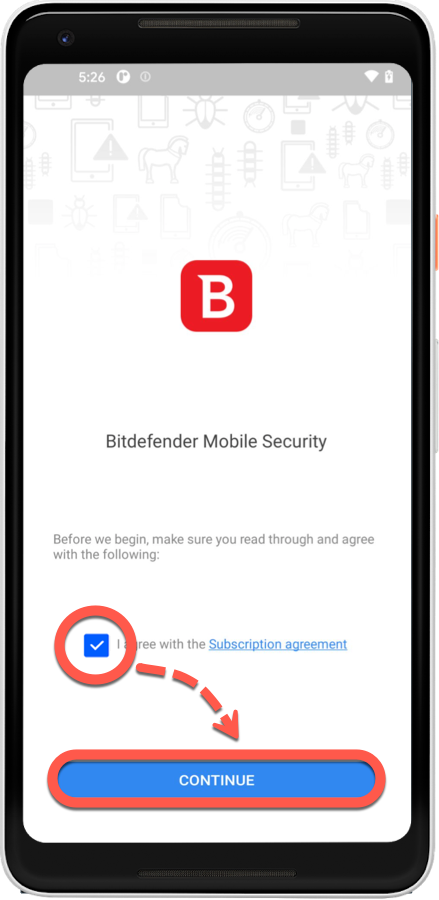
6. Accept the subscription agreement, then tap Continue.
7. Tap Set up services on the screen that displays all services available on your account.
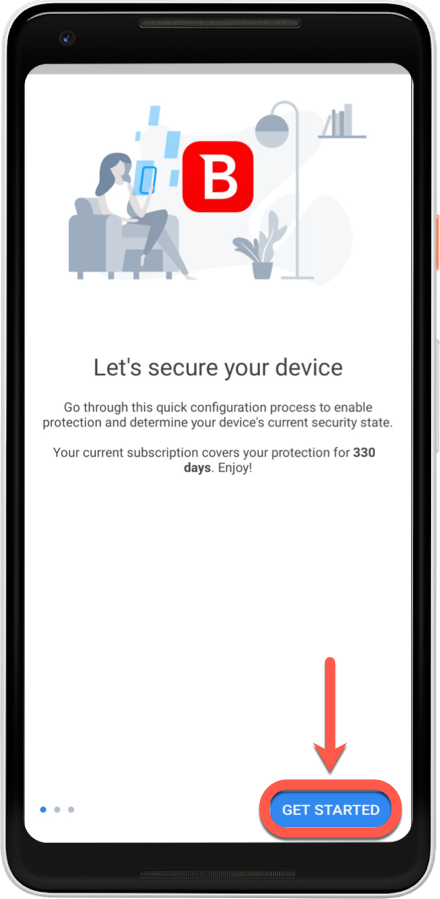
- If you have more than one subscription, Bitdefender will display the best one along with the expiration date.
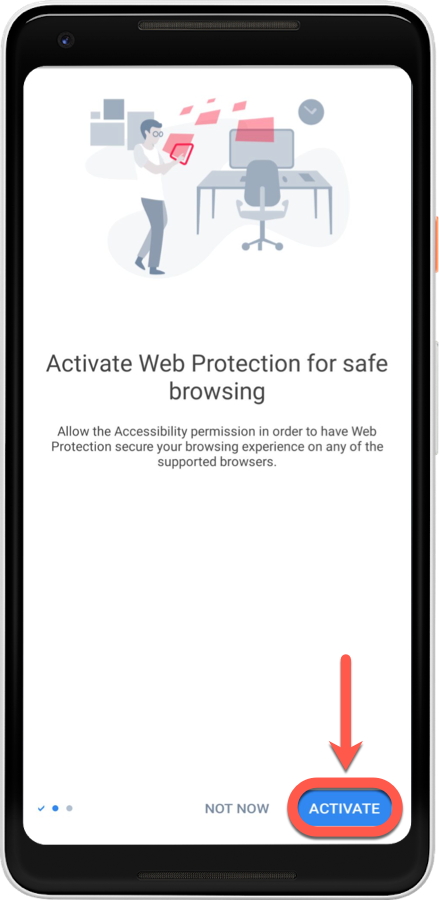
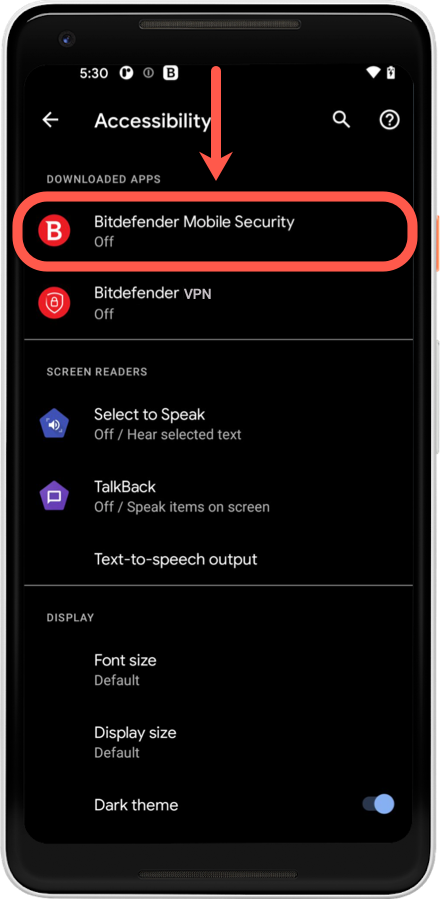
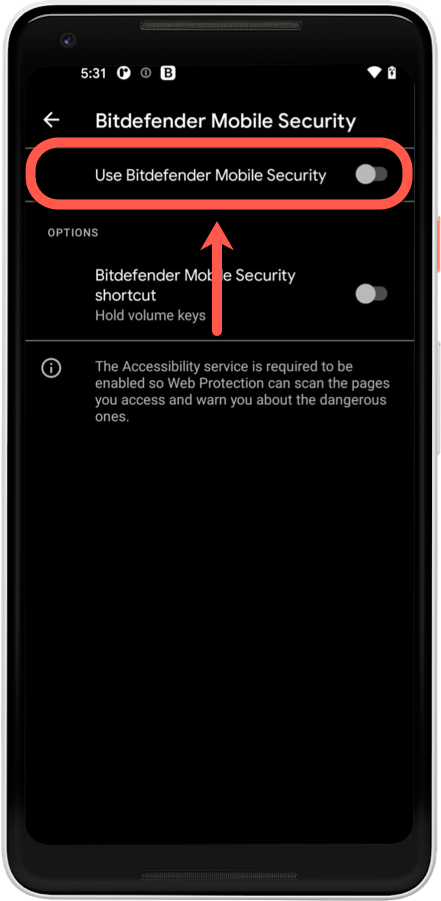
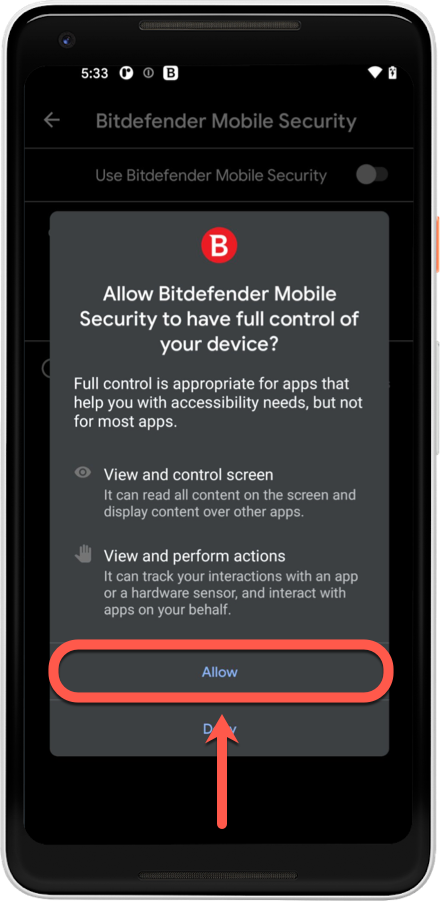
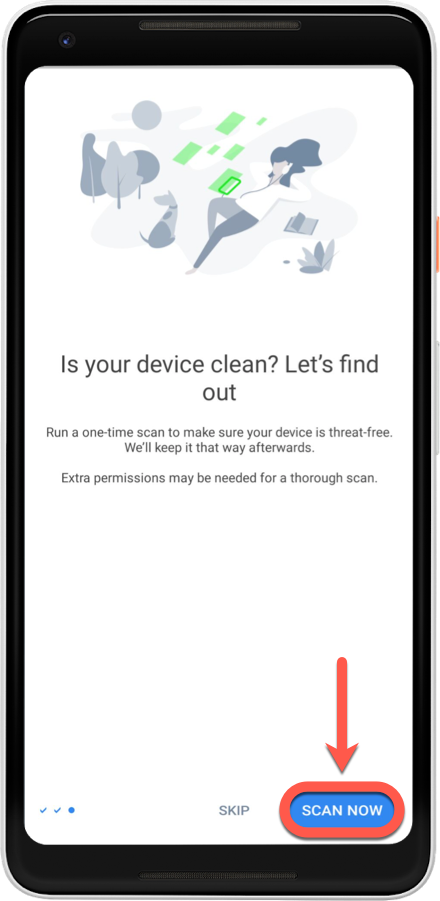
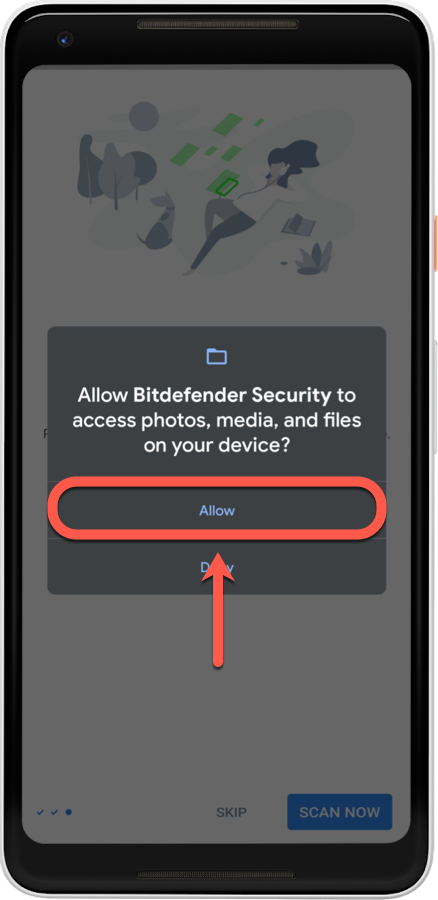
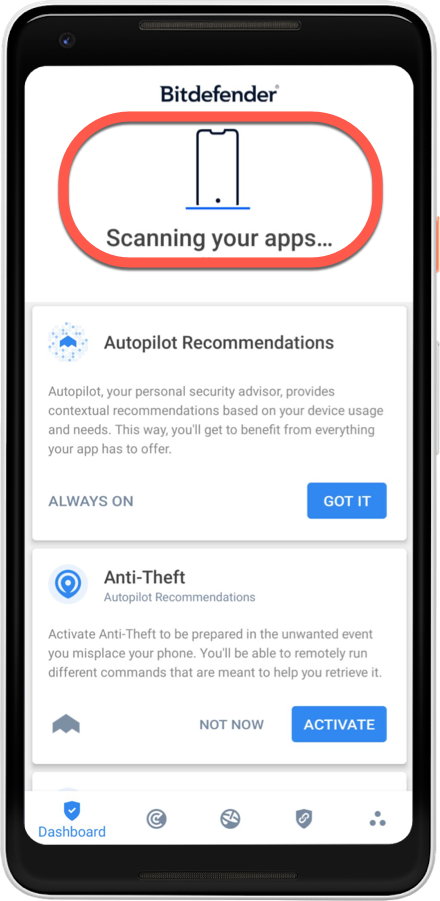
8. Follow the steps below to set up unconfigured services:
Security
SecurePass
Digital Identity Protection
After completing all configuration steps, tap Start using the app to open the Bitdefender Hub app.
All done! You’ve successfully installed and configured Bitdefender Hub on your Android device. To protect another device, perform the same installation steps on that device.