This guide shows how family managers can add or remove a member (adult, teenager, or child) from a Bitdefender Family subscription directly through the Bitdefender App. If you prefer to manage family members via Bitdefender Central, see this guide instead.
A Bitdefender Family plan lets you share your subscription with multiple people – usually family members – without sharing the password to your Bitdefender account. Each adult and teen member gets their own Bitdefender account, while the family manager controls who is included. As a family manager, you can:
- Invite people to use your subscription
- See the security status of their devices
- Set up parental control for children
- Manage all family members in one place
Add adult/teen member
Adults and teenagers you add to your Family plan get their own Bitdefender account and can use all the services included in your subscription. They can protect their devices and manage their own settings. You can see their security status, but you can’t control their devices or fix issues for them. To invite an adult or teen member via the Bitdefender app, follow the steps below:
1. Open the Bitdefender app installed on any device linked to the family manager or secondary manager account.
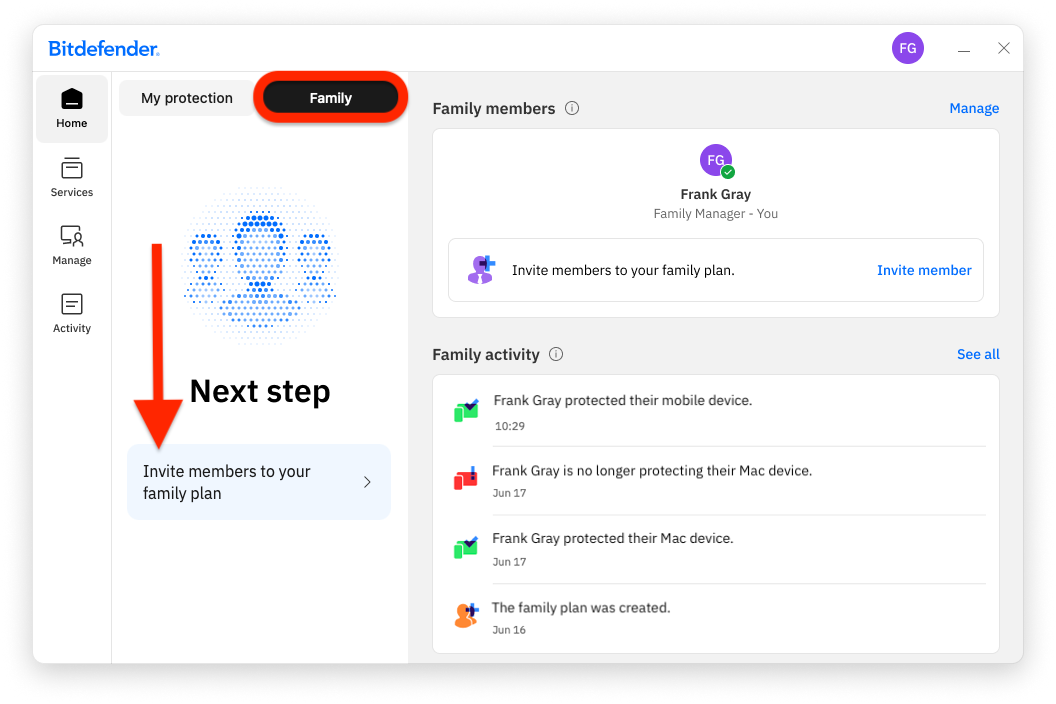
2. On the home dashboard, open the “Family” tab at the top, then click “Invite members to your family plan”.
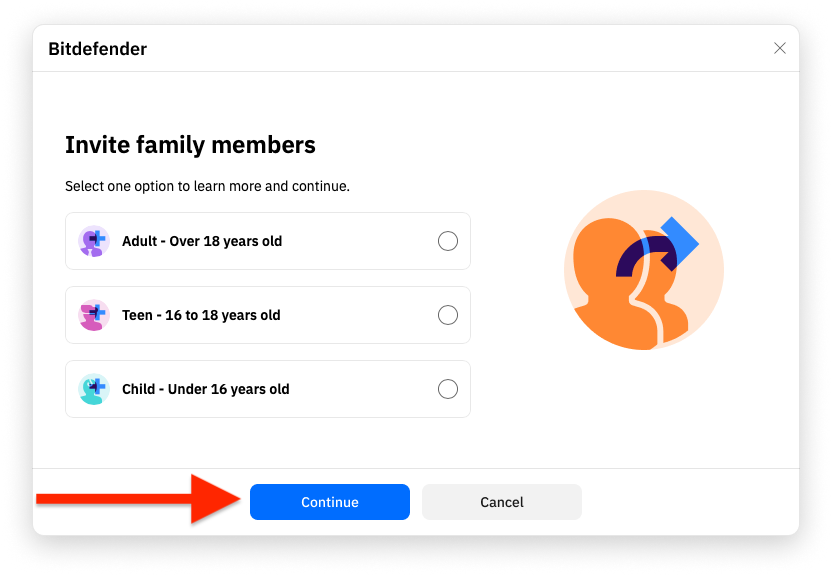
3. Select who you want to invite from the options displayed on the Invite family members screen, then click the “Continue” button:
- Adult
- Teen
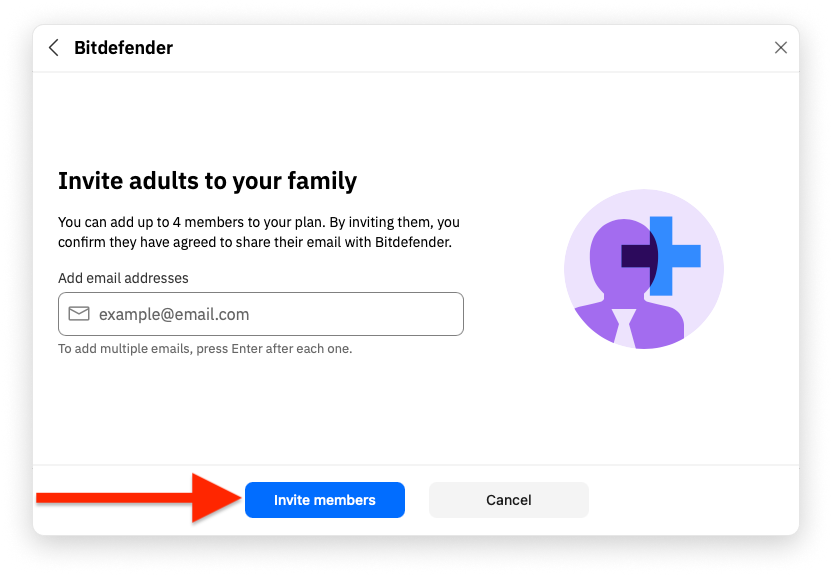
4. Enter the email address of the person with whom you wish to share your subscription, then click “Invite members.”
- For teenagers, you also need to enter their birth date.
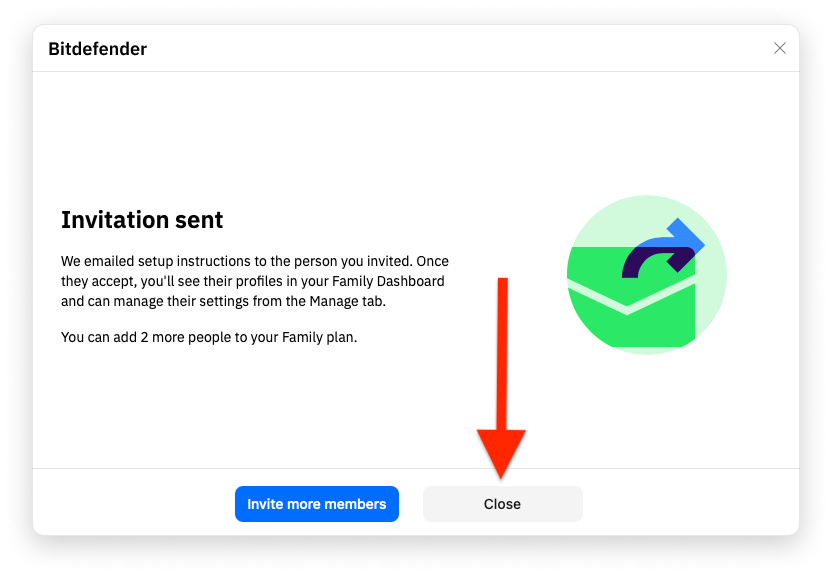
5. Invitation emails are sent immediately to the new members. Click “Close” to exit the confirmation window.
6. The invited family member must open the email they received and click “Accept invite” within 30 days to join your Family plan.
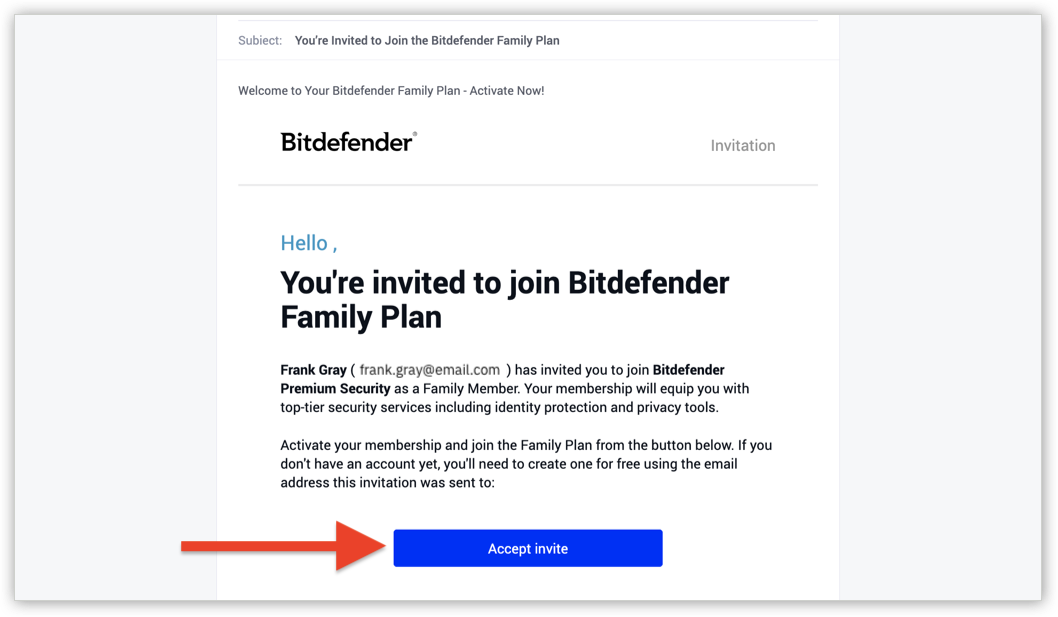
7. After accepting the invite, the Bitdefender Central sign-in page will open in the browser.
- If they already have a Bitdefender account associated with that email address, they need to sign in to claim the shared subscription.
- If they don’t have a Bitdefender account, they must create one using the same email address that received the invitation.
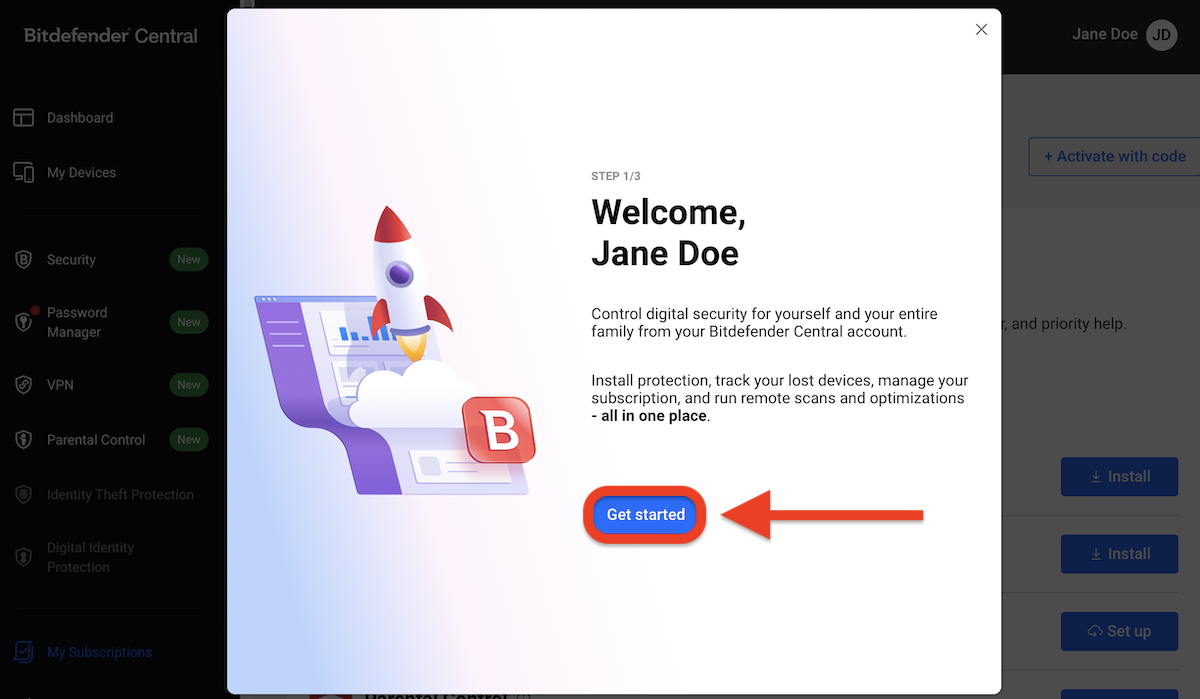
8. After signing into their Bitdefender account for the first time, the family member will see a welcome screen where they can click “Get started” and follow the on-screen instructions to install Bitdefender on their own devices.
For step-by-step installation instructions, please refer to the guides below.
Add child member
Children are added in a different way than teenagers and adults. Instead of a Bitdefender account, they get a child profile. With this profile you can manage screen time, control apps, and monitor activity. Children can only use Security and Parental Control, even if your plan includes other services. To add a child, you first create a profile, then install the required apps on their device(s). Follow the steps below:
1. Open the Bitdefender app installed on any device linked to the family manager or secondary manager account.
2. On the home dashboard, open the “Family” tab at the top, then click “Invite members to your family plan”.
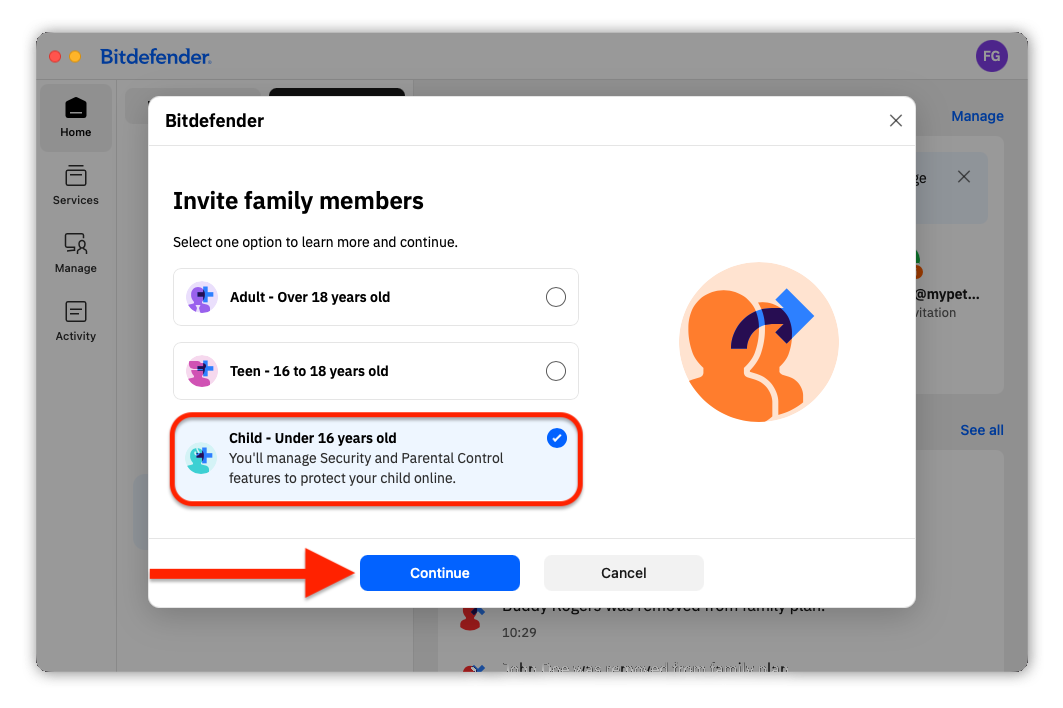
3. Select “Child” from the options displayed on the Invite family members screen, then click the “Continue” button.
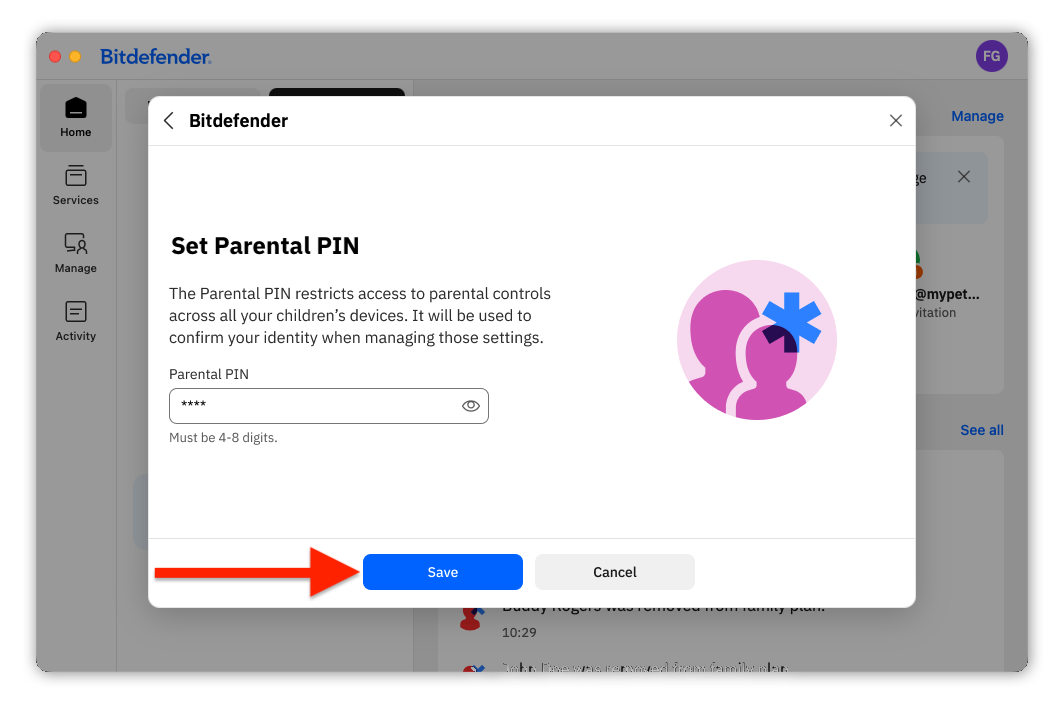
4. If you’re adding a child for the first time, you’ll need to create a PIN code. This PIN acts as a safeguard, preventing the child from logging out of the Parental Control app and allowing you to manage app access on their devices.
5. Enter the child’s name and birth date, select the checkbox to confirm that you are their parent or legal guardian, then click the “Add child” button.
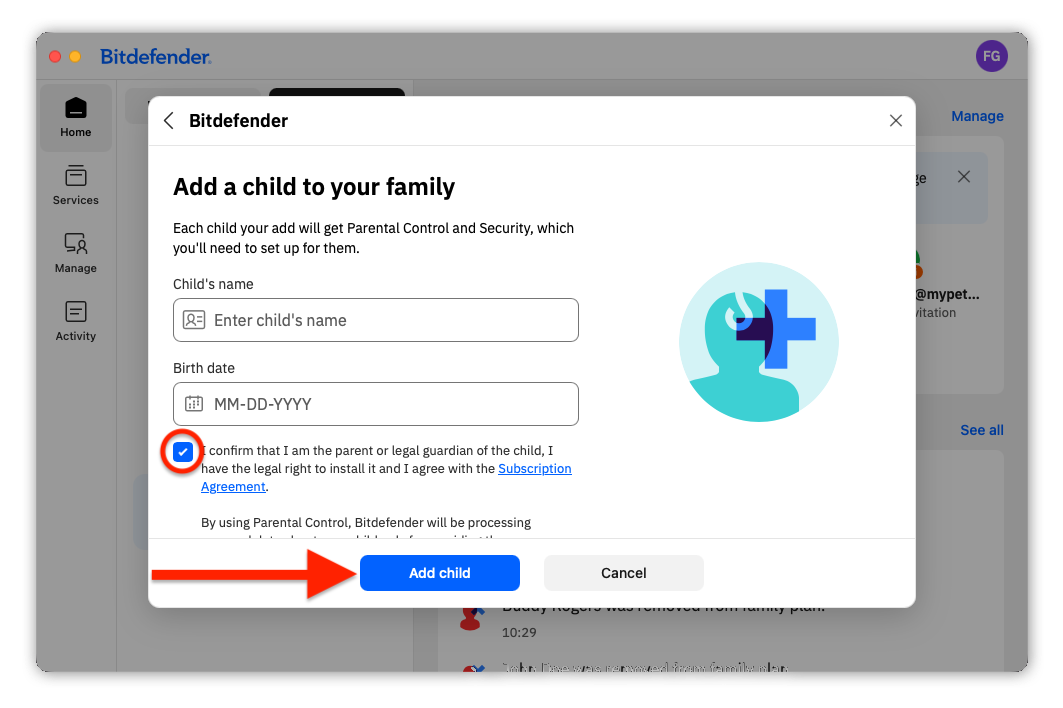
6. The new child profile is added immediately to your Family dashboard. Click “Close” to exit the confirmation window.
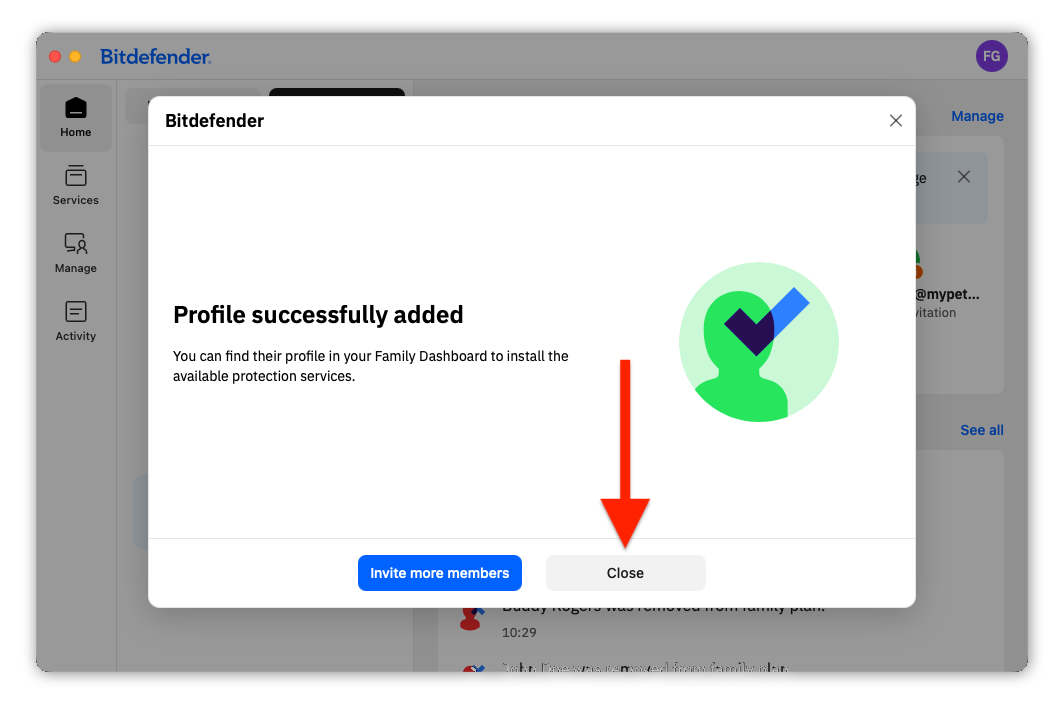
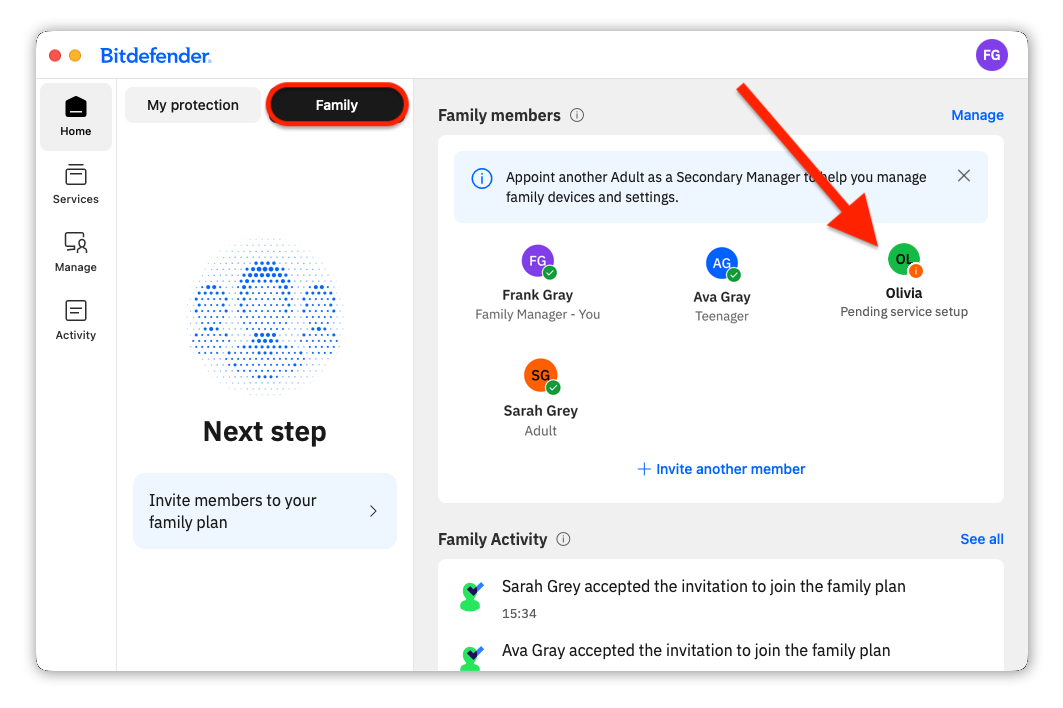
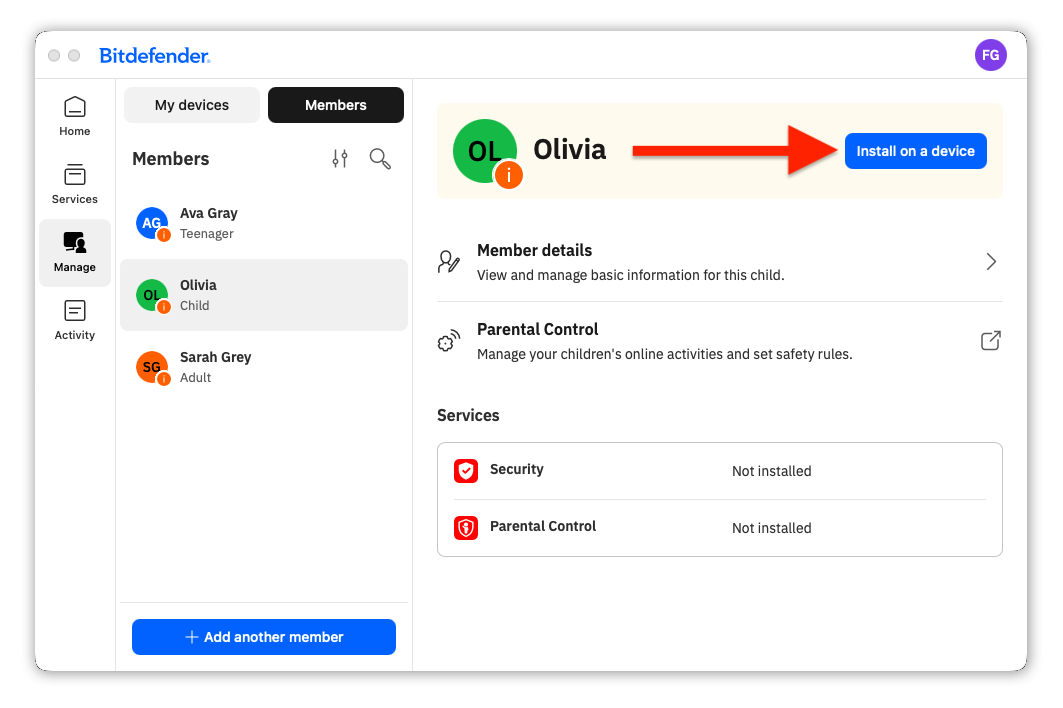
7. Next, click the child’s name on the Family dashboard (or go to Manage → Members).
8. Click the “Install on a device” button that appears next to the child’s name.
9. Choose which Bitdefender app to install first on the child’s device:
- Parental Control
- Security
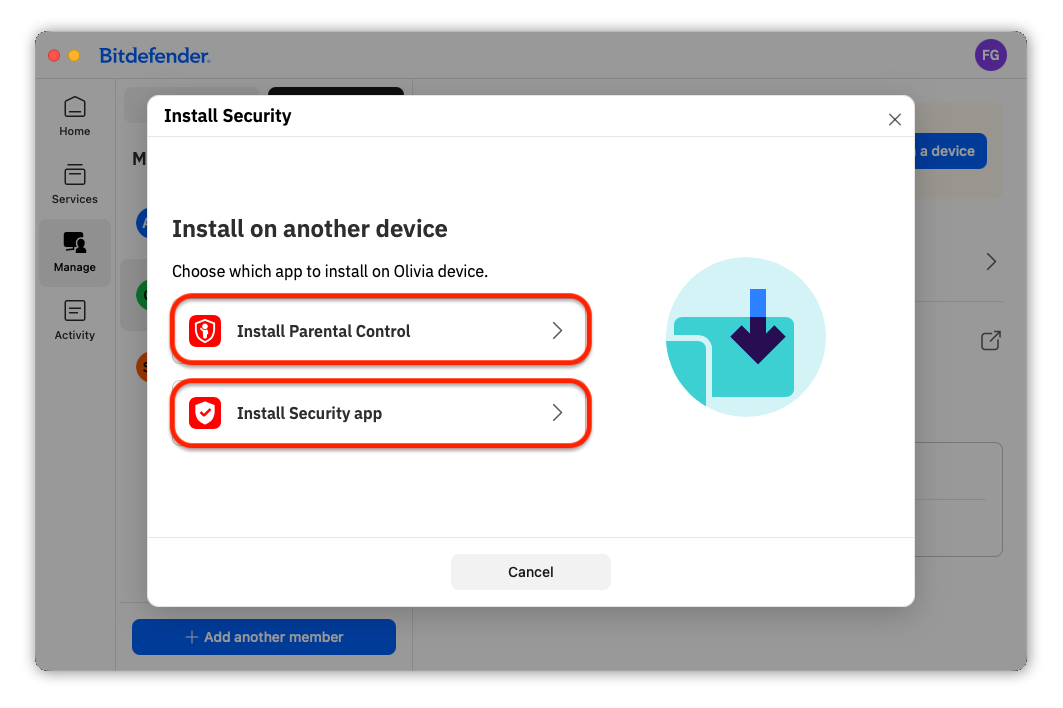
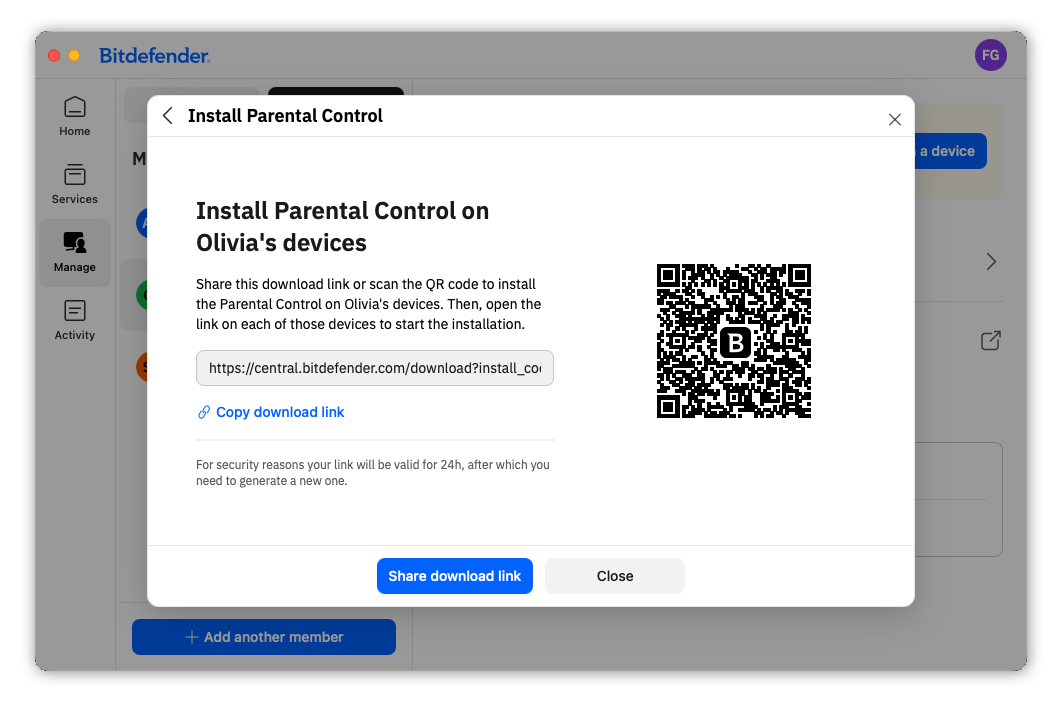
10. Copy the download link or scan the QR code using the child’s device(s) to install Bitdefender Parental Control and Bitdefender Security. Follow the on-screen installation steps.
If you need help, check out these step-by-step guides:
- How to install Bitdefender Parental Control on Windows | Mac | Android | iOS
- How to install Bitdefender Security on Windows | Mac | Android | iOS
Remove adult/teen/child member
As a family manager, you can remove any member from your Family plan at any time. When you remove someone:
- They lose access to the Family plan right away.
- They are removed from your Family members list.
- Removed adult and teen devices automatically switch to a 30-day temporary subscription.
To remove a member via Bitdefender app, follow the steps below.
1. Open the Bitdefender app installed on any device linked to the family manager or secondary manager account.
2. On the home dashboard:
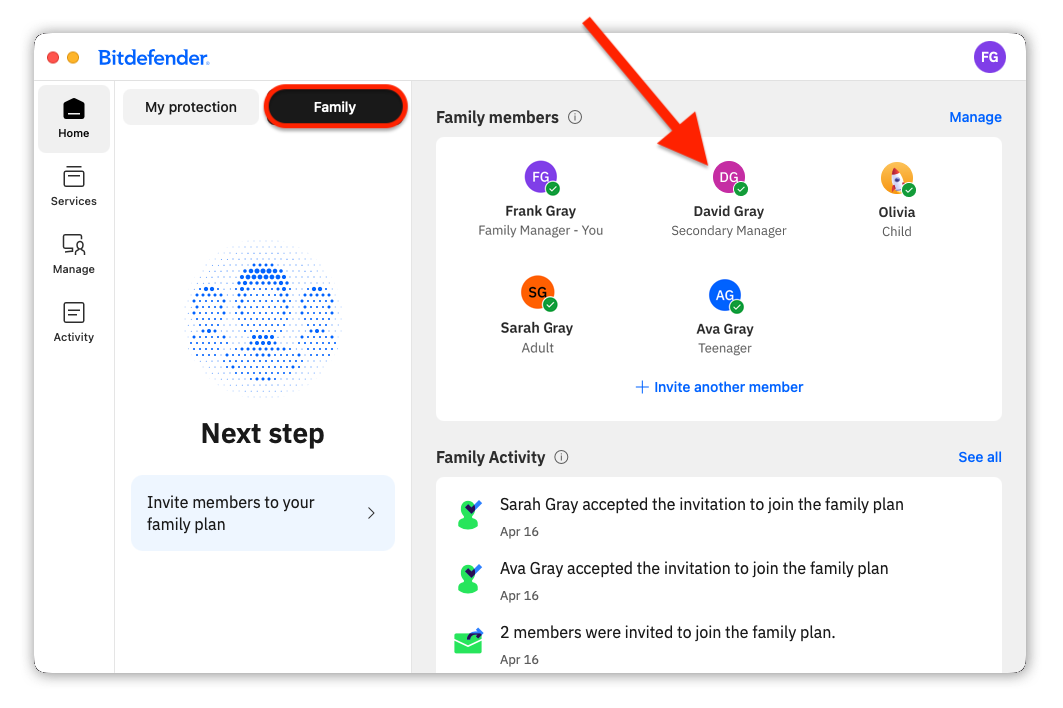
- Open the “Family” tab at the top.
- Click the name of the member you wish to remove in the “Family members” section (or go to Manage → Members).
3. Next, click on “Member details”.
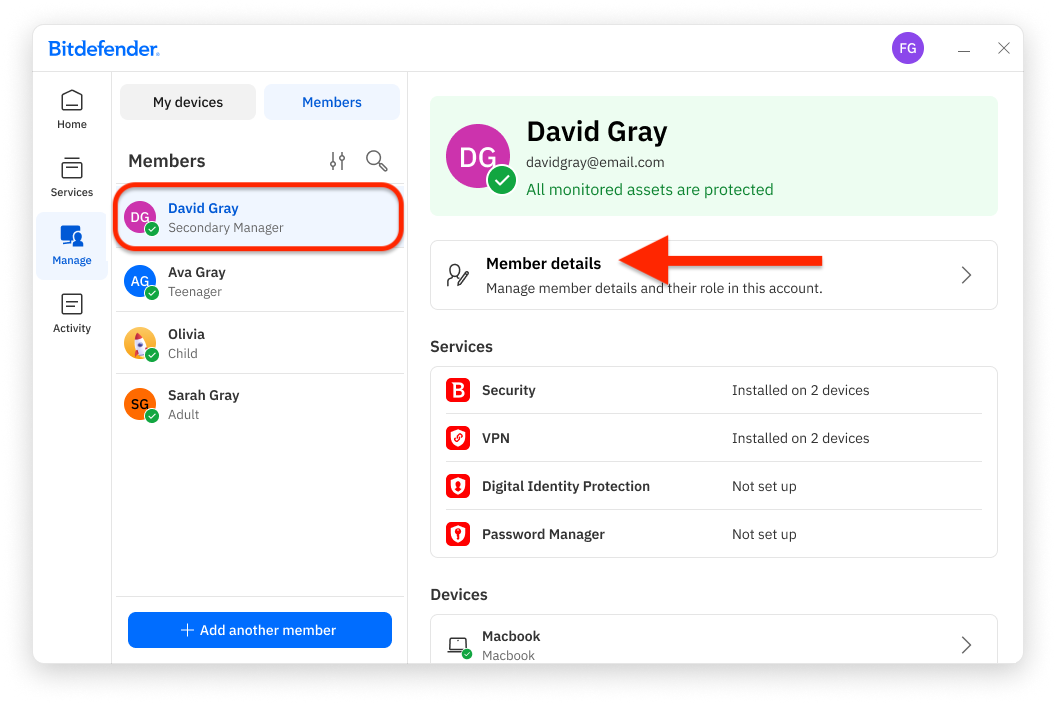
4. In the new window, click “Remove member”.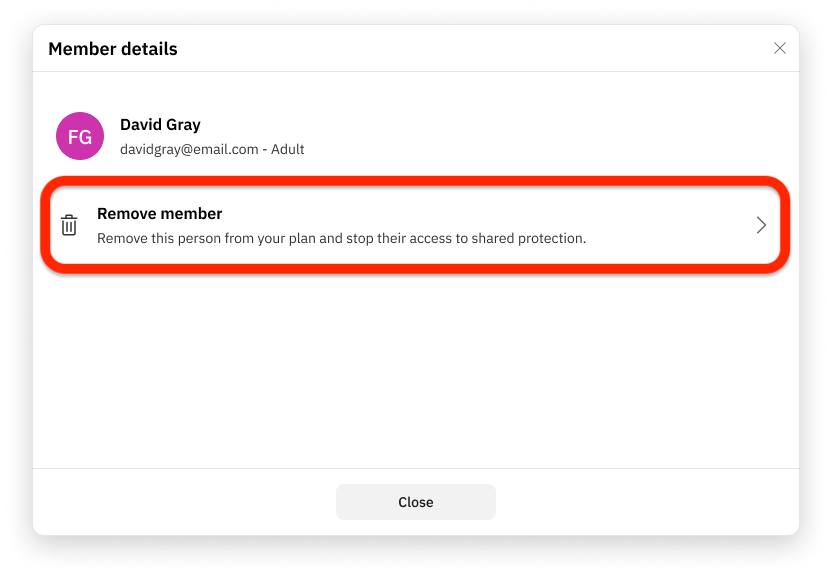
5. When prompted, confirm by clicking “Remove member” again. Access to the Bitdefender Family subscription is revoked instantly for removed members.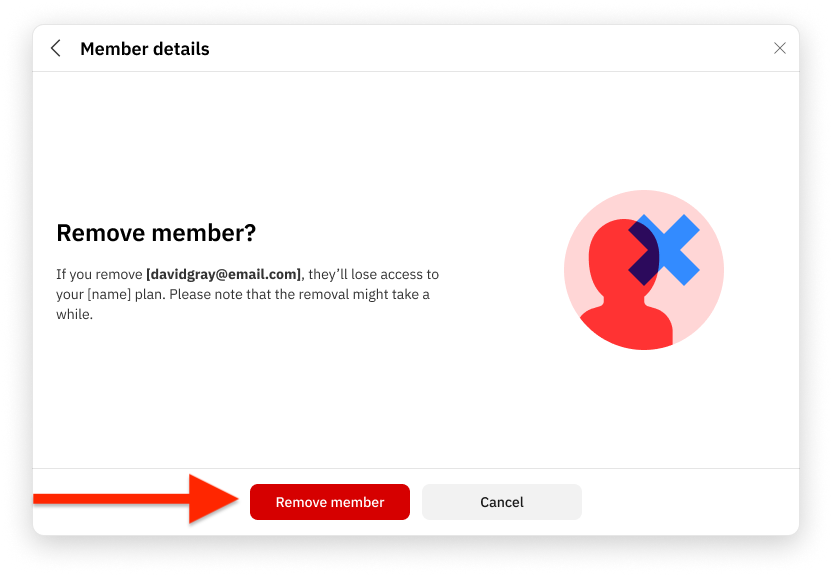
Removed adults and teenagers will receive an email informing them of the change and will be granted a 30-day individual Bitdefender subscription in place of the family subscription.
If you want them to remain in the family plan, you can invite them again from your Bitdefender account or from the Bitdefender app.