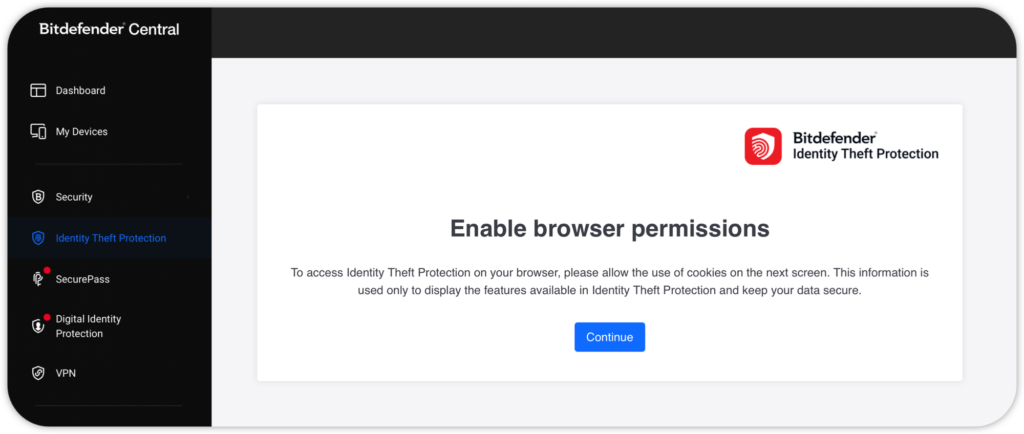
Bitdefender Identity Theft Protection helps you monitor your personal information and alerts you to potential identity threats, helping you keep your money and identity safe. If Bitdefender Central displays the “Enable browser permissions” error when you access the Identity Theft Protection menu in Safari on your Mac, follow the steps below to adjust your Safari settings.
Step 1. Open Safari settings
- Open the Safari browser on your Mac.
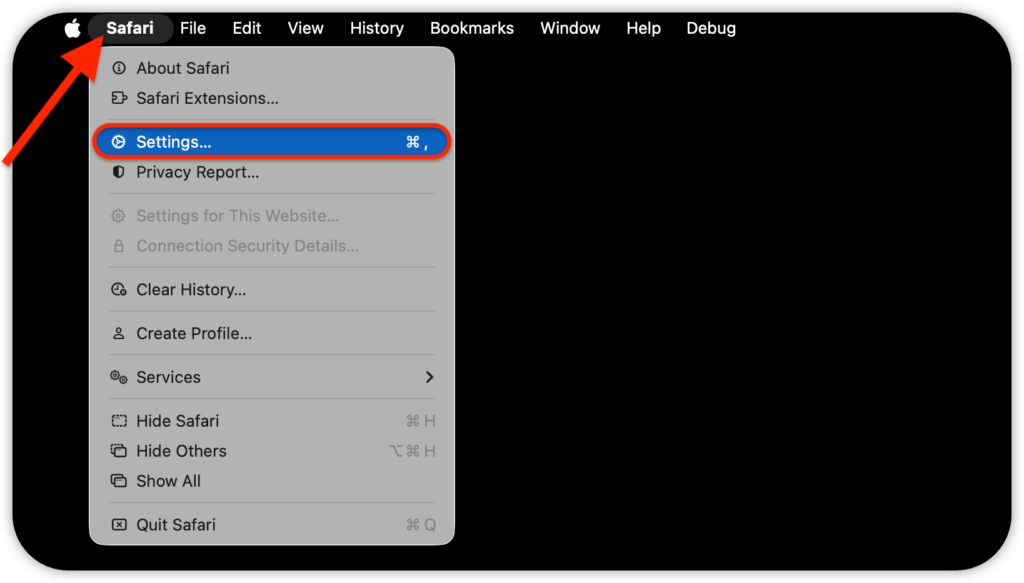
- In the macOS menu bar, click on Safari → Settings (or Preferences on older macOS versions).
Step 2. Turn off cross-site tracking prevention
- In the Safari settings window that opens, go to the Privacy tab.
- Clear the checkbox next to Prevent cross-site tracking.

Step 3. Allow Reader for Bitdefender Central
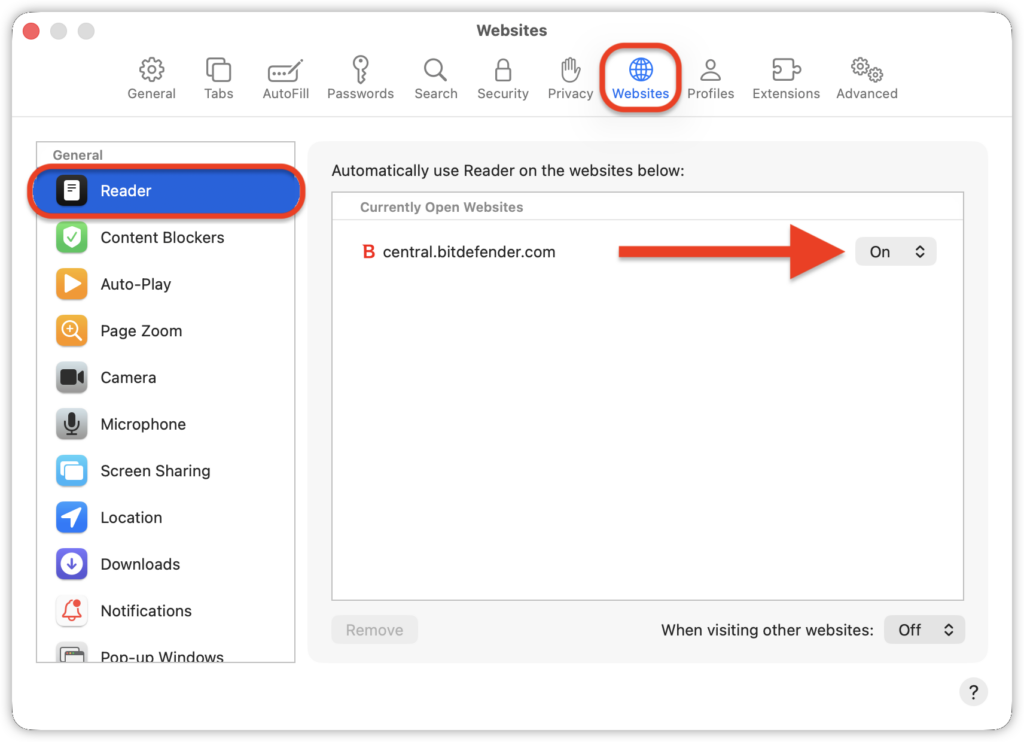
- Next, go to the Websites tab.
- Click on Reader in the sidebar.
- Find central.bitdefender.com in the list of websites on the right and set it to On.
Note: If central.bitdefender.com does not appear in the list, visit https://central.bitdefender.com/ in Safari and remain on the website without navigating away. The website should then appear in the Reader list.
Step 4. Make sure Safari allows cookies
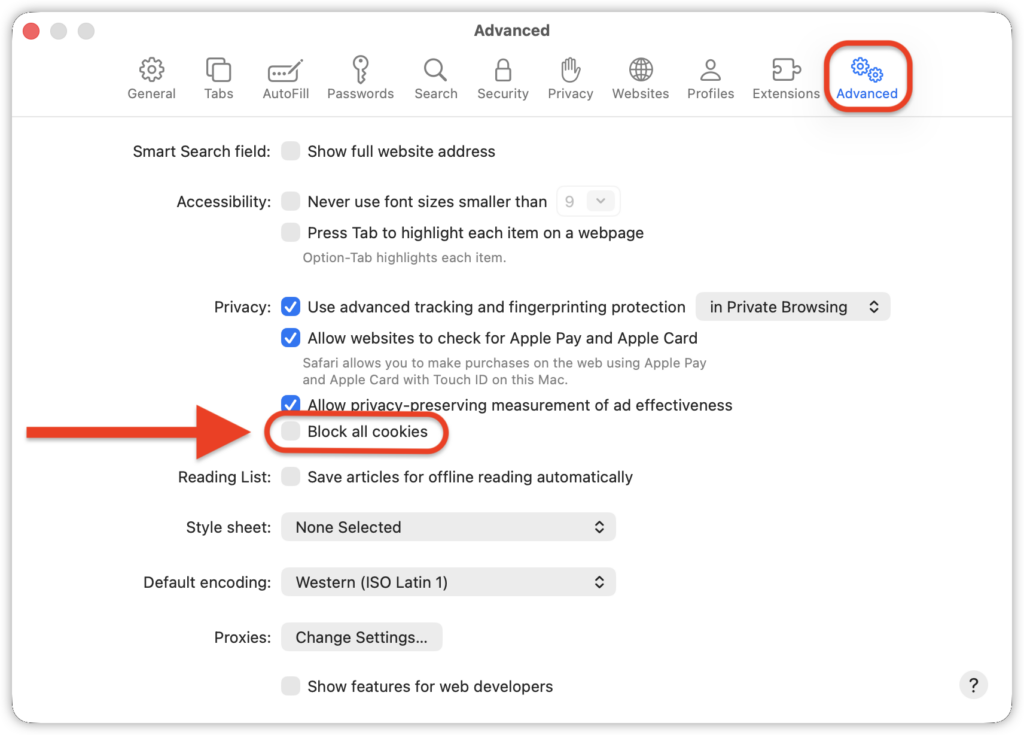
- Now click the Advanced tab in the Safari settings window.
- Make sure the Block all cookies checkbox is cleared.
Return to https://central.bitdefender.com/ and open Identity Theft Protection again in Safari. The “Enable browser permissions” error should no longer appear.