The History menu in Bitdefender RealCheck stores all of your completed video analyses in one place. Whether you’ve analyzed a public video link or uploaded a video file from your device, you can return to your previous checks at any time. From the History screen, you can review earlier reports, search for a specific analysis, filter or sort your results, and delete reports you no longer need.
Access the History menu
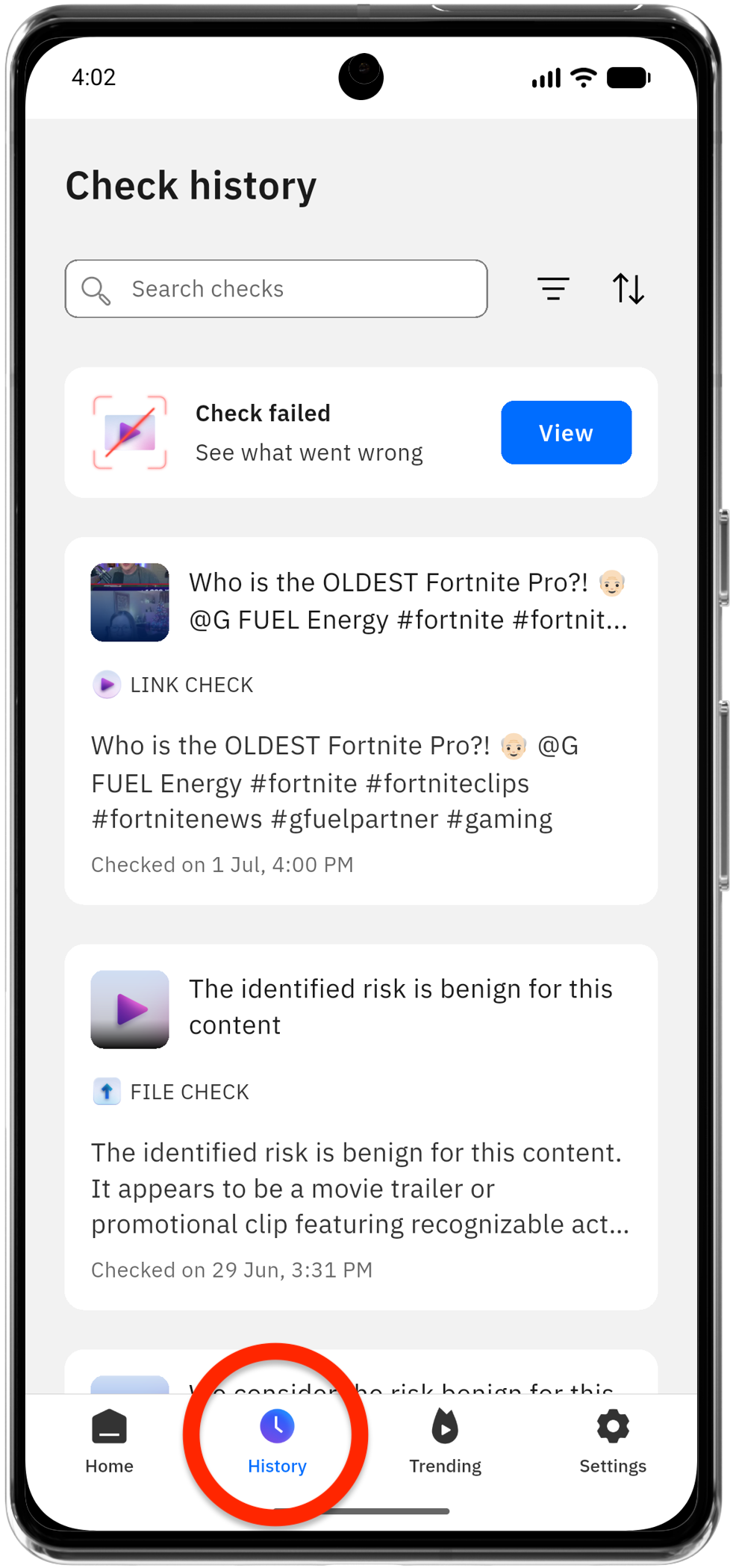
To open your previous video analyses:
- Open the Bitdefender RealCheck app.
- Tap History in the bottom navigation bar.
The History screen displays a chronological list of your completed video analyses and failed checks.
View previous video checks
Every completed video analysis appears as a separate card in the History list.
Each card includes useful information at a glance, such as:
- Whether it was a Link check or File check
- A thumbnail or preview
- A title or content summary
- The date and time the analysis was completed
To view the full report, simply tap the corresponding card.
If the analysis was created from a public video link, the report opens as a public report.
If it was created from an uploaded video file, it opens as a private report, visible only to you.
Search your video check history
If you have many previous video checks, use the search bar to find one faster.
- Open the History menu
- Tap the search bar at the top.
- Enter a word or phrase related to the video analysis you want to find.
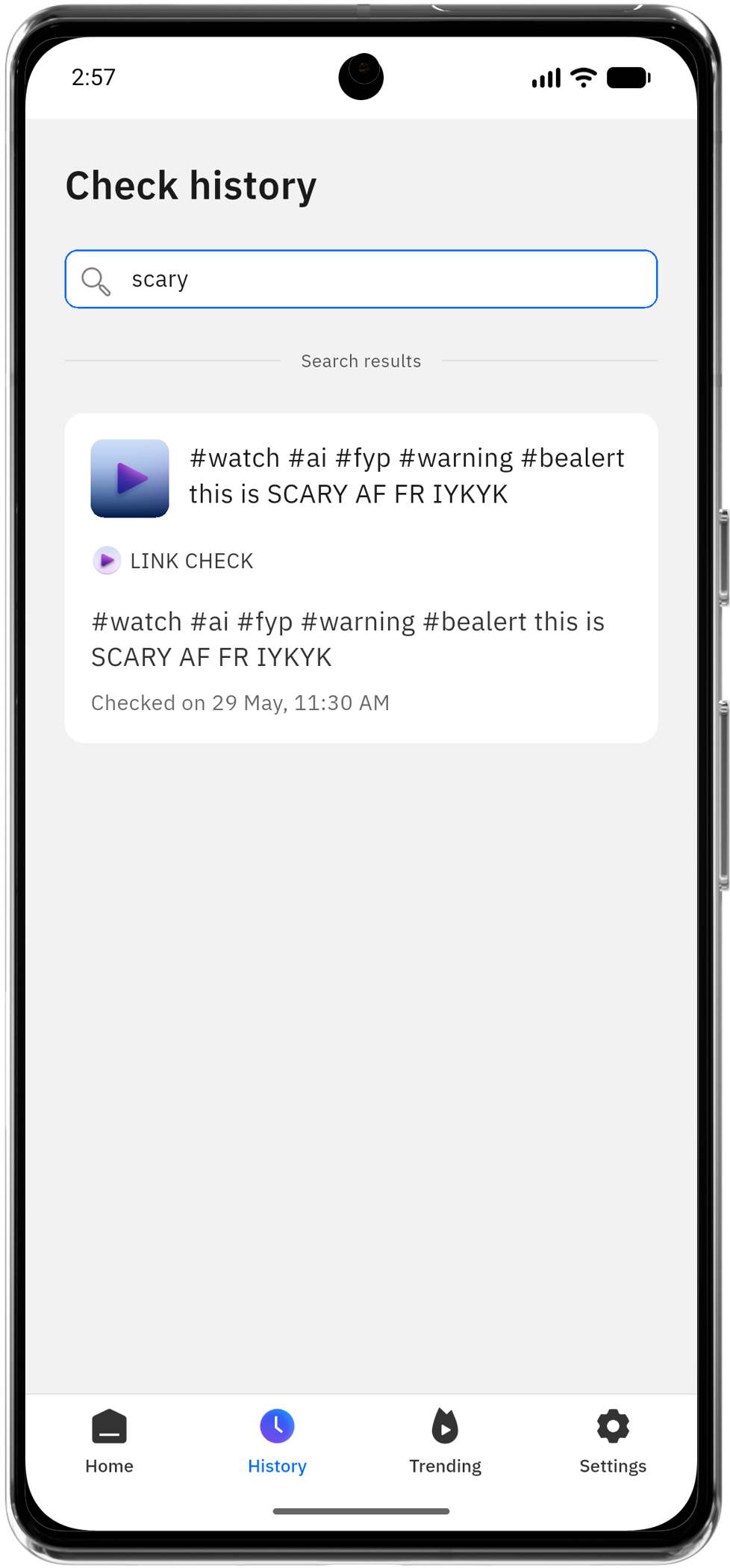
For example, you can search for part of a video title, topic, person, or keyword that appeared in the report preview.
Search helps narrow down the list without scrolling through all previous checks.
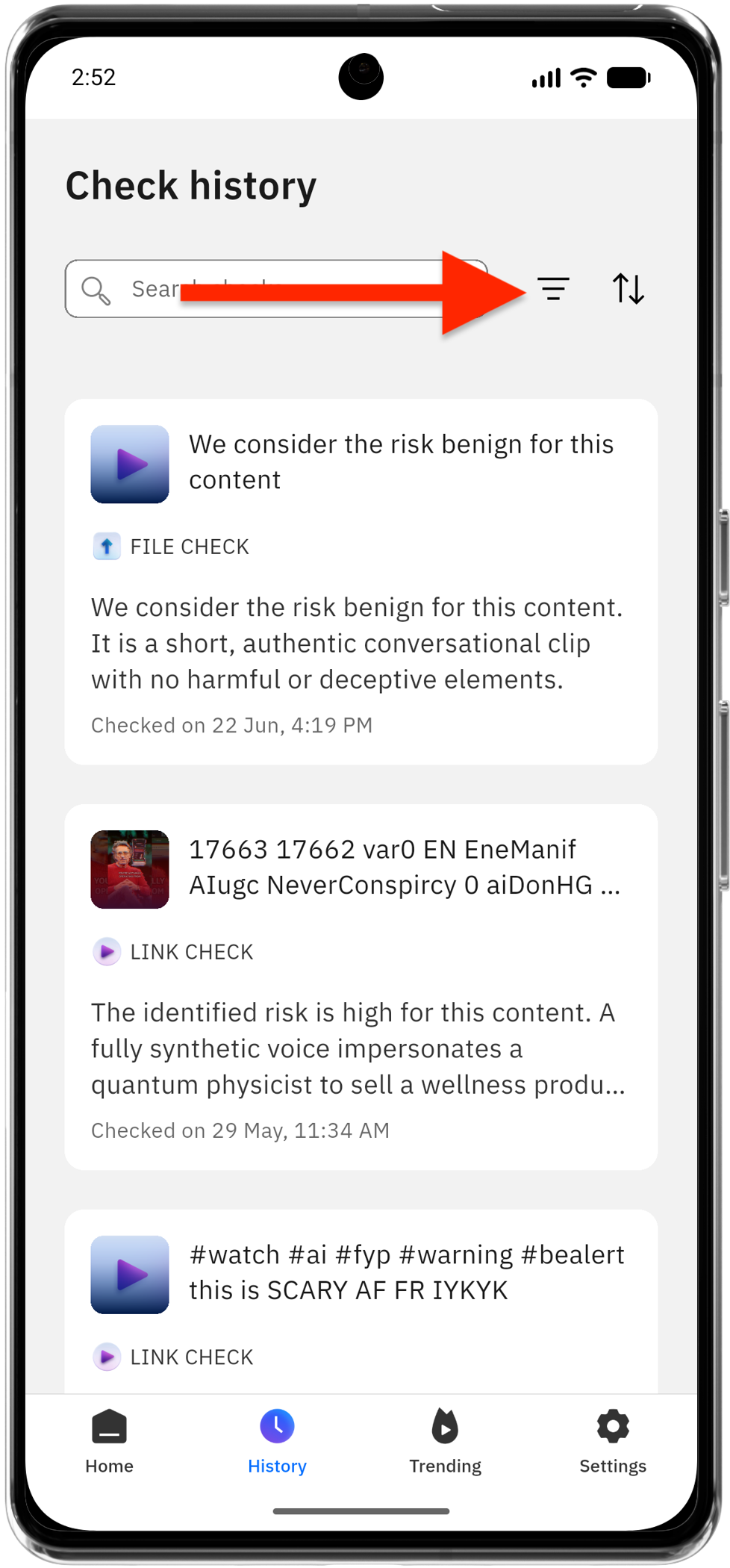
Filter your analyses
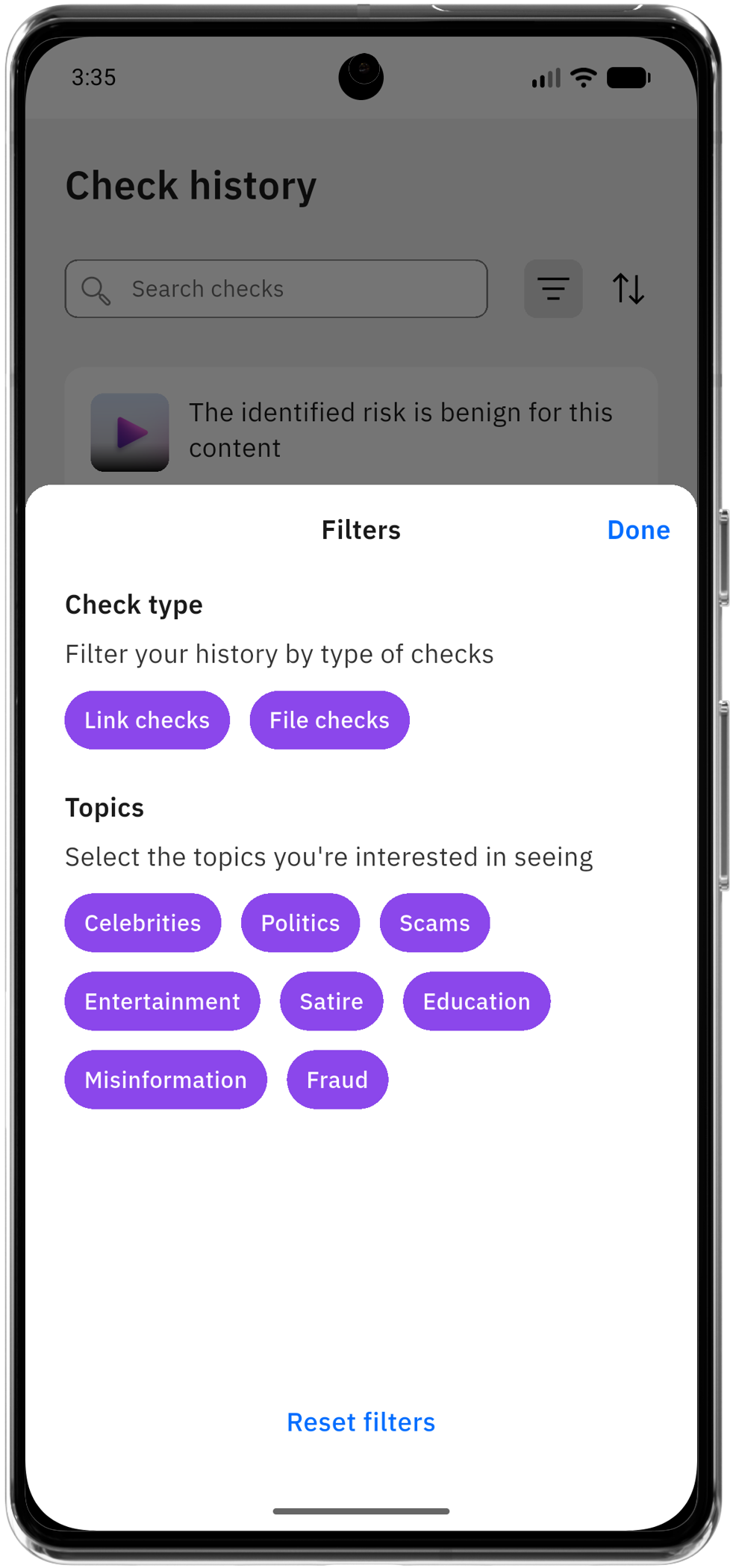
The filter option lets you narrow your history to display only the analyses you’re interested in. For example, you can filter by:
Check type
- Link checks
- File checks
Topics
- Celebrities
- Politics
- Scams
- Entertainment
- Satire
- Education
- Satire
- Misinformation
- Fraud
Tap Done to apply one or multiple filters at the same time. To return to the complete list, open the filter menu and select Reset filters.
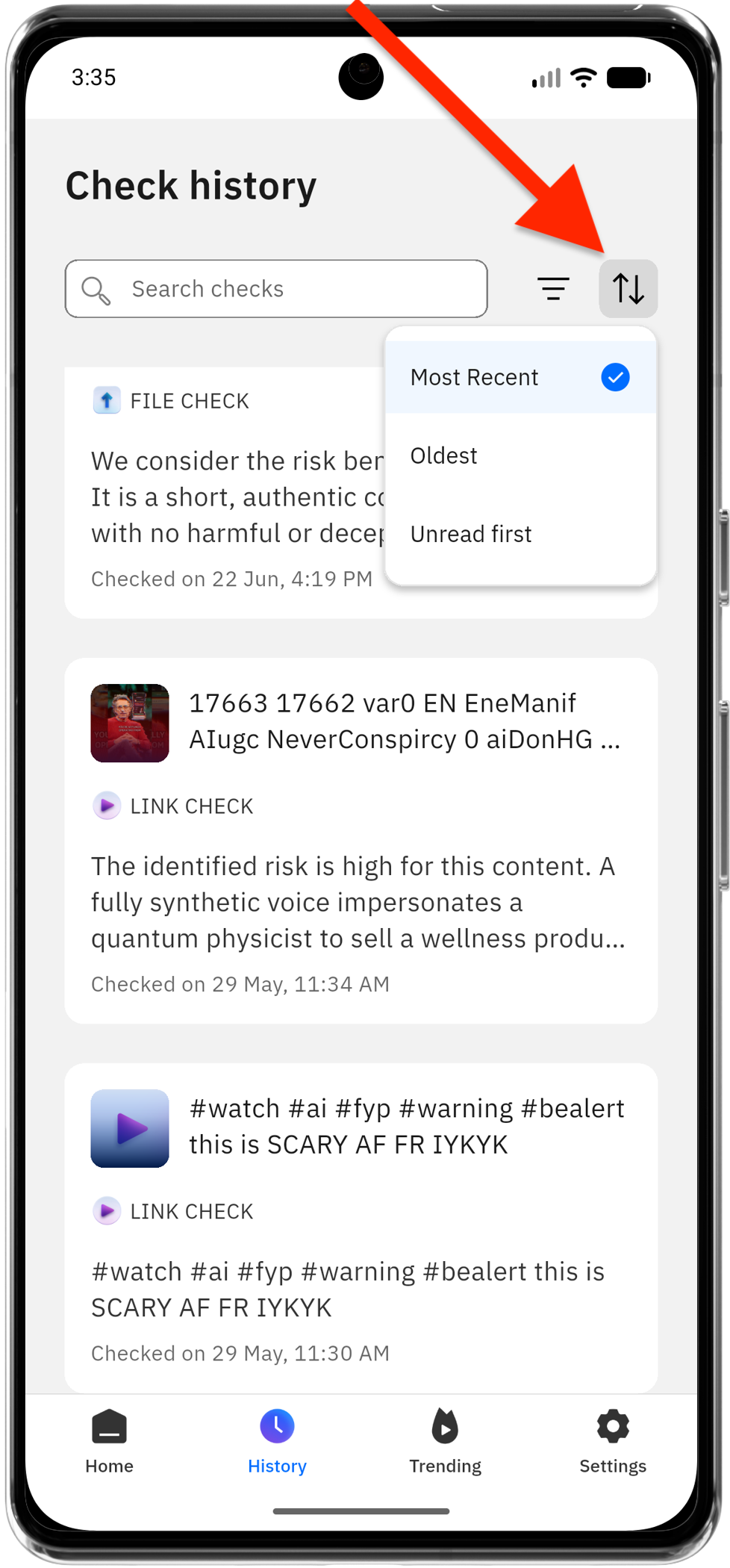
Sort your history
Sorting lets you change the order in which your previous video checks appear, making it easier to find the most recent or older analyses.
- Open the History section.
- Tap the sort icon ↑↓.
- Choose the preferred order:
-
- most recent
- oldest
- unread first
Delete a report from history
If you no longer need a report, you can remove it from your History.
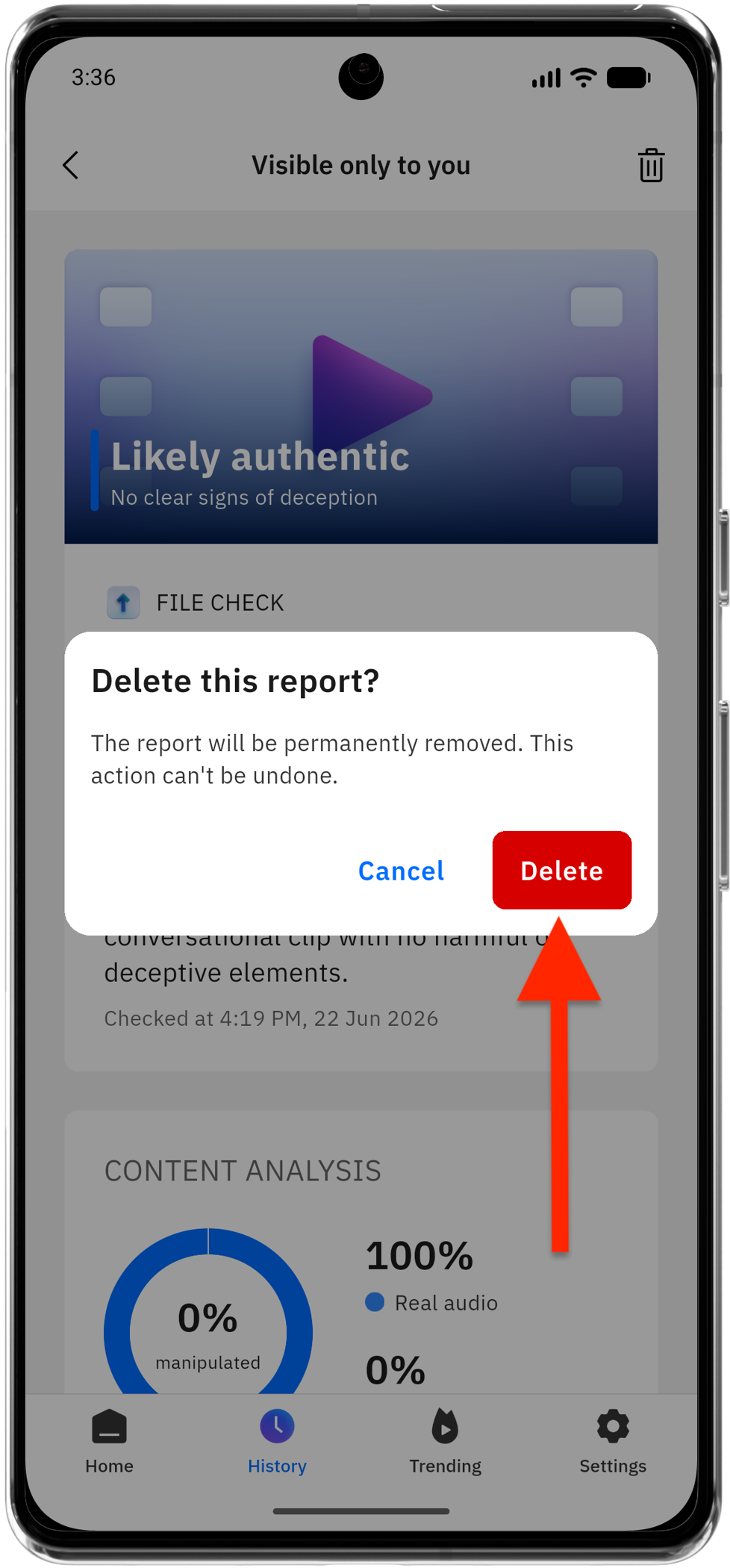
To delete a video report:
- Open the History menu.
- Tap the report you want to remove.
- Tap the Delete (trash) icon.
- Confirm the deletion when prompted.
Once deleted, the report is permanently removed from your History.

Why history items do not appear
The History screen requires an internet connection to retrieve your previous verifications. If your video check history does not appear, connect to the internet and reopen the RealCheck app.