How to Fix a Website That Won’t Load When Connected to VPN in Bitdefender App | Hub

If a website does not load, shows errors, or has certain features blocked while the VPN is connected in Bitdefender App or Bitdefender Hub, the issue is usually related to how that webpage handles VPN traffic rather than an issue with the VPN service itself. Some websites restrict access from certain geographic regions, block known VPN IP addresses, or have network configurations that are incompatible with a specific VPN connection method. As a result, a website that works normally without VPN may become unavailable or show errors when VPN is enabled.

website - VPN

In most cases, the website becomes accessible again after adjusting one of the VPN settings. This guide walks you through the recommended troubleshooting steps, starting with the simplest solution and progressing to more targeted options.


Before You Begin

First, verify that the website is accessible when VPN is disconnected in Bitdefender App or Bitdefender Hub. If the website works normally without VPN but stops loading when VPN is enabled, follow the steps below in order.


Step 1: Connect to Another VPN Server

The first and most effective solution is to switch to a different VPN server location.

Websites often analyze the IP address used to access their content. In some situations, a website may restrict traffic coming from a specific country or may temporarily block a particular VPN server IP address due to security policies, high traffic volume, or anti-fraud measures. Because of this, a website that is unavailable while connected to one VPN location may work normally when connected to another.

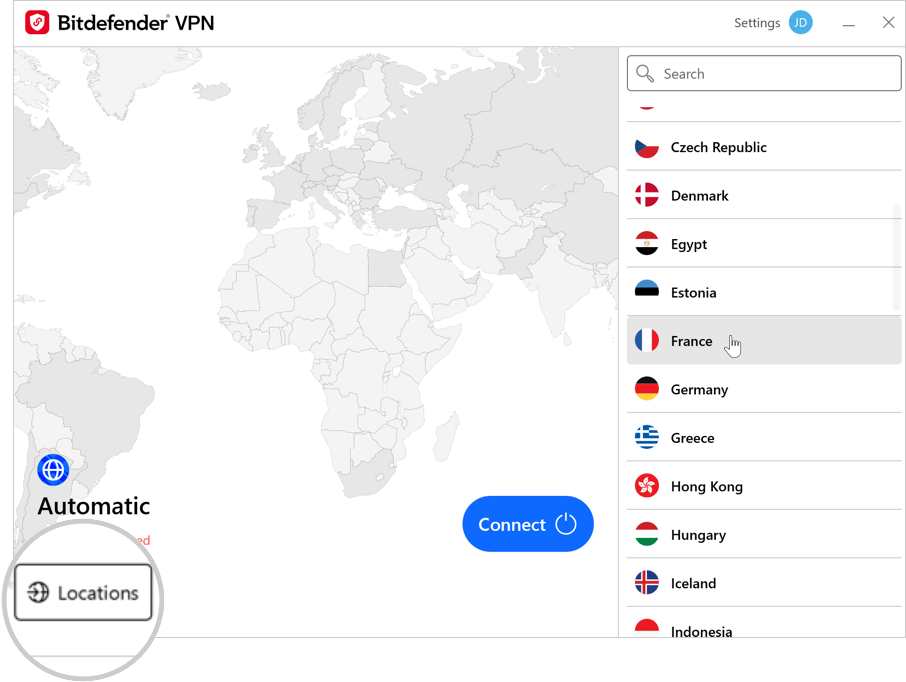
Changing your VPN location assigns a different IP address and routes your traffic through a different VPN server, which frequently resolves website access issues. To learn how to change your VPN location, follow the guide that matches your device:

Bitdefender App (Windows & macOS)

Bitdefender Hub (Android & iOS)

After connecting to a different VPN location, try accessing the website again. If the issue persists, continue with the next step.


Step 2: Change the VPN Protocol

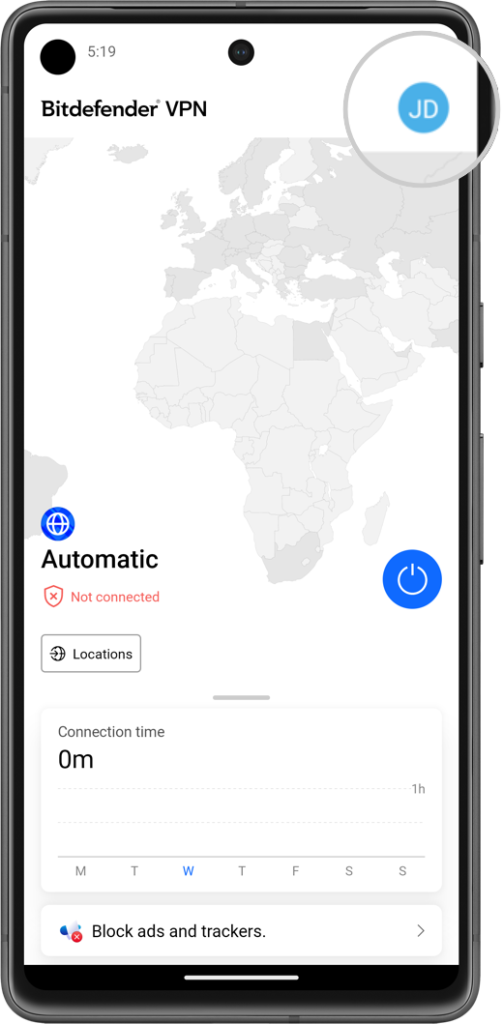
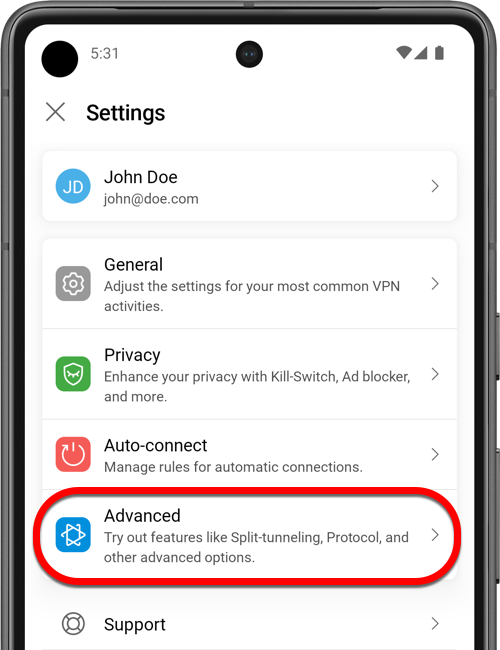
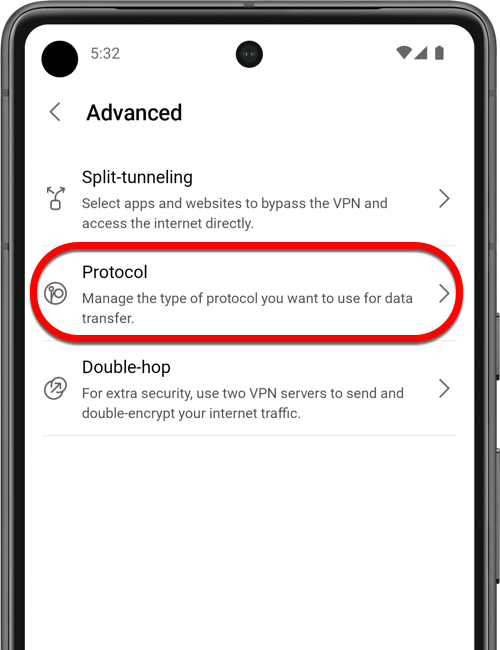
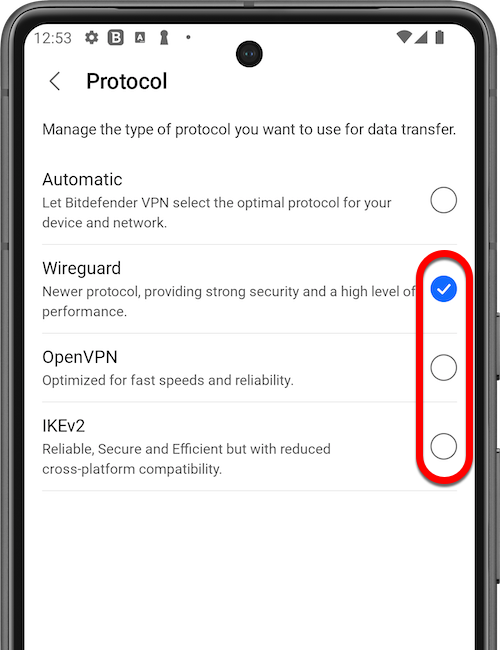
If switching servers does not help, the next step is to change the VPN protocol.

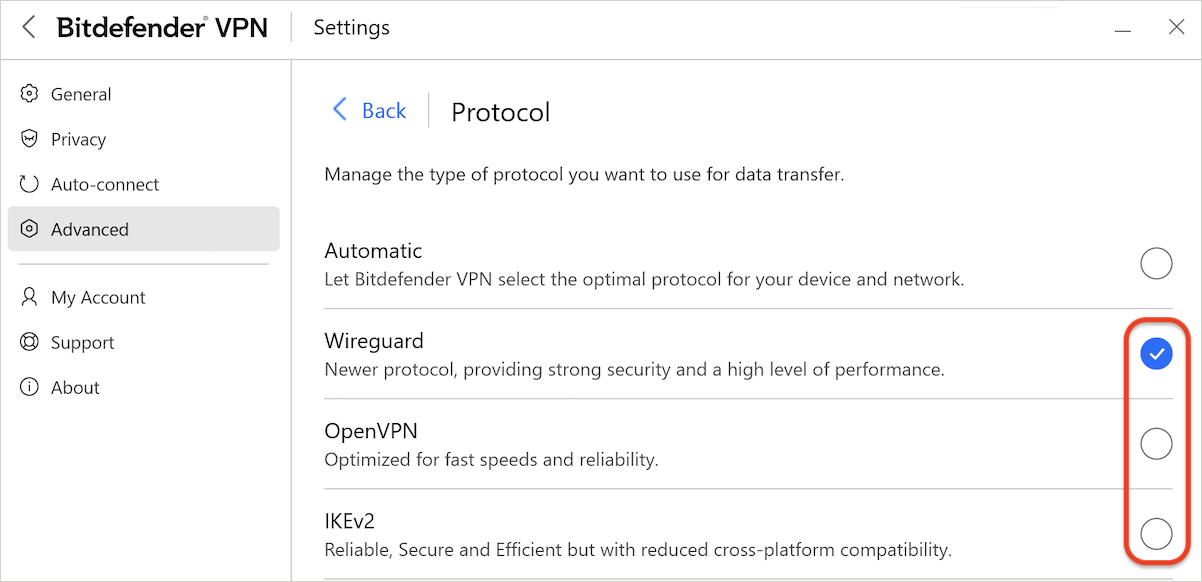
A VPN protocol is the technology responsible for creating the secure connection between your device and the VPN server. Different protocols handle network traffic in different ways. While all supported protocols provide security and privacy, certain websites, networks, or internet service providers may work better with one protocol than another.

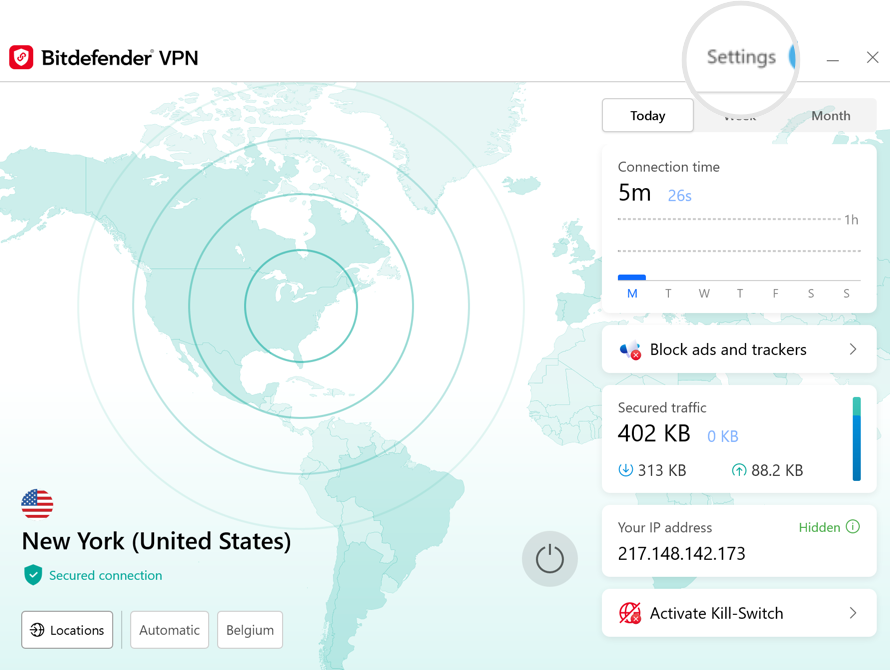
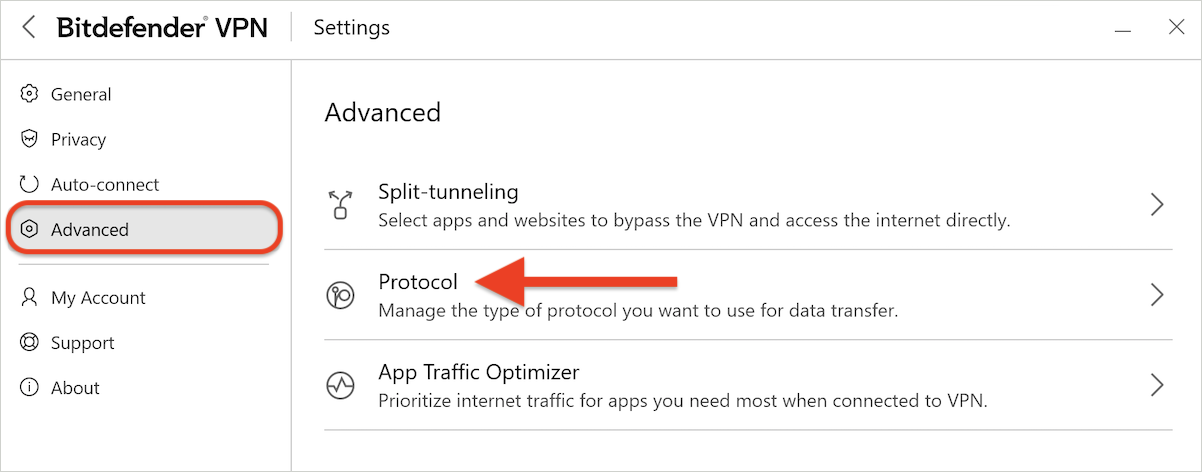
For example, a website may fail to load because of compatibility issues between its network infrastructure and the protocol currently in use. Changing the protocol allows the VPN feature to establish the connection differently, which can often resolve connectivity issues. Choose the guide that corresponds to your device:

Windows

macOS

Android

iOS

Once you have changed the protocol, reconnect to the VPN and test the website again. If the website still does not work, proceed to the final troubleshooting step.


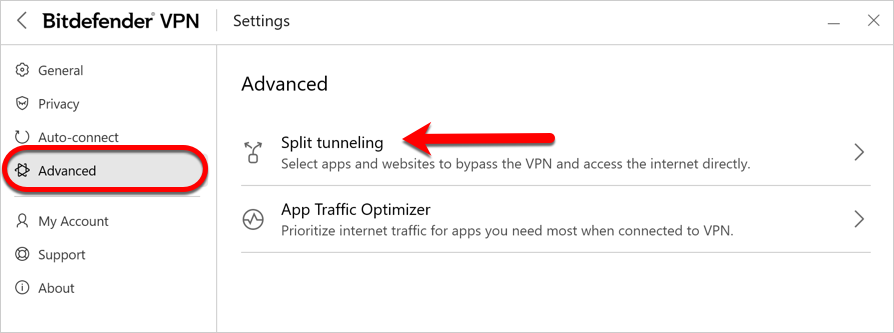
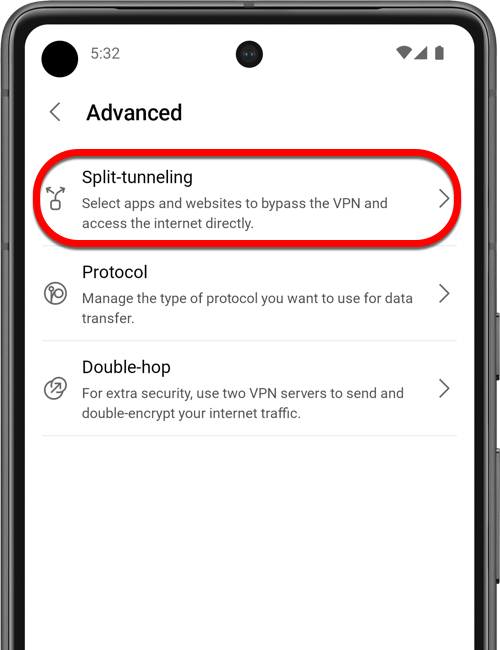
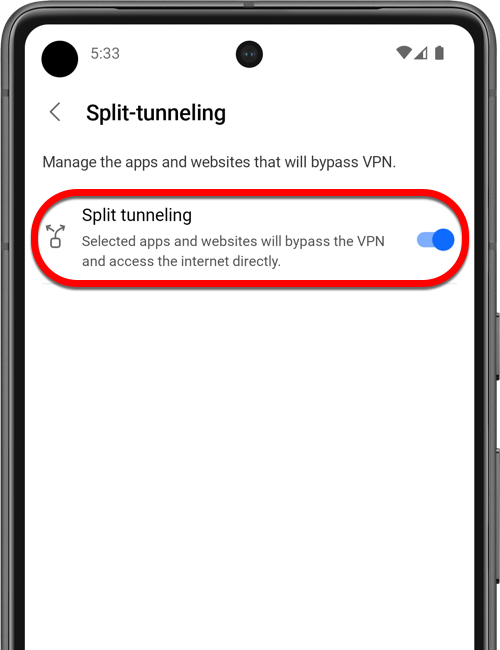
Step 3: Use Split-tunneling

If only one specific website is affected and you need immediate access to it, Split-tunneling can provide a practical solution.

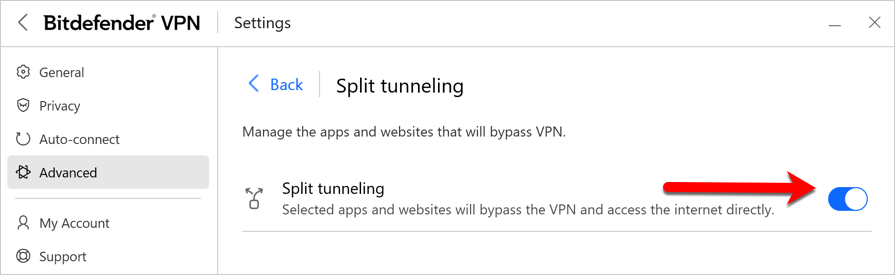
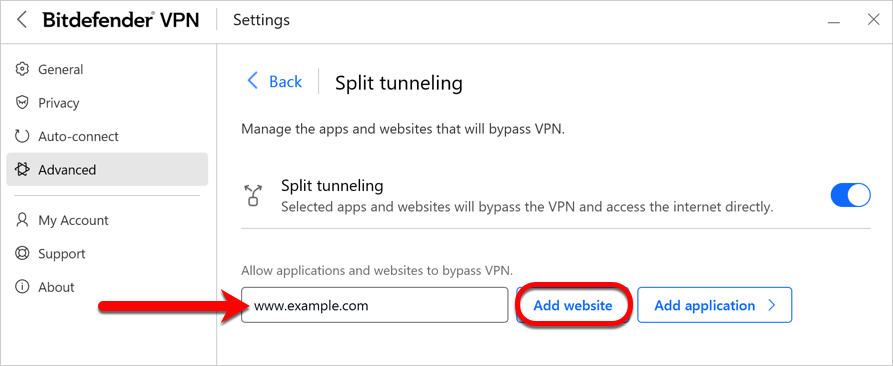
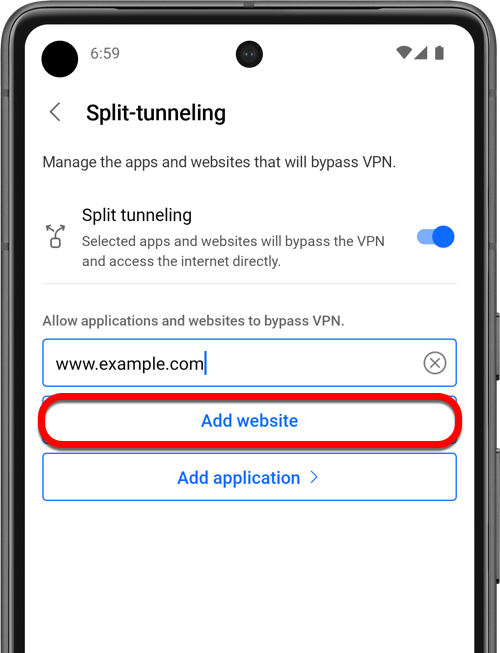
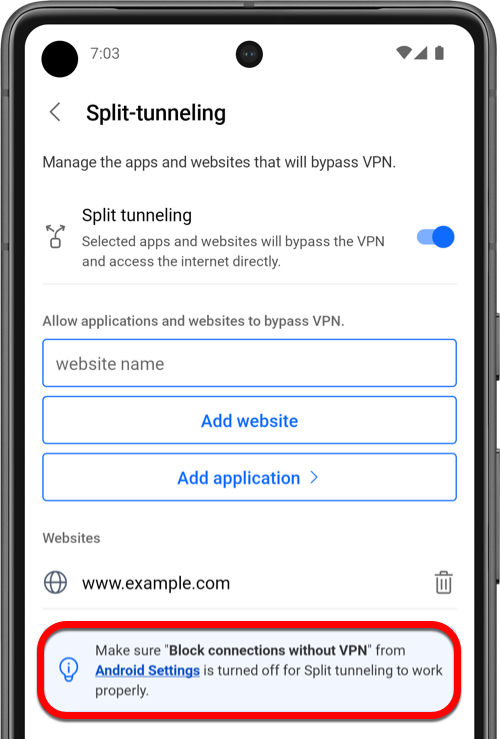
Split Tunneling allows selected websites to bypass the VPN connection while the rest of your internet traffic continues to be filtered by the VPN service. This means you can continue benefiting from VPN privacy and security for most online activities while allowing a particular website to connect directly through your regular internet connection.

This option is especially useful for websites that actively block VPN traffic or services that require your actual location to function correctly. To add a website to Split-tunneling, follow the guide for your device:

Windows & macOS

Android

iOS

After adding the website to Split Tunneling, reopen the site and verify whether it loads correctly.


Still Need Help?

If you have tried changing the VPN server location, switching VPN protocols, and using Split-tunneling but the website remains inaccessible, the issue may be related to the website’s own restrictions or a more specific network configuration.

In this situation, gather as much information as possible before contacting Bitdefender Support, including the website address, the VPN location you are connected to, your device operating system, and any error messages displayed by the website. Providing these details will help the support team investigate the issue more efficiently and identify the most appropriate solution.