Split-tunneling allows you to choose specific websites that will bypass the VPN while the rest of your internet traffic continues to use the VPN connection. This feature can be useful when you want a website to connect directly to the internet instead of going through the VPN. For example, a banking website, streaming service, company portal, or location-based website may not work correctly while VPN is enabled. In these cases, you can use Split-tunneling.
This guide explains how to use Split-tunneling in the Bitdefender Hub app for iOS to exclude a website from the VPN.
What happens when you add a website to Split-tunneling?
When a website is added to the Split-tunneling list:
- That website accesses the internet directly
- The website will not use the VPN server location
- Other websites and apps continue to use the VPN as usual
- You can remove the website from the list at any time
This is useful when only one website has trouble working through VPN, and you do not want to disconnect Bitdefender VPN completely.
If you can’t access any websites when the VPN is connected, refer to this article instead: How to Fix Internet Connection Issues After Installing Bitdefender Hub.
1. Go to VPN Settings
- Open the Bitdefender Hub app
 on your iPhone or iPad.
 - Tap your profile icon in the top-right corner to open the settings menu.
- Tap VPN to open the VPN settings screen.
 on your iPhone or iPad.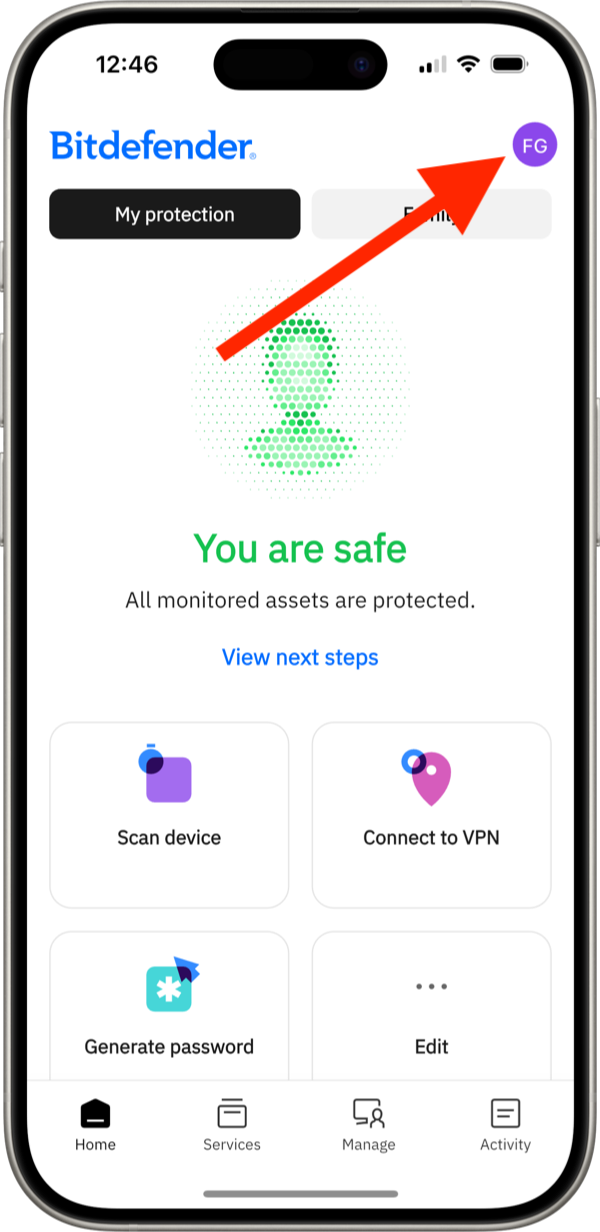
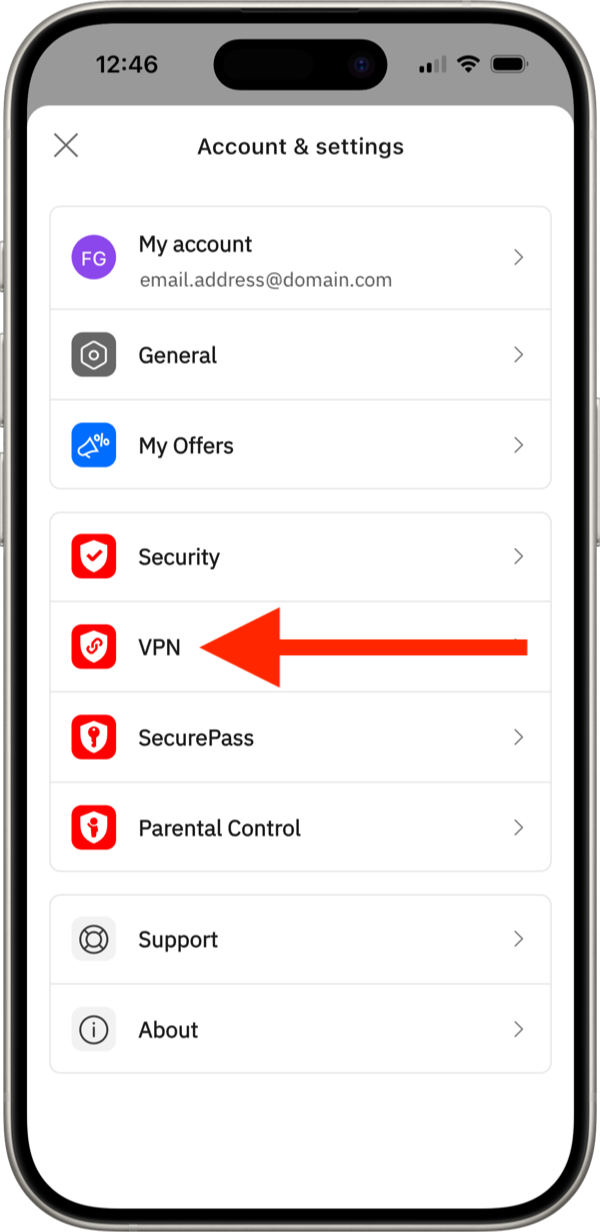
2. Access the Split-tunneling settings
Scroll down and tap Split-tunneling to open the feature configuration section.
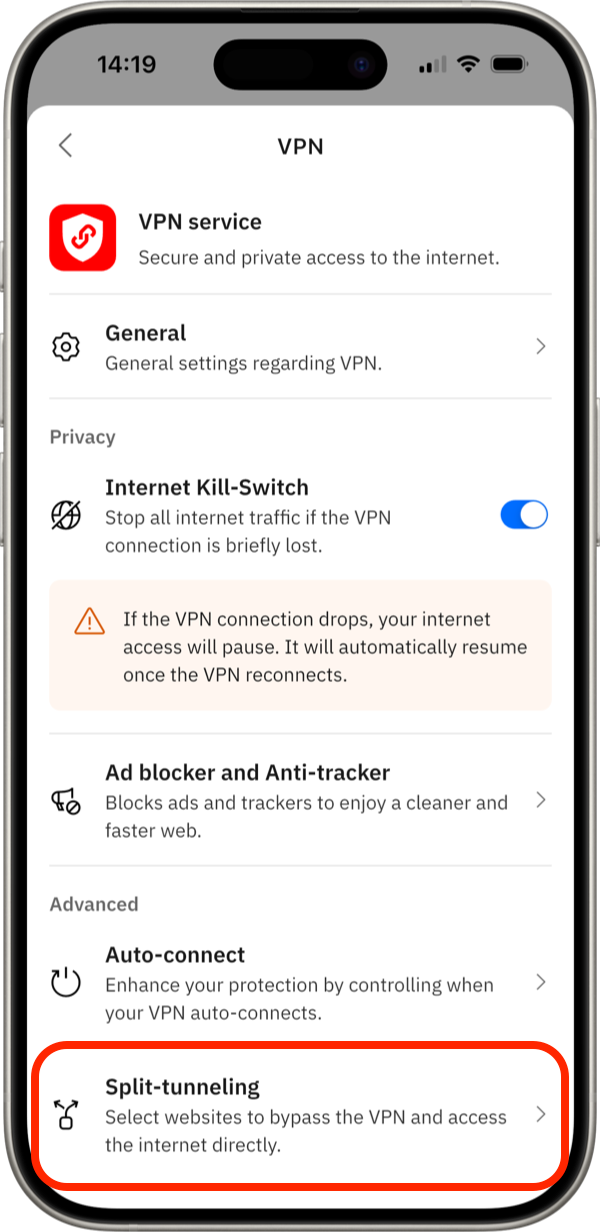
3. Turn on Split-tunneling on iOS
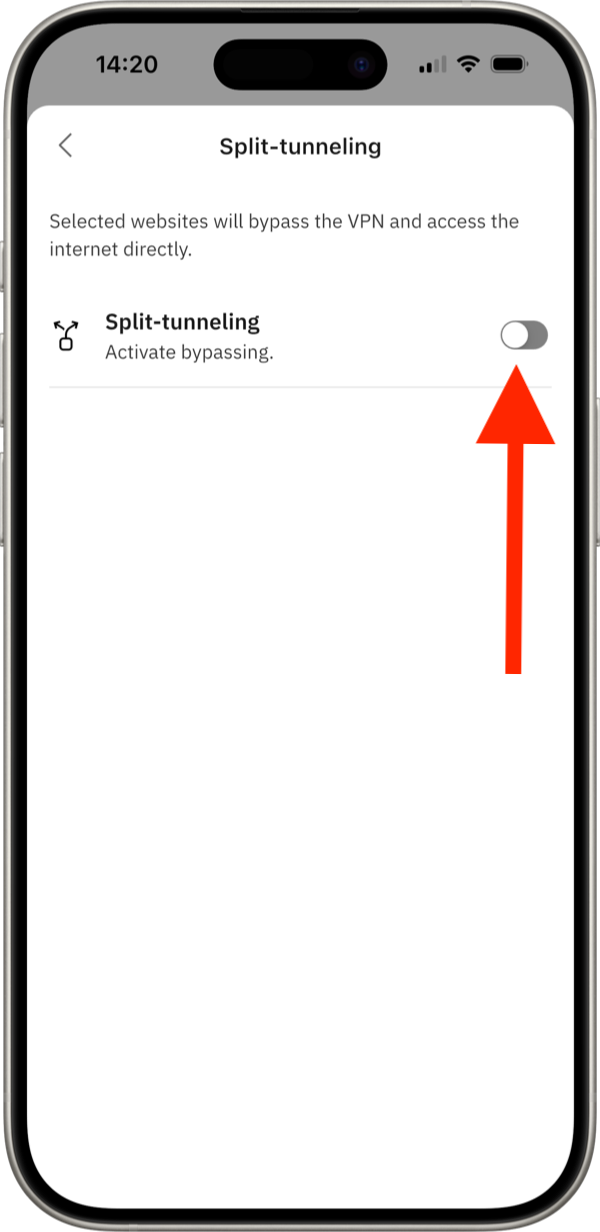
If Split-tunneling is not already enabled, turn on the Split-tunneling switch at the top of the screen.
Once enabled, the option to add websites becomes available.
4. Add the website address
In the website name field, enter the address of the website you want to exclude from the VPN. You can enter the domain without https:// or www. Example: websitename.com
After entering the website address, tap Add website.
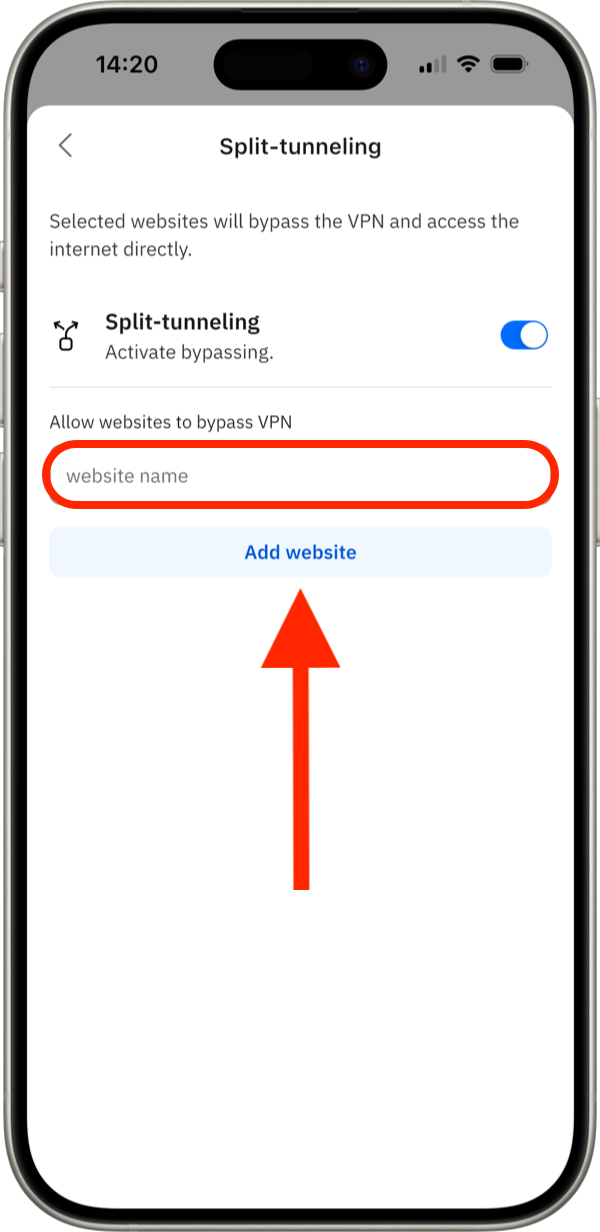
The website appears under the Websites list. This confirms that the website has been added to Split-tunneling.
From now on, that website will bypass Bitdefender VPN and connect directly to the internet.
5. Test the website
Open your browser and visit the website you added.
If the website previously had issues while Bitdefender VPN was enabled, check whether it now loads or works correctly.
If needed, refresh the page or close and reopen the browser.
How to remove a website from Split-tunneling
You can remove a website from the Split-tunneling list at any time.
Open the Bitdefender Hub app > profile icon > VPN > Split-tunneling > click the trash icon next to the website.
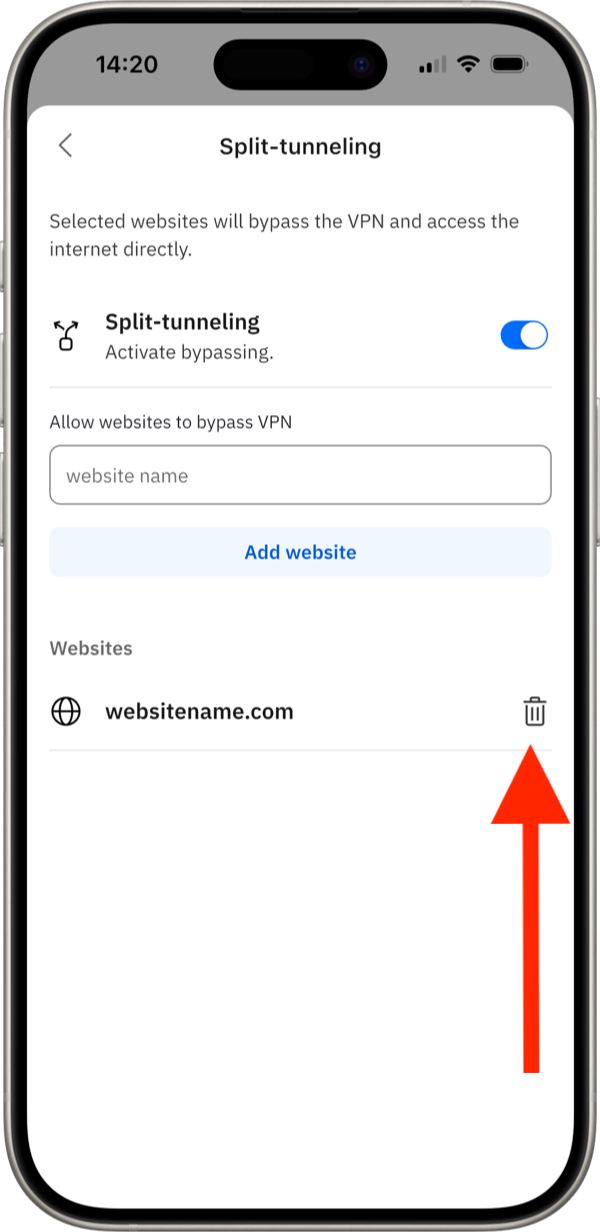
After the website is removed, it will use the VPN connection again when the VPN is enabled.