If your internet connection stopped working after installing Bitdefender App or Bitdefender Hub and connecting to Bitdefender VPN, the issue may be caused by conflicting security software, VPN protocol restrictions, or network filtering settings. You may notice symptoms such as websites not loading, browser errors like “No Internet” or “This site can’t be reached”, apps failing to connect, streaming services not working, or Wi-Fi appearing connected but without internet access. This guide will help you restore connectivity.
Step 1: Uninstall other security solutions
It is important to make sure no other antivirus, firewall, or internet security applications are installed on the device. Running multiple security solutions at the same time may block internet connectivity entirely. Examples of software that may interfere include:
- Third-party antivirus or internet security suites
- Custom firewall or traffic filtering software
- DNS filtering or parental control tools
- Network monitoring or ad-blocking applications
To avoid conflicts:
- Open the list of installed applications on your device.
- Uninstall any other antivirus, firewall, or network filtering software that is currently installed.
- Restart the device after the uninstall process completes.
- After restarting, test whether the internet connection works normally.
ⓘ Even if another security product is disabled, its network drivers or filtering components may still interfere with VPN traffic until the software is fully removed.
If the issue still occurs after uninstalling conflicting software, continue with the next steps below.
Step 2: Turn off Bitdefender VPN
If no other security solutions are installed on the device, verify whether the internet issue is caused by the VPN connection itself. Disconnecting the VPN temporarily will help determine if the VPN configuration is preventing internet access.
To turn off Bitdefender VPN:
- Open Bitdefender App (desktop) or Bitdefender Hub (mobile).
- In the navigation menu, go to Services → VPN.
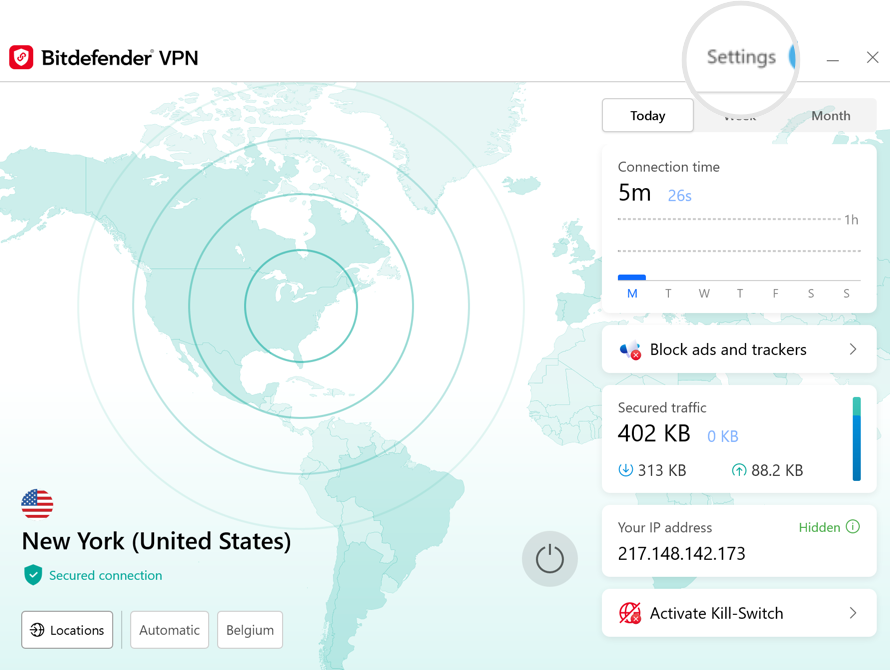
- If Bitdefender VPN is currently connected, disconnect it using the power button ⏻.
4. Wait a few seconds, then try opening a website or using another internet-connected app.
5. If your internet connection starts working again after disconnecting the VPN, continue with the troubleshooting steps below to adjust the VPN settings.
ⓘ If the internet still does not work even with Bitdefender VPN turned off, the issue may be related to your local network, router, firewall, or internet provider instead of the VPN itself. In this case, refer to this troubleshooting guide for additional advice – Internet not working? Causes and easy fixes
Step 3: Change the VPN protocol
Some Wi-Fi networks, mobile carriers, schools, offices, or internet providers may block or restrict certain VPN protocols. Switching to a different VPN protocol often restores connectivity and allows the VPN tunnel to establish properly.
1. Follow the corresponding guide to change the VPN protocol:
- How to Change the VPN Protocol in Bitdefender App (Windows)
- How to Change the VPN Protocol in Bitdefender App (macOS)
- How to Change the VPN Protocol in Bitdefender Hub (Android)
- How to Change the VPN Protocol in Bitdefender Hub (iOS)
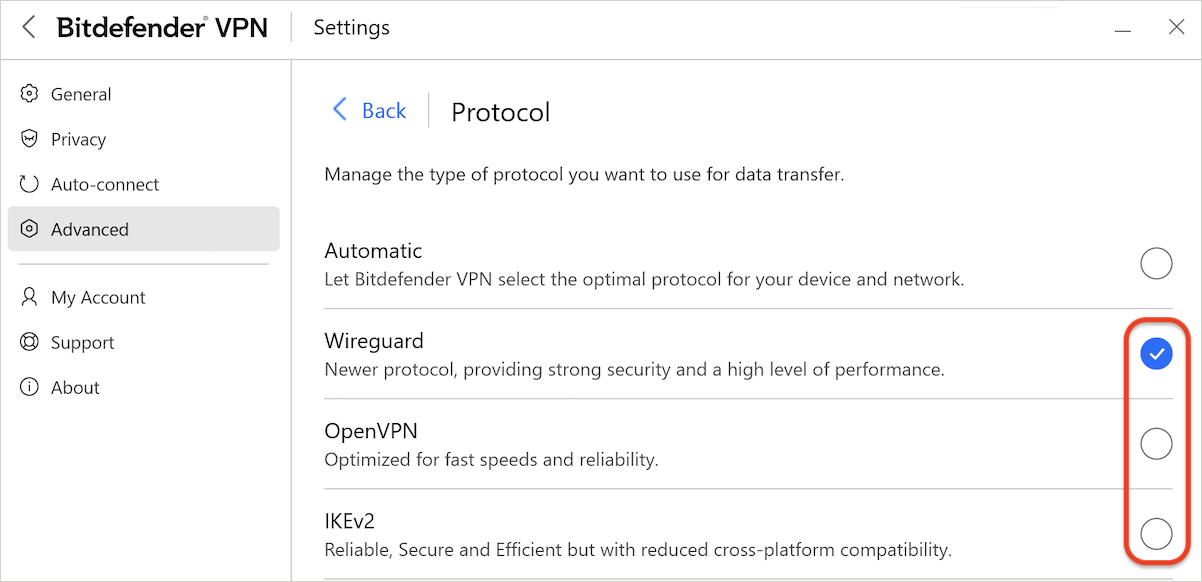
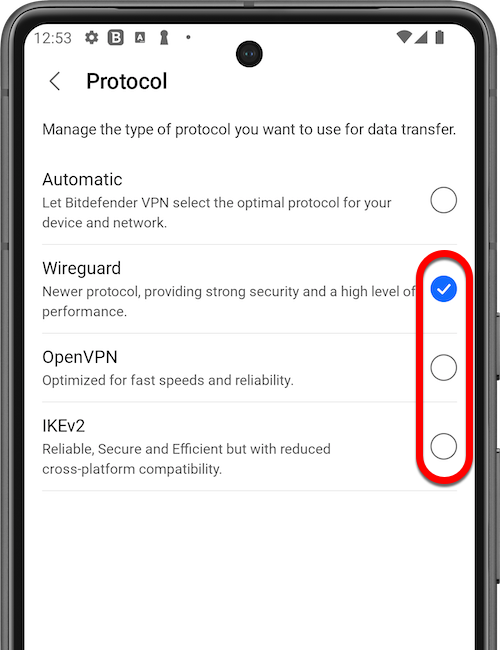
2. Instead of using Automatic, manually select a different protocol from the available list.
- Available protocols may vary depending on the operating system.
3. Reconnect to the VPN and test whether internet access is restored.
4. If the connection still does not work, repeat these steps and test each available protocol one at a time.
Step 4: OpenVPN and Scramble
If changing protocols did not resolve the issue, try using the OpenVPN protocol together with the Scramble feature. This configuration can help on restrictive networks that actively detect or block VPN traffic, such as some public Wi-Fi networks, office environments, or mobile providers.
These instructions apply to Windows and Android devices only.
To configure OpenVPN with Scramble:
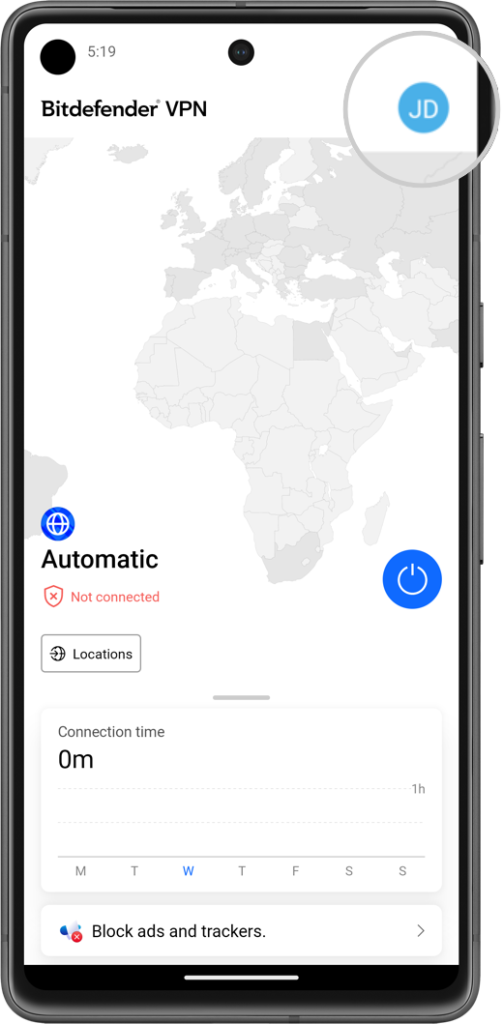
1. Tap or click your profile icon in the top-right corner of Bitdefender App or Bitdefender Hub.
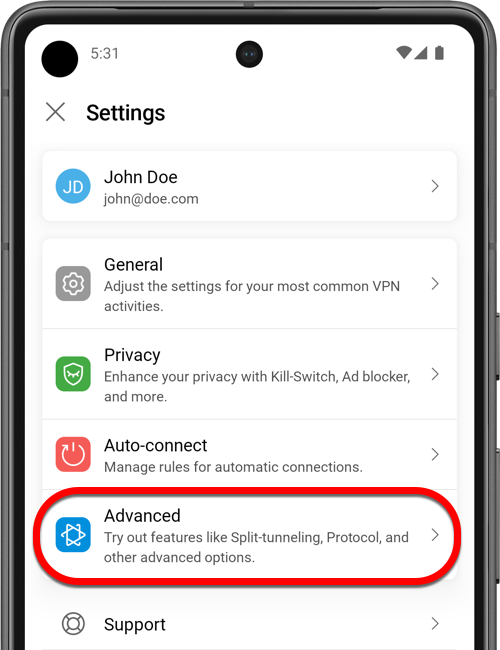
2. Select VPN from the menu.
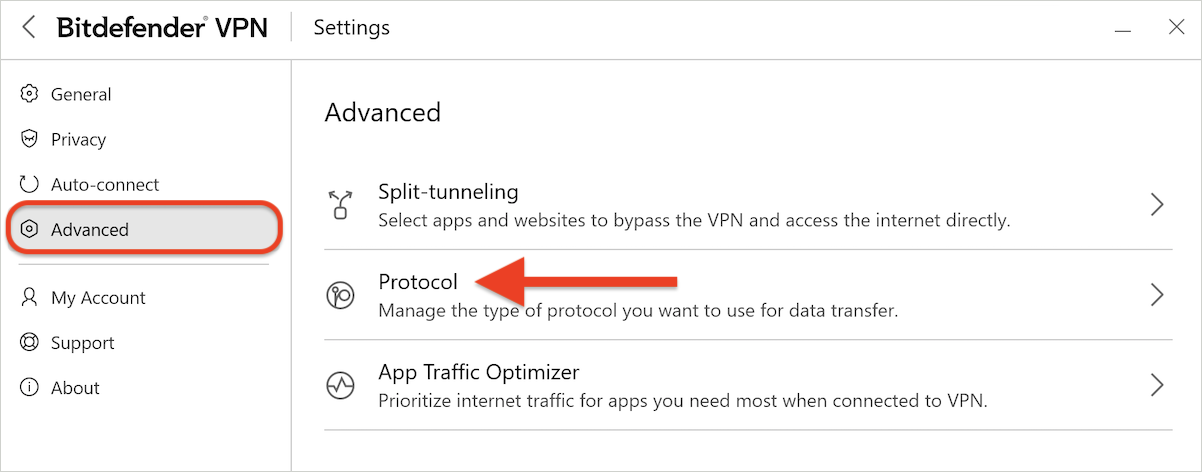
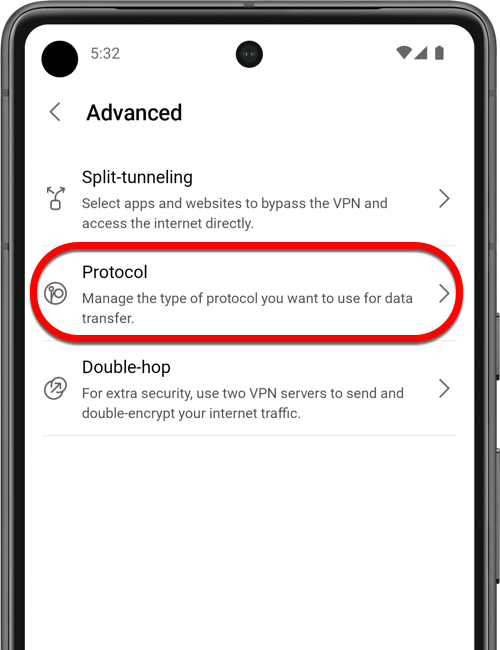
3. Scroll down and open the Protocol section.
4. Select OpenVPN in the list, then set:
- Connection: TCP
- Port: 443
6. Reconnect to the VPN and test the internet connection again.
7. If the connection still doesn’t work, keep the OpenVPN protocol selected and turn on the Scramble switch as well.
8. Reconnect to the VPN and test the internet connection again.
Using TCP port 443 can help VPN traffic blend in with regular secure web traffic, while Scramble adds obfuscation that may bypass VPN filtering systems.
Step 5: Disable Bitdefender Ad Blocker and Anti-Tracker
In some cases, VPN filtering features such as Ad Blocker or Anti-Tracker may interfere with certain websites, DNS requests, or network configurations. Temporarily disable these features to determine whether they are causing the connectivity issue:
1. Tap or click your profile icon in the top-right corner of Bitdefender App or Bitdefender Hub.
2. Select VPN from the menu.
3. Open the Ad Blocker and Anti-Tracker section.
4. Turn off the following switches so they become gray:
- Ad Blocker
- Anti-Tracker
5. Reconnect to the VPN and test your internet connection again.
If the connection works after disabling one of these features, you can leave it turned off or re-enable the settings individually to identify which option caused the issue.