Here you can find information about the latest version of Bitdefender security software for Windows, along with simple steps to manually update your Bitdefender app. Bitdefender updates its virus definitions daily, but major version updates happen about once every four weeks.
Latest version of Bitdefender
- The latest version of Bitdefender security solutions for Windows is 27.0.62.355, released on September 9, 2026.
Changelog:
- new Advanced Threat Defense driver
How to find your version number
To see if you have the latest version of Bitdefender:
- Click the round icon at the top of the Bitdefender app.
- The build number you are on is displayed at the bottom of the app, in the Product information section.
Note: If your build number differs, note that updates are being rolled out gradually. A prompt to restart Windows will appear once the update is fully available.

Manual update guide
Bitdefender automatically updates itself every hour after you start your computer. To manually update Bitdefender to the most recent version:
- Right-click the Bitdefender icon in the taskbar
 (or click the upward arrow next to the Windows clock to find it).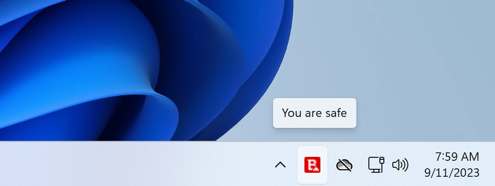
- Select Update Now from the menu.
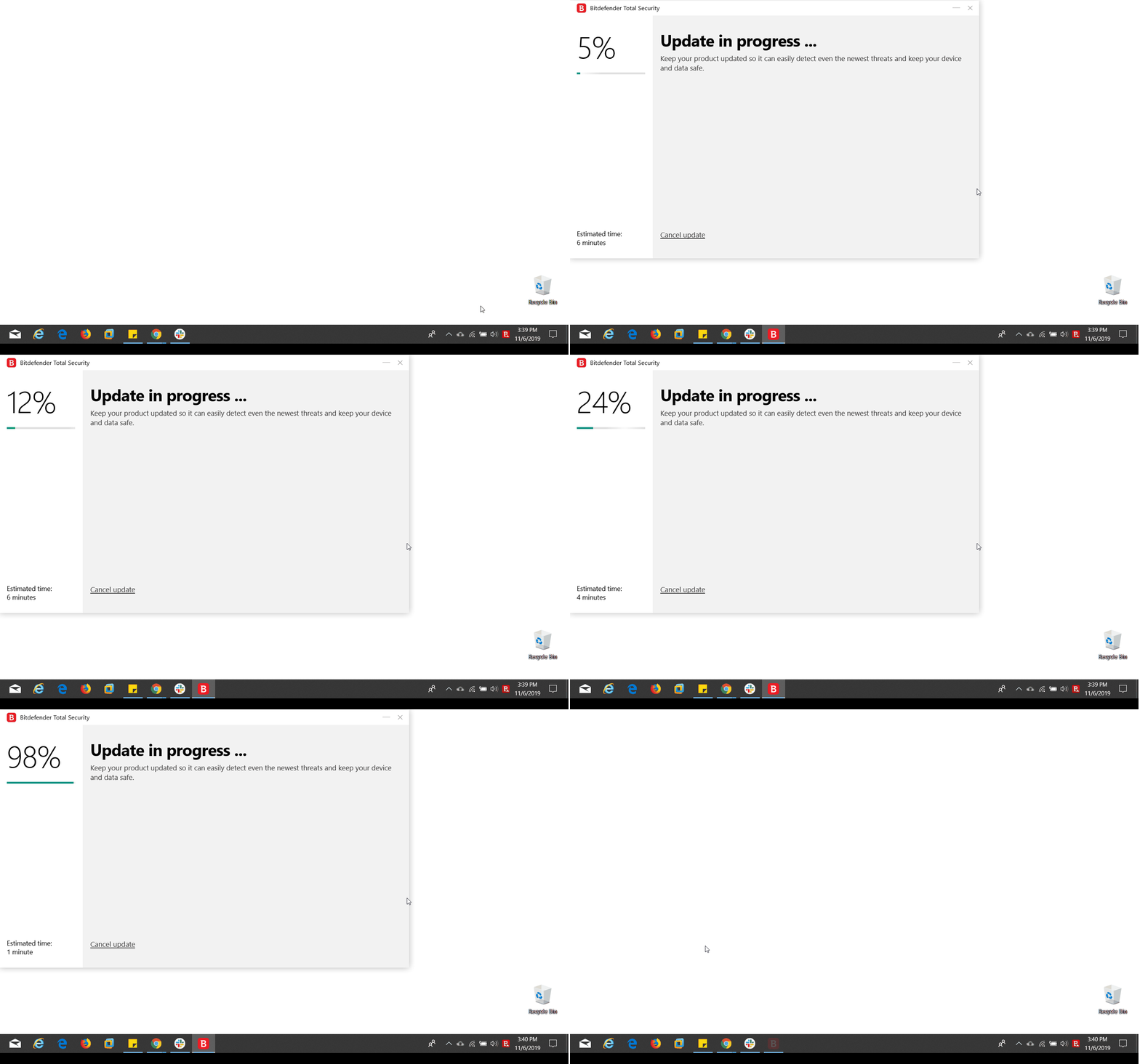
- Wait for the update process to reach 100%.
- If a restart is needed, Bitdefender will prompt you. Otherwise, you can simply close the update window.