After installing Bitdefender VPN on Android or Apple TV, you can connect to VPN, choose a VPN location, and manage privacy and account options. This guide covers the Home, Locations, and Settings sections.
Home screen
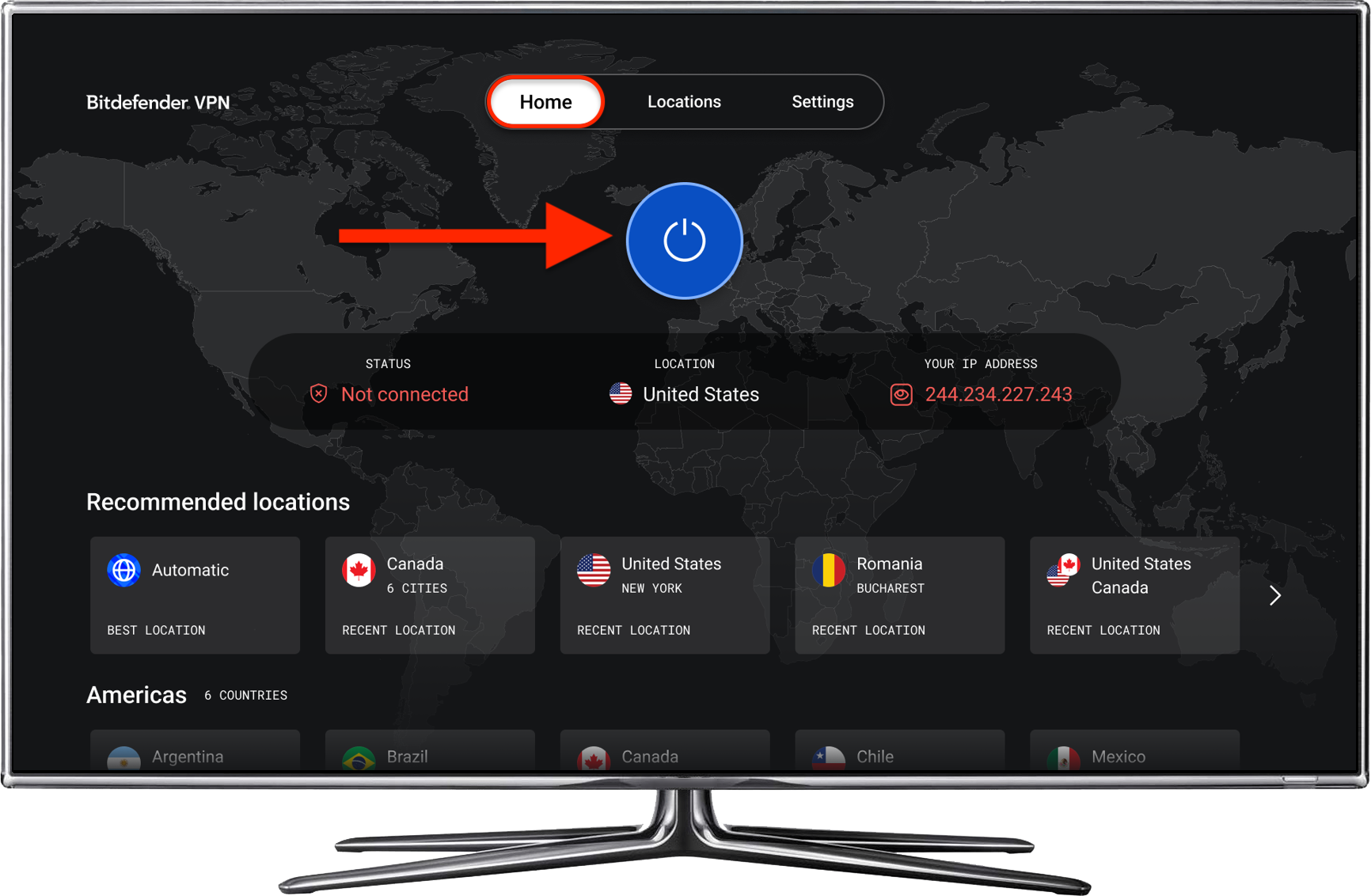
You can connect or disconnect from Bitdefender VPN for TV from the Home screen.
- Launch the Bitdefender VPN app on your TV.
- To connect or disconnect, press the power button ⏻ on the Home screen. By default, it connects to the Automatic location, which is set to the nearest VPN server available.
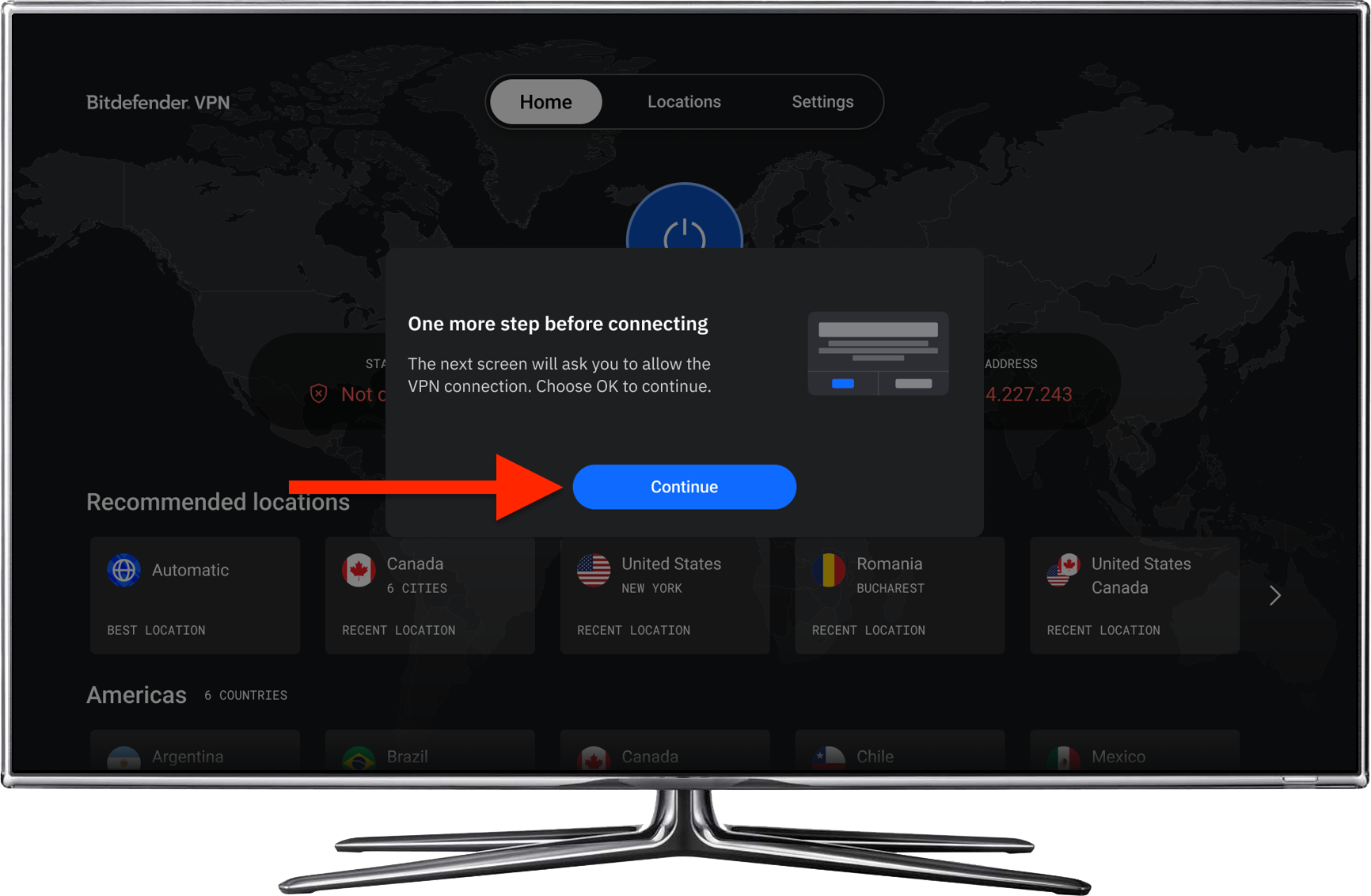
- The first time you connect to Bitdefender VPN on TV, you must allow the connection. Press Continue, then OK.

When Bitdefender VPN is connected, the status changes to Secured connection and the screen shows the connected location and IP address.
Recommended locations and available Bitdefender VPN locations grouped by continent appear below the connection details.
Bitdefender VPN for TV Locations
To search for a specific location in Bitdefender VPN for TV:
- Switch to the Locations tab.
- Use the voice command or type in the search bar to find a specific VPN location.
- You can also scroll down to browse the available locations, which are grouped by continent:
- Americas, Europe, Asia Pacific, and Middle East & Africa. Some countries show a city, and some offer multiple cities.
- Double-hop routes also appear in the location listings.
- Press a location card to connect to that country.
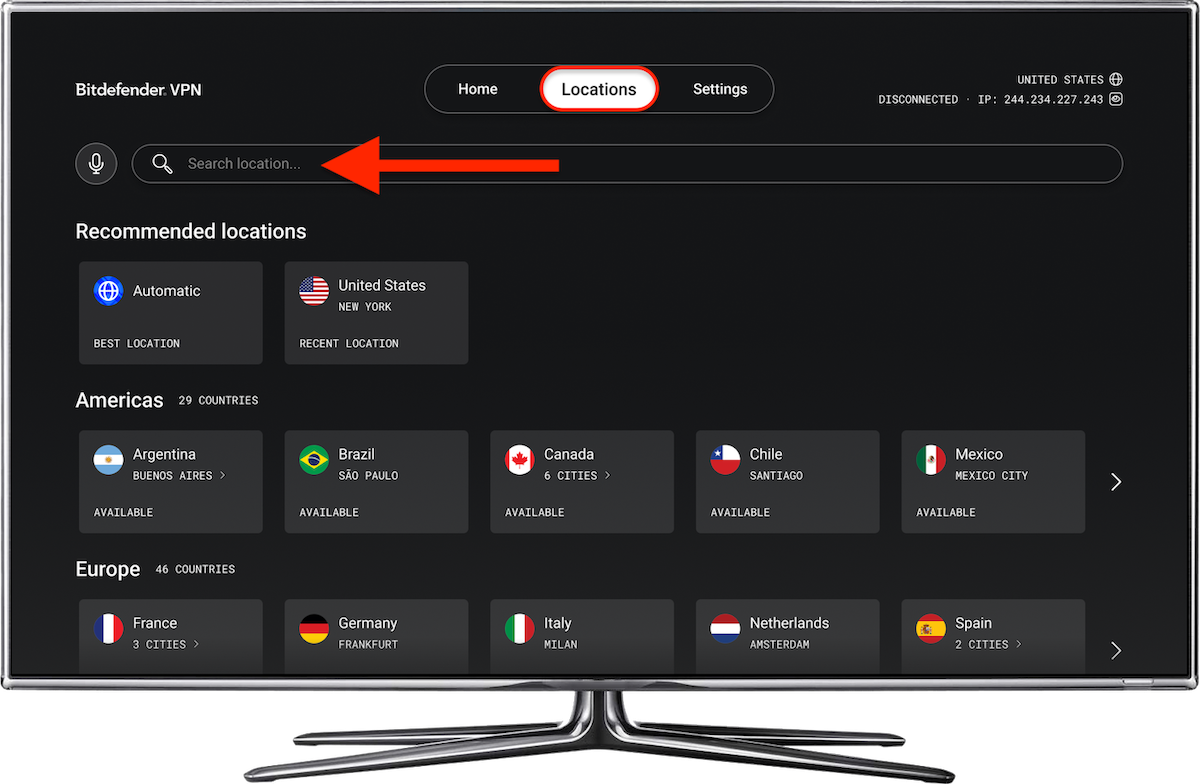
The top of the screen indicates the current location, connection status, and IP address.
Settings
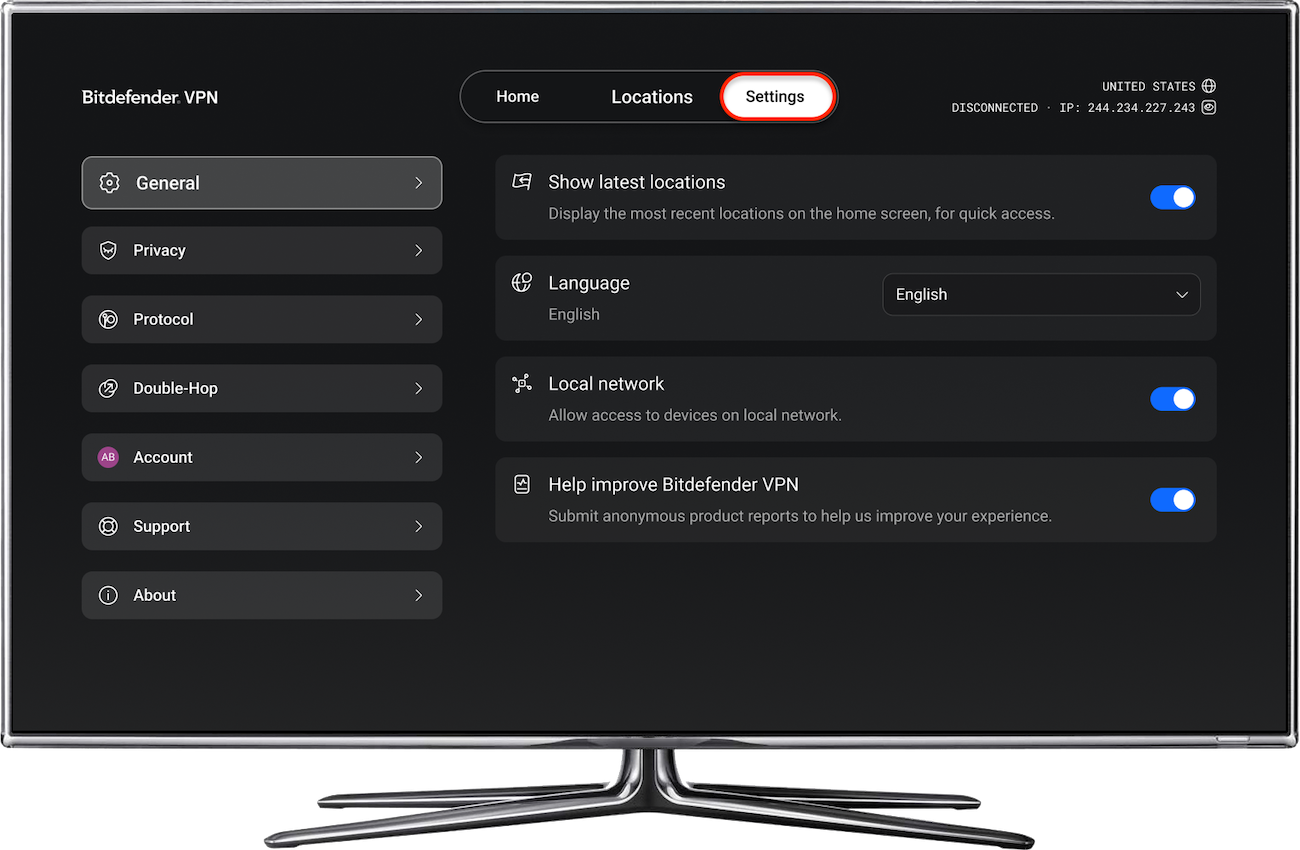
- Navigate to the Settings tab.
- Use the left side menu to explore the VPN settings below.
General
- Turn Show latest locations on or off to show recent locations on the Home screen.
- Choose a Language from the dropdown.
- The Local network switch controls access to devices on your local network.
- Help improve Bitdefender VPN controls whether the app submits anonymous product reports.
Privacy
- Privacy options include Ad blocker, which blocks unwanted ads on websites and Anti-tracker, which blocks trackers.
- Use the switches to turn either feature on or off.
Protocol
Choose the protocol used by Bitdefender VPN for TV to establish a secure connection:
- Automatic – In most cases, the default Automatic option works well because the app selects the protocol best suited for your device and network conditions
- Wireguard – Designed for faster connections speed, strong security, and efficient performance.
- OpenVPN – Known for its reliability, compatibility, and strong security.
- IKEv2 – Performs especially well when switching between Wi-Fi and mobile networks.
Double-hop
- Create a custom route by choosing a First location and a Second location, then pressing + Add. The route sends your traffic through two VPN servers.
- Press Remove beside a route to remove it.
Account
- View the signed-in account and Bitdefender VPN subscription details, including the expiration information.
- Log out of your Bitdefender account.
- If you have server communication issues, the screen suggests selecting Refresh to refresh the subscription.
Support
- Support Center – Browse the FAQs or reach out to our Support team if you need help with your VPN app.
- Ask the Community – Get answers and solutions on Bitdefender’s forum.
About
- Indicates the VPN version installed on your TV.