This guide explains how to install Bitdefender VPN on your Android TV or Apple TV and complete the initial setup. Bitdefender VPN encrypts your internet traffic and does not log the websites you visit or the content you stream.
System Requirements: Android TV or tvOS 17.4+
1. Open your TV’s app store
Open Google Play Store on your Android TV or the App Store on your Apple TV.
2. Find and install Bitdefender VPN
Search for Bitdefender VPN, select the app, then choose Install. Once the installation is complete, open the app.
3. Accept the terms and continue
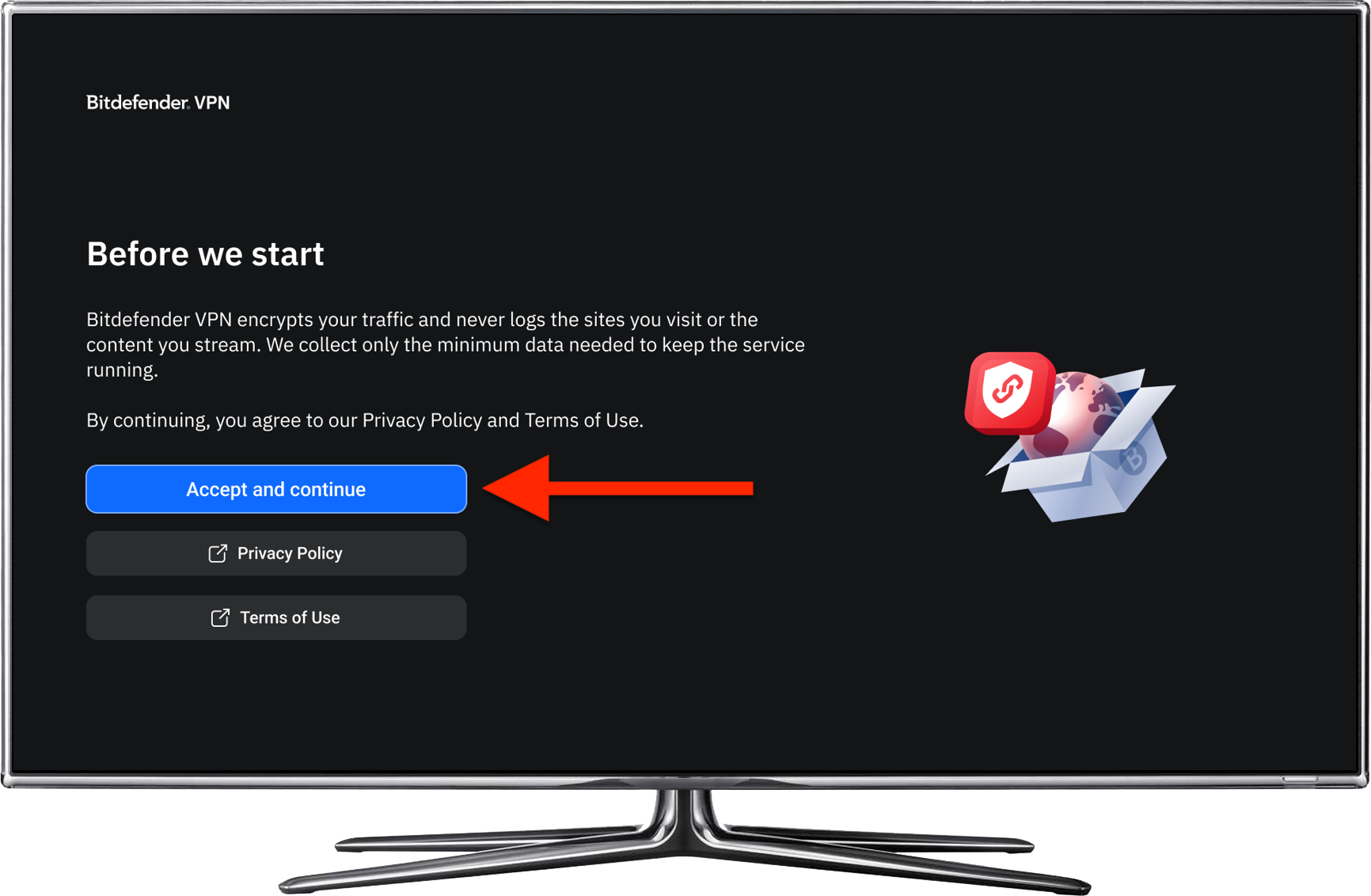
Select Accept and continue after you open and read the Privacy Policy and Terms of Use to proceed with the setup.
4. Sign in to your Bitdefender account
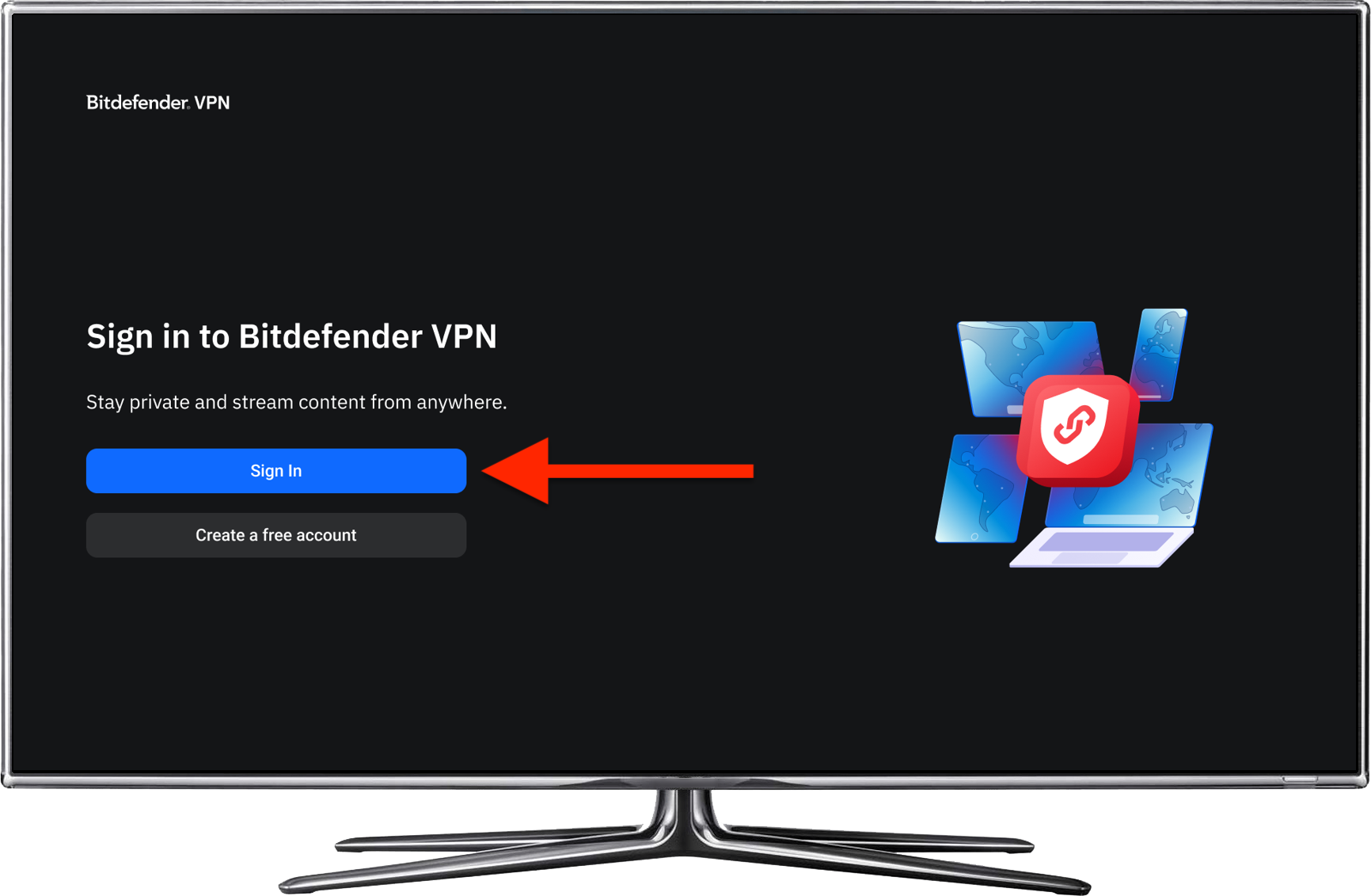
On the Bitdefender VPN sign-in screen, select Sign in, then choose one of the sign-in methods shown on your TV.
- If you don’t have a Bitdefender account, select Create a free account and follow the on-screen instructions.
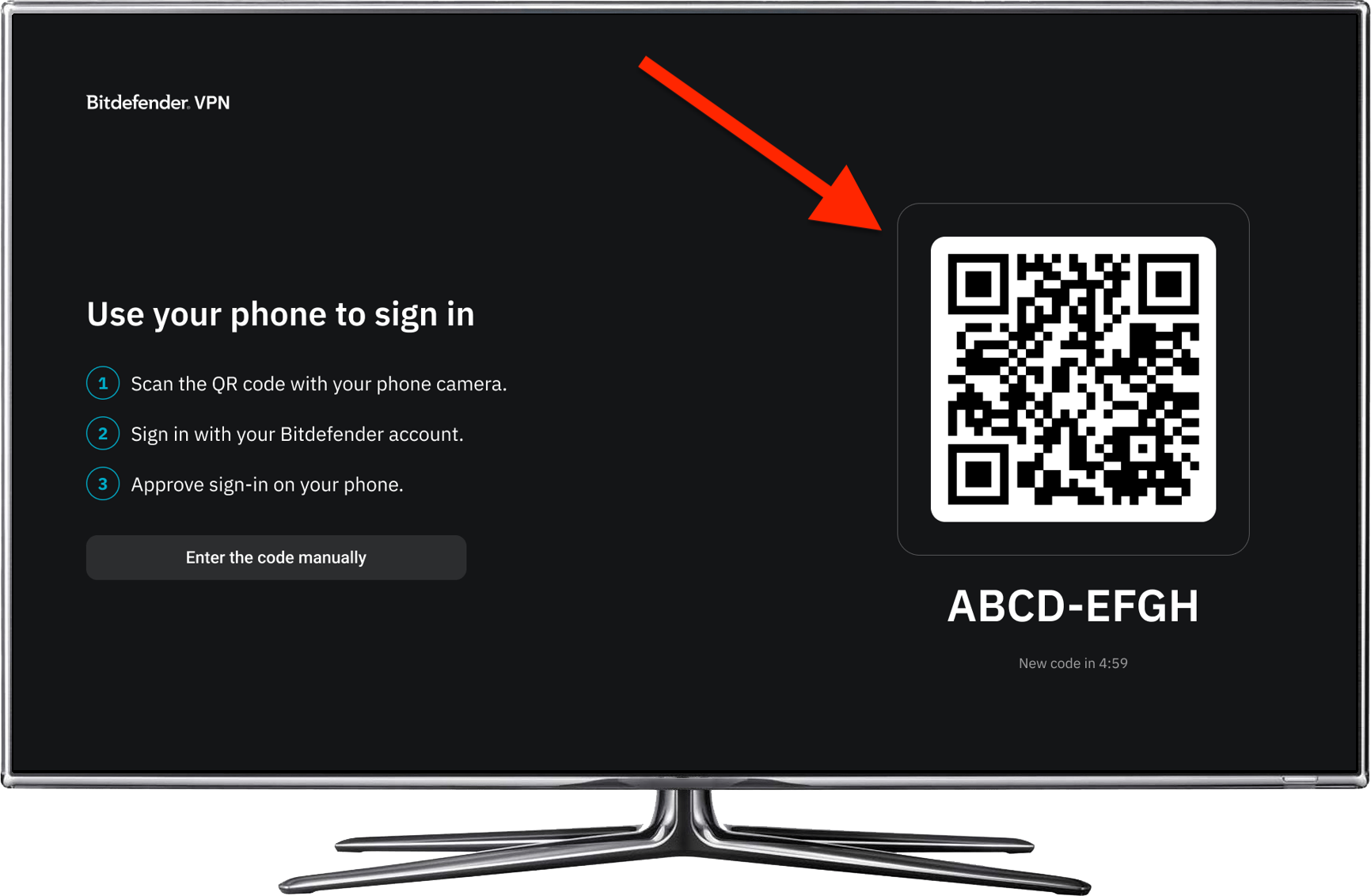
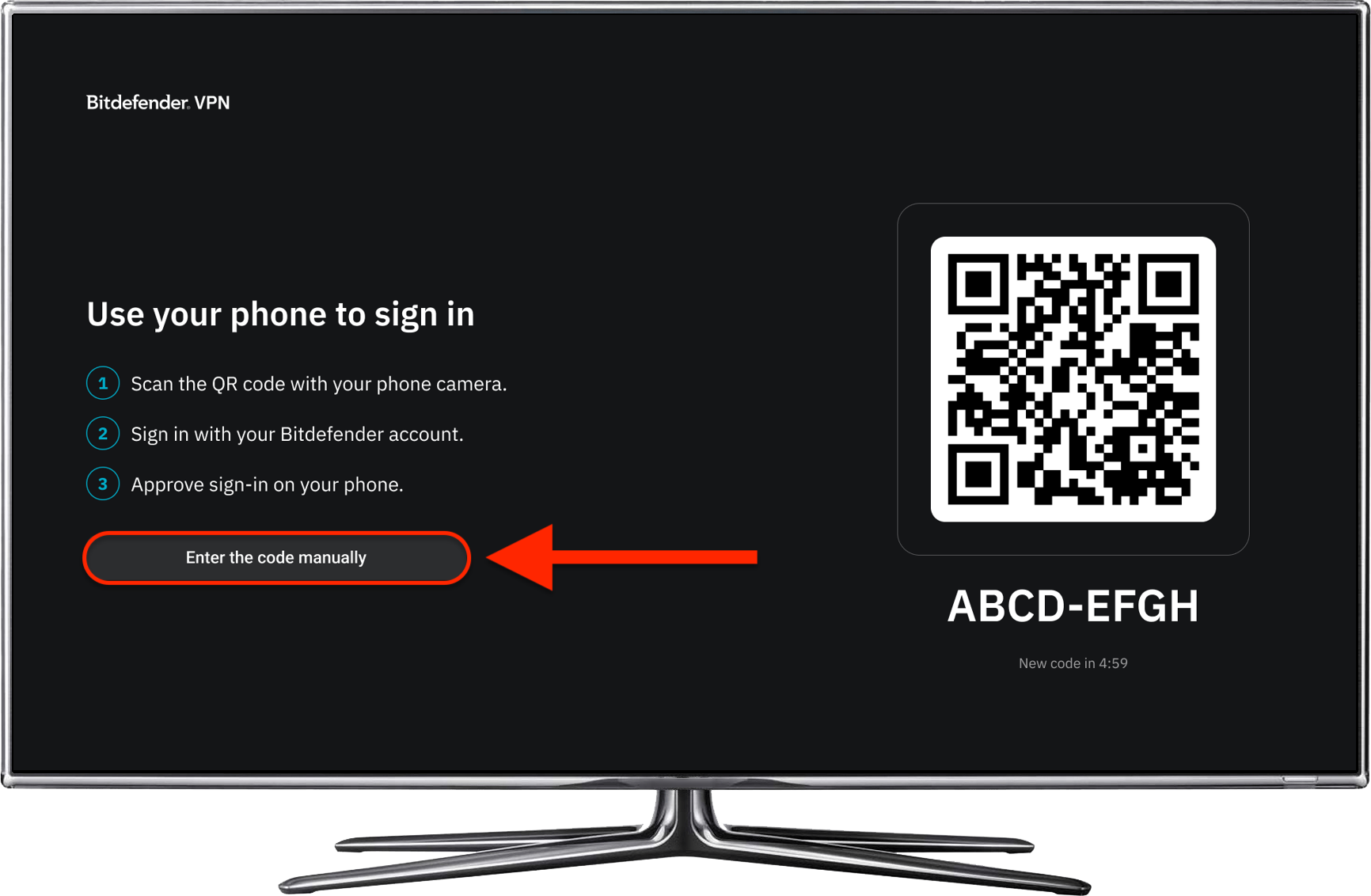
Sign in with QR code
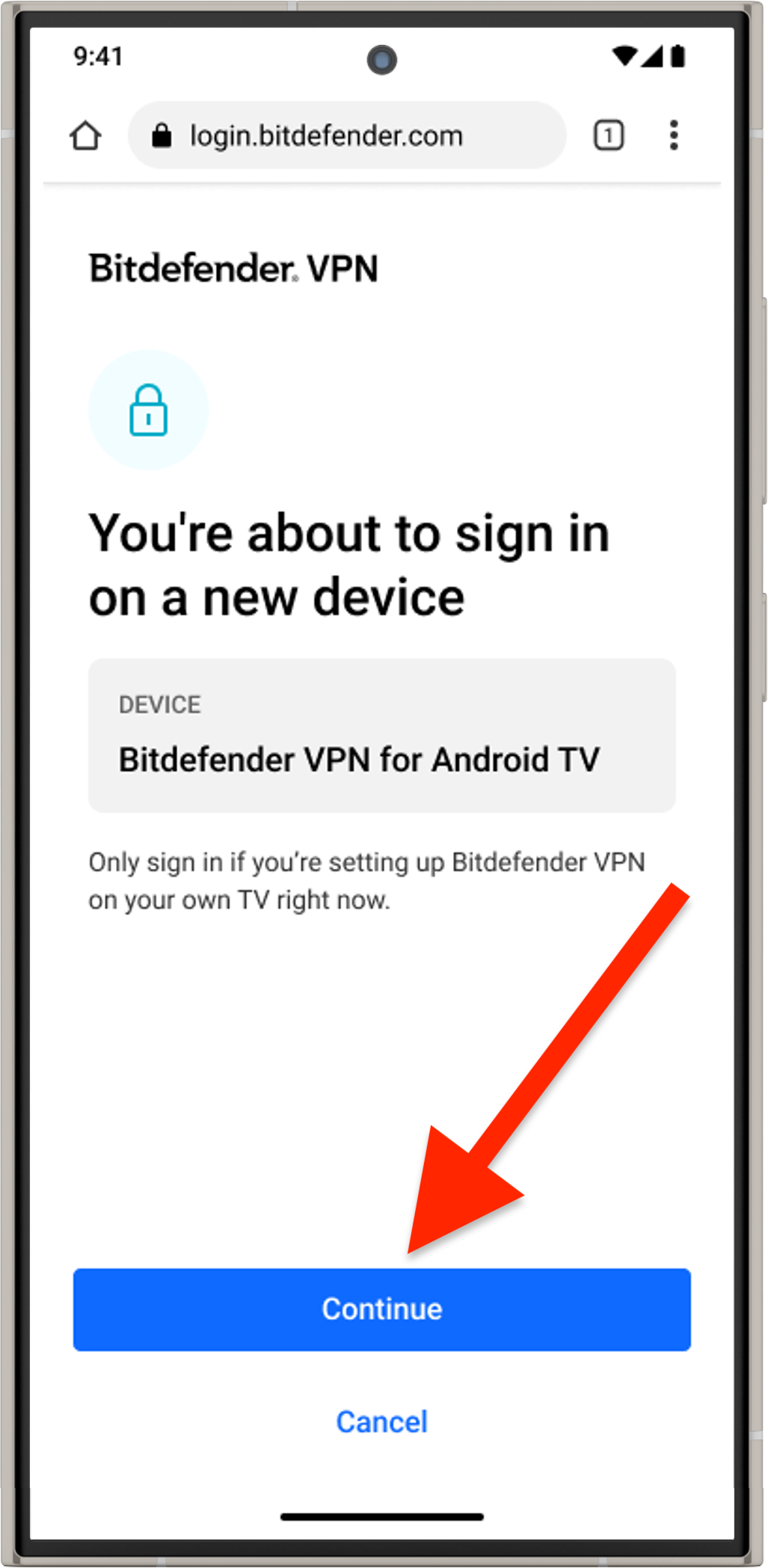
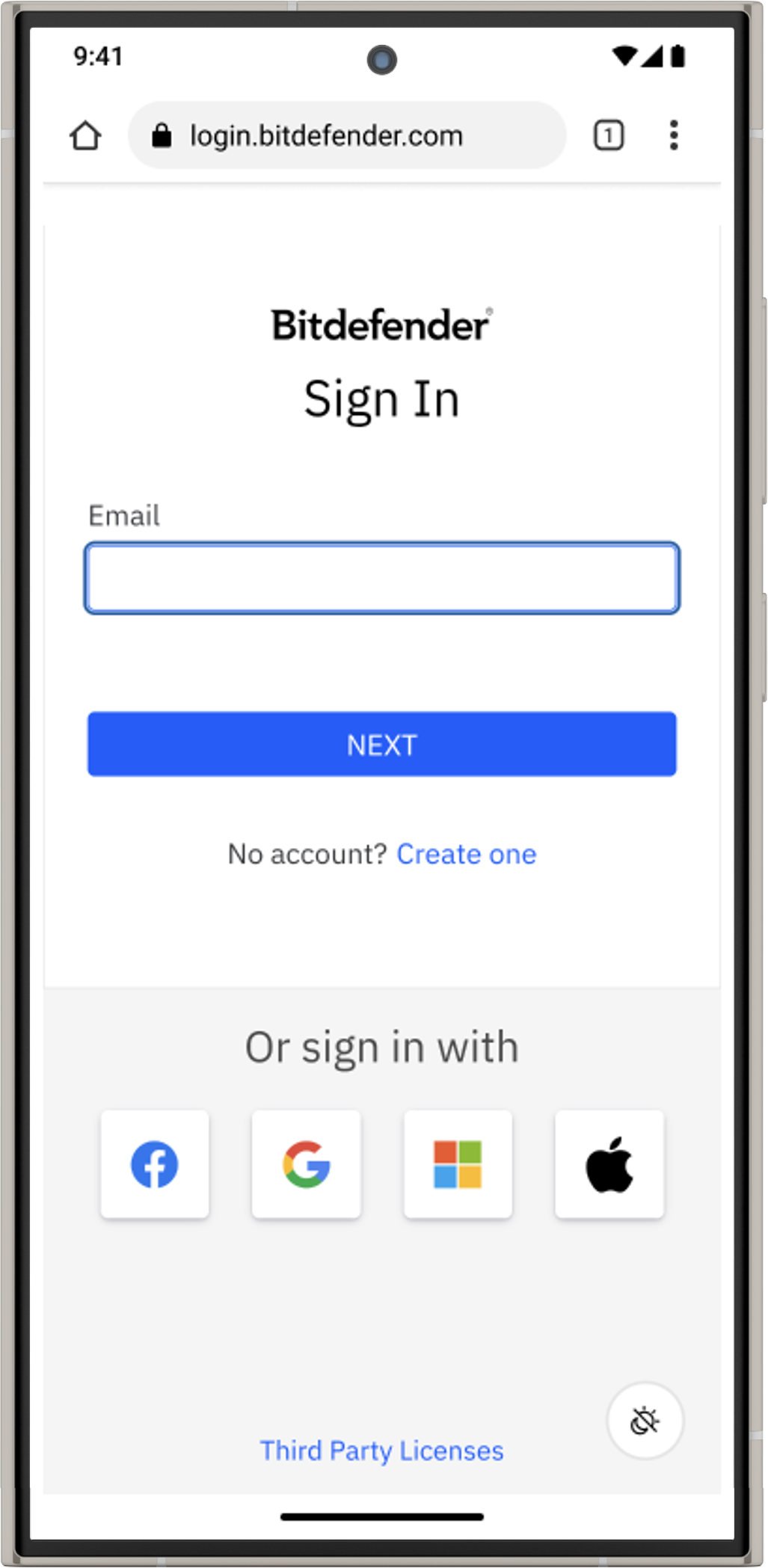

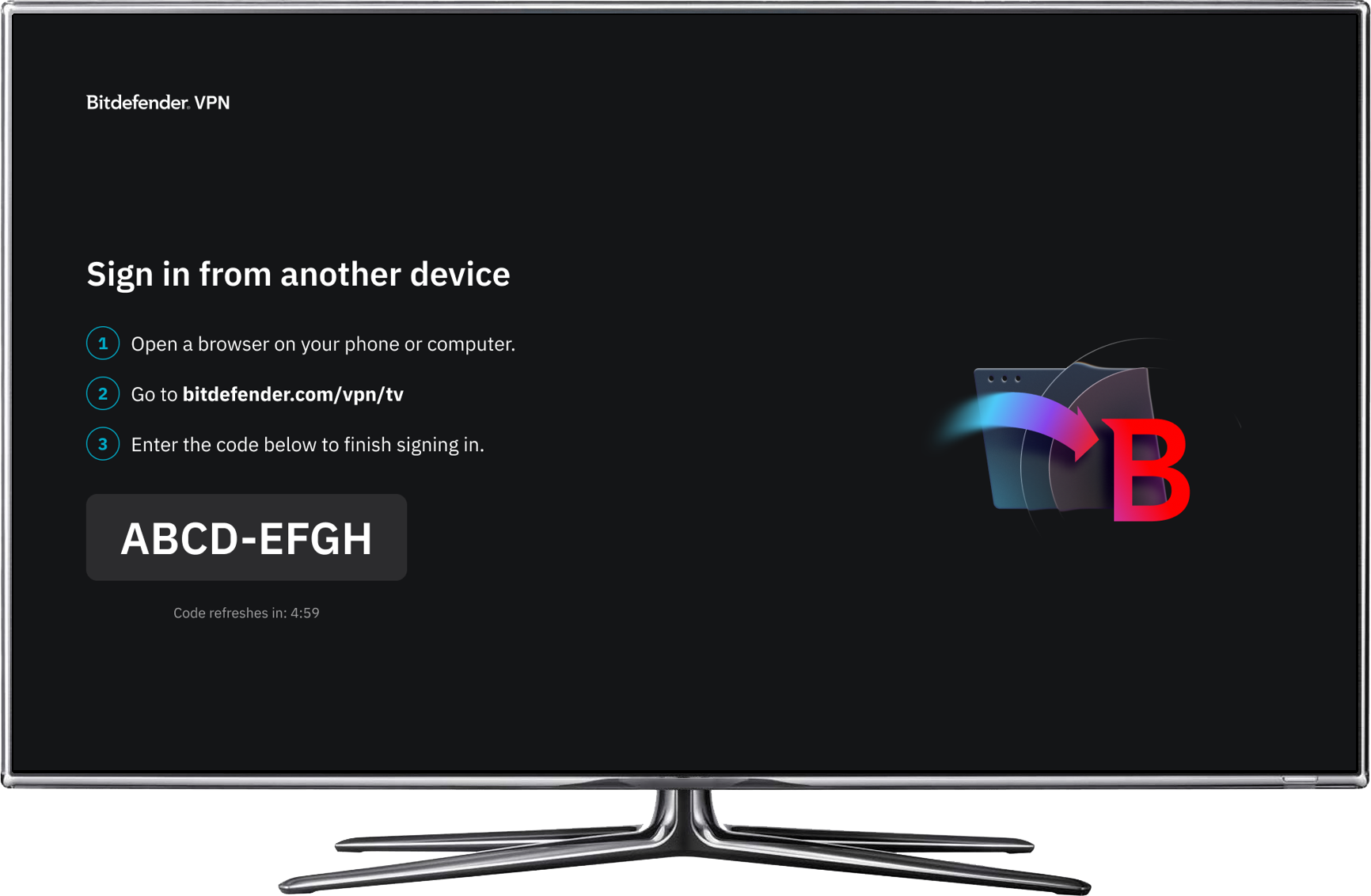
Sign in with code
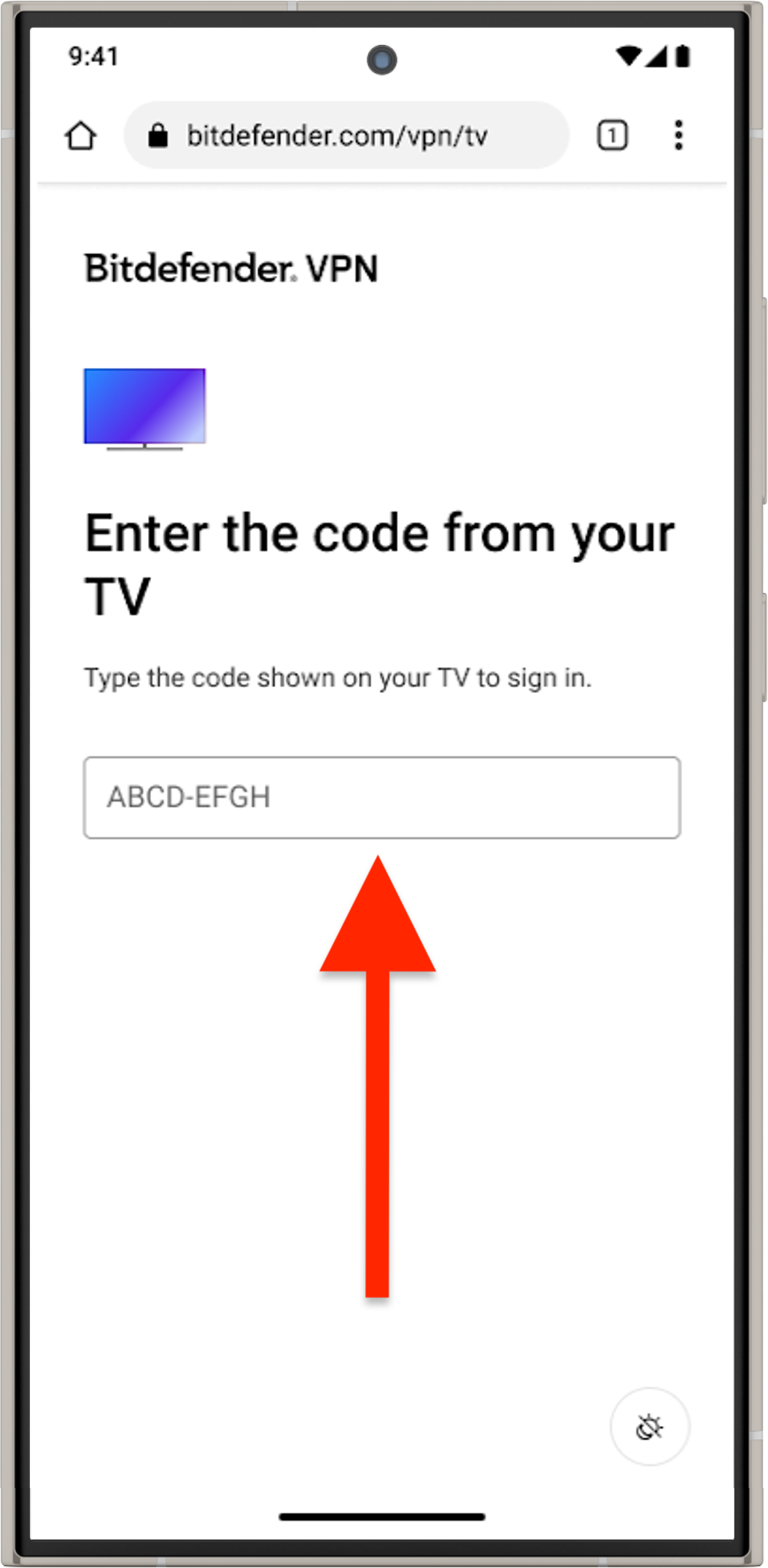
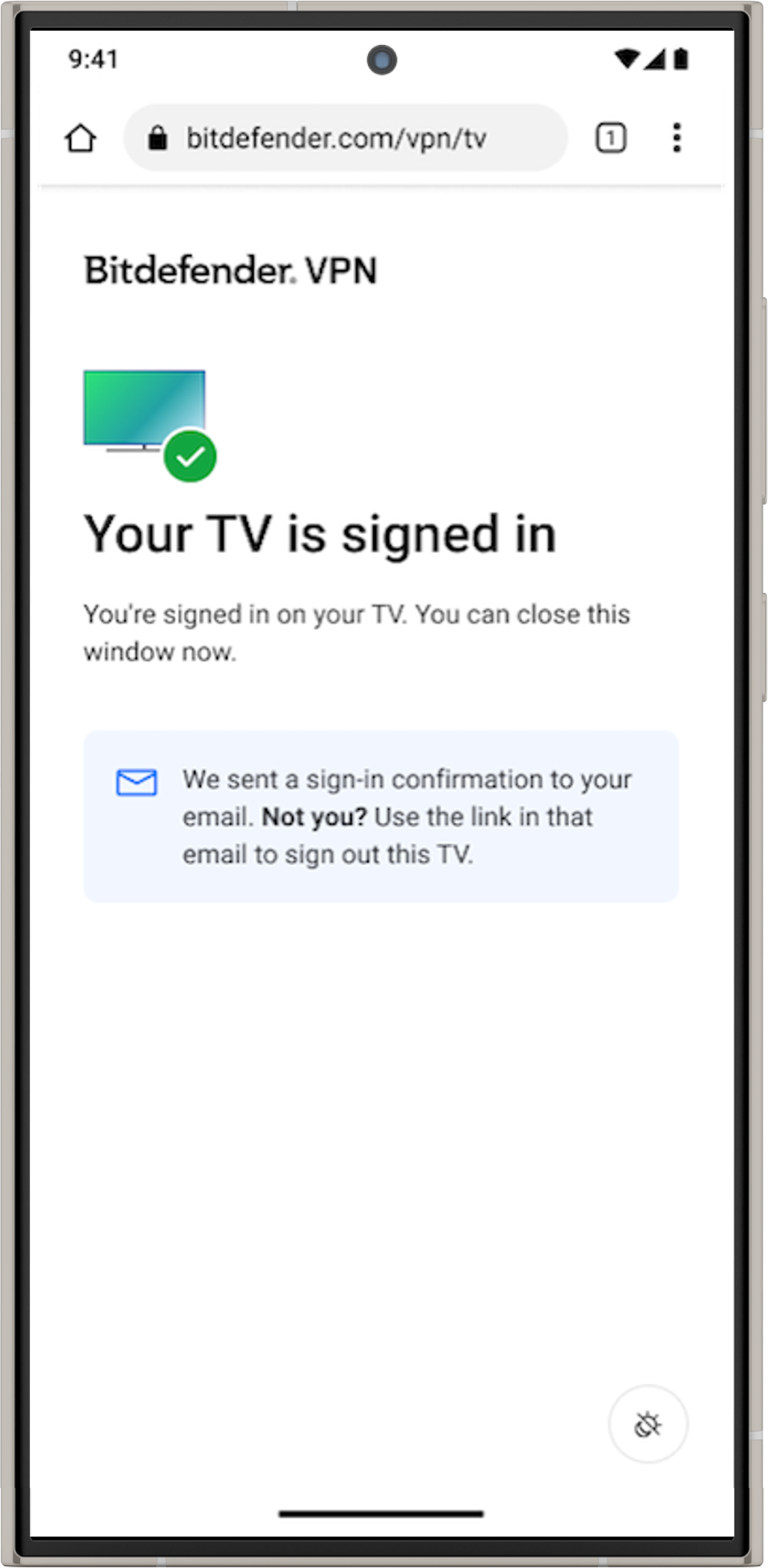
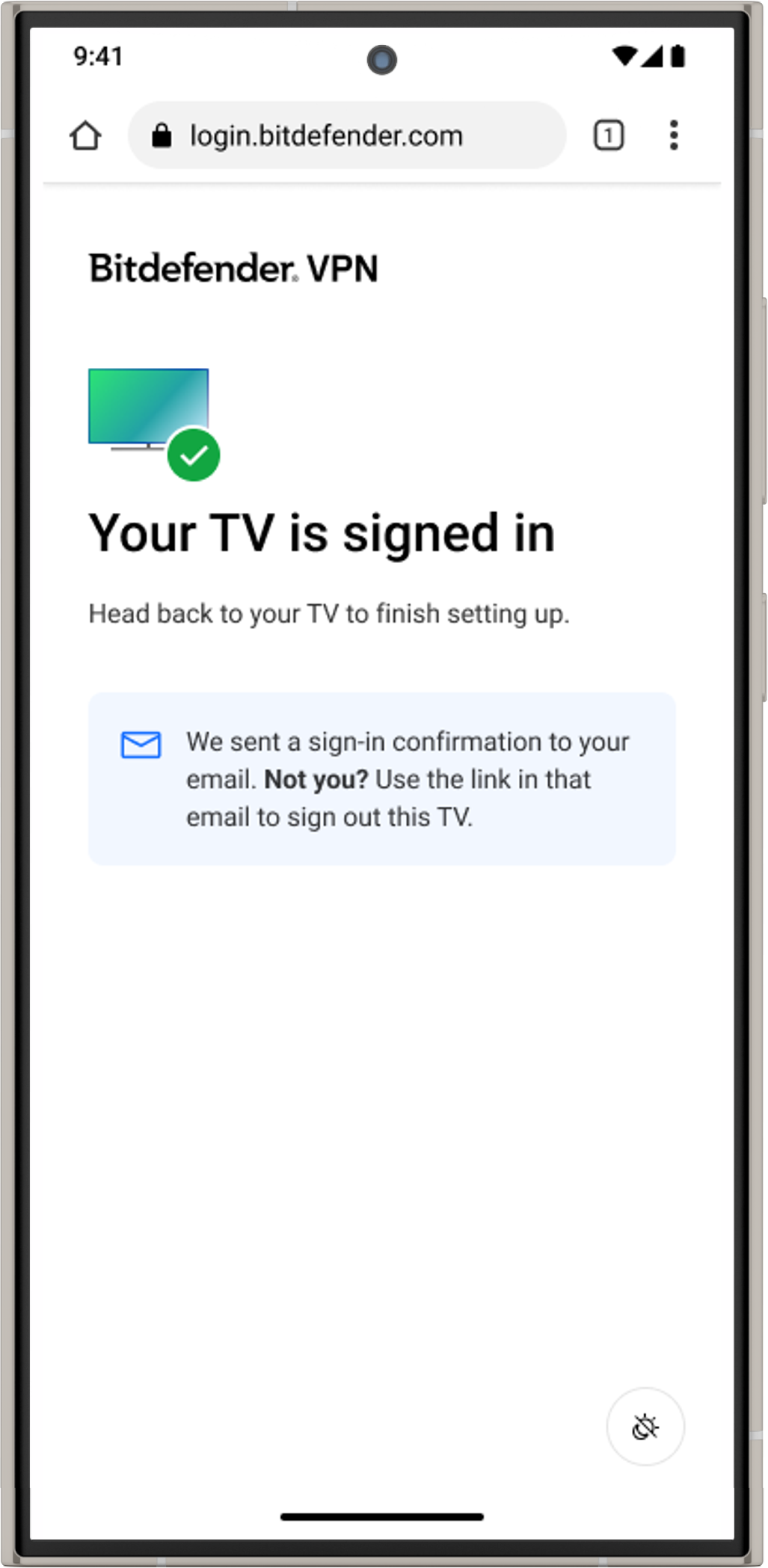
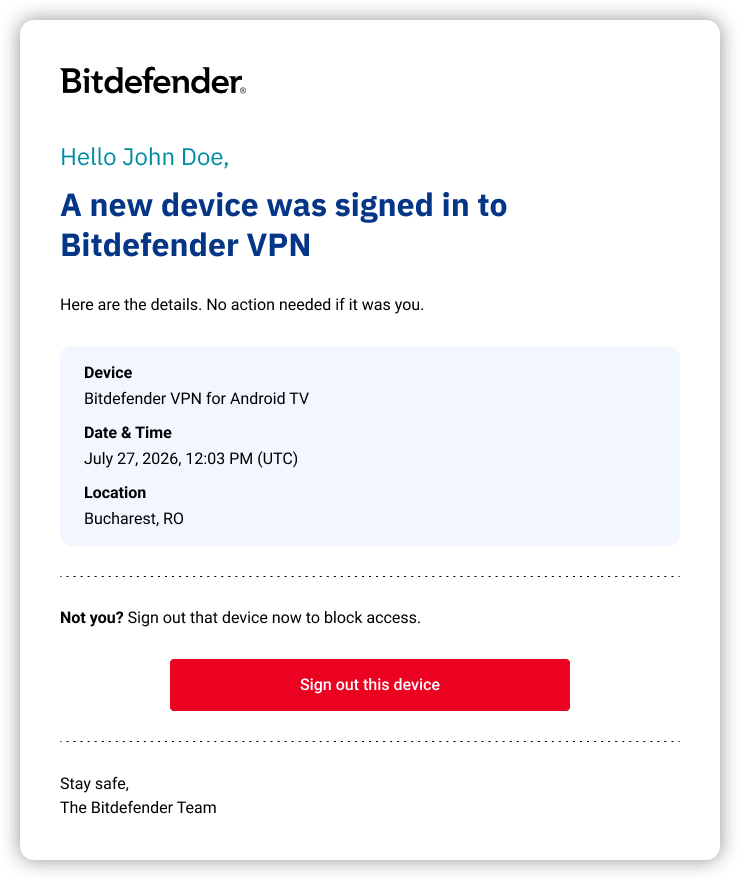
Once you sign in to Bitdefender VPN on your TV, a confirmation email is sent to the address associated with your account. It includes the device, date and time, and location of the sign-in.
- If you don’t recognize the device, click Sign out this device in the email to block its access.
5. Configure the privacy features
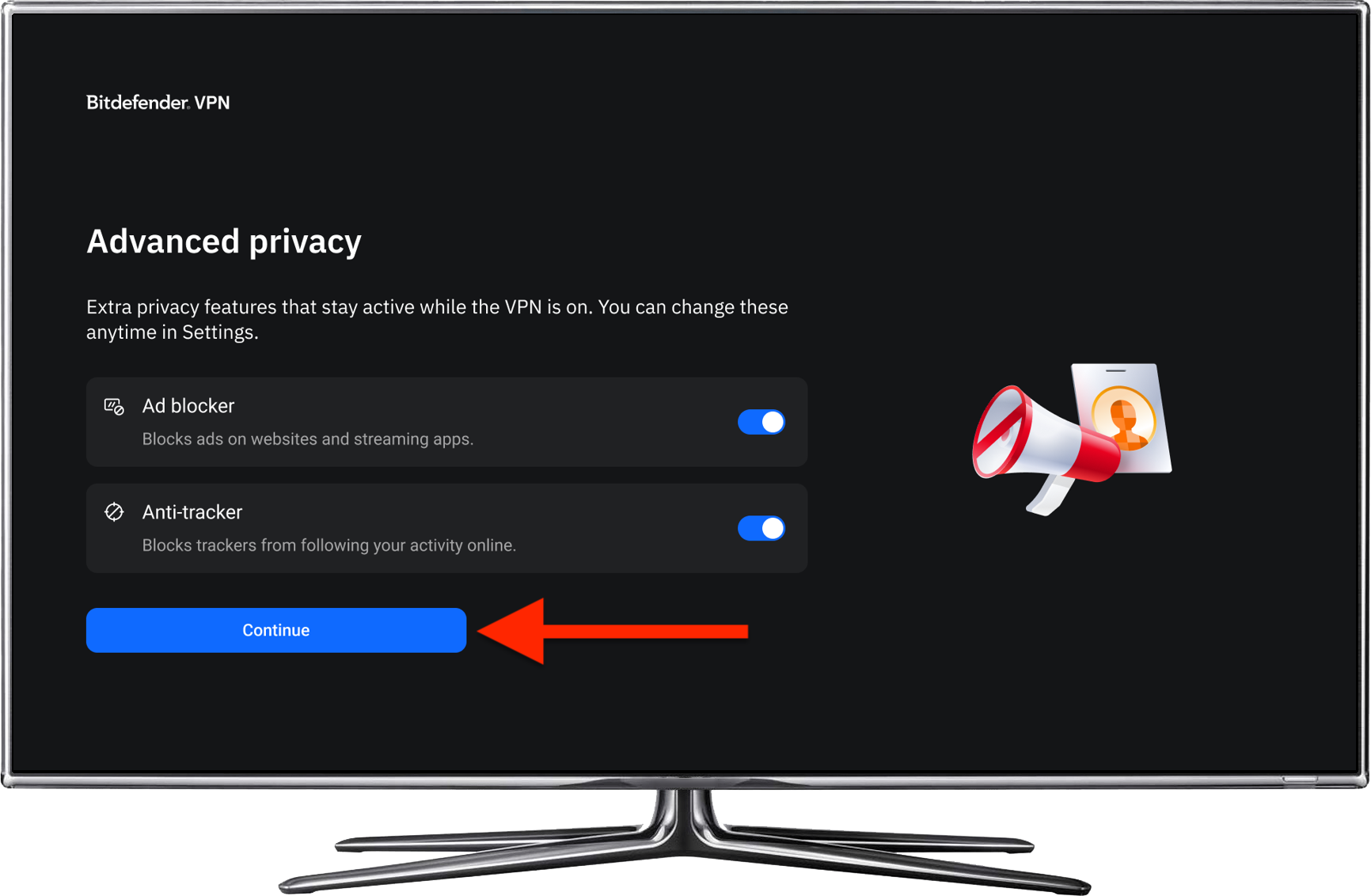
The Advanced privacy screen introduces additional privacy features that you can use while the VPN is connected:
- Ad blocker – Blocks unwanted ads on supported websites.
- Anti-tracker – Prevents online trackers from monitoring your browsing activity.
Use the corresponding switches to enable or disable these features during setup, then press Continue. You can also change your preferences later in VPN settings.
6. Finish setup and connect
Once setup is complete, Bitdefender VPN opens to the Home screen.
Choose a VPN location to connect:
- Automatic – Connects to the nearest server location.
- Specific country – Select a country from the list of available locations.
To learn more about the app, see How to Use Bitdefender VPN for TV: Home, Locations, Settings.