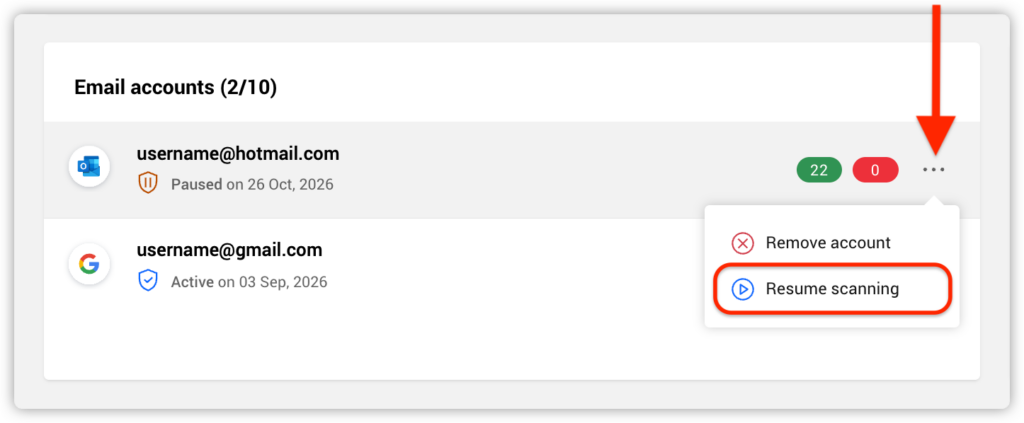
When accessing Outlook webmail (Outlook.com, Hotmail, or a Microsoft 365 mailbox) through a mobile browser on an Android or iOS device, the green (safe) and red (dangerous) Bitdefender Email Protection‘s green (safe) and red (dangerous) labels may not appear next to your emails. This can happen even when the Email Protection feature is enabled and set up for the Outlook account.
Why Labels Disappear on Outlook Web Mobile
This issue is usually caused by a display limitation within the mobile web version of Microsoft Outlook. To optimize performance and save screen space on mobile devices, Outlook webmail loads a simplified user interface.
This mobile-optimized web architecture of Outlook strips away external UI elements and native metadata layouts like Microsoft’s own sensitivity labels. Because the mobile layout focuses on ultra-lightweight text rendering, it filters out the custom third-party visual elements that Bitdefender relies on to place green and red labels. Even though Bitdefender processes the email on the cloud server before it reaches your device, the mobile web interface of Outlook actively prevents these visual markers from rendering.
This limitation affects all mobile web browsers and is not a malfunction of your Bitdefender software.
How to Troubleshoot Missing Labels
To bypass this platform limitation while using mobile browsers, you can use these solutions in the order listed.
Solution 1: Request the Desktop Version of Outlook