Switching to Bitdefender SecurePass is seamless but finding out your old password manager provider is not supported can bring your migration to a sudden halt. While SecurePass can import data from the industry’s most common credential providers, you may occasionally find that your previous password manager is unsupported. This means that SecurePass does not have a predefined, automated parser for that specific software’s proprietary file structure. Fortunately, your data can still be migrated. You need a manual workaround to bridge the gap.
In this guide, we will show you how to bypass this limitation, format your passwords using our migration template, and successfully import all your data into Bitdefender SecurePass in just a few steps.
Prerequisites
Before beginning the formatting process, ensure you have completed the following:
- Export your data: Log in to your previous password manager and export your vault, preferably as a .CSV (Comma Separated Values) file if this option is available.
- Download the SecurePass template: Bitdefender_SecurePass_CSV_template (This template contains pre-configured headers and example rows to guide your data formatting).
Import Data from an Unsupported Password Manager into SecurePass
Step 1: Open the SecurePass Template
Step 2: Map Data From Unsupported Password Manager
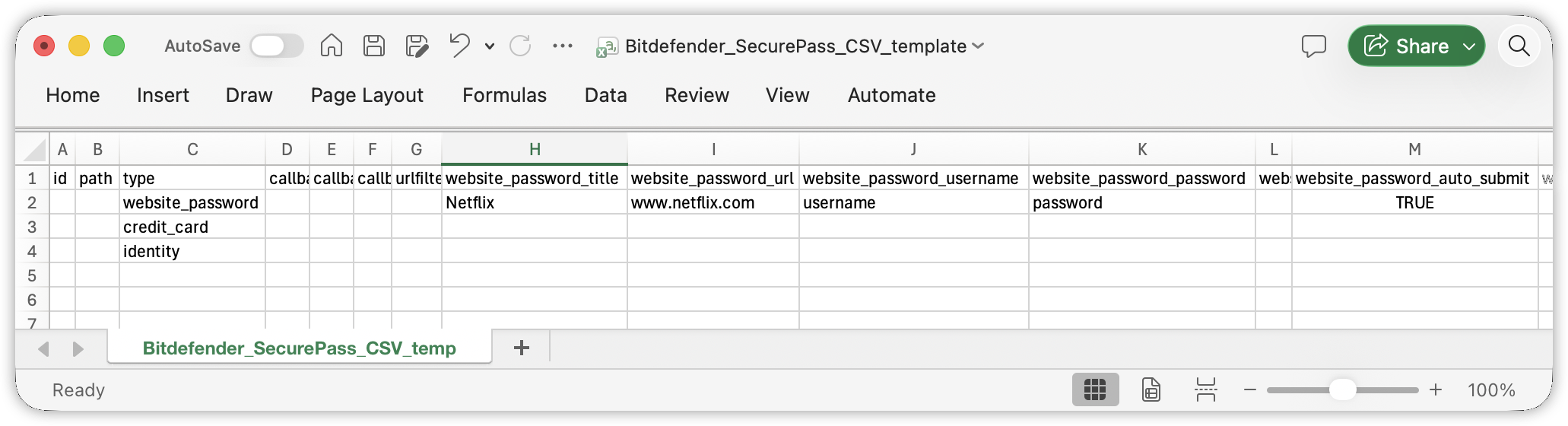
Step 3: Check the File for Special Formatting
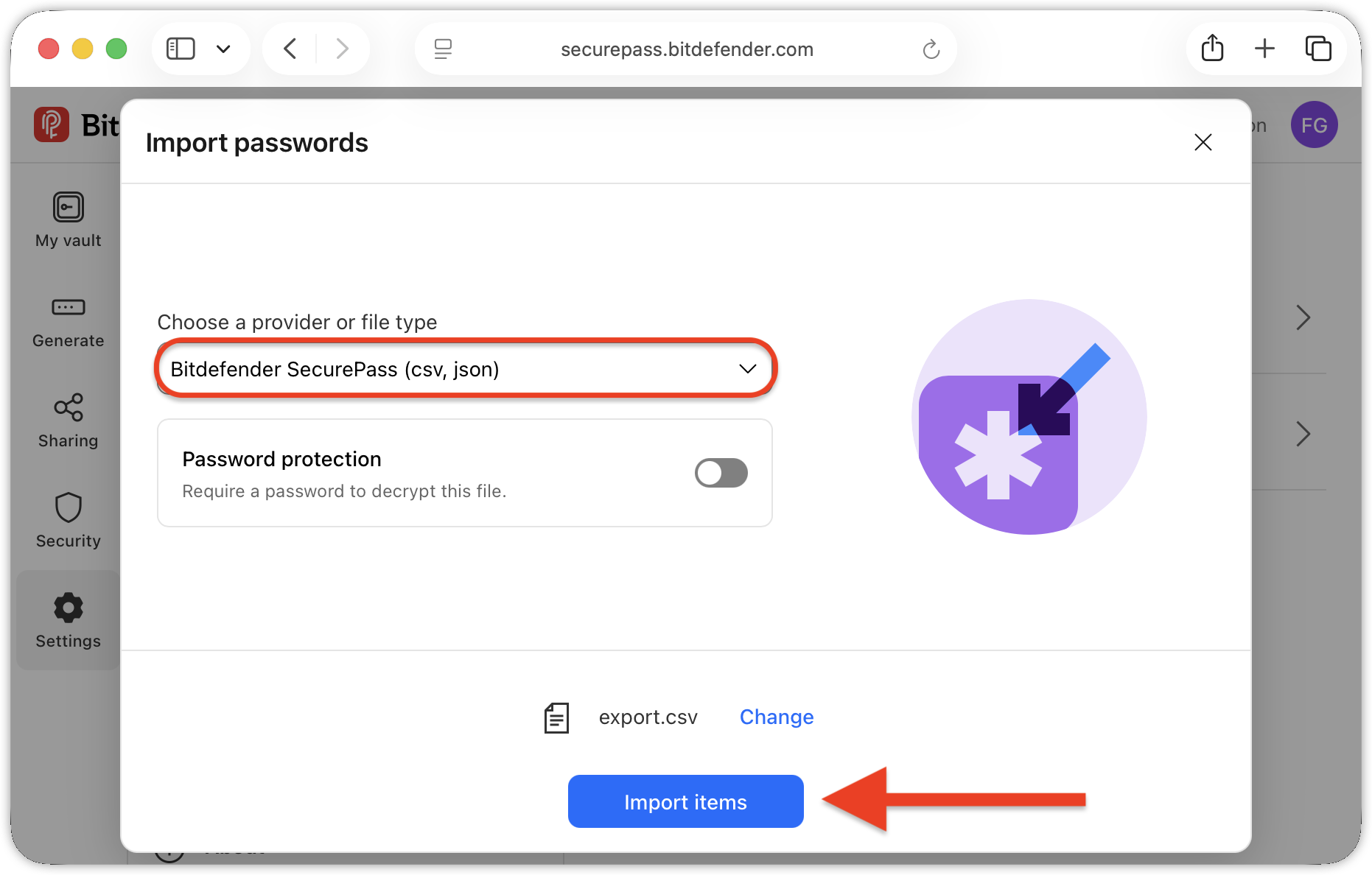
Step 4: Save and Import into SecurePass
Security Notice
Your exported .CSV file stores your passwords in unencrypted, plain text. Immediately after successfully importing your credentials into Bitdefender SecurePass, follow these steps so they don’t remain visible to anyone with access to your device:
- Locate the old export file and the filled-out SecurePass template on your local drive.
- Permanently delete both files (use Shift + Delete on Windows or Option + Command + Delete on macOS).