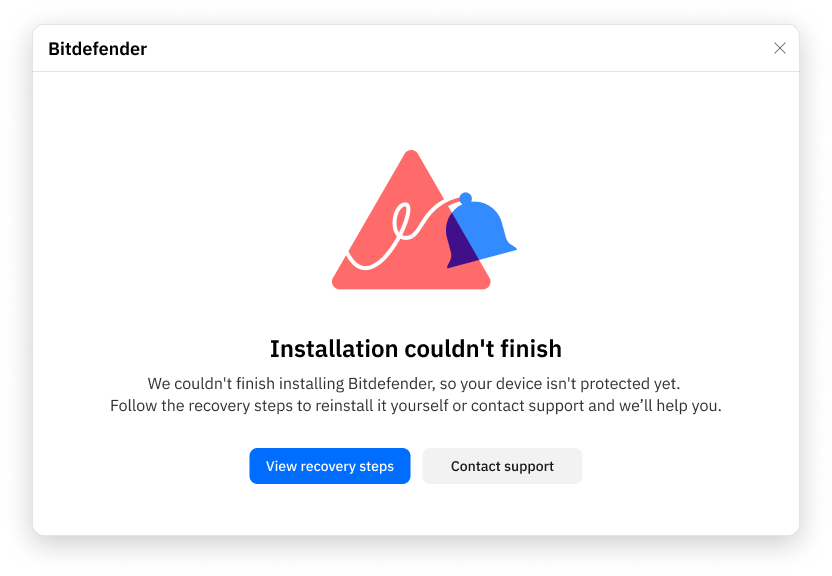
If you encountered an Installation couldn’t finish error while migrating to the new Bitdefender app, don’t worry. In most cases, the issue can be resolved by removing remnants of previous security software and preparing Windows for a fresh Bitdefender installation.
- Start with Steps 1-3. These resolve most migration installation errors. After completing them, try installing Bitdefender again.
- If the installation still fails, continue with Steps 4-8. These advanced troubleshooting steps address less common Windows-related issues.
Complete the steps in order, even if one doesn’t appear to apply to your situation.
Step 1. Remove Previous Bitdefender Versions
Step 2. Remove Other Security Solutions
Step 3. Retry the Bitdefender Installation
Installation still failing?
If you’ve completed Steps 1-3 and the Bitdefender installation still doesn’t finish successfully, continue with the advanced troubleshooting steps below. These procedures help resolve less common issues caused by temporary Windows files, corrupted system files, disk errors, missing Windows updates, or incorrect folder permissions.
Step 4. Clean Temporary System Files
Step 5. Repair Windows System Files
Step 6. Check Disk Integrity
Step 7. Install the Latest Windows Updates
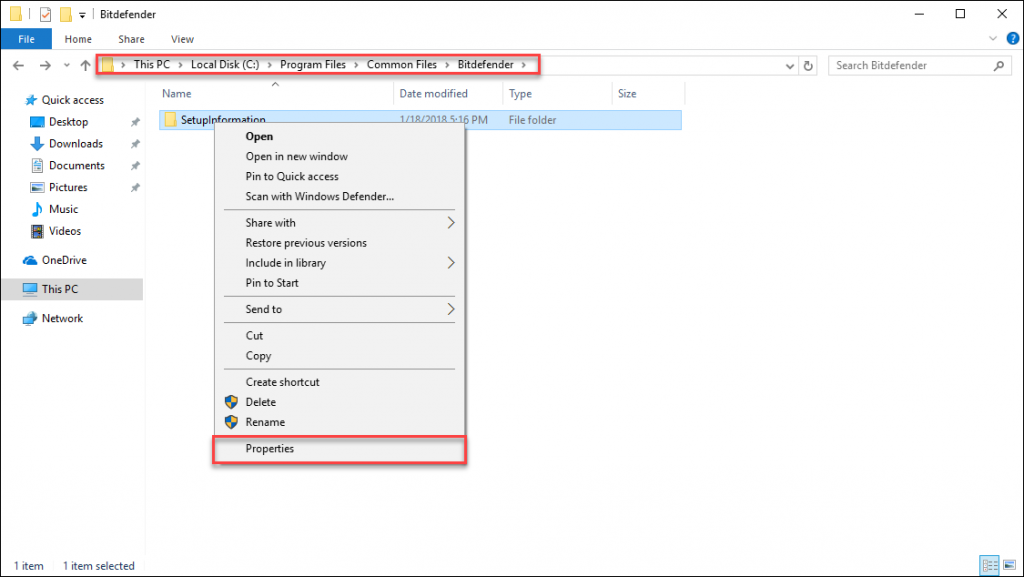
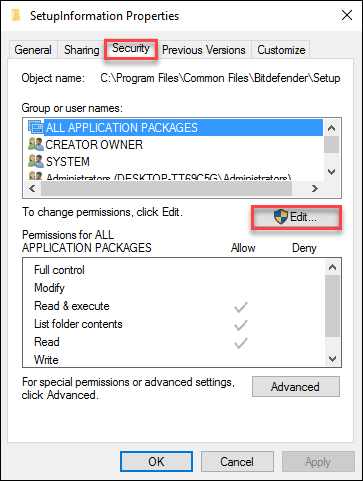
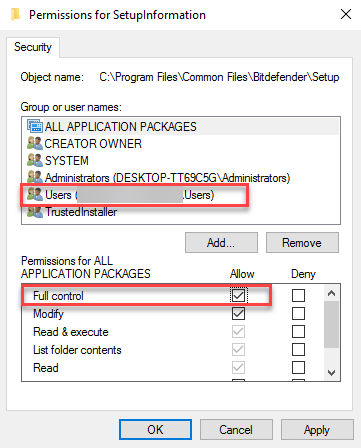
Step 8. Verify Bitdefender Installation Folder Permissions
Still need help?
If you’ve completed all the steps and the installation still couldn’t finish, contact Bitdefender Support. Include the error message you received and mention that you’ve already completed the troubleshooting steps. This will help the support team diagnose the issue more quickly.