Bitdefender VPN helps protect your online privacy by encrypting your internet connection and masking your IP address. Once connected, your online activity becomes more secure, especially when using public Wi-Fi networks such as those found in airports, cafés, or hotels.
If you are using the Bitdefender app on Windows, there are three simple ways to connect to VPN: from the Bitdefender icon in the Windows system tray, from the Bitdefender Home screen, or from the VPN menu inside Services. This guide explains each method in detail so you can choose the one that feels most convenient for you.
How to Connect to VPN on Windows
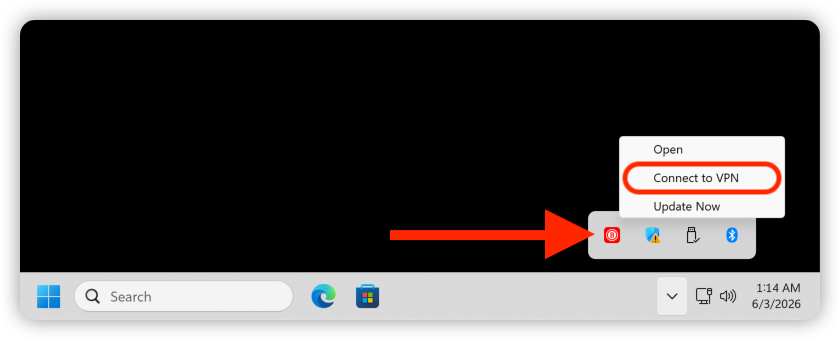
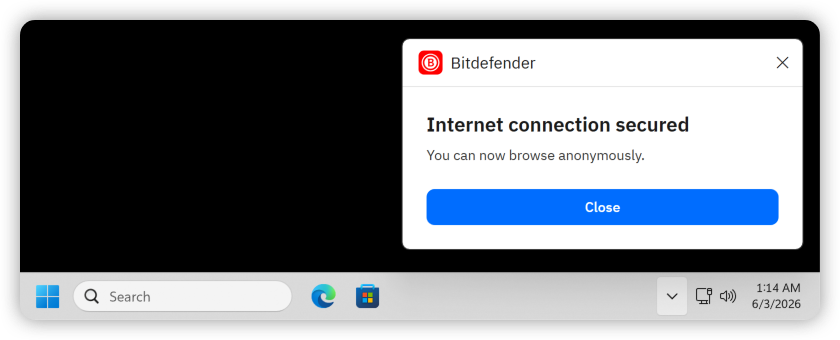
Method 1: Connect to VPN from the Windows system tray

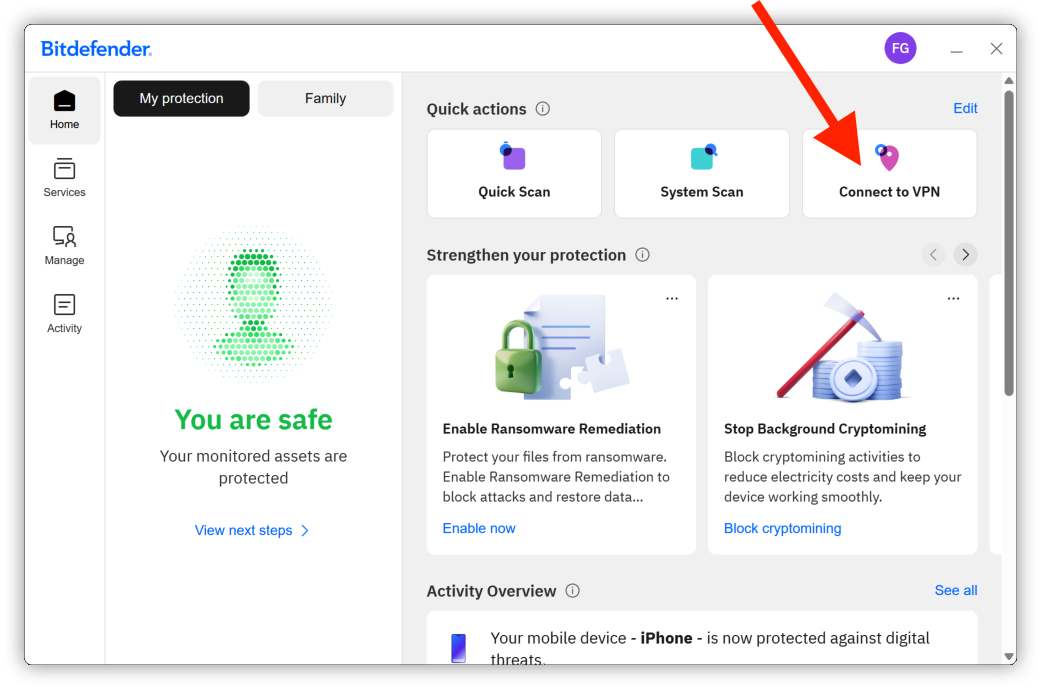
Method 2: Connect to VPN from the Home screen Quick actions
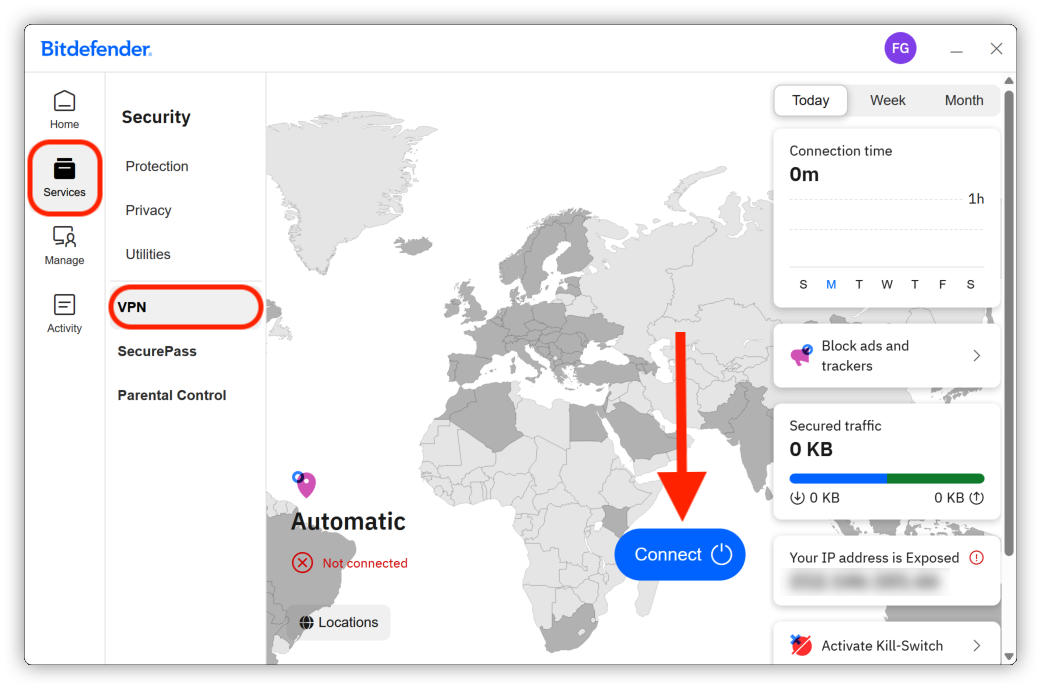
Method 3: Connect to VPN from the Services menu
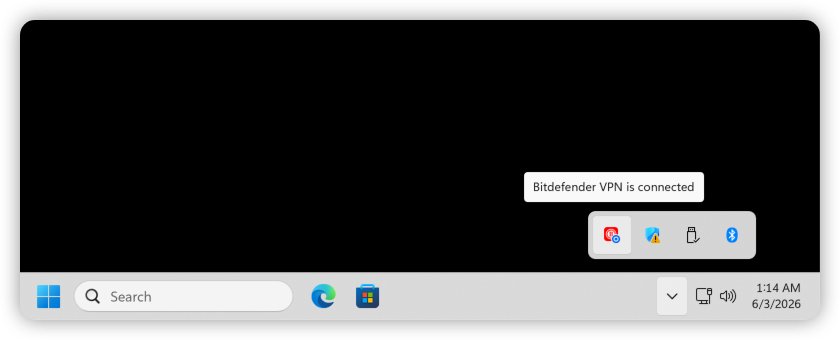
VPN Connection Indicator
While the VPN is connected, a small blue circle appears on the Bitdefender icon in the Windows taskbar. Hovering the mouse cursor over the icon displays the tooltip: Bitdefender VPN is connected.
How to Disconnect from VPN
Disconnecting from Bitdefender VPN works the same way as connecting. You can disconnect from any of the three locations described earlier in this guide.
Once the VPN connection is active, the Connect to VPN option or Connect button changes to Disconnect.