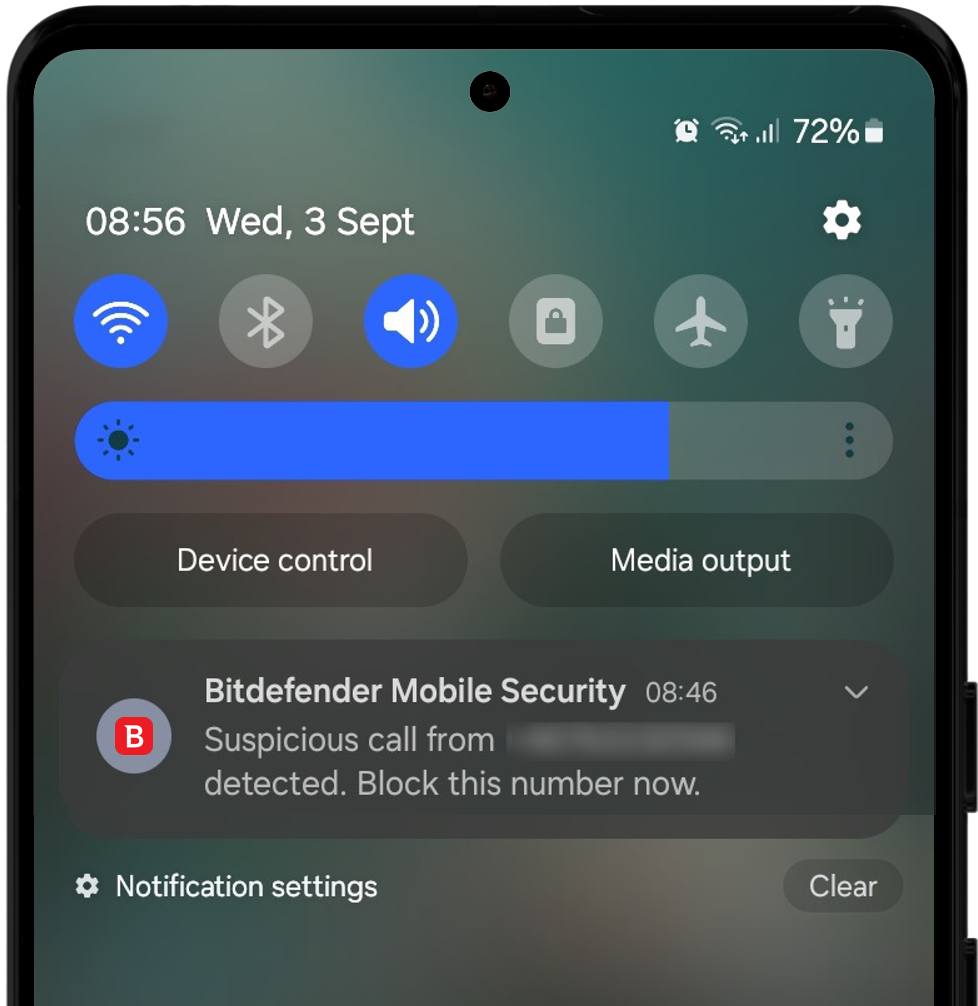
 By default, you’ll receive Bitdefender Call Blocking notifications each time a suspicious call is detected or blocked. If you prefer not to be notified, you can easily turn these alerts off in Bitdefender Mobile Security settings.
Types of Call Blocking Notifications
Bitdefender may show you the following notifications when Call Blocking is active:
- Suspicious call
“Suspicious call from [number] detected. Block this number now.”
“Is this someone you don’t want to hear from again? Add to block list” - Hidden number detected or blocked
“Stop hidden numbers from calling you. Protect your privacy with just one tap.”
“A call from a hidden number has been blocked. We’ve got you covered.” - Blacklisted number blocked
“A call from a blacklisted number has been detected and blocked. We’ve got you covered.” - Spam/Scam number blocked
“A spam|scam call from [number] has been detected and blocked. You’re safe from fraud.”
How to Turn Off Notifications
You can manage notifications for both hidden numbers and suspicious/blocked calls separately.
- Open the Bitdefender Mobile Security app.
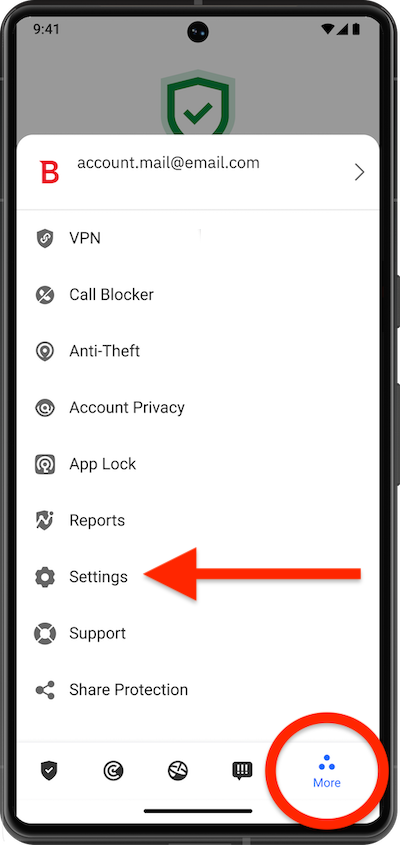
- Tap the More menu (∴) in the bottom-right corner.
- Go to Settings.
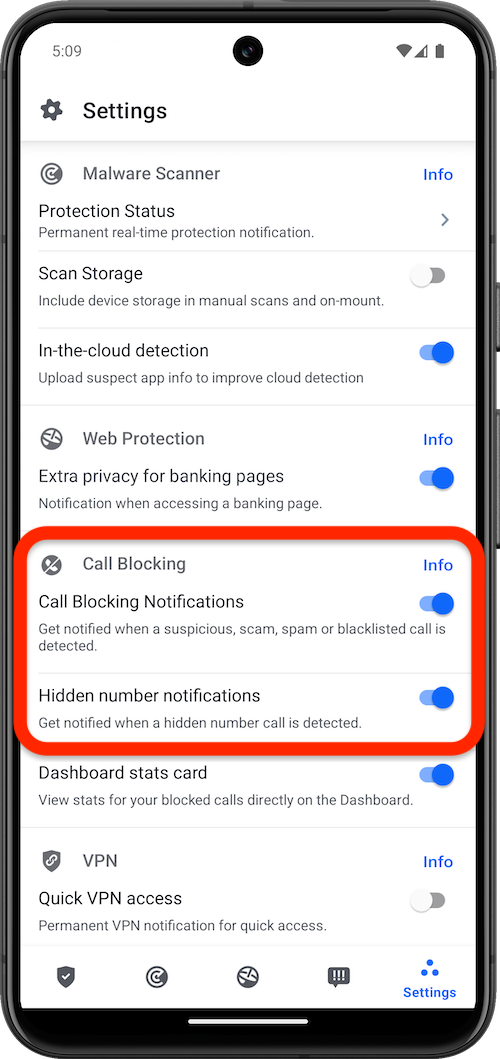
- In Settings, scroll down to the Call Blocking section.
- Turn off the following options:
- Call Blocking Notifications – Controls notifications for suspicious, spam, scam, and blacklisted calls.
- Hidden number notifications – Controls notifications for calls from hidden numbers.
You can re-enable Call Blocking notifications at any time by returning to the same Settings menu and turning the corresponding options back on.