If Bitdefender SecurePass prompts you to enter your Windows passkey when you try to autofill your login details, the cause may be Enhanced AI protection, introduced in SecurePass version 2.2.0.
When this feature is enabled, Windows Security asks you to verify your identity with a passkey for securepass.bitdefender.com the first time you approve a SecurePass action on a device. You may need to enter your Windows PIN or use another Windows Hello verification method.
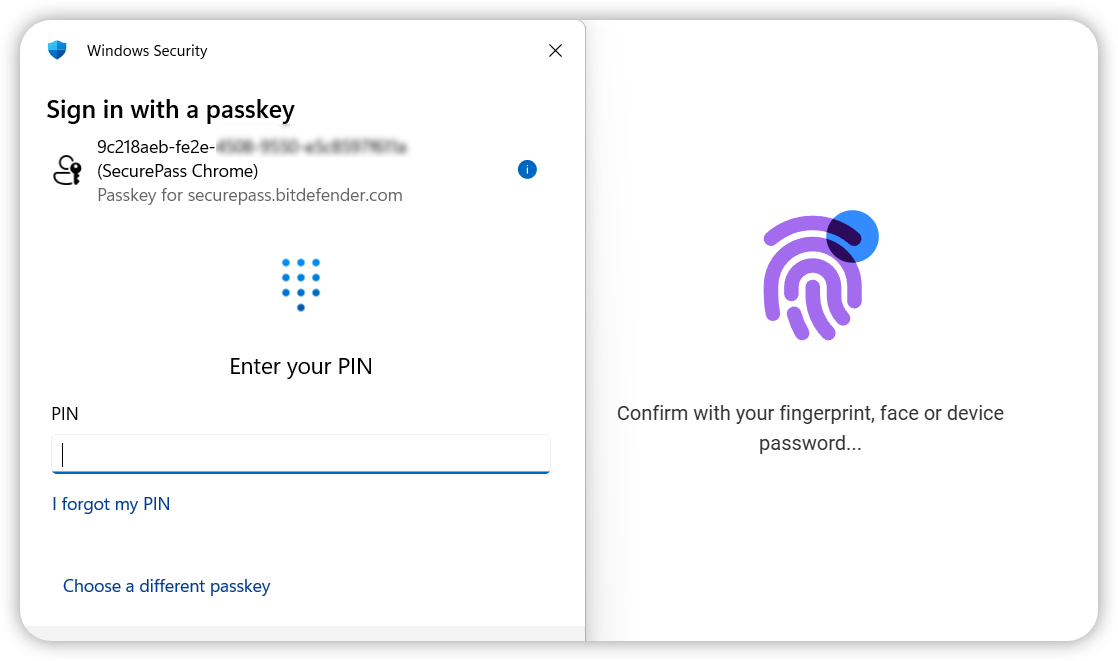
This is a SecurePass security prompt, not a passkey requirement from the website you’re visiting.
You can resolve this issue by completing the Windows Security verification or disabling Enhanced AI protection.
Why Does SecurePass Ask You to Sign In with a Passkey?
Enhanced AI protection prevents AI tools, scripts, and other automated processes from accessing your saved passwords without your approval.
When enabled, SecurePass asks you to approve actions such as filling in, viewing, or exporting saved information. Depending on the action, you can verify your identity using your fingerprint, face recognition, device PIN, SecurePass PIN, or master password. If you cancel or interrupt the Windows Security prompt before verification is complete, SecurePass will ask you to approve the action again. Your saved login credentials won’t autofill until verification succeeds.
How to Fix the Windows Passkey Prompt and Restore SecurePass Autofill
You have two options, depending on whether you want to keep Enhanced AI protection enabled.
Solution 1: Complete Windows Security Verification (recommended)
Solution 2: Turn Off Enhanced AI Protection
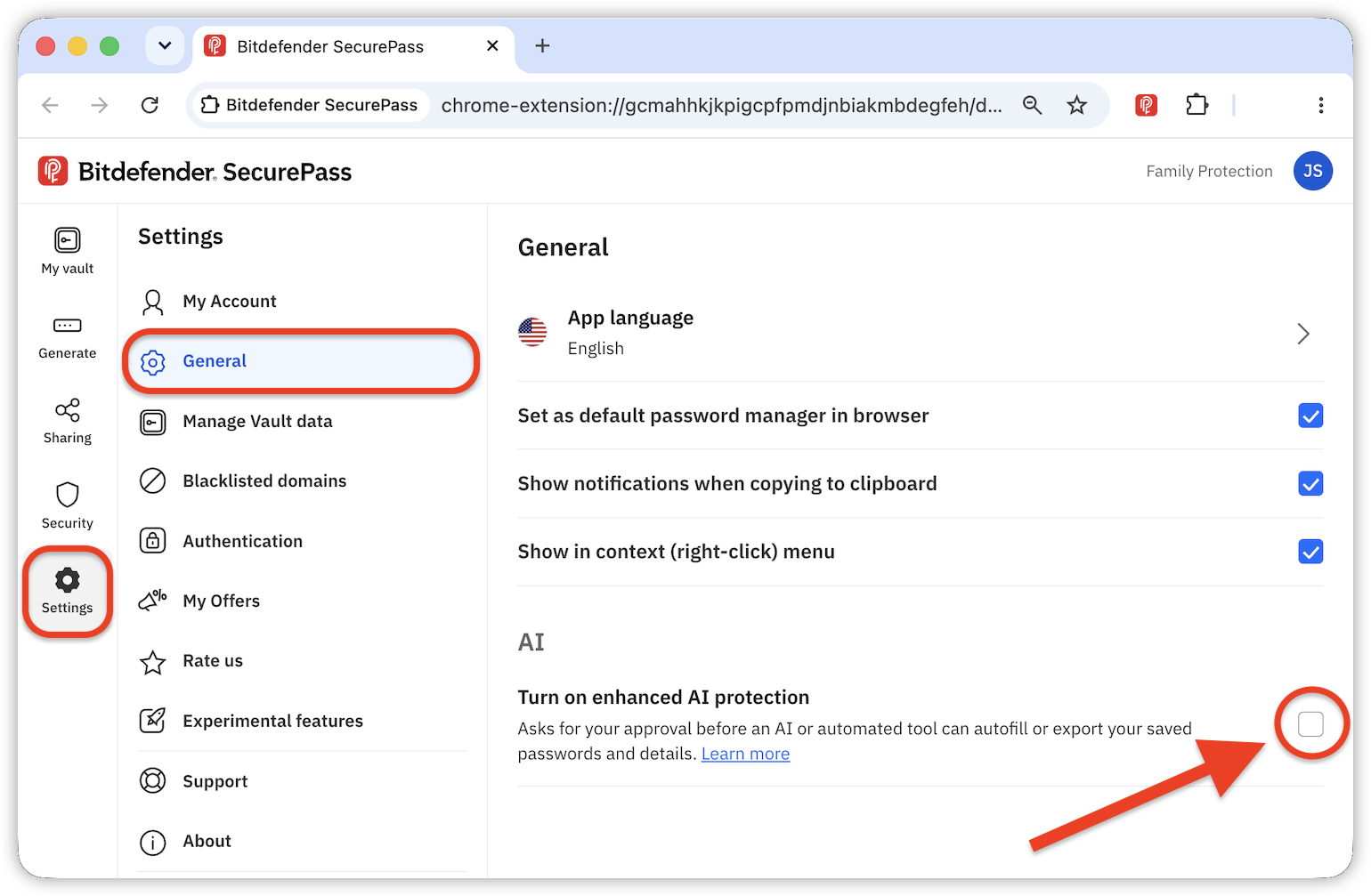
Note: Disabling Enhanced AI protection removes the additional approval requirement associated with this SecurePass feature. If you prefer to keep this security layer enabled, use Solution 1 instead.