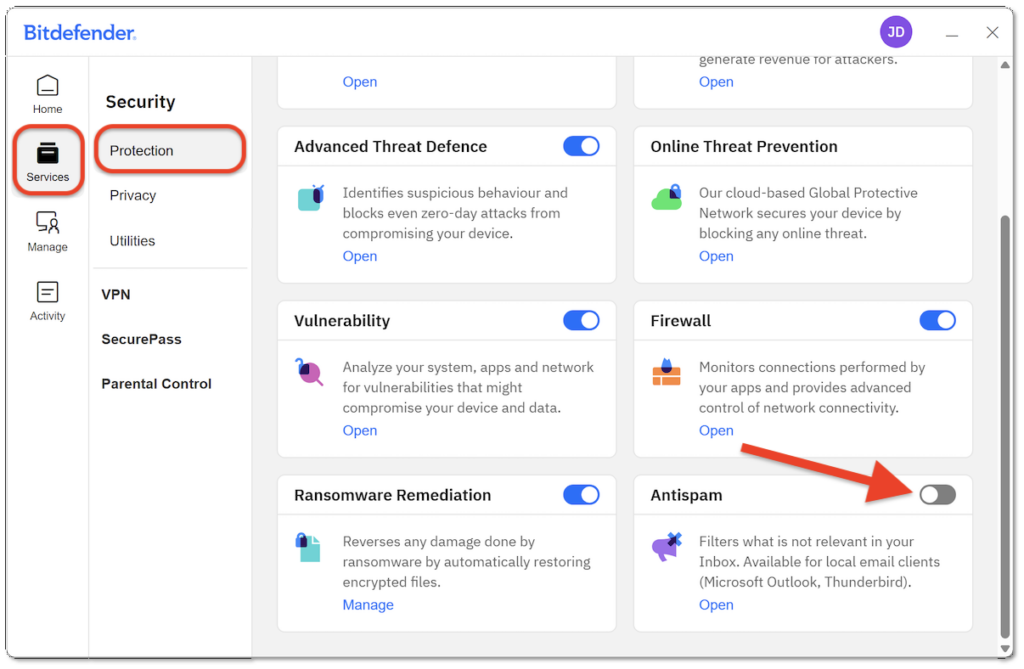
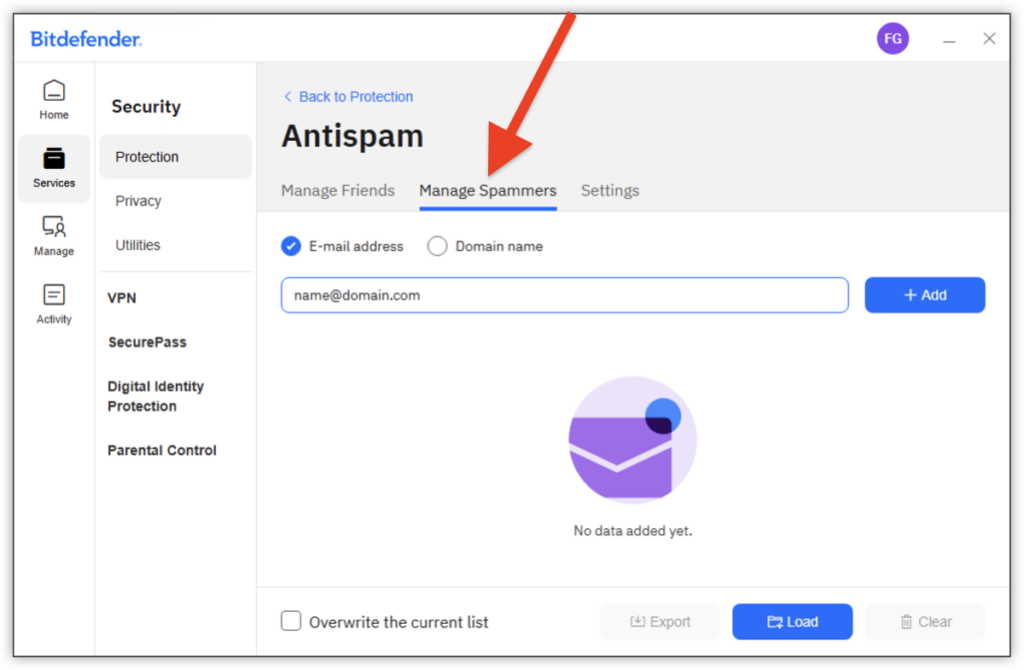
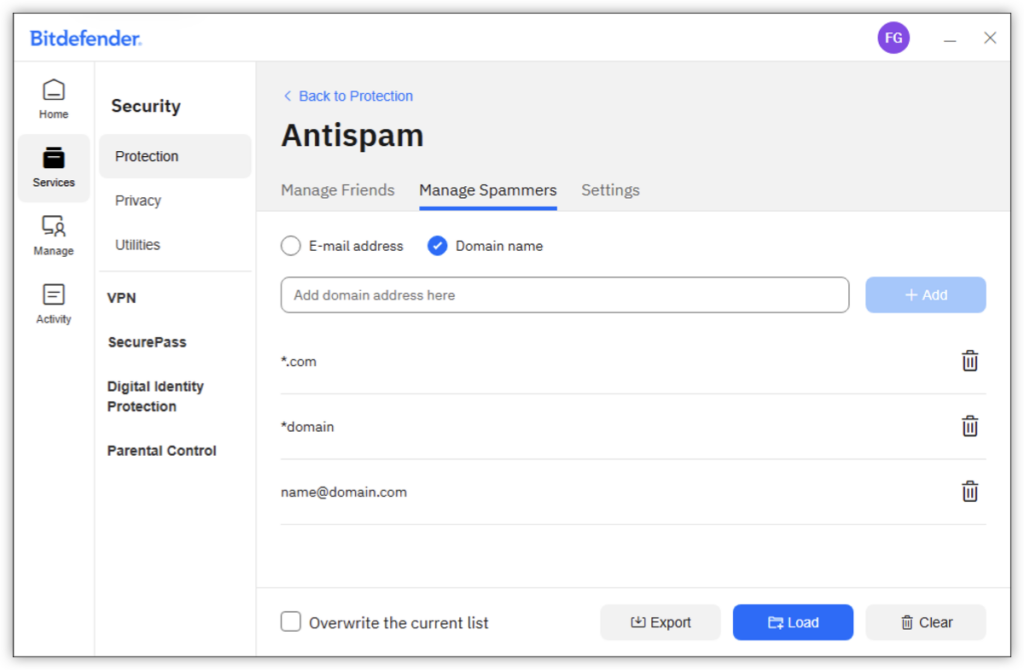
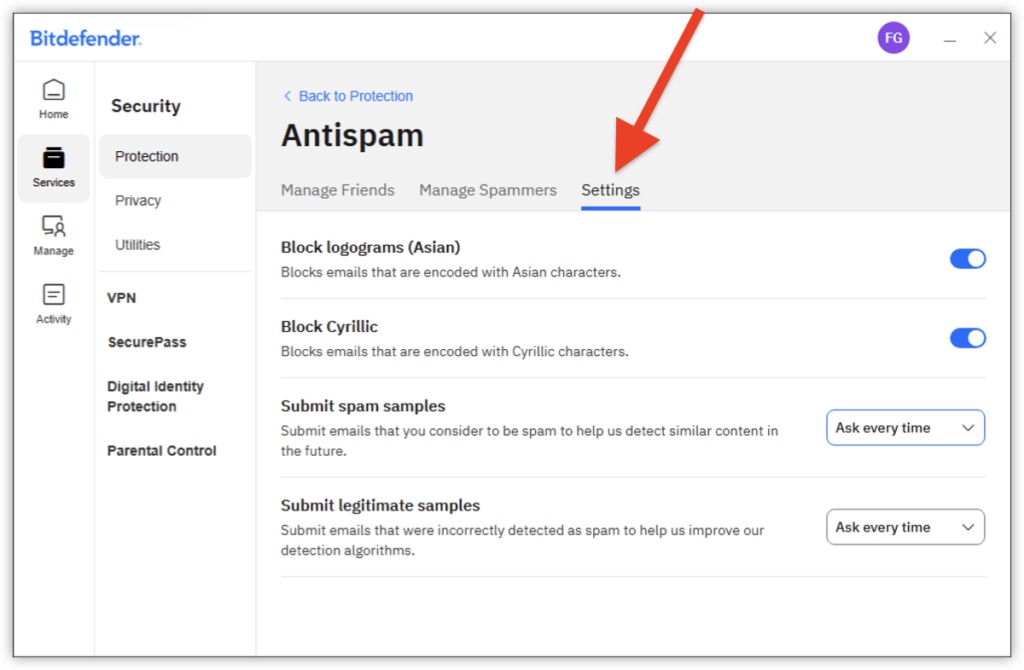
This article explains how to use Antispam in the Bitdefender app on Windows, including how to turn the feature on or off and configure its settings.
Bitdefender Antispam filters unsolicited email in Windows email apps before it reaches your inbox. It combines cloud protection with friends, spammers, and character-set filters to identify unwanted emails. When Bitdefender detects spam, it adds the [spam] prefix to the email’s subject line and automatically moves the message to a Spam folder. The Spam folder is located in different places depending on your email application:
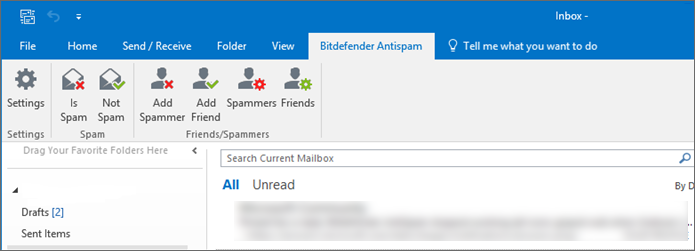
- Microsoft Outlook: The Spam folder is inside Deleted Items.
- Mozilla Thunderbird: The Spam folder is inside Trash.
- Other email apps: Create a rule that moves messages marked [spam] to a quarantine folder.
The Spam folder is created automatically when Bitdefender first labels an email as spam. If you delete Deleted Items or Trash, the Spam folder is deleted as well. Bitdefender creates the folder again when it labels another email as spam.
Before you start
Bitdefender Antispam protects email accounts configured in email apps for Windows like Microsoft Outlook and Mozilla Thunderbird when they use the following default protocols and ports:
- POP3 (incoming email): port 110
- SMTP (outgoing email): port 25
To protect email accounts that you access through a web-based email service, see Email Protection.