Bitdefender VPN for AI Agents lets a supported AI agent use an encrypted VPN connection only when a task needs it. The agent can choose a suitable location for the prompt, work in an isolated disposable environment, and close the connection when the task ends. This guide shows you how to install and set up Bitdefender VPN for AI Agents on a Mac and how to connect it to your AI agents.
System Requirements
- Apple Silicon Mac running macOS 13 or later, with an internet connection, 8 GB RAM, 10 GB free disk space, and up to 4 exit locations at once
- At least one supported AI agent installed: Claude Code, Claude Desktop, Cursor, Codex, OpenCode
Install Bitdefender VPN for AI Agents
1. Download the macOS installer
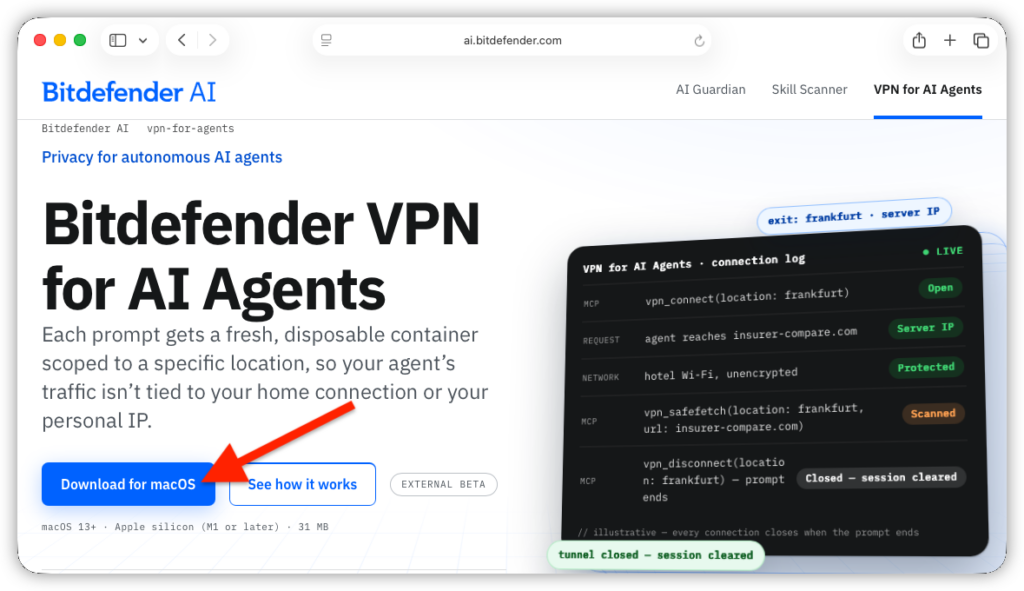
- Go to https://ai.bitdefender.com/vpn-for-agents and click Download for macOS.
- When the download finishes, open the downloaded bitdefender_vpnforagents.dmg file.
2. Install Bitdefender VPN for AI Agents on your Mac
- In the new window, double-click the Bitdefender installer.
- Click Allow to determine if the software is compatible with your Mac.
- Click Continue. You will be guided through the necessary steps to install Bitdefender VPN for AI Agents.
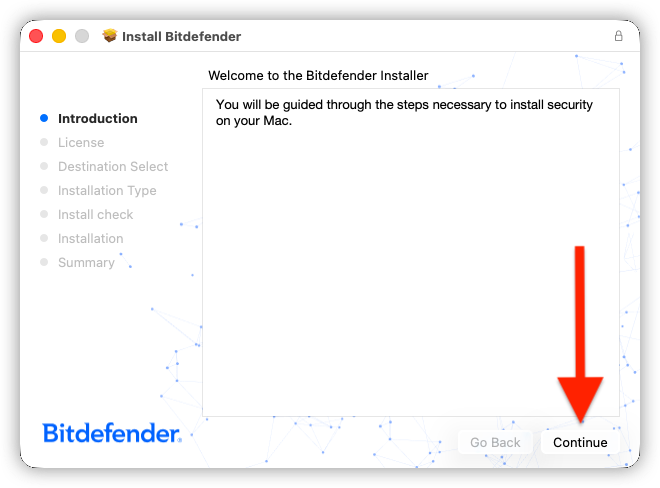
- Review the Subscription agreement, click Continue, then Agree.
- Click Install.
- When macOS asks for permission, enter your Mac password and click Install Software. Wait until you see the message The installation was successful.
Set up Bitdefender VPN for AI Agents
3. Start the first-run setup
- Click Allow to set up Bitdefender VPN for AI Agents in Terminal.
- A Terminal window opens the four-step Bitdefender VPN for AI Agents setup.
- On Set up VPN for AI Agents, press Enter on your keyboard to continue. This connects Bitdefender VPN to AI agents on your Mac, so their network traffic is protected.
4. Choose the AI agents to connect
- On Choose your agents, select each installed agent that should use Bitdefender VPN. Use the arrow keys to move through the list and Enter to select or clear an agent.
- Press Enter on Connect selected when you finish.
ⓘ Note: Setup adds the VPN tools to each agent you select. Choose Skip for now only if you do not want to connect an agent during initial setup.
5. Choose whether to share diagnostics
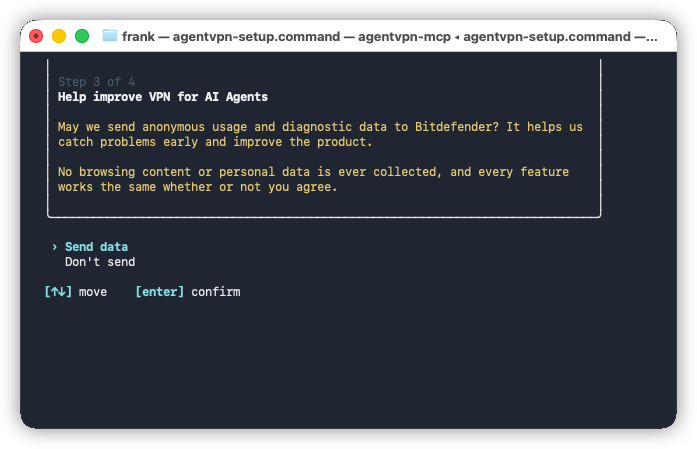
- On Help improve VPN for AI Agents, choose Send data or Don’t send, then press Enter.
- This choice covers anonymous usage and diagnostic data. No browsing content or personal data is collected, and every feature works either way.
6. Sign in to Bitdefender
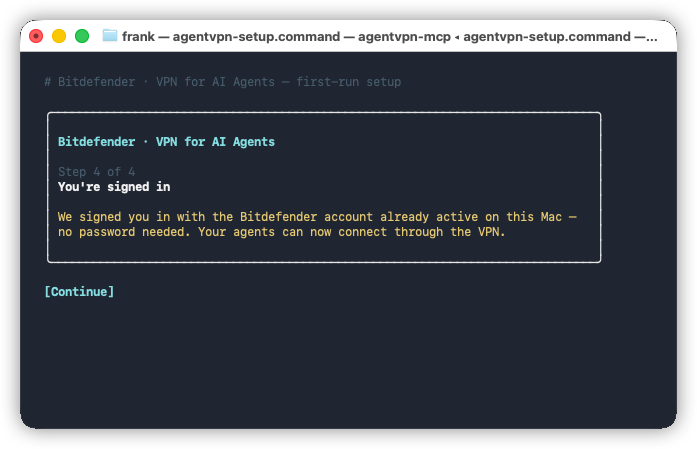
If another Bitdefender app is already installed on your Mac, you are automatically signed with the same Bitdefender account.
If no Bitdefender app is present, on the Sign in to Bitdefender screen, select Sign in then enter the email address and password of your Bitdefender account. You can also use one of the sign-in providers displayed on the screen (Facebook, Google, Microsoft, Apple).
- If you do not have an account, choose Create one and follow the account-creation steps.
7. Restart your connected AI agents
- After authentication, keep the setup window open until it displays You’re all set.
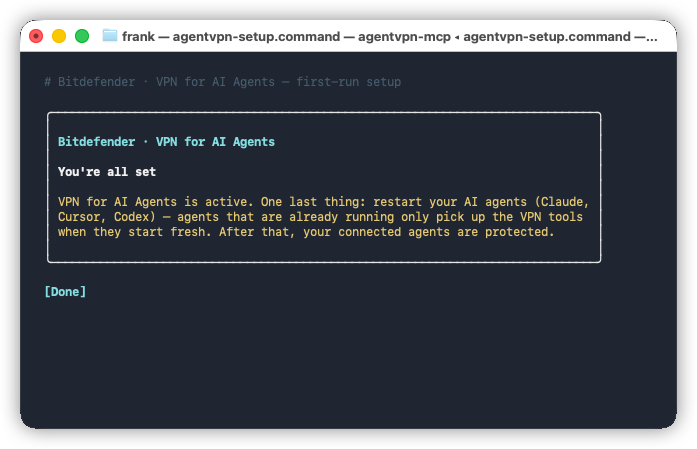
- Quit and reopen every AI agent you selected during setup.
- This step is required for an agent that was already running to load the VPN tools. After the restart, the connected agents are ready to use Bitdefender VPN for AI Agents.
8. Confirm the connection in your AI agent
- Now you can verify the integration in your AI agent.
- For example, in Claude Desktop go to Settings → Connectors → Bitdefender VPN for AI Agents. The connector should display VPN tools such as listing locations, connecting to one or several locations, fetching through the VPN, and disconnecting when a task ends.
ⓘ Note: Your agent may ask for permission before it uses a VPN tool. Review the request and allow it to perform the task you submitted.
Use Bitdefender VPN for AI Agents in a task
You do not need to open a VPN dashboard or choose a location manually. State that the agent should use Bitdefender VPN and describe the location or result you need. The AI agent can select an available exit, perform the requested work, and disconnect the task’s tunnel when it finishes.
What happens during each task
Bitdefender VPN for AI Agents remains dormant until an agent invokes it as a tool. For that task, it creates an encrypted, isolated environment and routes the agent’s network traffic through the requested or selected location. When the prompt finishes, the environment and VPN tunnel are discarded, so cookies, cache, and session state do not carry over to the next prompt.
For more information, see Bitdefender VPN for AI Agents: Frequently Asked Questions.