This article explains how to use the BDsysLog utility on Windows computers. Developed by Bitdefender Labs, BDsysLog scans critical system areas to enable security experts identify evasive or unknown malware on your device. BDsysLog collects specific system information that may indicate active malware or malware-related activity. The gathered data is sent to Bitdefender Cloud Services for processing. After the analysis is complete, the tool generates a local archive named bdsyslog.zip, which contains the detailed log.
When you contact Bitdefender claiming suspicious malware-like behavior, a representative may ask you to provide detailed information about the computer behavior:
- a full description of the symptoms that make you suspect your computer is infected with malware
- a screenshot of the malware signs you see on the screen – How to take a screenshot on Windows
- a BDsys log
To generate a BDsys log on your Windows PC, use the method described below.
1. Go to the computer that shows signs of infection and visit the following link to download the BDsys scan utility:
https://download.bitdefender.com/supporttools/bdsyslog/v2/BDSysLog_i.exe
2. Once the download completes, exit all active applications and then double-click the BDSysLog_i.exe file you’ve just saved.
3. Choose Yes if presented with the User Account Control dialog box.
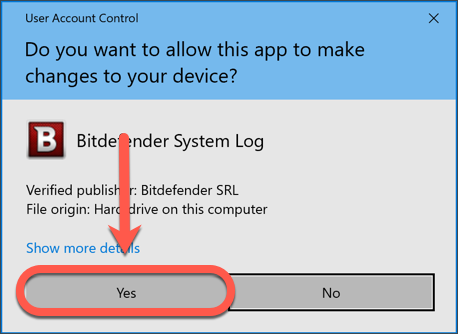
Additionally, if you receive a firewall alert, select Allow so that the BDSysLog_i.exe application can connect.
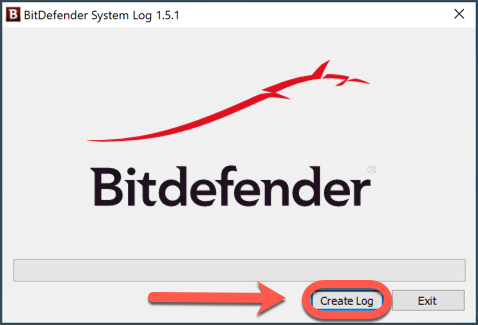
4. Click the Create Log button to start generating the log.
A progress bar appears and shows the progression of the scan process.
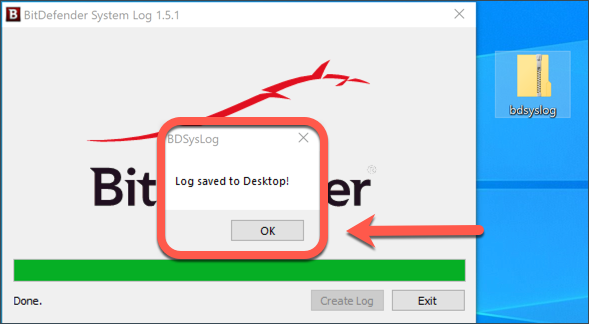
5. Wait until you see the following message: Log saved to Desktop! It means that the report is ready.
Press the OK button.
6. A new window with your desktop files appears on the screen. You will see the new bdsyslog.zip archive file selected for you in this window.
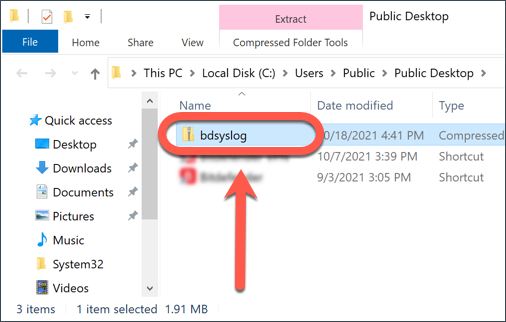
7. Finally, attach the bdsyslog.zip archive to your support ticket for further troubleshooting.