When launching Fortnite, you may see this message:
An error occurred while connecting to Epic servers. Please try again later.
ESP-DIST-001
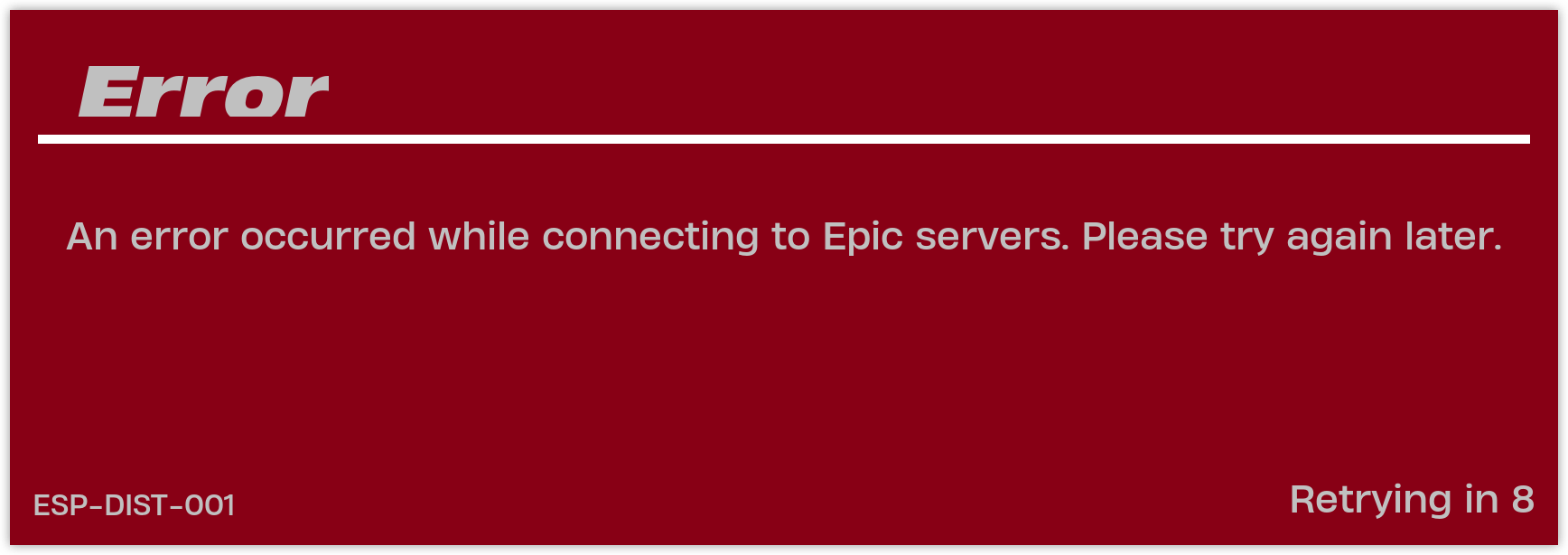
This means Fortnite cannot complete its connection to Epic Games services. If Bitdefender is installed on your computer, the Bitdefender firewall may be blocking or restricting one of Fortnite’s game or anti-cheat components.
The fix is to create Bitdefender Firewall rules that explicitly allow Fortnite and, if needed, its related anti-cheat files to communicate with Epic servers.
Important
A patch for this issue is already available in Bitdefender version 27.0.60.341. This update eliminates the need to manually create firewall exceptions for Fortnite and is being rolled out automatically to Bitdefender users over the next few days.
Before following the steps below, we recommend checking whether your PC has already received the latest Bitdefender update. You can verify your installed Bitdefender version and review the latest product update changelog here.
If your Bitdefender security solution is already updated to build 27.0.60.341 or later, Fortnite should connect to Epic Games servers normally without any additional configuration.
If your computer has not yet received the update, continue with the steps below to temporarily resolve the issue by creating the required firewall rules. Once Bitdefender is automatically updated to the latest build, these manual exceptions are no longer required.
Step 1: Add a Firewall rule for Fortnite
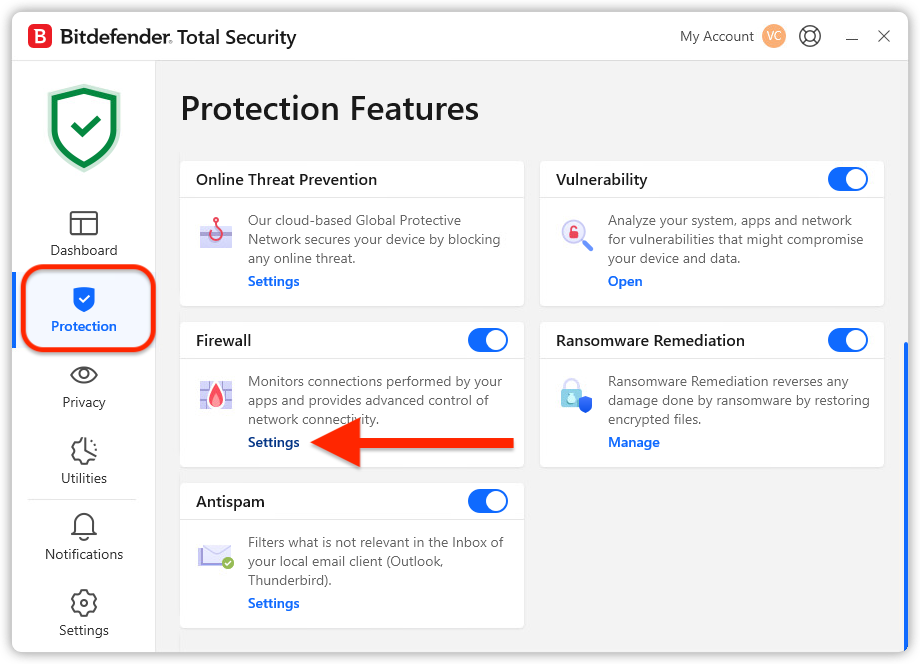
- In Bitdefender, go to Protection on the left side menu.
- Under Firewall, click Settings.

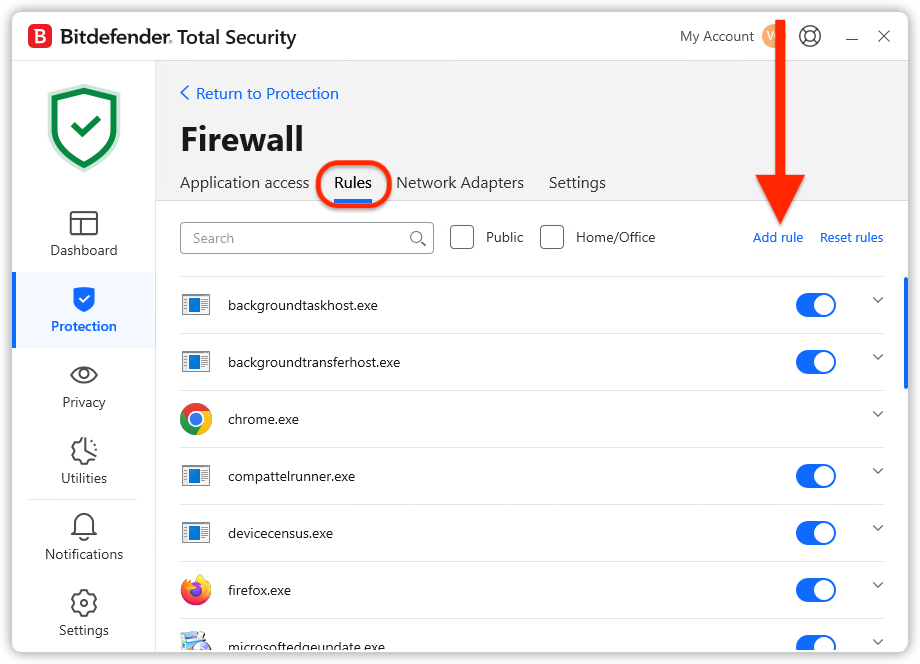
- Open the Rules tab, then click Add rule.
- Browse to this file:
C:\Program Files\Epic Games\Fortnite\FortniteGame\Binaries\Win64\FortniteClient-Win64-Shipping.exe
- Configure the rule exactly like this:
-
- Permission: Allow
- Network Type: Any network
- Protocol: Any
- Direction: Both
- Save the rule.
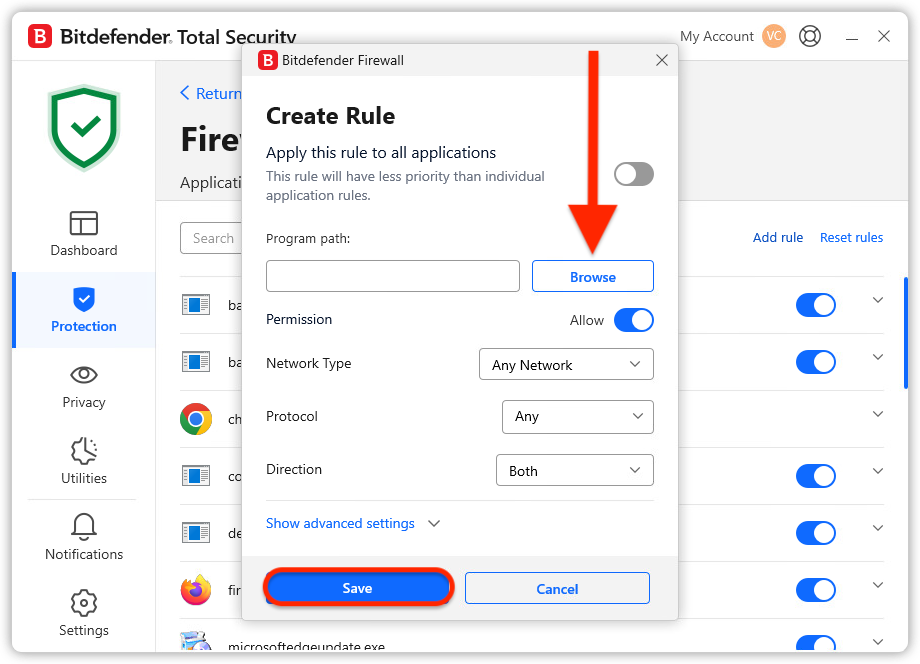
This rule allows Fortnite’s main game executable to send and receive traffic through Bitdefender firewall.
Step 2: Launch Fortnite again
After saving the rule, reopen Fortnite.
In most cases, the error should disappear immediately, and the game should continue loading normally.
Step 3: Add additional rules only if the Fortnite error persists
If Fortnite still shows the same error, add firewall rules for the following files as well:
C:\Program Files\Epic Games\Fortnite\FortniteGame\Binaries\Win64\FortniteLauncher.exe
C:\Program Files\Epic Games\Fortnite\FortniteGame\Binaries\Win64\FortniteClient-Win64-Shipping_EAC.exe
C:\Program Files (x86)\EasyAntiCheat_EOS\EasyAntiCheat_EOS.exe
Once the correct Bitdefender Firewall rules are in place, Fortnite should be able to connect to Epic servers and start normally.