This guide explains how business owners or security admins can remove a team member from the Bitdefender Ultimate Small Business Security subscription. Once removed, the team member’s access to the security plan is cancelled, and their devices are no longer protected.
1. Sign in to Bitdefender Central
- Go to https://central.bitdefender.com.
- Sign in with the email and password you used when you activated Bitdefender Ultimate Small Business Security.
2. Switch to Business Space
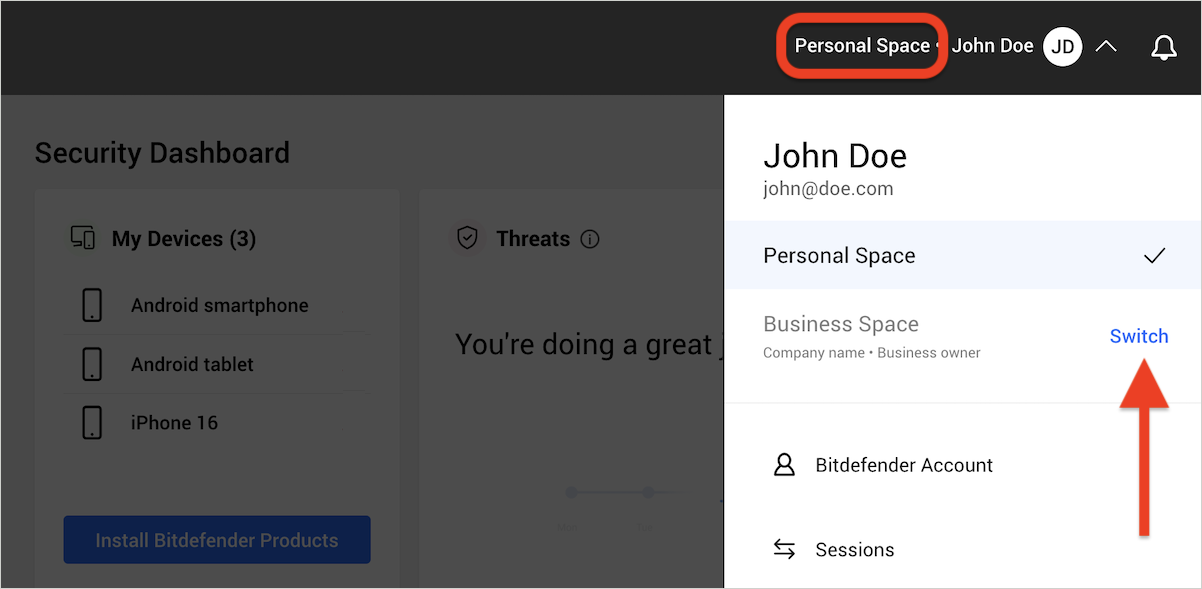
- After signing in, check the top-right corner of the Bitdefender Central dashboard.
- If it reads Personal Space, click your username, then click Switch to choose the Business Space where your Bitdefender Ultimate Small Business Security subscription is active.
-
- If you have more than one business space, select the one you want from the list.
3. Open My Subscriptions
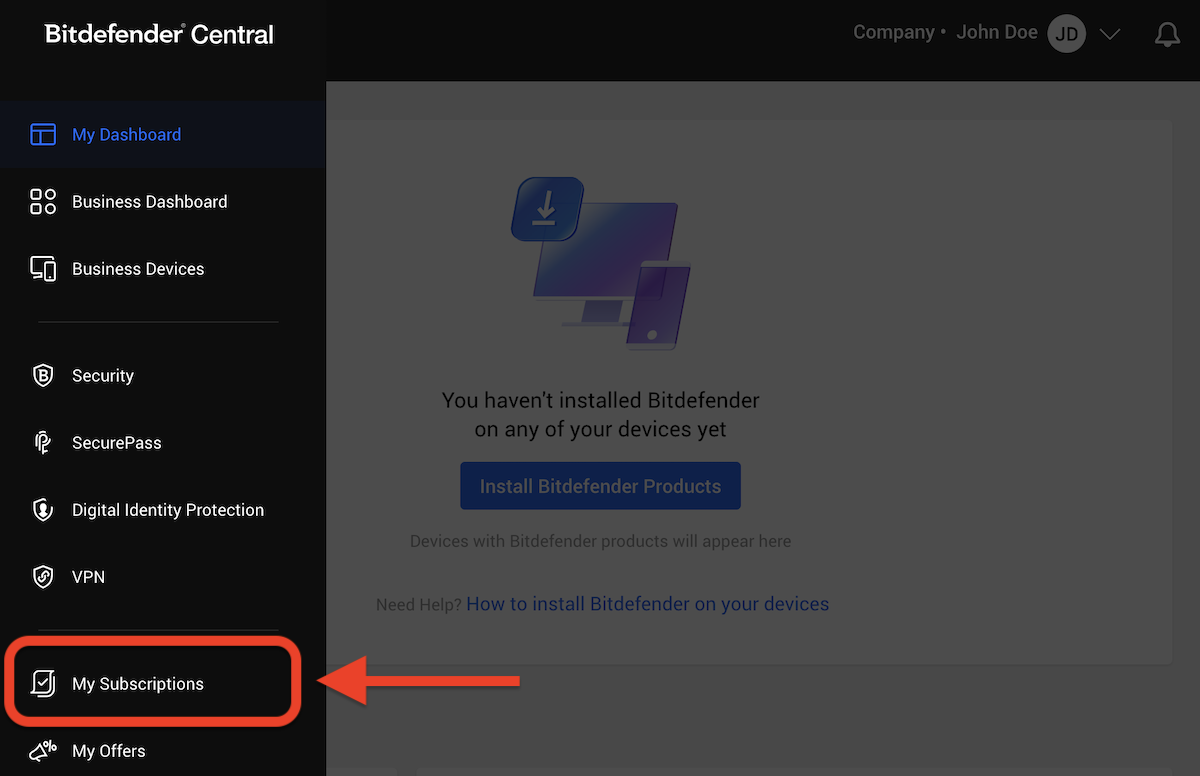
- After switching to business space, click My Subscriptions on the left-side menu.

4. Remove a Team Member
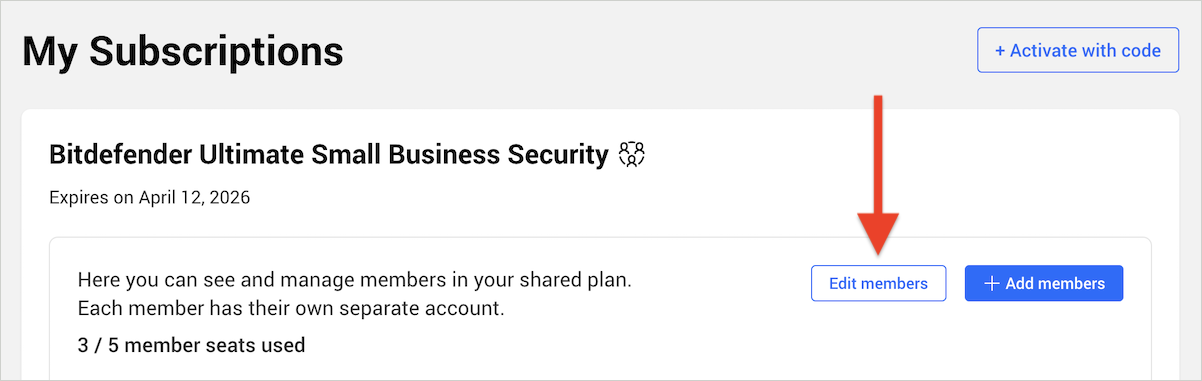
- After opening the My Subscriptions section, click Edit members in the Bitdefender Ultimate Small Business Security panel.

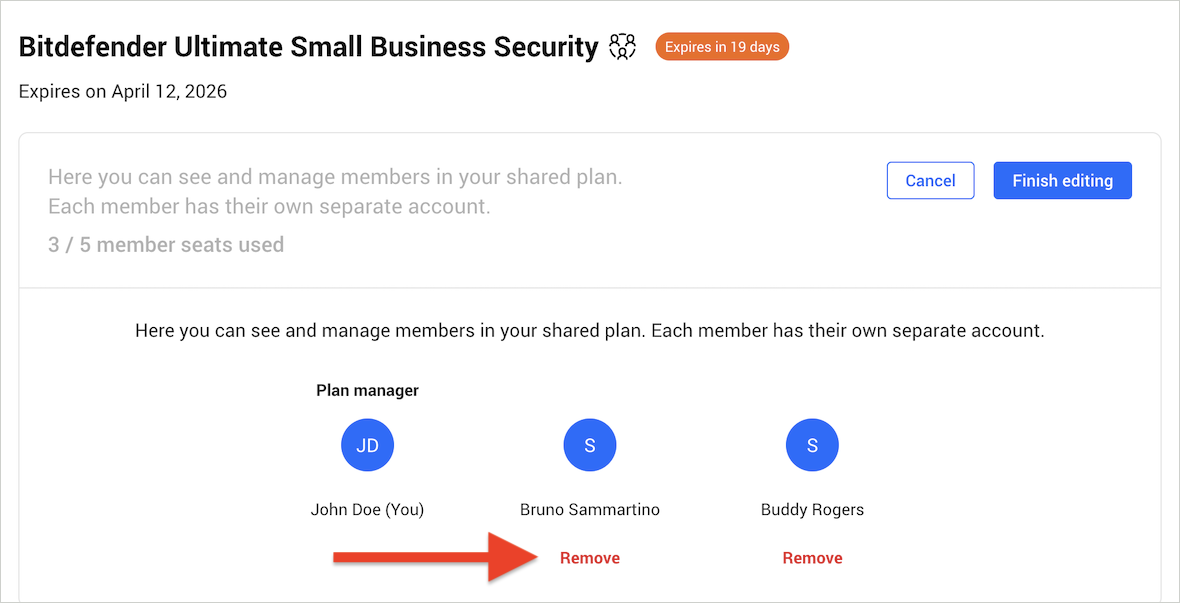
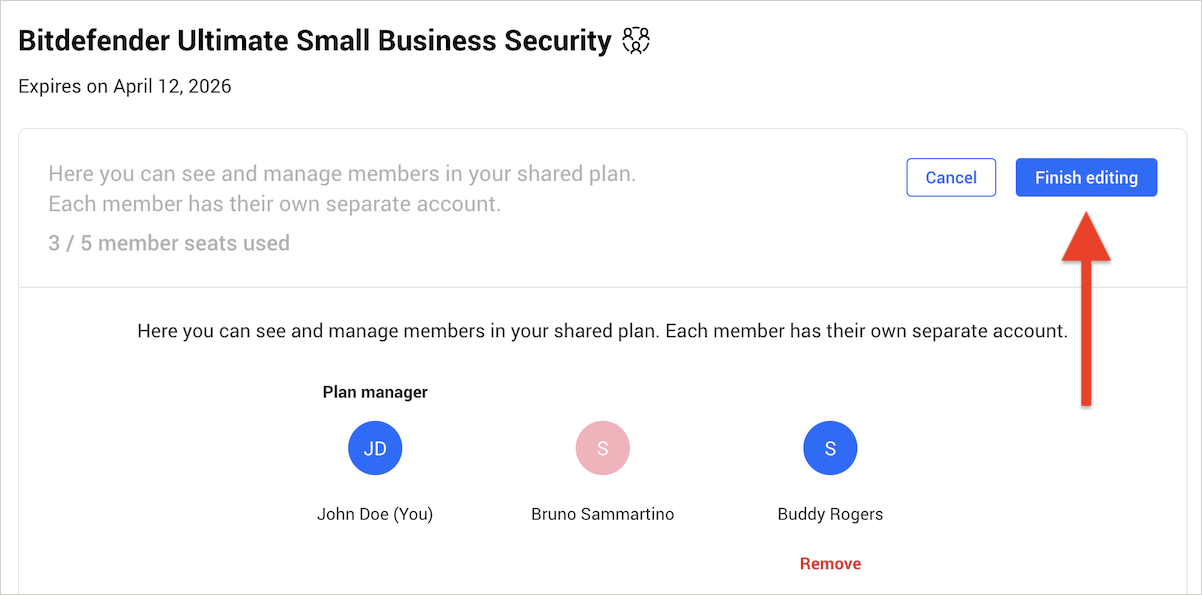
- Locate the employee you want to take off the shared plan and click Remove.

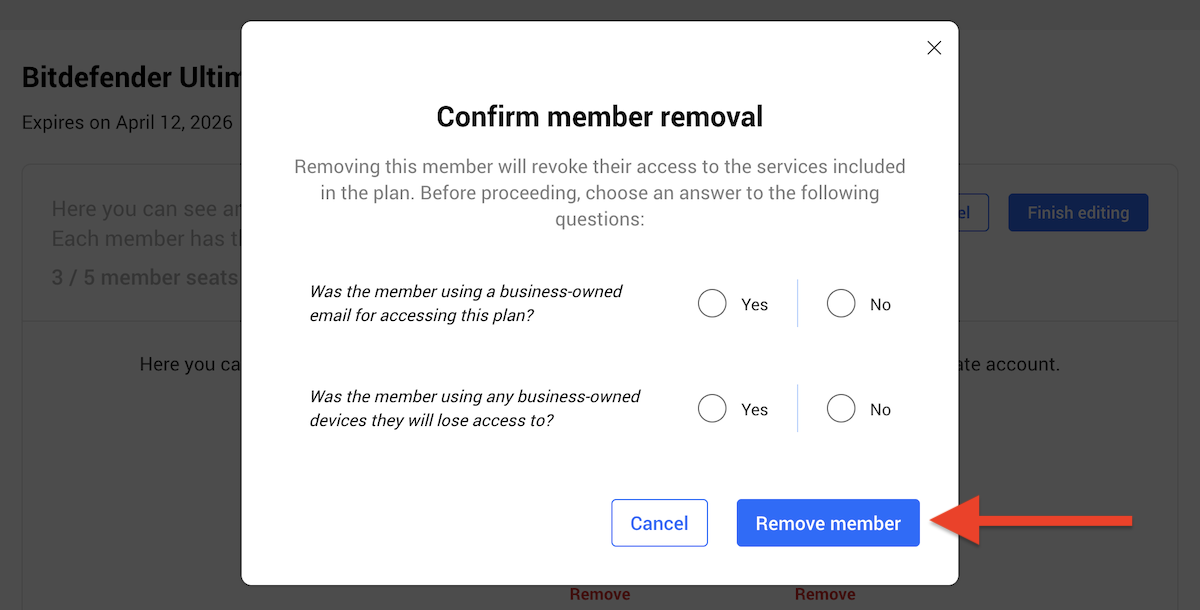
- Answer the prompted questions, then click Remove member to confirm:
- Was the member using a business-owned email for accessing this plan?
- Was the member using any business-owned devices they will lose access to?

- Click the Finish editing button for the changes to take effect.

5. Removed Team Member is Notified by Email
 The removed team member will receive an email notification informing them that they no longer have access to the Bitdefender Ultimate Small Business Security subscription.
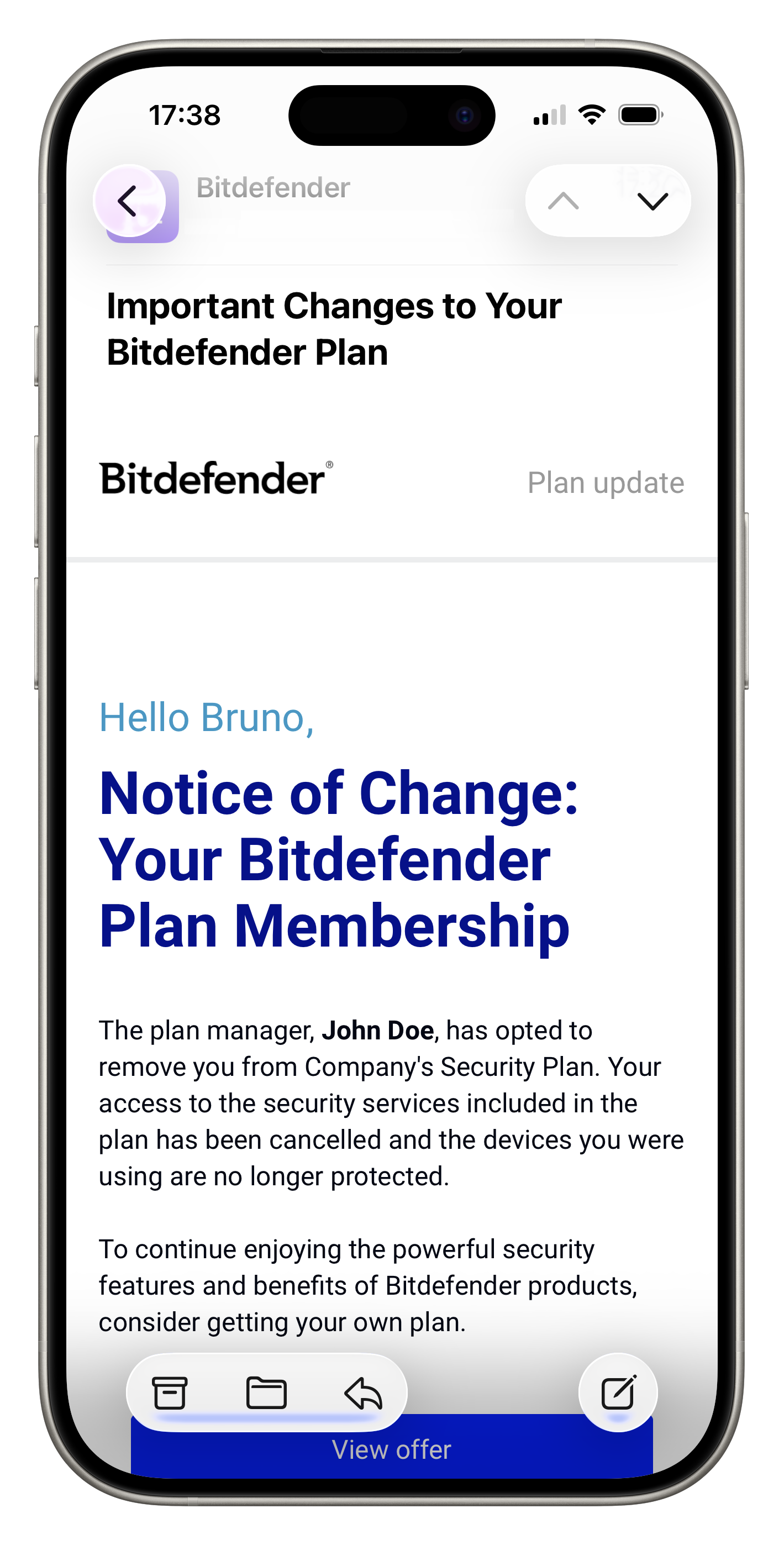 The removed team member will receive an email notification informing them that they no longer have access to the Bitdefender Ultimate Small Business Security subscription.
To keep benefiting from Bitdefender’s security features, the team member can either be invited again to the shared plan or choose to purchase their own Bitdefender subscription.