Org. summary
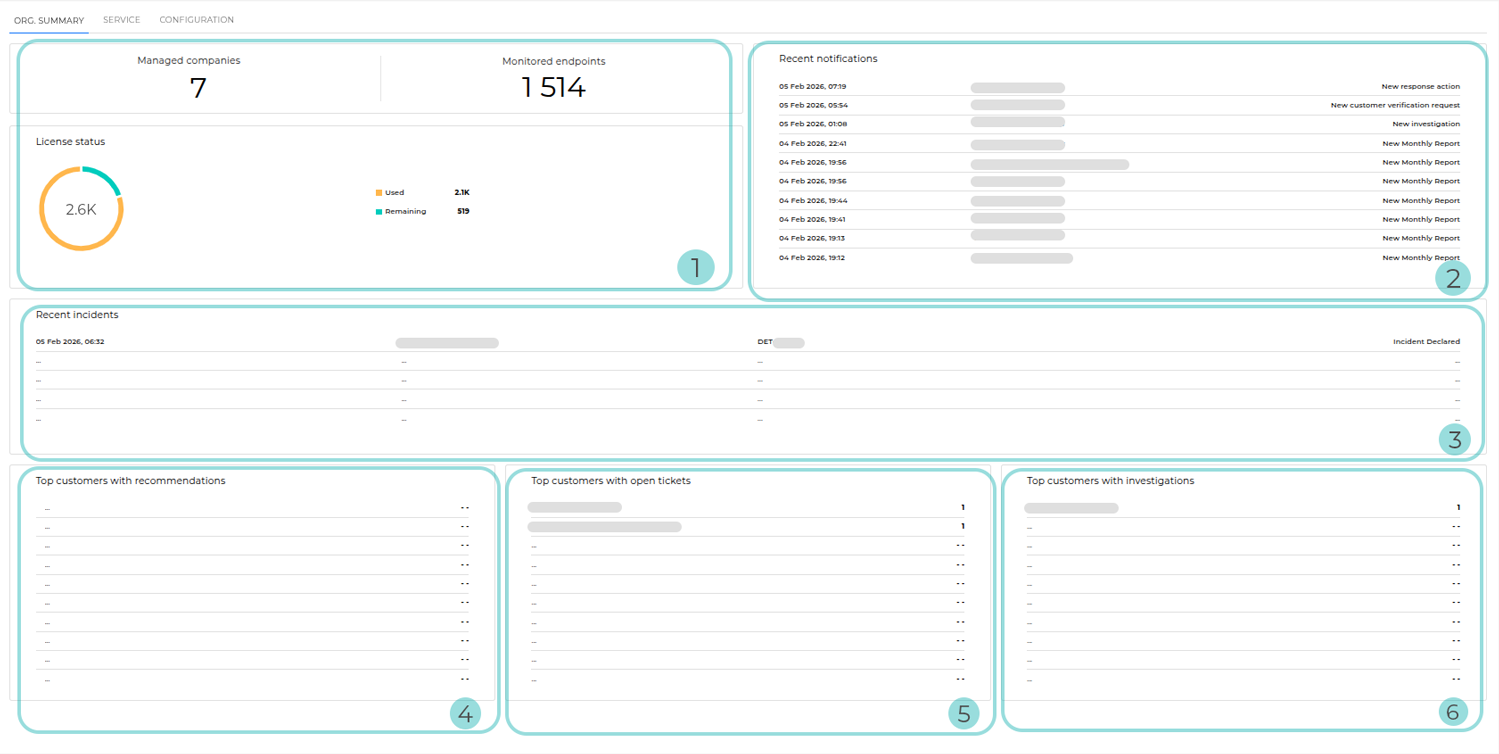
The following Org. summary layout applies to:
MSP Partners
Non-MSP Partners without Customers with an advanced service model
The following Org. summary layout applies to hybrid Partners without Customers with an advanced service model:
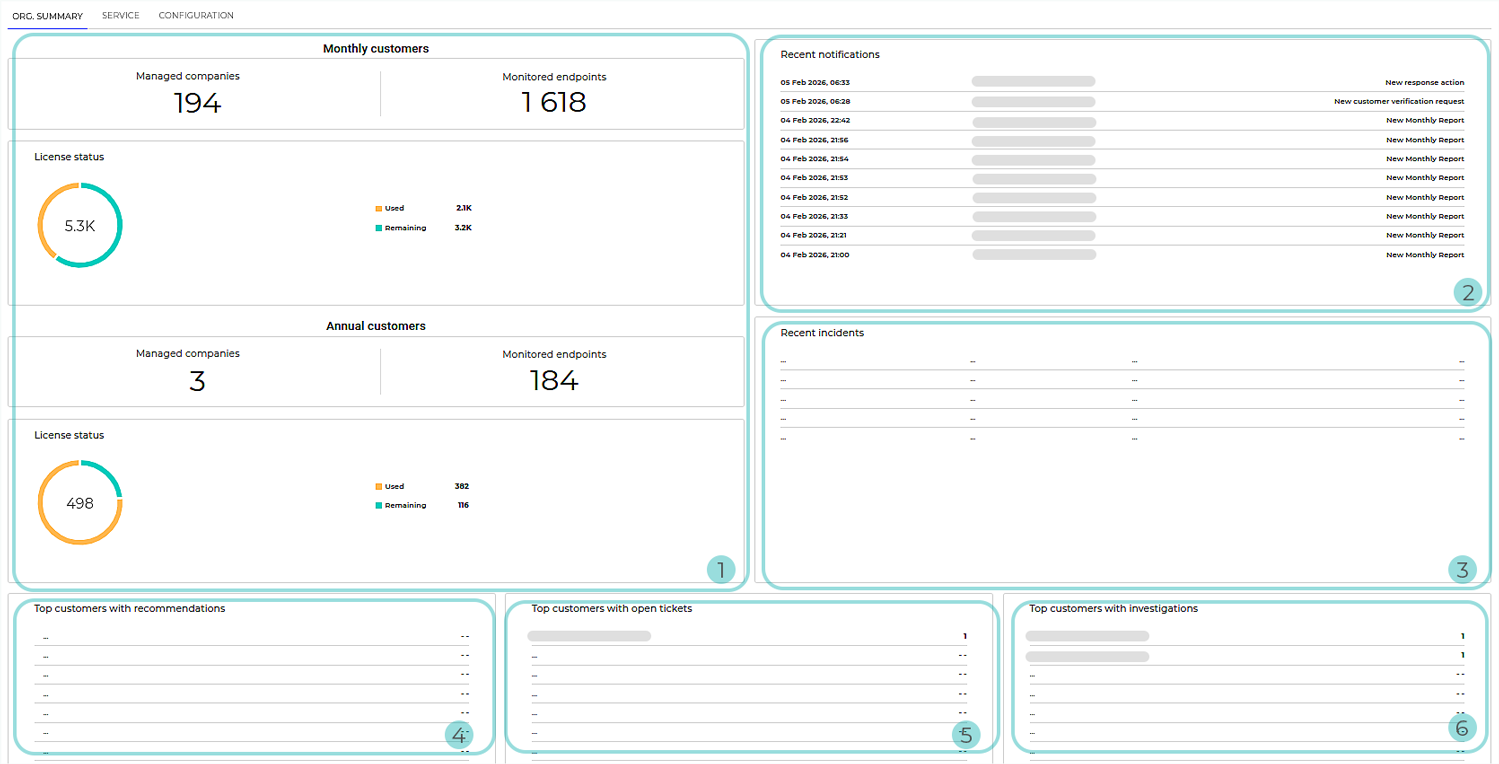
The following Org. summary layout applies to non-MSP Partners with Customers with an advanced service model:
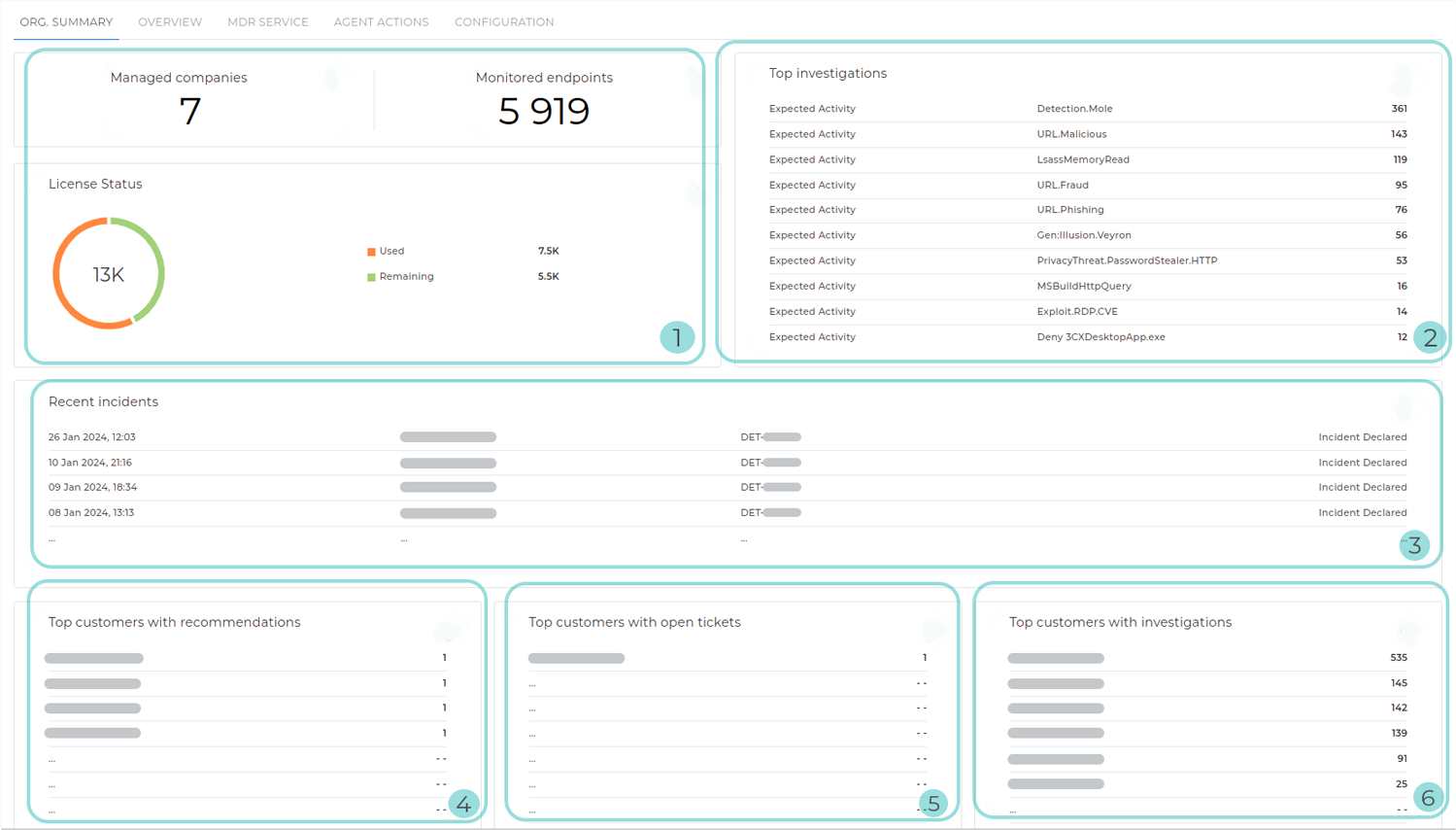
The following Org. summary layout applies to hybrid Partners with Customers with an advanced service model:
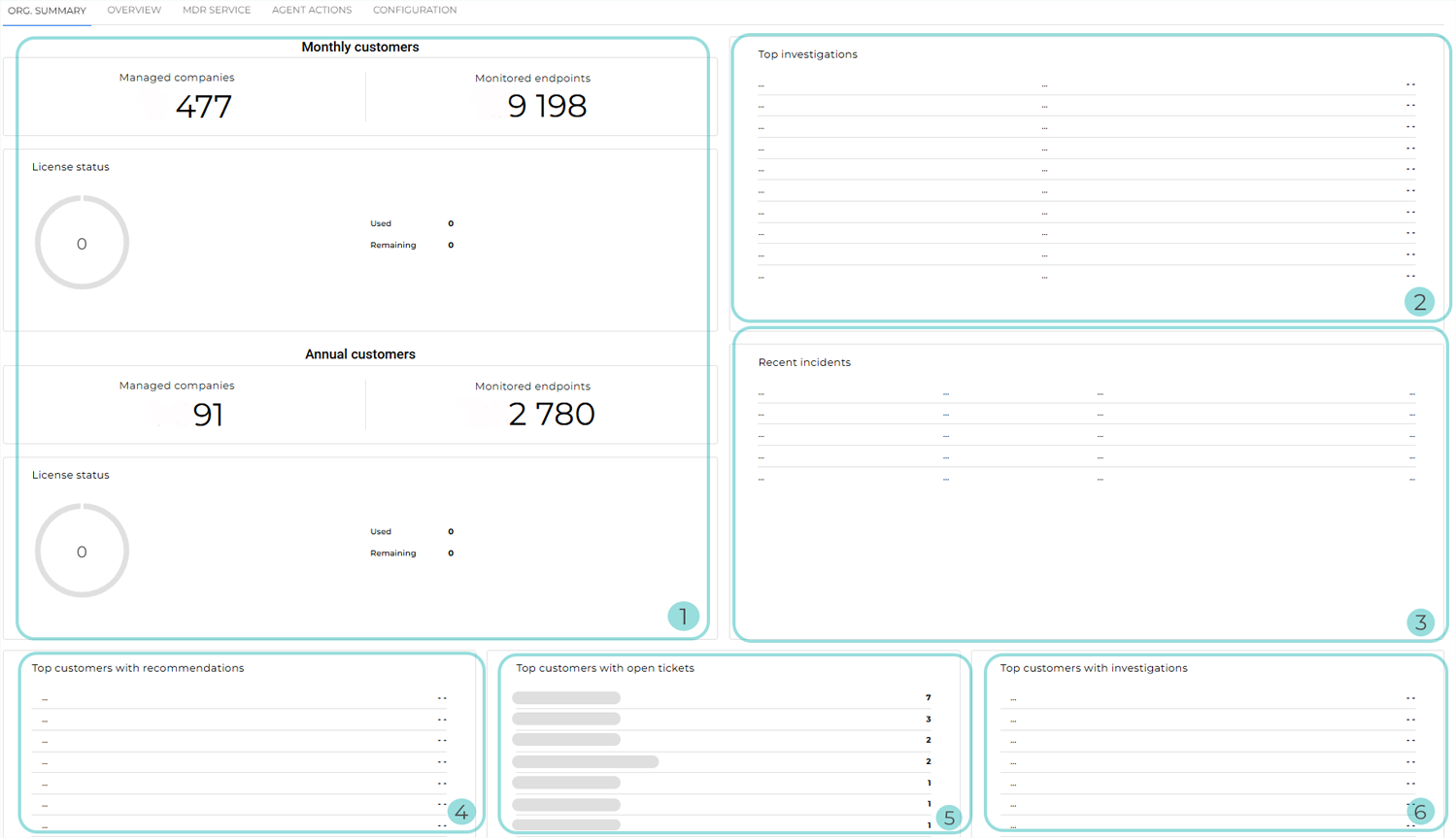
Service coverage and license usage: An organization-level overview of the MDR service coverage and license consumption across all managed companies
The following information is displayed:
Managed companies: The total number of fully onboarded Customer-type companies covered by the MDR service
Tip
Clicking Managed companies redirects you to the Companies page.
Monitored endpoints: The total number of endpoints actively monitored by MDR
Note
Endpoints are considered monitored if they have sent telemetry to the MDR service at least once during the current month.
License status: A visual overview of the MDR license consumption, including:
Total: The total number of endpoints covered by the MDR licensing capacity, calculated as follows:
Yearly licenses: The total count of MDR-licensed endpoints across all managed companies
Monthly subscriptions: If reserved seats are configured, the total reflects the number of reserved endpoints. If no seats are reserved, it reflects the endpoint usage recorded for the current month.
Used: The number of endpoints that count towards MDR usage across all managed companies, calculated as follows:
Yearly licenses: The number of endpoints that are actively using an MDR license
Monthly subscriptions: The number of endpoints that have contributed to MDR usage during the current month. These are endpoints that:
Belong to companies with both EDR and MDR enabled
Have had Incidents Sensor enabled in the applied policy during the current month
Have been active at least once during the current month
Remaining: The MDR licensing capacity that is still available. It is calculated as the difference between Total and Used.
For hybrid Partners, this information is displayed separately for Customers with a yearly license and Customers with a monthly subscription, allowing you to independently track service coverage and license usage for each licensing model.
For non-MSP or hybrid Partners without Customers with an advanced service model, and for MSP Partners, this section is Recent notifications. It displays the most recent MDR notifications across all managed companies, including:
The date and time when the notification was generated
The affected company
The notification type
For non-MSP or hybrid Partners with Customers with an advanced service model, this section is Top investigations. It highlights the most frequent investigations across all managed companies, grouped by Detection. Each entry includes the following details:
The name of the signature on which the investigations are based
The type of the investigations
The total number of investigations generated for that specific detection
Tip
Clicking Top investigations redirects you to the Investigations page.
Clicking a specific investigation category from the list redirects you to the Investigations page, which displays only the investigations of the selected type.
Recent incidents: Displays the five most recent incidents reported across managed companies. The following information is displayed for each incident:
Date and time of occurrence
Company where the incident occurred
Investigation code
Incident description
Tip
Clicking Recent incidents redirects you to the Reports page, where full incident details and reports are available.
Top customers with recommendations: Displays the companies that have received the most recommendations.
Tip
Clicking Top customers with recommendations redirects you to the Recommendations page.
Clicking a company opens the Recommendations page, filtered to display recommendations specific to the selected company.
Top customers with open tickets: Displays the companies with the highest number of open tickets.
Tip
Clicking Top customers with open tickets redirects you to the Tickets page.
Clicking a company opens the Tickets page, filtered to display only the tickets for the selected company.
Top customers with investigations: Displays the companies with the highest number of ongoing investigations.
Tip
Clicking Top customers with investigations redirects you to the Investigations page.
Clicking a company opens the Investigations page, filtered to display only the investigations for the selected company.