Essential notifications setup
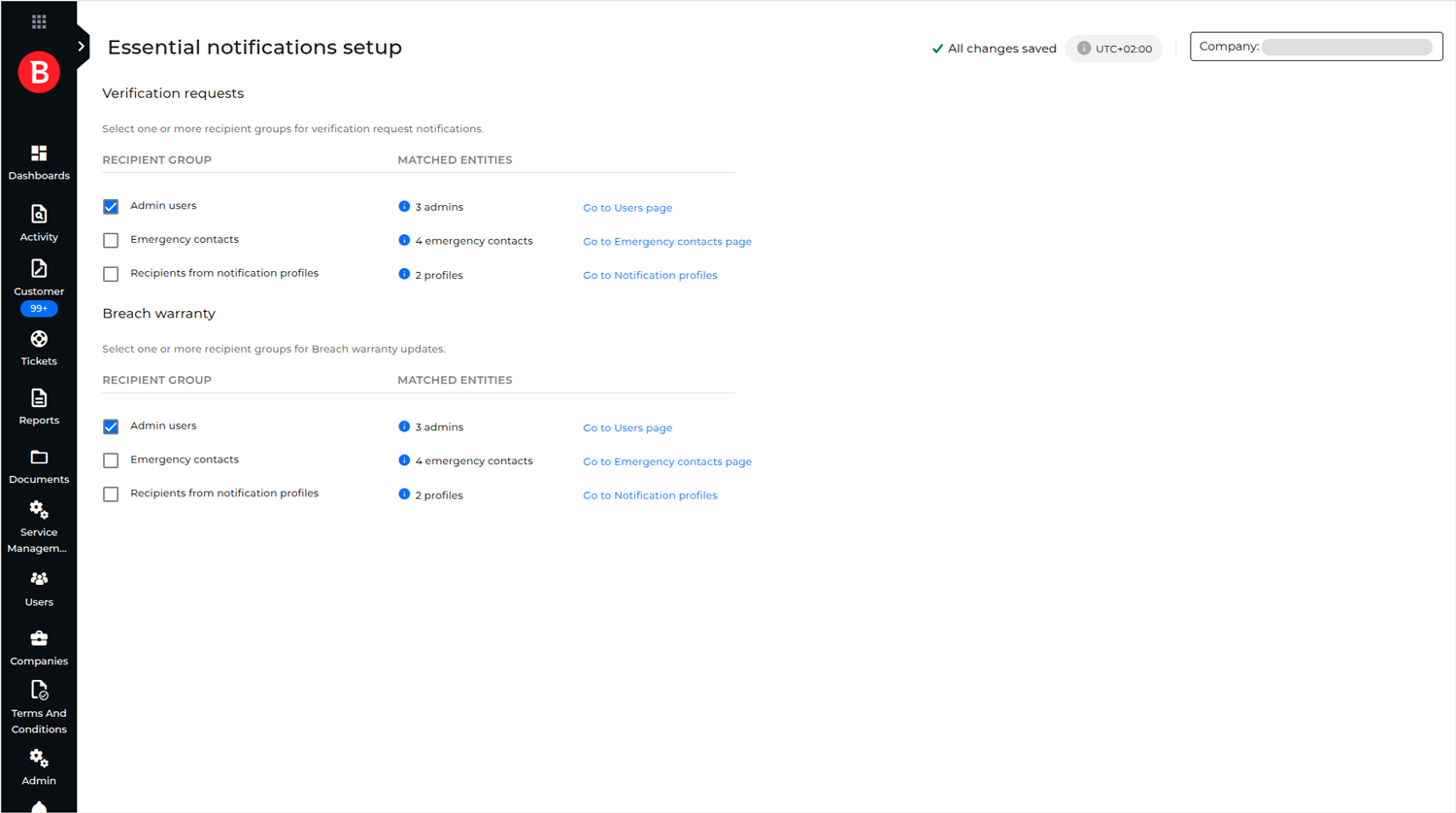
The Essential notifications setup page under Notification settings allows you to configure the delivery of the Verification requests and Breach warranty updates for your company or any managed companies. Because these MDR notifications are high-priority, they must always reach at least one recipient. This page ensures both reliable delivery and flexible routing options to different types of recipients.
Prerequisites
Configuring this page requires an Admin role within the MDR portal.
Access to the Breach warranty section of the page requires an MDR Breach Warranty or MDR Breach Warranty Plus add-on license.
Configuring Verification requests or Breach warranty updates delivery
To configure the Verification requests or Breach warranty notifications delivery for your company or one of your managed companies, follow these steps:
Go to the Notification settings > Essential notifications setup page in the MDR portal.
If you are a Partner, from the company selector in the top-right corner of the page, select the company for which you want to set up the Verification requests or Breach warranty notifications delivery.
Important
If you have a Customer-type company, the company selector is hidden. For you, the “selected company” always represents your own company.
For the desired notification type, Verification requests or Breach warranty, select at least one recipient group: Admin users, Emergency contacts, or Recipients from notification profiles.
Note
For detailed information regarding the available recipient groups, refer to the Recipient groups section.
If you selected Recipients from notification profiles in the previous step and no profiles contain valid recipients, we strongly recommend ensuring that the high-priority Verification requests or Breach warranty notifications will reach at least one recipient.
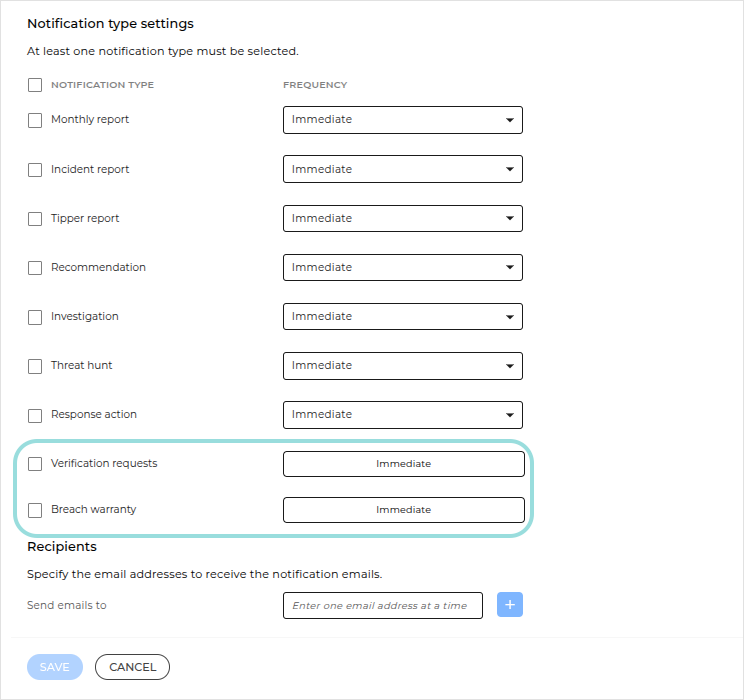
Either ensure at least one additional recipient group is selected, or go to the Notification profiles page to create or update a profile for the previously selected company and enable the Verification requests or Breach warranty option.
Note
For instructions on adding or editing a notification profile, refer to Notification profiles.
Your configurations on the Essential notifications setup page are saved automatically, ensuring notifications are delivered according to your setup.
Recipient groups
For each notification type, Verification requests or Breach warranty, the following recipient groups can be selected:
Admin users: Users with an Admin role managing the selected company
Important
The Matched entities count displays the number of users with an Admin role from the selected company.
Admins from Partner companies managing the selected company also receive notifications, but only when they have this recipient group option enabled.
Emergency contacts: Emergency contacts of the selected company
Important
The Matched entities count includes only the emergency contact created in GravityZone Control Center and those created directly in the MDR portal.
Inherited emergency contacts also receive notifications, but only if they originate from Partners with this recipient group option enabled.
Recipients from notification profiles: Recipients from the active notification profiles of the selected company
Important
Only recipients from notification profiles with Verification requests enabled receive Verification requests notifications.
Only recipients from notification profiles with Breach warranty enabled receive Breach warranty notifications.
The Matched entities count displays the number of notification profiles with valid recipients.
By default, only the Admin users recipient group is selected for both notification types.