Response Actions
The Response Actions page, available under Activity, lists all response actions initiated by Security Operations Center (SOC) analysts based on findings from investigations or threat hunts. It allows you to track what actions were executed in your environment and review the details associated with each action.
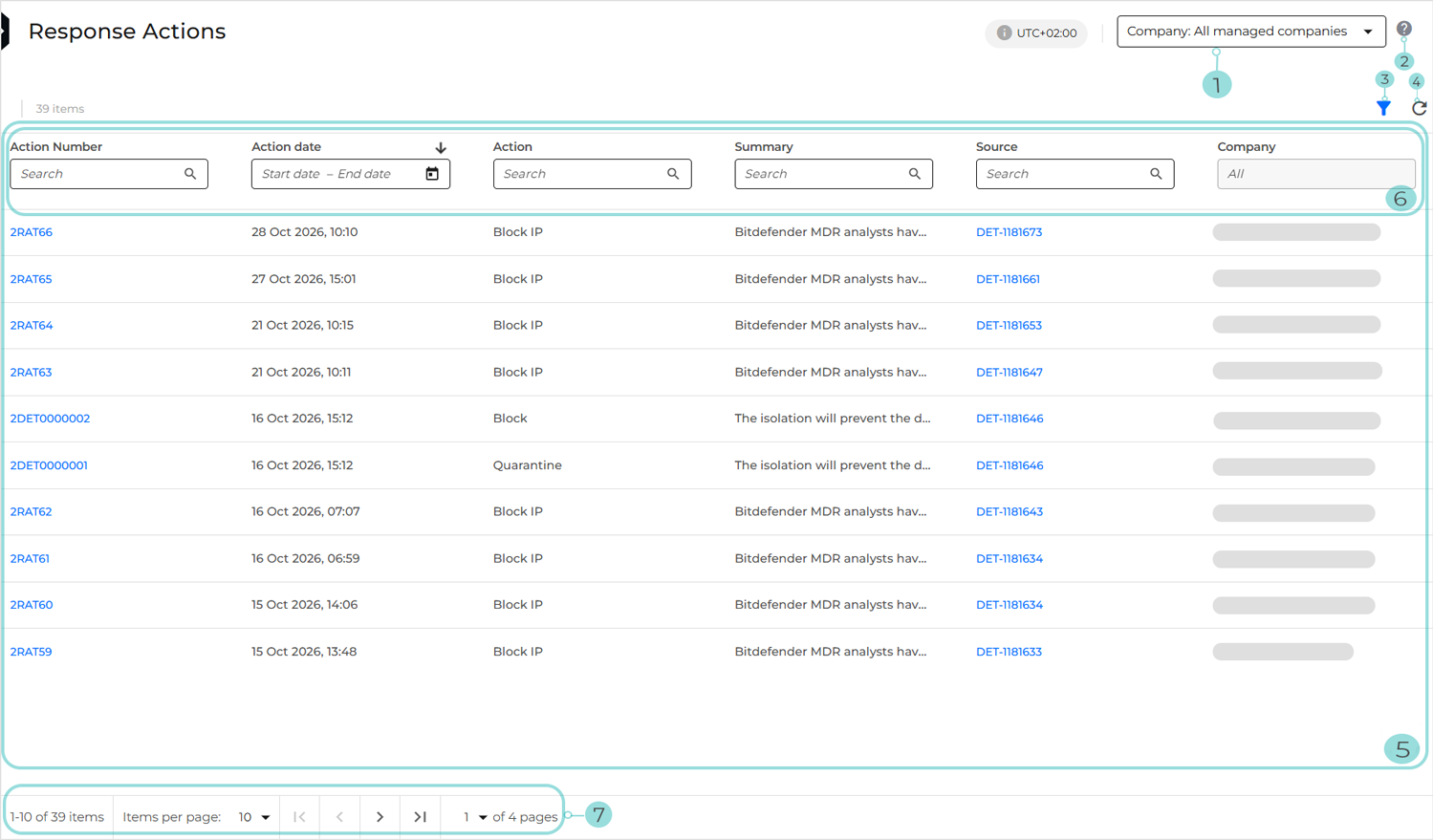
The page includes the following main components:
Company selector: If you are a Partner, you can click it to switch between companies and view the corresponding response actions table. You can select All managed companies or a specific managed company.
Important
This selector is not displayed for Customers.
Info button: Clicking it opens the Knowledge Base article relevant to the Response Actions page.
Show or hide filters button: Controls the visibility of filtering options for the Response Actions table.
Refresh button: Clicking it reloads the Response Actions table data.
Response actions table data: Displays data for all the available response actions.
Each response action includes the following information:
Action Number: The unique identifier of each response action
Tip
Clicking it opens the response action details panel, which displays the complete SOC analyst summary, as well as information about the affected device and the target of the selected response action.
Action date: Timestamp of when the response action was taken
Action : Indicates which action was taken by the SOC team.
Note
For a complete list of available response actions, refer to Pre-approved Actions.
Summary: Displays the complete SOC analyst description of the response action, including the affected endpoint or object, the reason for the action, and any additional context relevant to the investigation or threat hunt.
Source: The investigation or threat hunt conducted by the SOC that led to this response action. Click it to access additional details about the originating activity.
Company: The name of the company for which the response action was taken
Important
This column is displayed only when a Partner-type company or the All managed companies option is selected via the company selector. It indicates for which managed company each response action was taken.
Available filters: The search fields allow for the quick finding of response actions by entering keywords from the Action Number, Action, Summary, or Source. Additionally, response actions can be filtered by a specific time range using the calendar option in the Action date field.
The pagination bar: This bar allows controlling how many items are displayed per page. You can navigate through pages using the arrows, jump directly to the first or last page, or select a specific page to view.
Submitting questions to the SOC
If you have questions or need additional clarification regarding a response action resulting from an investigation, you can start a conversation with the SOC directly from the response action details panel.
To ask a question:
On the Response Actions page in the MDR portal, click the Action Number of the response action to open its details panel.
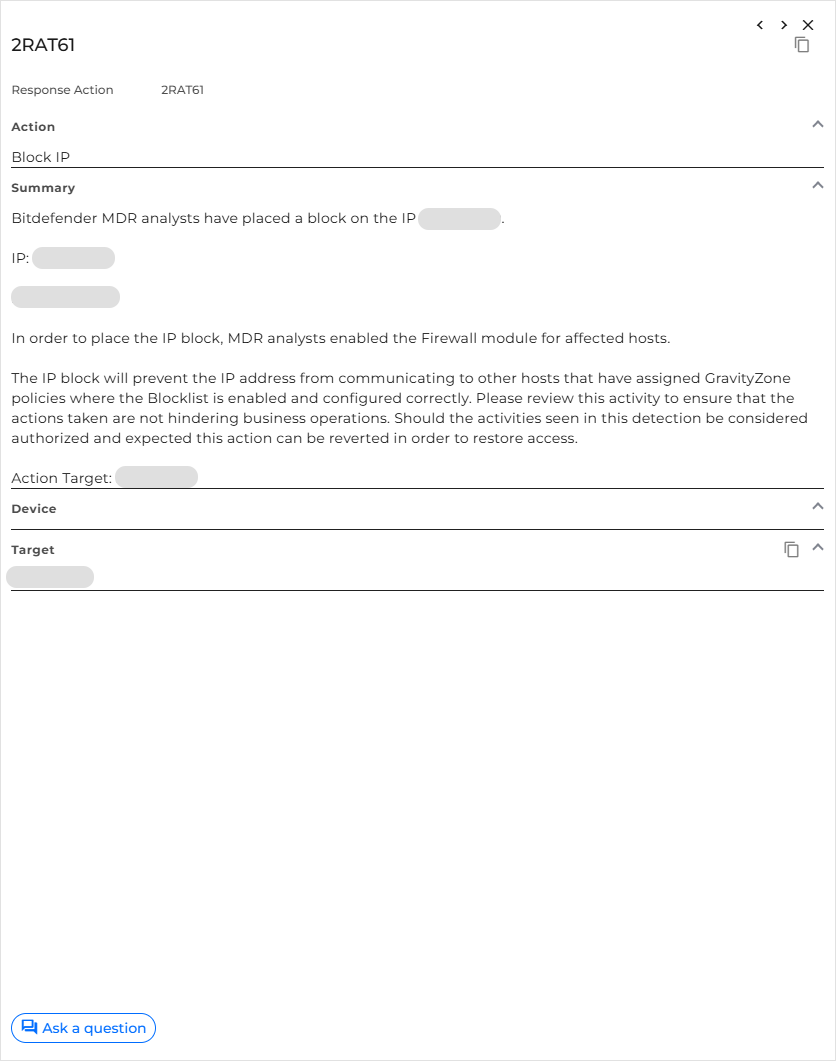
Click Ask a question.
The Ask a question dialog box opens:
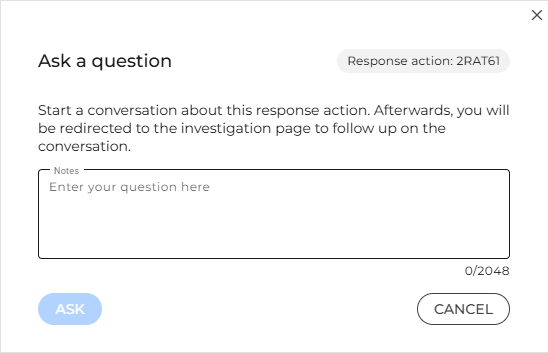
Enter your question in the message box.
Click Ask.
A green banner confirms that your message has been submitted successfully. You are then redirected to the corresponding investigation details page, where your message appears in the Conversations panel with the Response action: <responseActionNumber> label.
From this page, you can follow the conversation, review SOC and Customer Success Team (CST) responses, and send follow-up messages as needed.
Tip
Once a conversation has been initiated, you can return to it at any time by clicking Open conversation in the response action side panel:
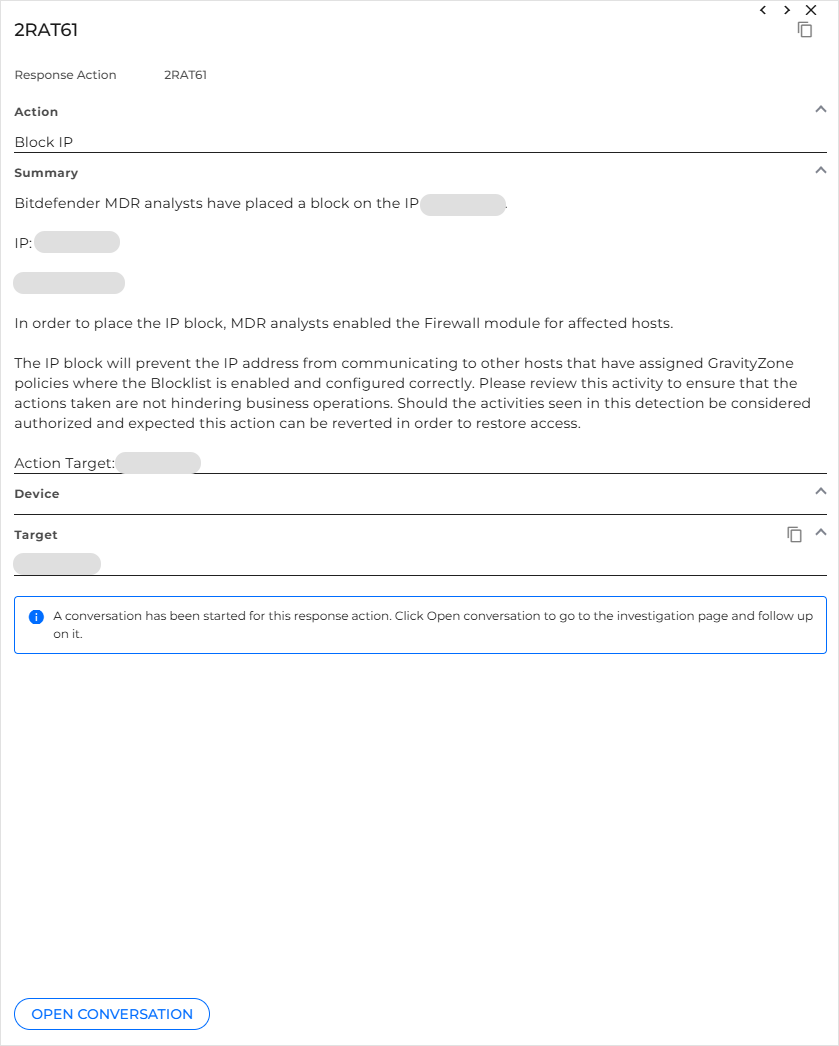
The corresponding investigation details page opens, allowing you to review previous messages, continue the conversation, or ask any other questions.
Important
Direct communication with the SOC is not currently available from the side panel of response actions resulting from threat hunts.