


How to update from a local update server
In order to allow BitDefender Security for Windows Servers to update from a local update server you need to configure it to allow insecure updates:
- Open BitDefender;
- Go to Update and click Settings;
- Check Allow insecure updates and click Apply.
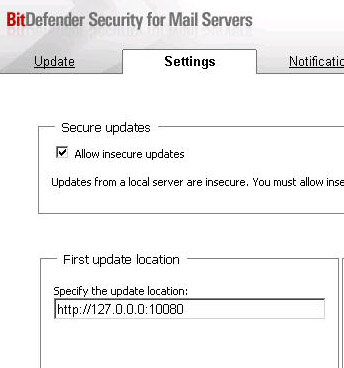
Note: the above screenshot highlights only the relevant part of this configuration process: the insecure updates reside on a local update server available on 127.0.0.1 (localhost) on port 10080. You will need to change this information to match your configuration.
If you do not have BitDefender Security for Mail Servers installed on your server then you will not have access to this option from the user interface. In this case you need to open a command prompt session, change the current directory to "%CommonProgramFiles%\\SOFTWIN" and run the following commands:
bdsetup setkey "/BDUX/LiveDaemon/UpLocs/update_is_90/AllowInsecureUpdate" "Y"
bdsetup setkey "/BDUX/LiveDaemon/UpLocs/en_fs_24/AllowInsecureUpdate" "Y"
 Australia:
(+61) 1300 888 829, (+61) 385 956 732
Australia:
(+61) 1300 888 829, (+61) 385 956 732 Canada:
(+1) 647 977 5827, (+1) 647 367 1846
Canada:
(+1) 647 977 5827, (+1) 647 367 1846  Deutschland:
(+49) 2304 9993004
Deutschland:
(+49) 2304 9993004  España:
(+34) 937 370 223
España:
(+34) 937 370 223
 France:
+33(0)184070660
France:
+33(0)184070660  New
Zealand: (+64) 0800 451 786
New
Zealand: (+64) 0800 451 786  Osterreich:
(+49) 2304 9993004
Osterreich:
(+49) 2304 9993004  România:
(+40) 21 264 1777, (+40) 374 303 077
România:
(+40) 21 264 1777, (+40) 374 303 077  Schweiz:
(+49) 2304 9993004
Schweiz:
(+49) 2304 9993004  United
States: (+1) 954 414 9621, (+1) 954
281 4669
United
States: (+1) 954 414 9621, (+1) 954
281 4669  United
Kingdom: (+44) 2036 080 456, (+44) 2080 991 687
United
Kingdom: (+44) 2036 080 456, (+44) 2080 991 687  WorldWide: (+40) 31 620 4235,
(+40) 374 303 035
WorldWide: (+40) 31 620 4235,
(+40) 374 303 035