


Bitdefender Firewall blocking network printer
This article provides the steps needed to troubleshoot BEST Firewall module blocking communication with network printers.
To resolve these issues, you need to activate Network Discovery, allow Network Printing and add the details of your wireless network:
- Log in to GravityZone Control Center.
-
Go to Policies and select the the policy applied to the affected endpoint(s).
- Go to Firewall > Settings.
-
In the Adapters section, under the Network Discovery column, set all adapters to Yes.

- Click Save.
- Go to Firewall > Rules.
- Set the Network Printing rule to Allow under the Permission column.
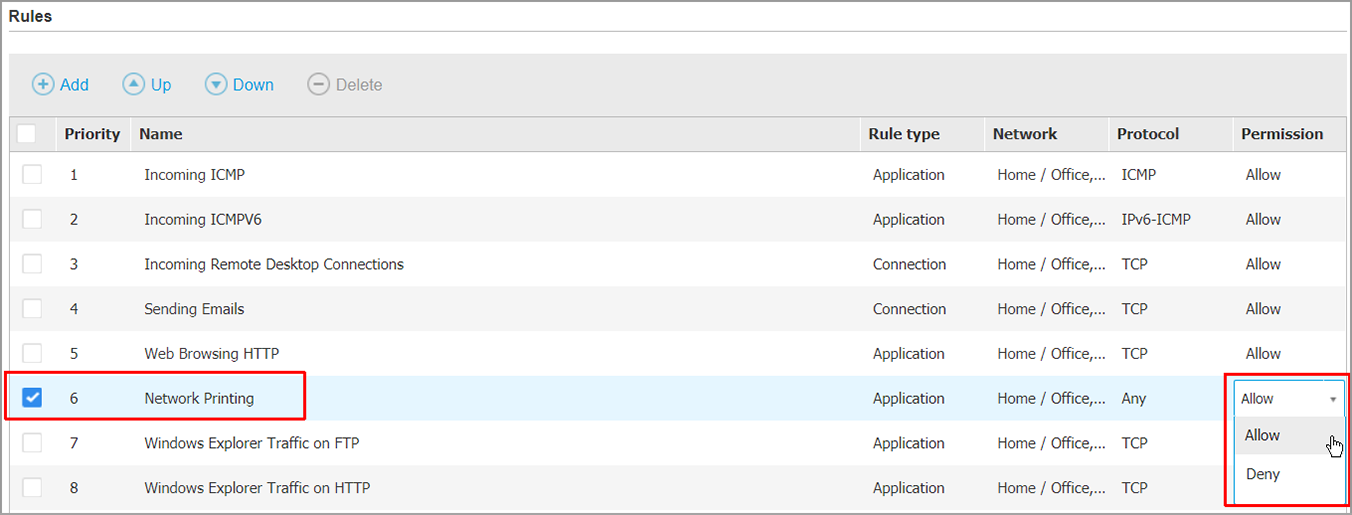
- Click Save.
- If you are using a wireless network to connect to the printer please add the Internal network as Home/Office.
- Go to Firewall > Settings
- Under the Networks section, add your wireless network details:
- Name - a custom name to better identify it in the list
-
Network/Profile - select Home/Office
-
Identification - select Network
-
IP - insert the IP and the mask that better describes your network addressing scheme.
For example, if your network addresses start from 192.168.1.1 and end at 192.168.1.254, type in 192.168.1.0/24.
-
Click the Add button.

Can't find a solution for your problem?
Open an email ticket and we will answer the question or concern in the shortest time possible.
 Australia:
(+61) 1300 888 829, (+61) 385 956 732
Australia:
(+61) 1300 888 829, (+61) 385 956 732 Canada:
(+1) 647 977 5827, (+1) 647 367 1846
Canada:
(+1) 647 977 5827, (+1) 647 367 1846  Deutschland:
(+49) 2304 9993004
Deutschland:
(+49) 2304 9993004  España:
(+34) 937 370 223
España:
(+34) 937 370 223
 France:
+33(0)184070660
France:
+33(0)184070660  New
Zealand: (+64) 0800 451 786
New
Zealand: (+64) 0800 451 786  Osterreich:
(+49) 2304 9993004
Osterreich:
(+49) 2304 9993004  România:
(+40) 21 264 1777, (+40) 374 303 077
România:
(+40) 21 264 1777, (+40) 374 303 077  Schweiz:
(+49) 2304 9993004
Schweiz:
(+49) 2304 9993004  United
States: (+1) 954 414 9621, (+1) 954
281 4669
United
States: (+1) 954 414 9621, (+1) 954
281 4669  United
Kingdom: (+44) 2036 080 456, (+44) 2080 991 687
United
Kingdom: (+44) 2036 080 456, (+44) 2080 991 687  WorldWide: (+40) 31 620 4235,
(+40) 374 303 035
WorldWide: (+40) 31 620 4235,
(+40) 374 303 035