Is My Phone Listening to Me? Expert Tips to Detect and Stop Phone Tapping

December 22, 2025

The idea that your phone might be listening to you is unsettling—but the reality is more nuanced. While smartphones don’t secretly record every conversation, certain apps, permissions, and malware can access your microphone without your awareness. Knowing the difference between normal behavior and real threats is key to protecting your privacy.
Key Takeaways
- Your phone isn’t constantly spying, but it can listen in specific cases. Voice assistants activate only after wake words, but apps with microphone permissions may access audio if misused.
- Targeted ads are usually driven by data tracking, not eavesdropping. Search history, location data, and app activity are more commonly used to predict interests than actual voice recordings.
- Malware and spyware are the real privacy threats. Malicious apps or advanced tools can hijack your microphone and camera to monitor activity without consent.
- You can detect and stop unauthorized listening. Checking microphone access logs, watching indicator lights, restricting permissions, and running security scans help identify and remove suspicious activity.
Is Your Phone Listening to You and How to Detect Phone Tapping
Think your phone is spying on you? You might be right, especially if you find that your phone is acting strange and it ticks the boxes we're going to discuss in this article. In fact, given the current cybersecurity landscape and all the stories coming up about mobile phone safety, it’s not far-fetched to wonder: Is my phone listening to me?
You’ve likely heard stories of people swearing that their phones are eavesdropping on their conversations. The most common one is the oddly specific ad that pops up right after you casually mention a product near your smartphone.
But if anything truly malicious is happening, such as your private conversations being recorded or your data stolen, it’s usually the work of malware, not your phone’s built-in features.
Still, it’s important to understand the difference and know when to be concerned. We asked our Bitdefender cybersecurity experts these same questions, and here’s what they revealed about why your phone might be listening and how you can stop it.
How does your phone listen to you?
Unless you’re a high-profile government official, political critic, or human rights activist, it’s highly unlikely that you’re the target of 24/7 surveillance or that anyone hacked your phone or deliberately spoofed your microphone to spy on your private conversations.
That being said, smartphones do listen in certain contexts, mostly through features designed to make your experience more convenient. Let’s take a closer look at the most common ways this happens (and when you should actually be concerned).
Through voice assistants
When you call out to Siri, Alexa, or Google Assistant, they instantly respond and help you handle everyday tasks like setting reminders, playing music, or managing your schedule. You’re not alone in this, as about half of U.S. adults use virtual assistant apps regularly.
If you’ve not changed your settings, these assistants will constantly listen in the background for what’s known as “wake words.” For Siri, it’s “Hey Siri,” while Google responds to “Okay Google.” To detect these triggers, your device uses AI to passively listen and process background sounds. This also helps them learn how you speak, recognize patterns, and adapt to different accents.
Apple and Google explicitly state that their assistants only start recording after hearing the wake words and that they do not save your recordings or audio by default. But if you opt in to allow saved audio, that data may be used to improve its speech recognition technology.
Via third-party apps
Now, this is where you actually have cause for concern. When you install certain apps on your phone and casually grant them permissions, you might unknowingly be giving malicious actors access to your microphone. If those apps are harmful or run by shady developers, they can use that access to spy on your personal data and sell the information to advertisers.
Some apps don’t need to be outright malicious, as they might just quietly collect more data than they should. Every “Allow microphone access” or “Allow background activity” click gives them more room to listen in.
Through spyware like Pegasus
If you’re a high-profile journalist, activist, or politician, you or your family members could be targeted with sophisticated tools like Pegasus, a surveillance software known for hijacking a phone’s camera and microphone for data theft and other cybercrimes.
Pegasus can be installed in several ways: by clicking on a phishing link, leaving your phone unattended long enough for someone to install it directly, or through zero-day exploits that don’t even require you to do anything. Once you’re targeted, you’re instantly compromised.
Through ad-tracking systems
This is most likely the culprit when you hear people say, “I think my phone is listening to me.” Maybe you had a chat with a friend about a new movie or book release, and suddenly, you’re bombarded with pop-up window ads for those exact products once you open your phone. This will naturally make you believe your device is eavesdropping, like this Reddit user shared:
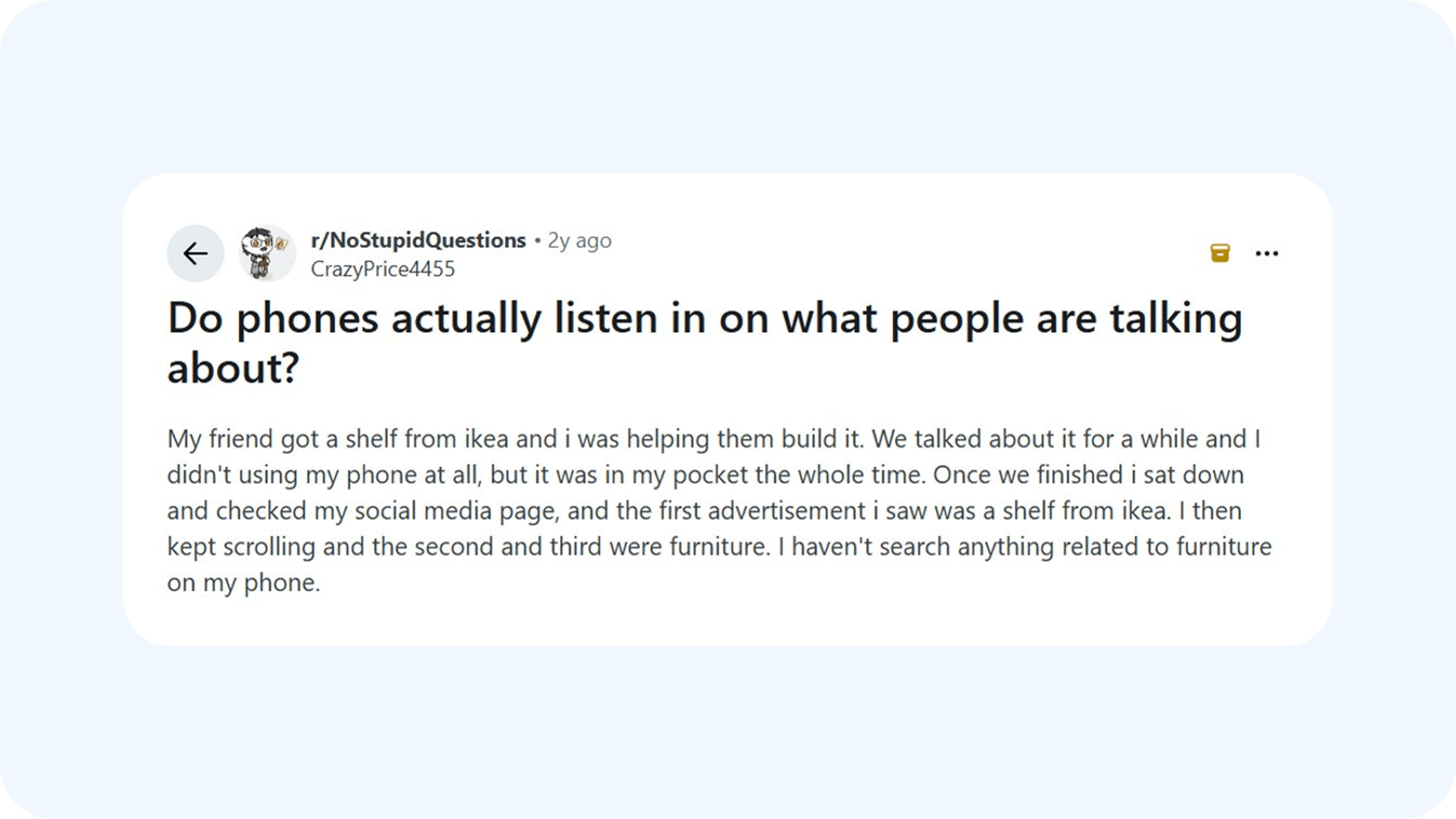
Source: Reddit
In reality, your phone constantly tracks certain data through ad tracking systems, but not necessarily to spy on you. This is a form of market research that collects personalized data across apps and websites to help advertisers predict what you will most likely buy next. Your search history, location, and app activity are monitored to show targeted ads that better align with your interests.
So when you talk about a product and immediately start seeing related ads, it’s often because you previously looked it up online, or because you share a network or location data with someone who has. While this is not an actual microphone recording, the precision of ad targeting does make it feel that way.
Is there empirical evidence of our phones listening to us?
People have often claimed that saying certain words around their phones somehow triggers related ads to appear later. But in 2019, a group of cybersecurity specialists tried to replicate this and got a very different result. They placed both an Android phone and an iPhone in a room for 30 minutes daily and played pet food ads throughout that time. All popular apps, including Facebook, Amazon, YouTube, and Snapchat, were granted microphone access.
Yet, after the experiment, neither device displayed pet-related ads on those platforms. This suggests that while stories of phones secretly eavesdropping are widespread, there’s still no solid proof that our devices are actively listening.
However, things aren’t always that straightforward. In 2025, Apple agreed to settle a $95 million eavesdropping lawsuit following claims that Siri was recording private conversations and sending the data to Apple’s servers.
The lawsuit, filed by California resident Fumiko Lopez in 2021, alleged that Siri often activated unintentionally during normal conversations, captured confidential audio, and shared snippets with third-party businesses for targeted advertising.
Court documents revealed that Siri could be triggered by almost anything, like the sound of a zipper or random background noise, after which it might store recordings of everything said. Apple later apologized and promised stricter privacy controls. Still, the case raises the uncomfortable question of just how much these virtual assistants hear, and how much control we really have over them.
How to test if your phone is listening to you
The following are simple tests you can run if you suspect your phone has been listening to you.
1. Check microphone access logs
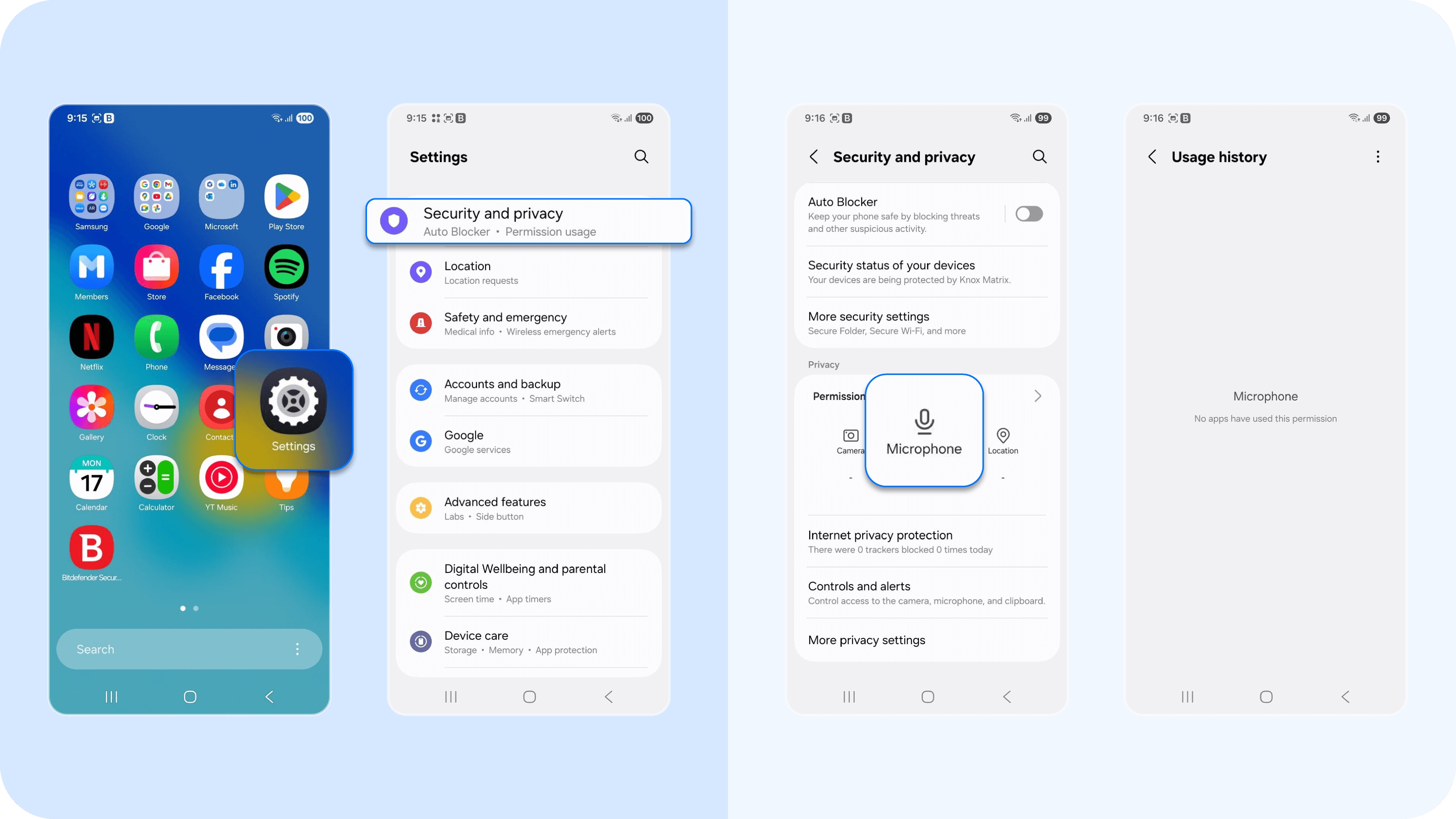
Your phone keeps a record of all the apps that have accessed your microphone and when they did. You can review this list to spot anything unusual. If you notice unfamiliar apps or microphone access at odd hours, that’s a strong sign that something’s wrong. Here’s how to check:
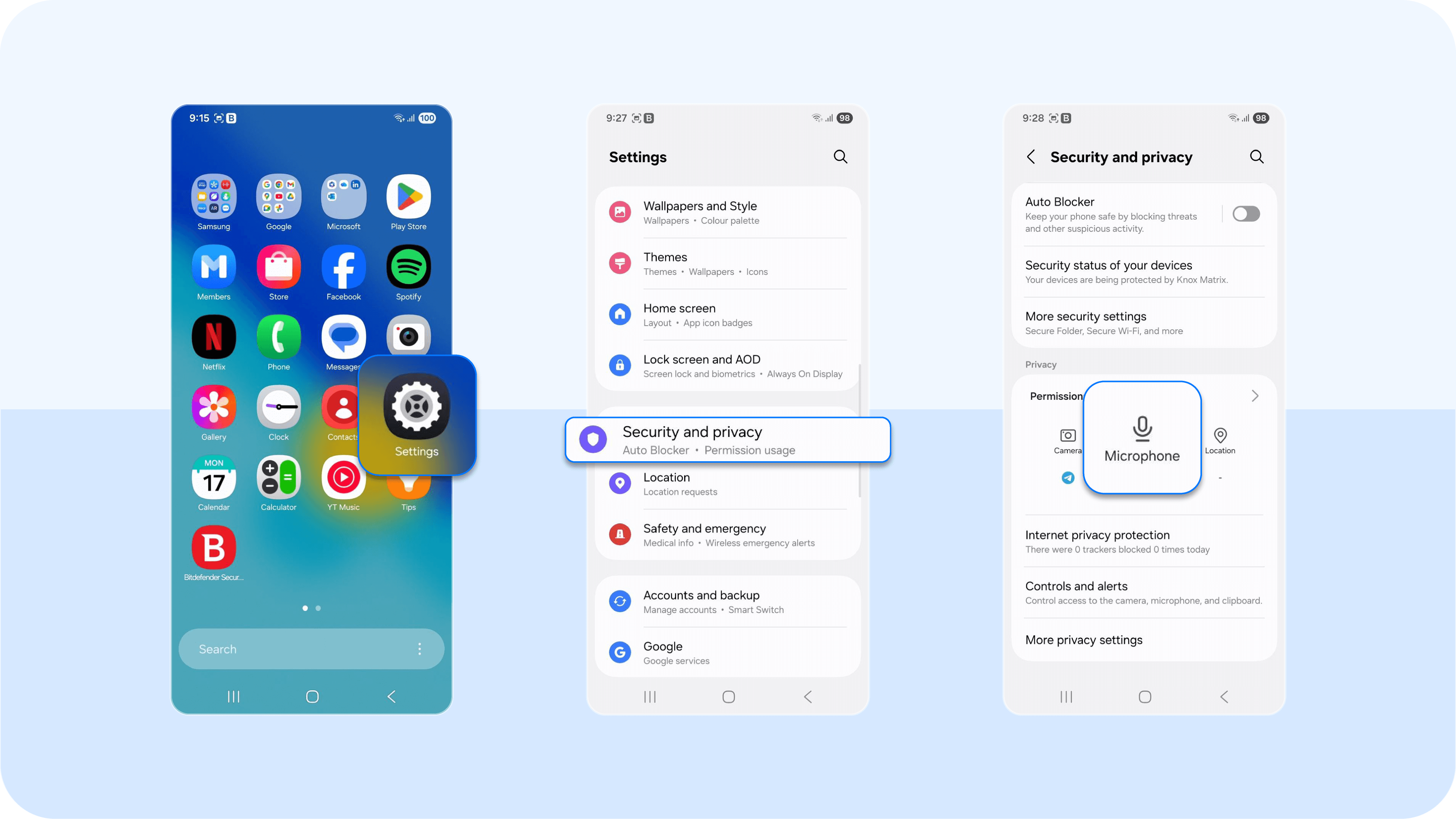
- On Android phones: Select Settings > Security and privacy > Scroll to Privacy > Microphone. You’ll see which apps have microphone access and when they last used it. If an app you rarely use was accessed it recently, that’s a red flag.
- On iPhone (iOS devices): Go to Settings > Privacy and Security > Microphone.
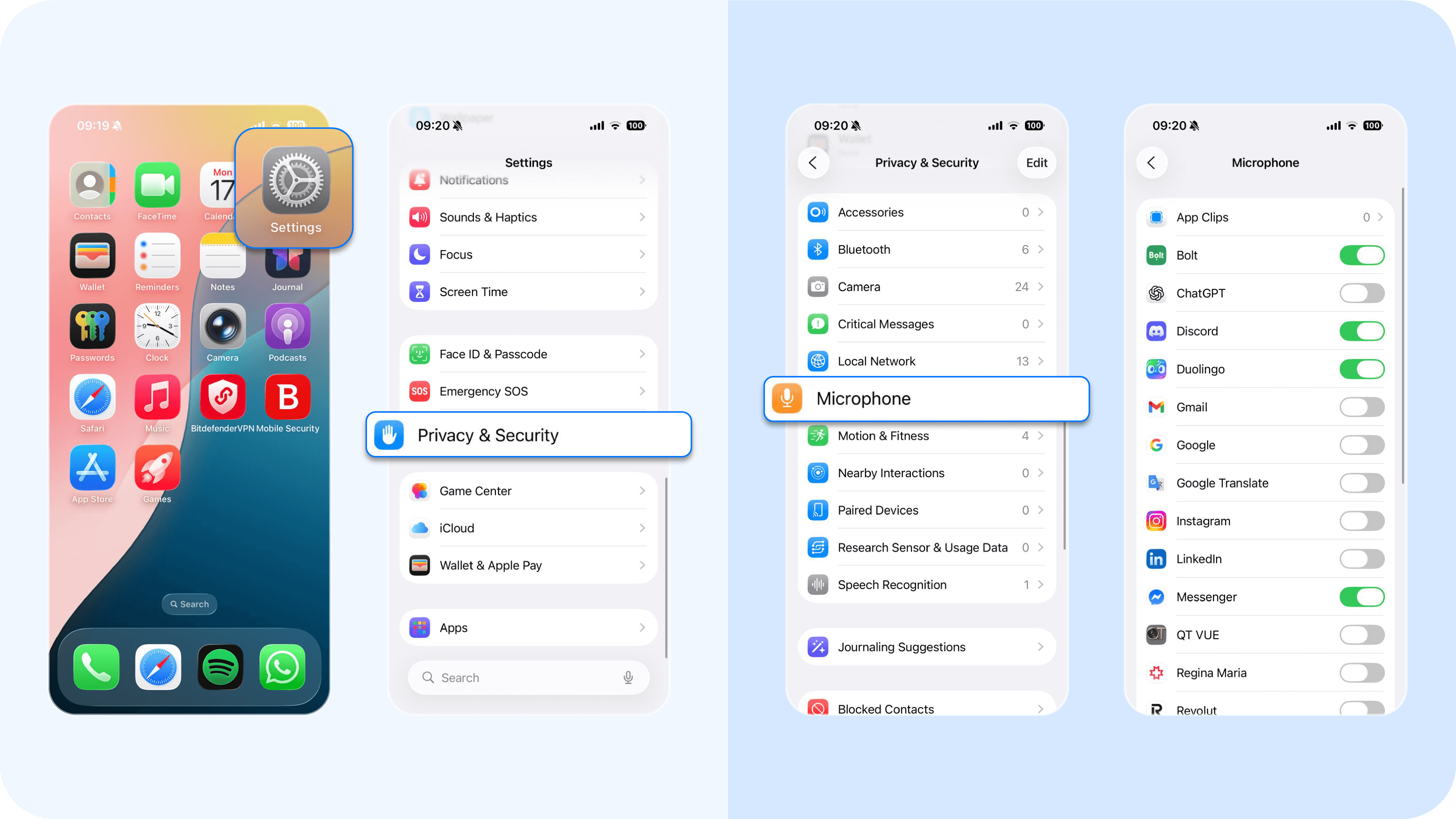
Now, you can view all apps with microphone access and toggle them off individually.
2. Watch for microphone indicators
Modern smartphones display visual cues when the microphone (or camera) is in use.
- On iPhone: You’ll see a small orange dot (for the microphone) or green dot (for the camera) in the top-right corner when an app is recording.
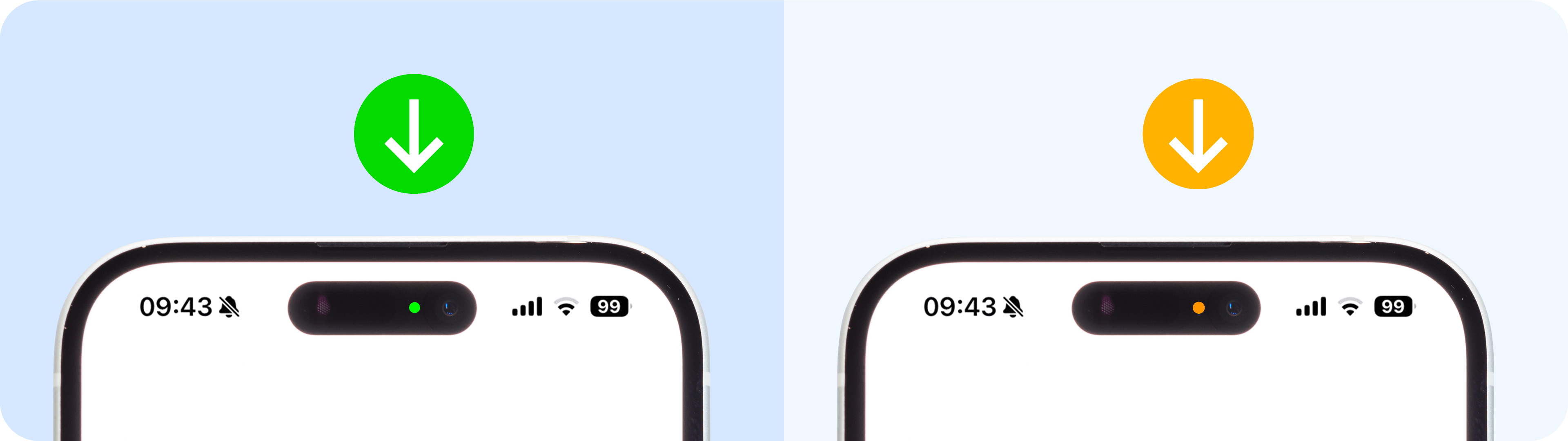
- On Android: A small green icon or microphone symbol appears at the top of the screen when the mic is active.
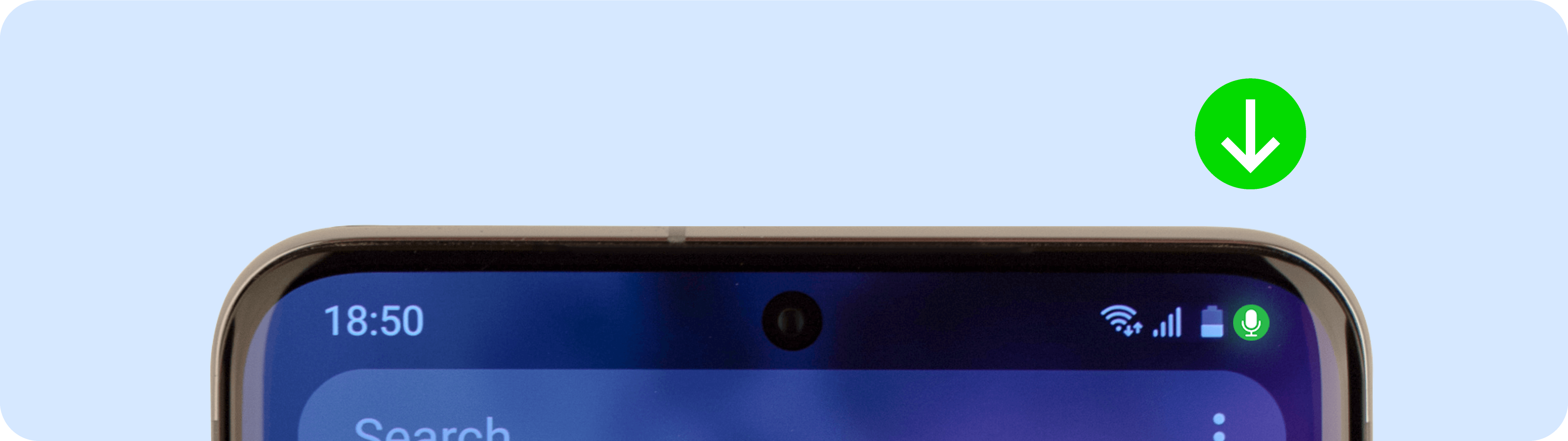
If these appear when you’re not using an app that should be recording audio, it could indicate unauthorized access.
3. Use privacy monitoring tools
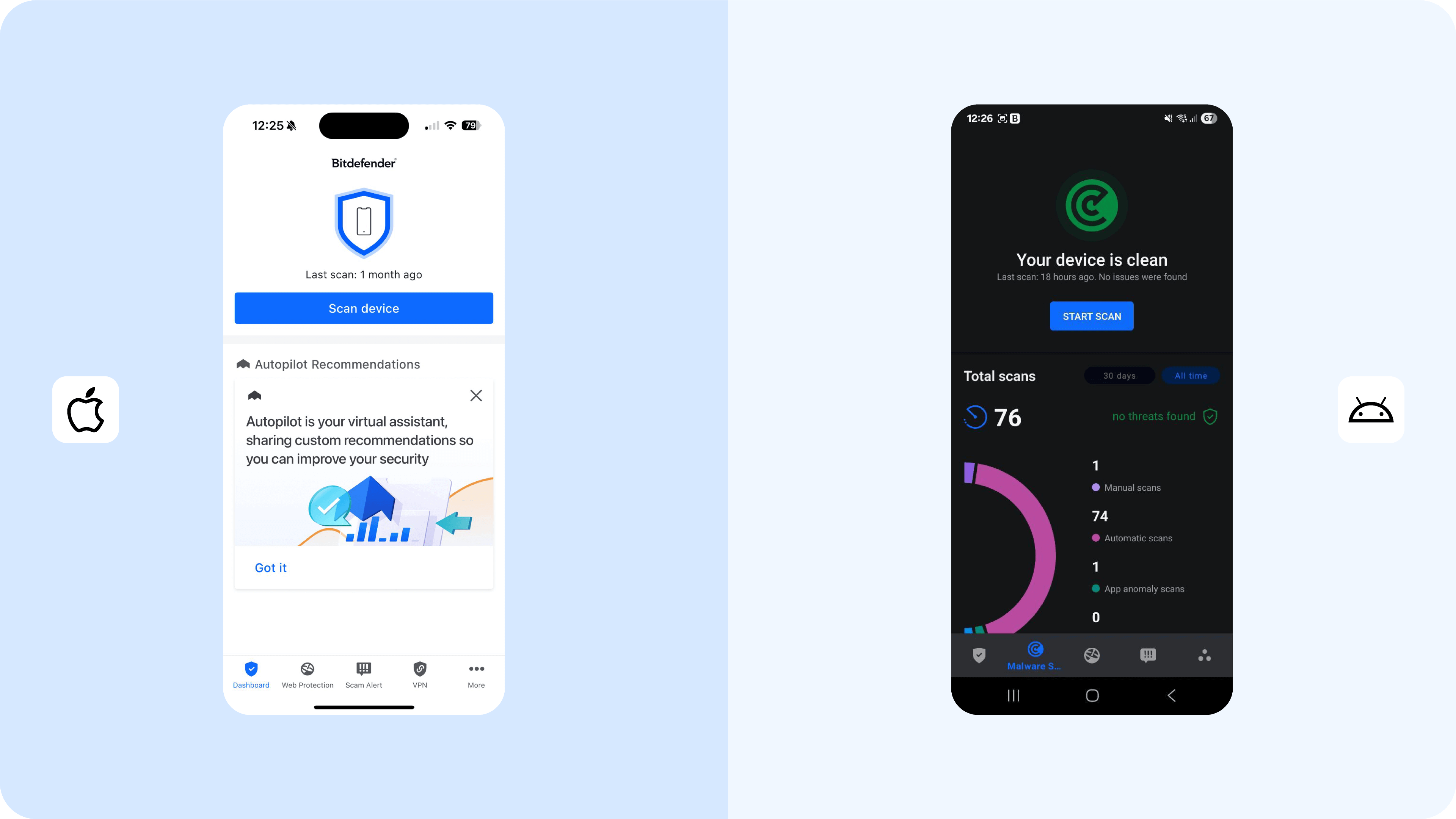
Privacy monitoring tools like Bitdefender can help detect and alert you to harmful apps that may be using your microphone without permission. If an app has unnecessary mic access, Bitdefender will flag it immediately.
To get started, go to the Google Play Store or App Store and search for Bitdefender. Once installed, run your first full device scan. The app will identify any suspicious software or spyware that could be listening in or collecting sensitive information. From there, you can safely remove any flagged apps before they cause harm.
4. Consult a trusted forensic lab
If you have genuine reasons to suspect surveillance, say, you’re a journalist handling sensitive information, it’s best to take your device to a certified cybersecurity forensic service in your region. Reputable labs like Citizen Lab or Amnesty International’s Security Lab specialize in analyzing devices for traces of spyware or unauthorized access. They can help you determine, with certainty, whether your phone is compromised with malware or other apps that may be listening to you.
How to stop your phone from listening to you
After completing the above checks, you should know or have a good guess at whether your phone is listening to you. Now, it's time to put a stop to it. Follow the next steps to limit access to your microphone and, in turn, your sensitive data.
1. Revoke unnecessary microphone permissions
This is your next line of defense against spyware or third-party apps that might be exploiting mic access to spy on you. On your Android or iPhone, go to Settings > Permissions Manager or Security and privacy > Microphone, and disable microphone access for any app that doesn’t genuinely need them.
2. Disable background app activity
Even when you’re not actively using them, some apps continue running in the background and collect data, access sensors, or listen through granted microphone permissions. Limiting background activity helps prevent apps from secretly recording or transmitting data.
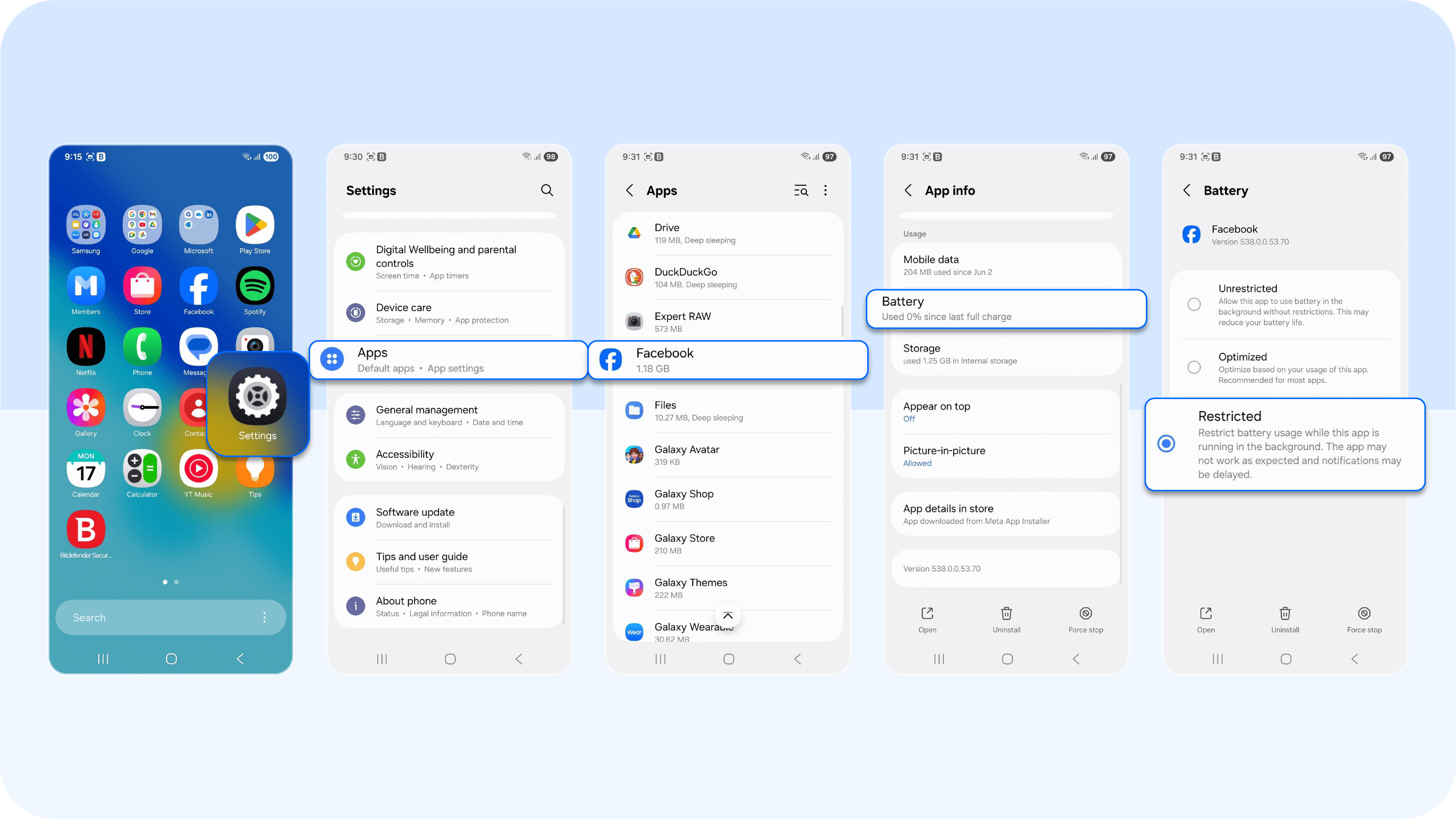
- On Android: Go to Settings > Apps > [Select App] > Battery > Background Restriction, and turn off background activity for apps you don’t trust.
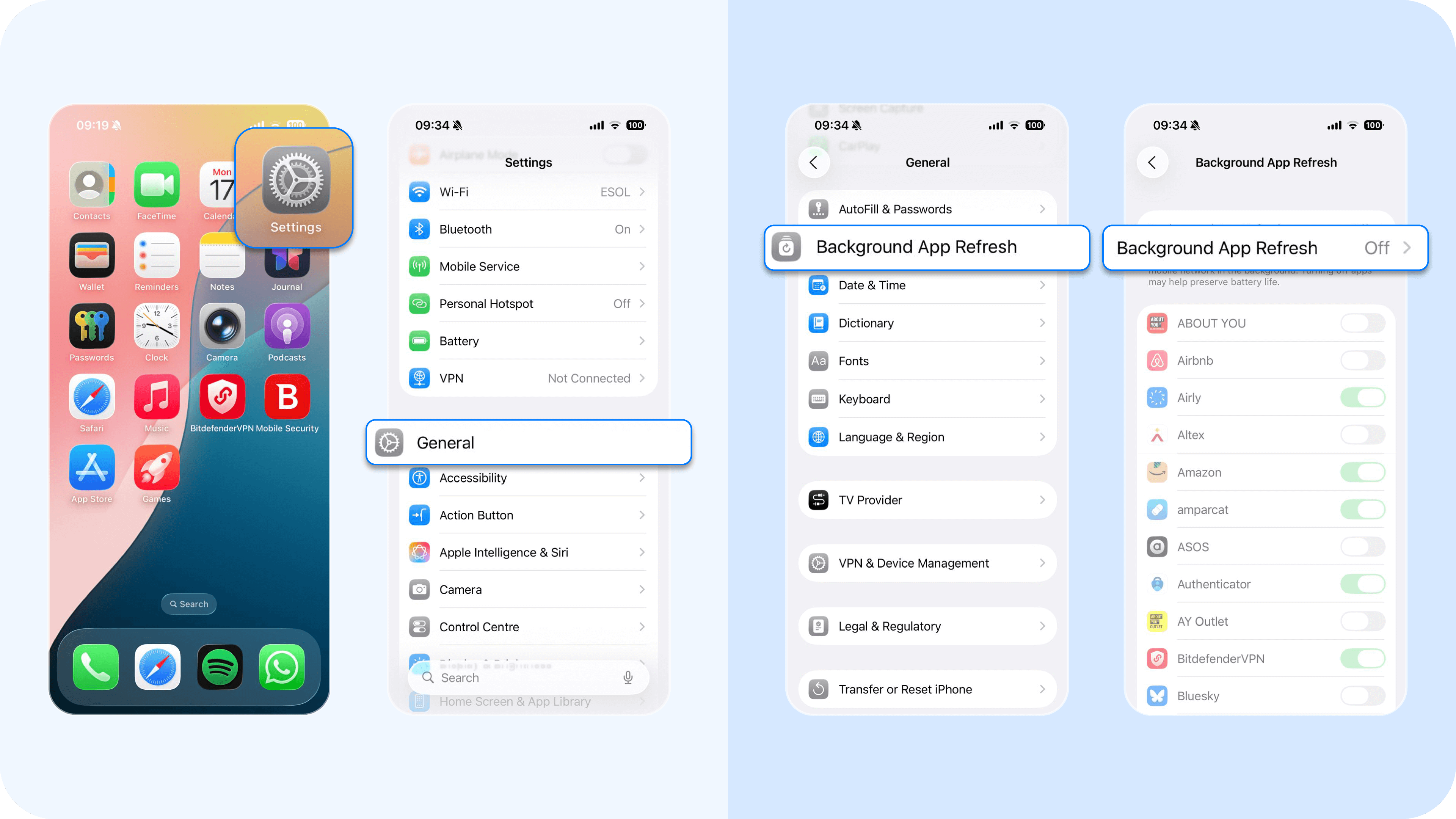
- On iPhone: Go to Settings > General > Background App Refresh, and disable it completely or for specific apps.
3. Regularly update your operating system
Keeping your phone’s OS and security patches up to date is one of the simplest but most effective ways to stay protected from unauthorized listening or tracking. System updates often include critical mobile security patches that close loopholes spyware and malicious apps exploit to gain microphone or camera access. To stay protected, regularly update your device to the latest version.
You can check settings by heading to:
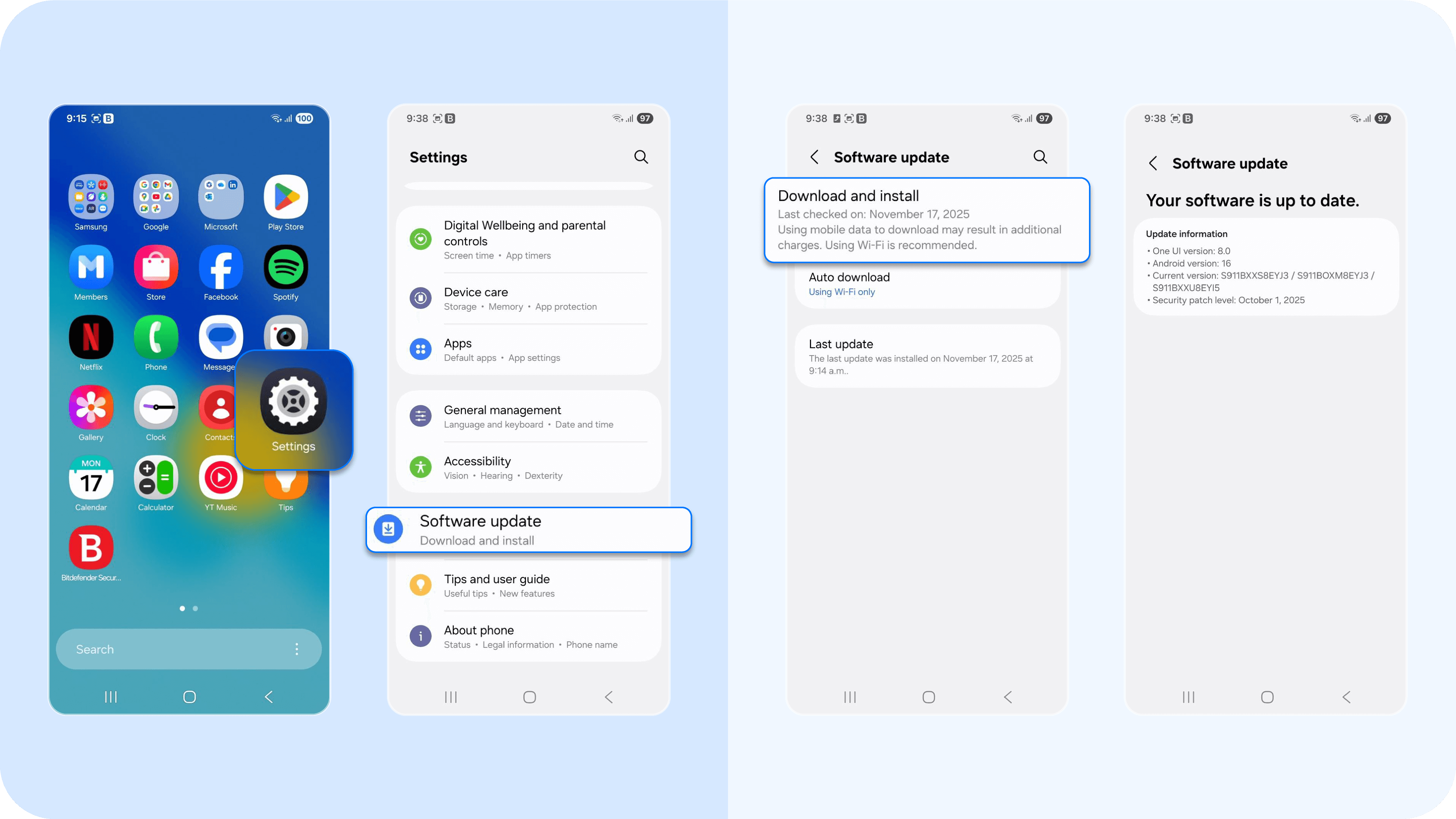
- On Android: Go to Settings > Software Update > Check for update, then tap Download and Install if one is available.
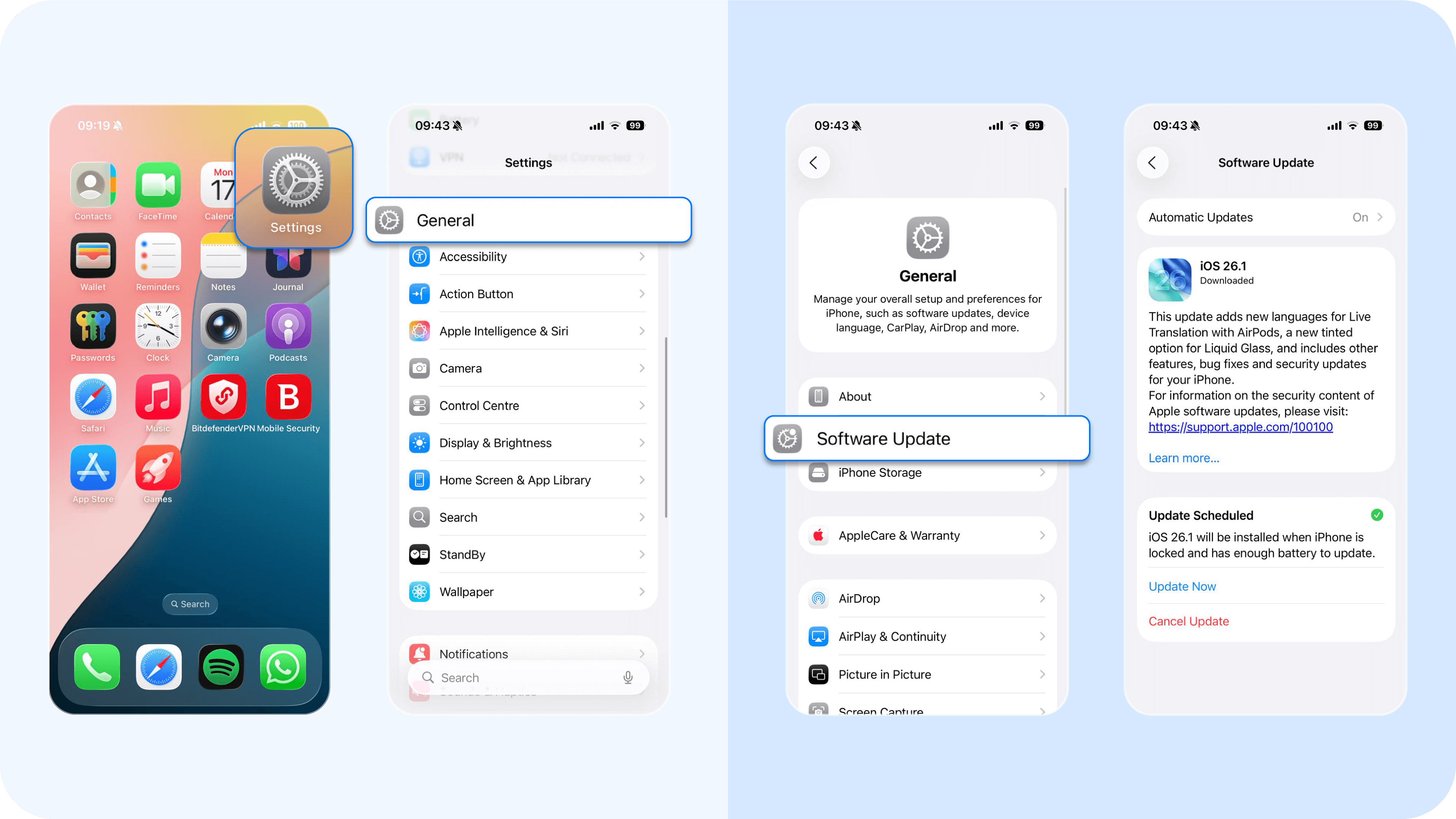
- On iPhone: Go to Settings > General > Software Update, then tap Download and Install.
4. Use a privacy monitoring tool
As mentioned earlier, privacy monitoring tools like Bitdefender can help detect spyware or malicious apps quietly running in the background of your device. Its malware scanner checks for spyware and other harmful programs, while the account privacy feature alerts you when your personal data is at risk. Together, they help you keep your device secure and conversations private.
How to stop voice assistants from listening to and storing audio recordings
Both Google Assistant and Siri continuously rely on your microphone to improve voice recognition and deliver faster, more accurate responses. While this sounds helpful, it also means parts of your conversations might be stored on company servers, sometimes indefinitely. Over time, these recordings can reveal sensitive personal details you never meant to share.
That’s why it’s important to turn off these tools when they're not in use and to delete any stored voice data. Doing so limits how much access your phone has to your microphone and ensures your private moments stay private. Here's how to do so:
How to stop Google Assistant from listening
Follow these instructions to disable Google Assistant when you’re not using it:
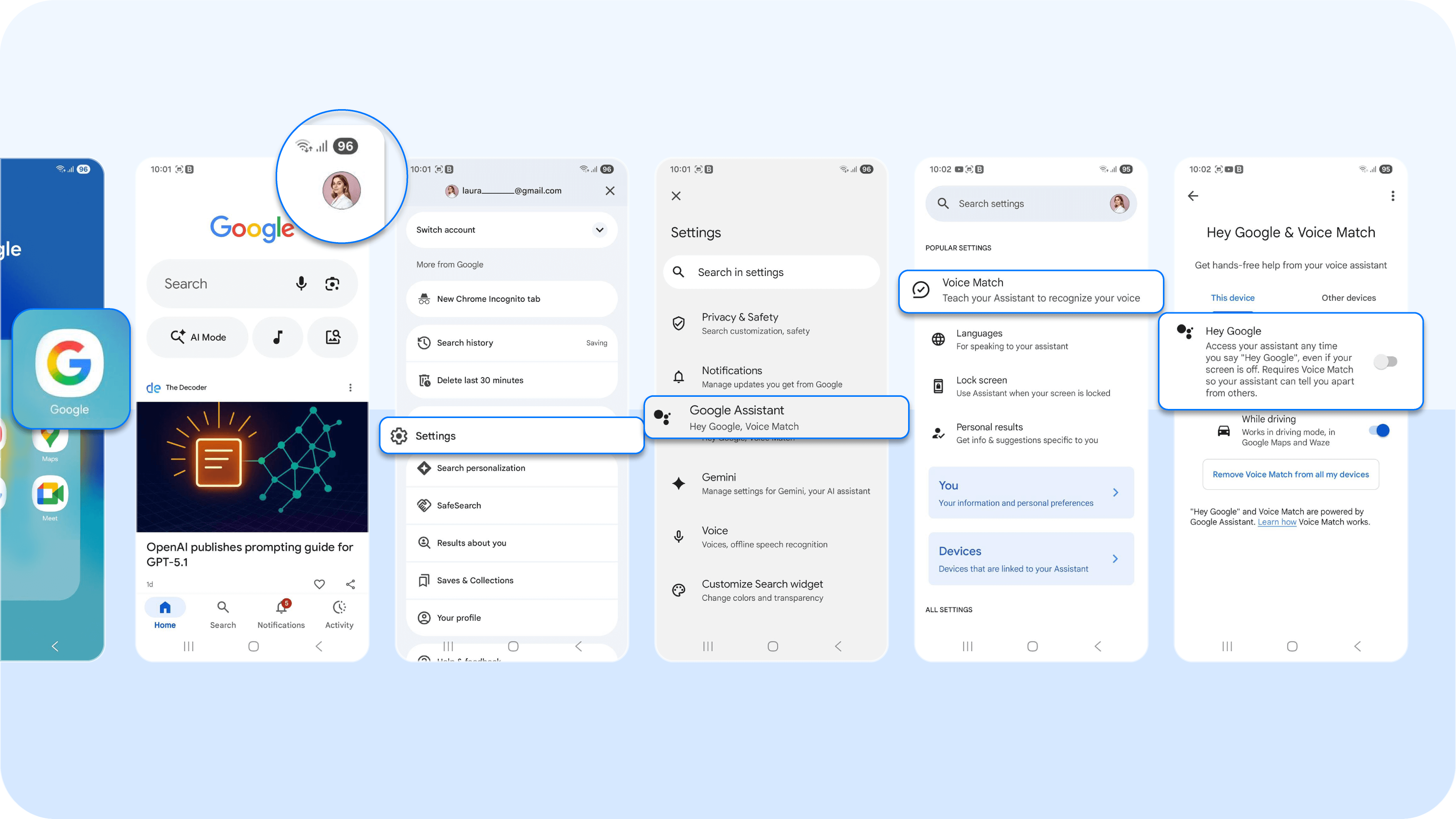
- Go to Google app > Profile picture (top right) > Settings > Google Assistant > Hey Google & Voice Match, then toggle off Hey Google.
To stop Google Assistant from storing your audio, follow these steps:
- Go to myactivity.google.com and sign in to your Google account.
- Select Web and App Activity under “Activity Controls.”
- Turn off the toggle for Include voice and audio activity.
- To delete old recordings, go back to myactivity.google.com > Delete activity by > Voice and Audio > Delete.
Or simply say, “Hey Google, delete everything I said today.”
How to stop Siri from listening
Since there have been allegations that Siri recordings were shared with third-party contractors for review, iPhone users who value their privacy may want to disable the assistant entirely to prevent it from passively listening in.
- Go to Settings > Apple Intelligence & Siri > Talk to Siri > then toggle off Listen for “Hey Siri” and Press Side Button for Siri.
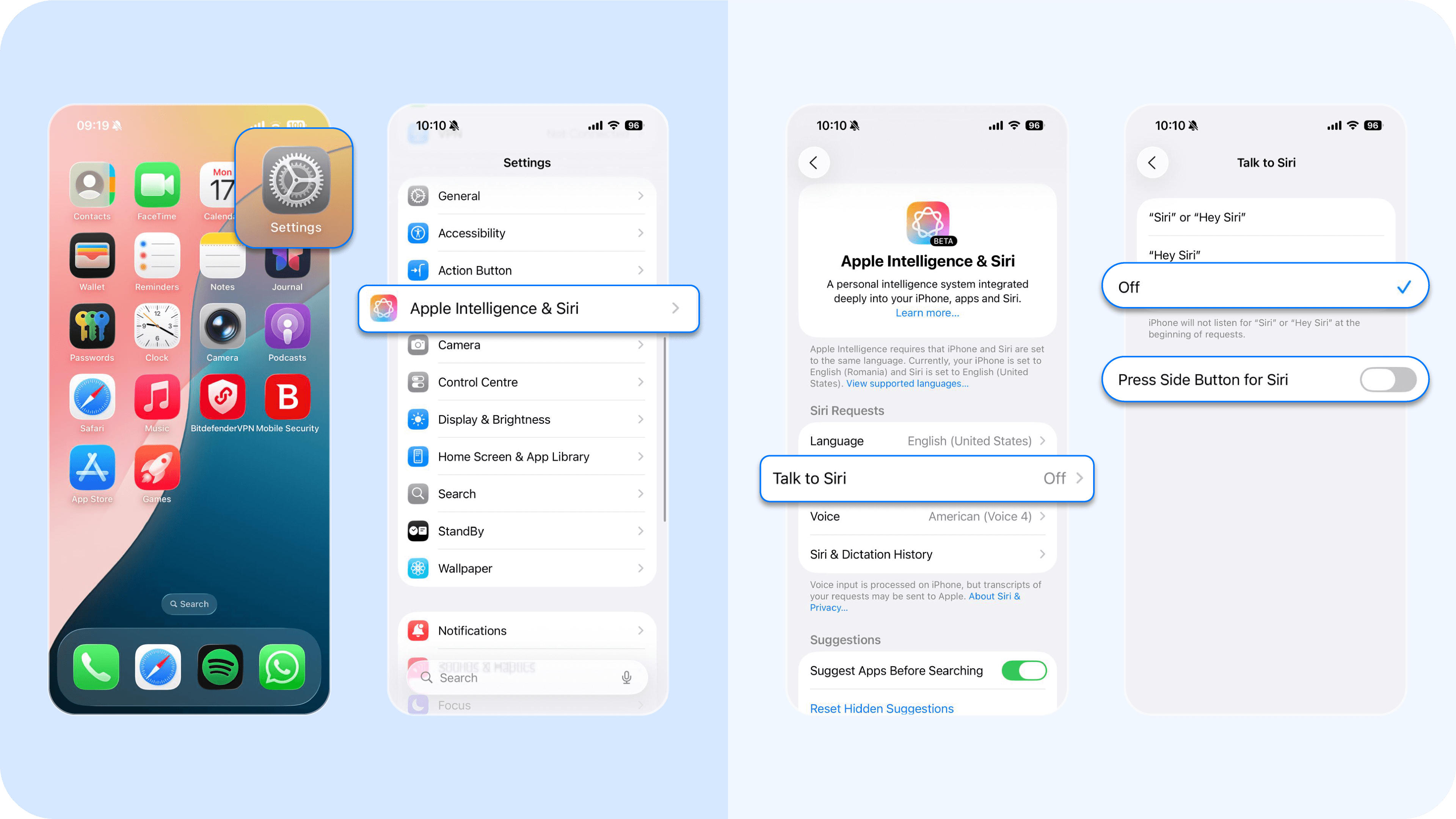
And here's how to delete any recordings:
- Go to Settings > Privacy and Security > Analytics and Improvements.
- Turn off Improve Siri and Dictation to stop Apple from storing your audio for analysis.
- To delete any Siri recordings already saved, go to Settings > General > Transfer or Reset iPhone > Reset > Reset Siri and Dictation.
How to stop Alexa from listening
Alexa isn’t built into your phone by default, but if you use the Amazon Alexa app, it can respond to voice commands when the app is open or “hands-free” mode is enabled. To disable it:
- Go to the Amazon Alexa app > More > Settings > Alexa Privacy > Manage Your Alexa Data, then turn off Enable Alexa Hands-Free or adjust Voice Recording settings.
Expert tips to keep your conversations private
Here’s how you can take back control of your privacy.
1. Review app permissions monthly and disable microphone access for strange apps
Unauthorized microphone access is one of the simplest ways for third-party apps or malware to eavesdrop on you. Always review permission requests before granting access when installing new apps.
If an app doesn’t genuinely require microphone access, like a calculator or gallery, don’t allow it. You should also schedule a monthly check to review which apps have microphone access in your app permissions manager and revoke access for any that don’t need it.
2. Turn off ad personalization
Ad personalization means your phone and the apps you use collect data about your searches, app usage, location, and even device activity to show you “relevant” ads. While this doesn’t involve literal eavesdropping, it still tracks your digital behavior extensively, which can feel invasive. Turning it off limits how much data advertisers can use to target you.
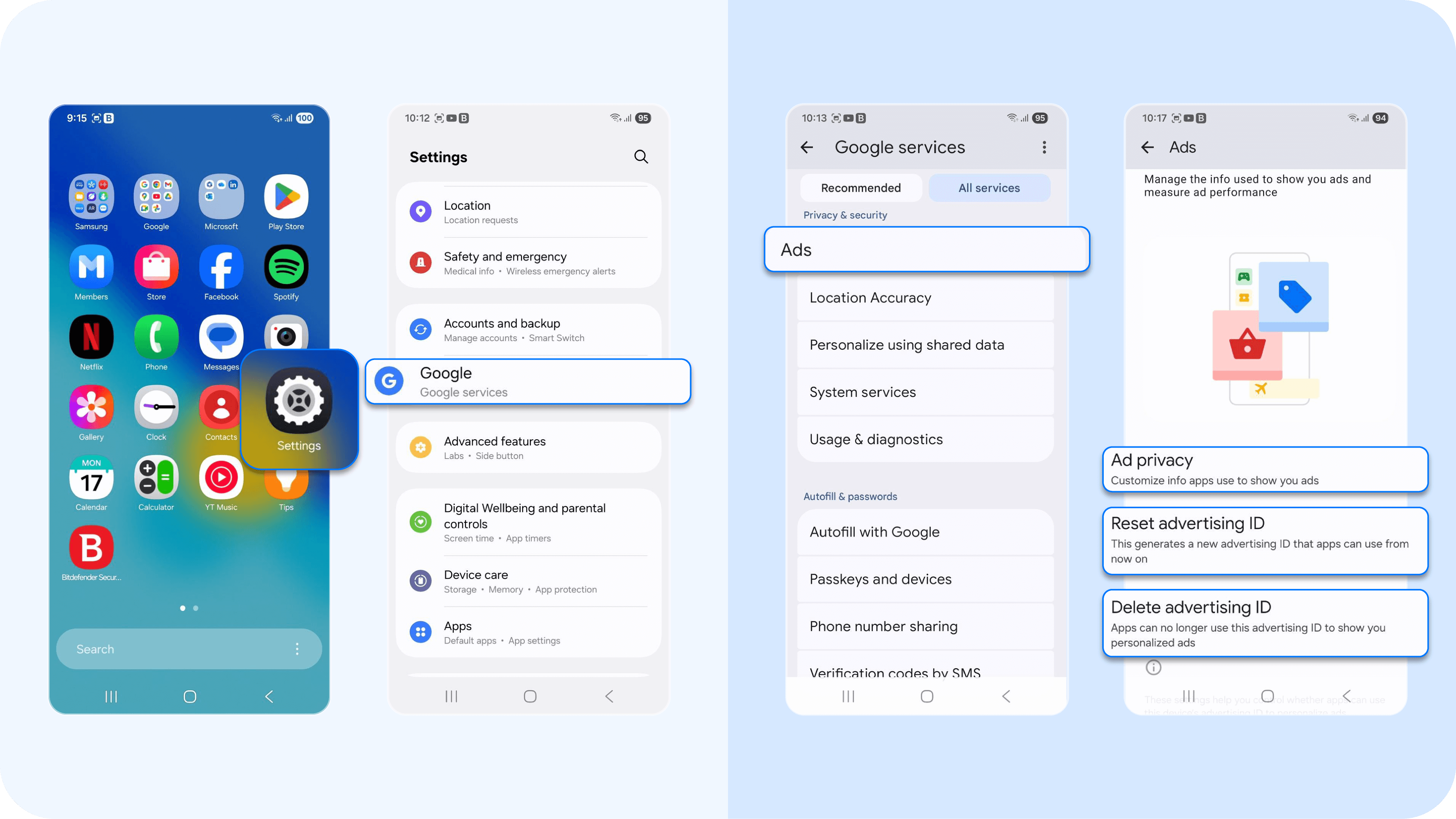
- On Android devices: Go to Settings > Google > Ads > Delete advertising ID or toggle off Opt out of Ads Personalization (depending on your Android version).
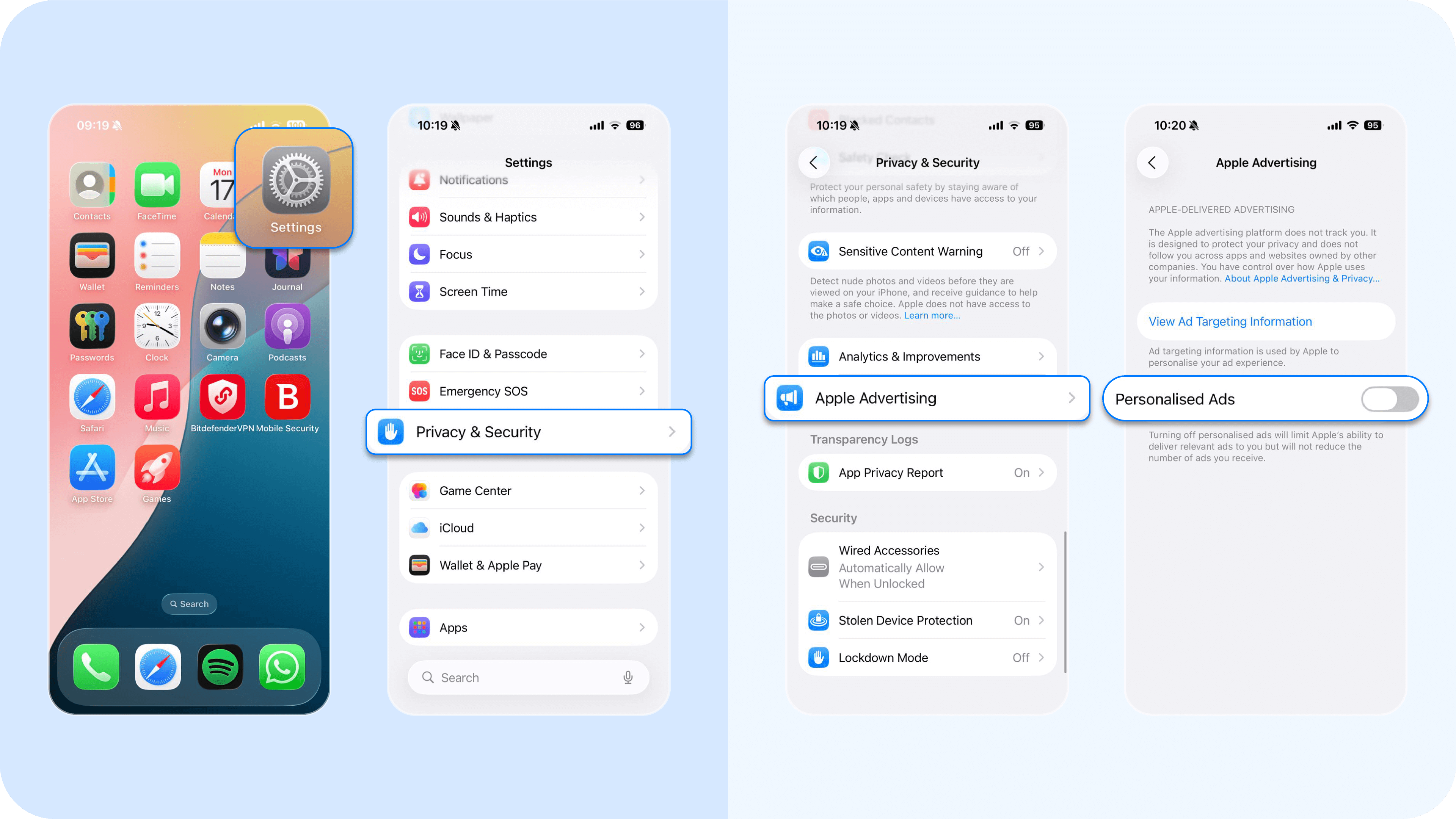
- On iPhone: Go to Settings > Privacy and Security > Apple Advertising, then toggle off Personalized Ads.
3. Use strong cybersecurity software
Even with privacy settings adjusted, some spyware or malicious apps can still slip through. That’s why it's important to have a strong cybersecurity app on standby. A tool like Bitdefender provides real-time protection against malware, prevents illegal access to your microphone and camera, and alerts you when apps behave suspiciously.
Bitdefender for mobile also includes an app anomaly detection feature that helps you identify malicious behavior in apps, like unauthorized access to your sensitive data, so you always stay in control of what your phone listens to.
4. Avoid downloading suspicious apps
Many privacy breaches start with a single bad download. Stick to official stores like Google Play or the Apple App Store, where apps are vetted for safety.
Be wary of unfamiliar links, random APK files, or “free” versions of paid apps. These are common hiding places for spyware. Before downloading apps, check their reviews, permissions, and developer name. If something feels off, it probably is.
5. Keep your OS and security patches updated
System updates patch serious security flaws that hackers use to access your phone’s microphone or data. Installing them as soon as they’re available keeps your device secure and less vulnerable to spyware.
- On Android: Go to Settings > System > Software Update > Check for update, then tap Download and Install if one is available.
- On iPhone: Go to Settings > General > Software Update, then tap Download and Install.
6. Use a VPN
A VPN (Virtual Private Network) hides your online activity by encrypting your internet connection, making it nearly impossible for hackers, advertisers, or data brokers to track what you do or where you are. It’s especially important when using public Wi-Fi or unfamiliar networks.
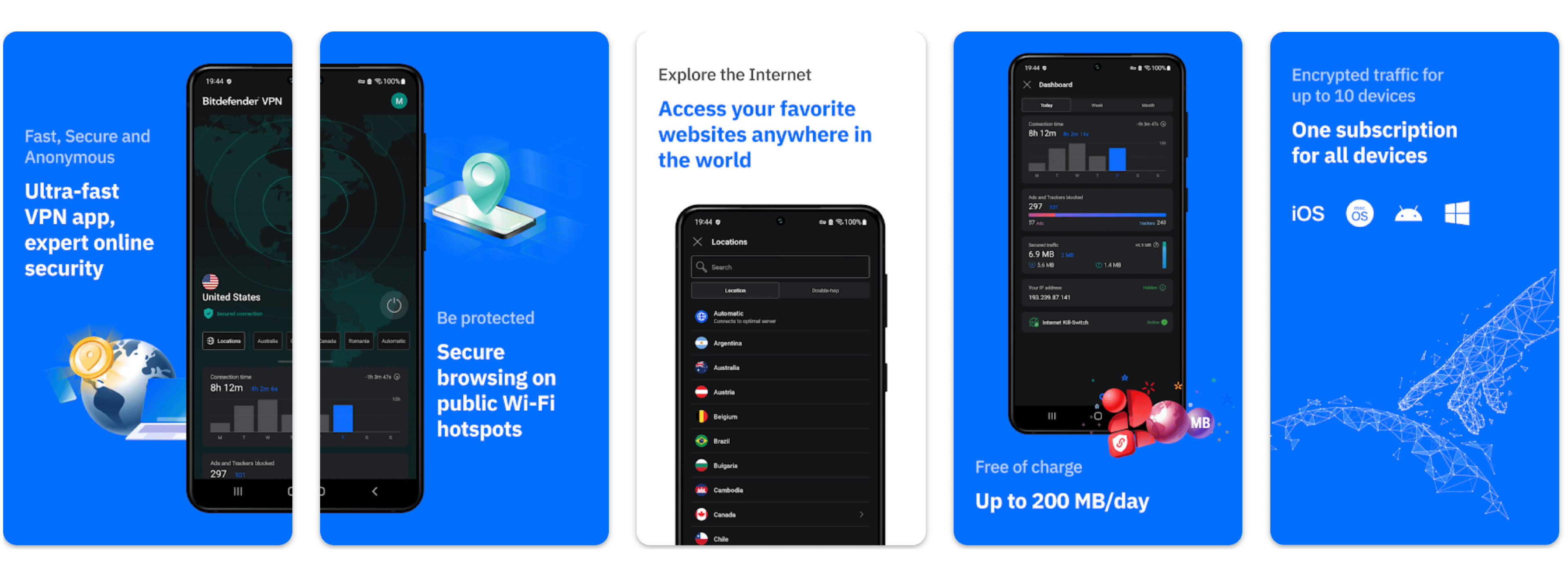
If you don’t already use one, try Bitdefender VPN. It automatically secures your connection, blocks online snoops, and works quietly in the background to secure your online privacy.
Protect your phone from unwanted listeners with Bitdefender
You’ve seen how most phones can “listen” through voice assistants, apps, and trackers, and how to stop them. Here’s a quick recap of how to keep your privacy in check:
- Review and revoke unnecessary microphone and background access monthly.
- Turn off “always-on” features when you’re not using voice assistants like Siri or Google Assistant.
- Regularly install OS and app updates to patch security loopholes.
- Enable privacy tools that alert you when apps overstep their permissions.
If you want stronger, automated protection, Bitdefender Mobile Security helps block spyware, detect risky permissions, and safeguard your conversations, so your phone only listens when you want it to. Install it today for Android or iPhone to secure your device.
Frequently asked questions (FAQ)
Is it true that phones listen to you?
No, phones are not constantly listening to your conversations. Voice assistants like Siri or Google Assistant only activate after a wake word. However, apps with microphone permissions, or malware, can access your audio, which is why managing permissions and security settings is important.
How do you stop your phone from listening to you?
To stop your phone from listening, disable voice assistants, review and revoke microphone permissions for unnecessary apps, and turn off background app activity. Keeping your device updated and using a trusted mobile security solution can also prevent unauthorized access.
How do I tell if my phone is listening to me?
Check for signs like the microphone indicator turning on unexpectedly, unfamiliar apps with mic access, or unusual battery and data usage. Reviewing app permissions and privacy settings can help identify if any app is accessing your microphone without a clear reason.
Can you tell if your phone is being monitored?
Yes, signs of phone monitoring include overheating, battery drain, strange noises during calls, unknown apps, and increased data usage. These can indicate spyware or unauthorized access, and should be investigated using device settings or a security scan.
tags
Author

The meaning of Bitdefender’s mascot, the Dacian Draco, a symbol that depicts a mythical animal with a wolf’s head and a dragon’s body, is “to watch” and to “guard with a sharp eye.”
View all postsYou might also like
Bookmarks
