This article will show you how to stop Advanced Threat Defense from blocking a trusted process or application if it performs threat-like actions. Advanced Threat Defense is a Bitdefender feature that continuously monitors running processes to identify anomalies in apps’ behavior and correlates different suspicious behaviors to significantly improve detection. This method is different from traditional malware detection, which involves identifying malware using the virus signature database. Check out this Bitdefender Advanced Threat Defense Overview to learn more.
Video tutorial
Adding an Exception to Advanced Threat Defense
Follow the steps below to add an exception that will stop Advanced Threat Defense from interfering with the legitimate process of a trusted app:
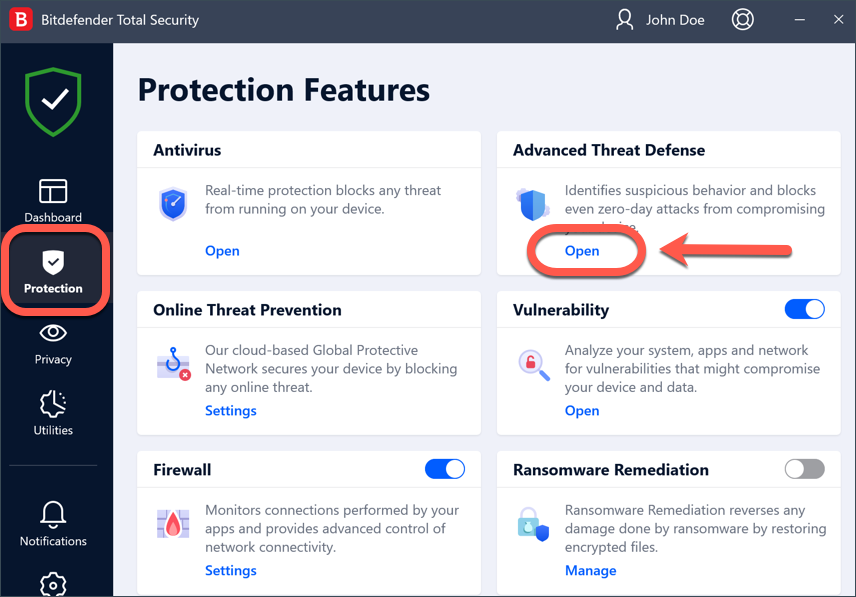
1. Click Protection on the navigation menu on the Bitdefender interface.
2. In the Advanced Threat Defense pane, click Open.
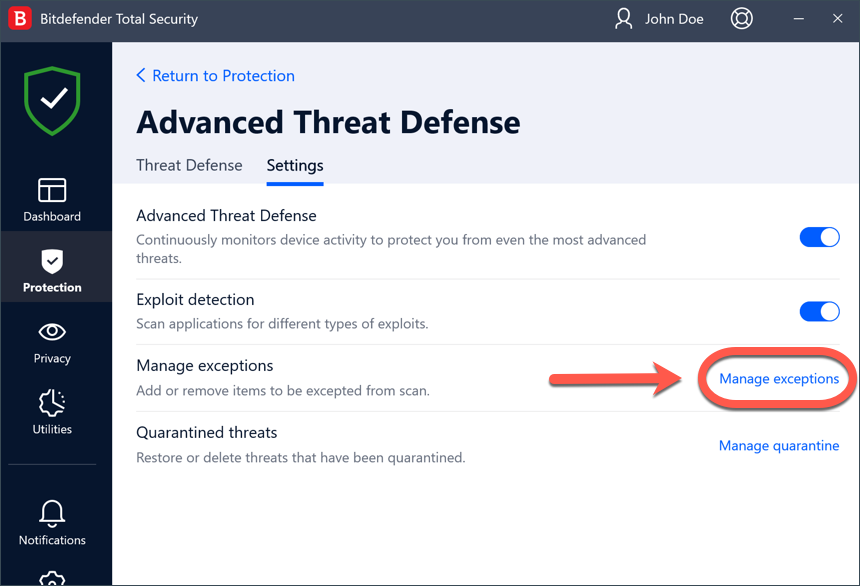
3. In the Settings tab, click Manage exceptions.
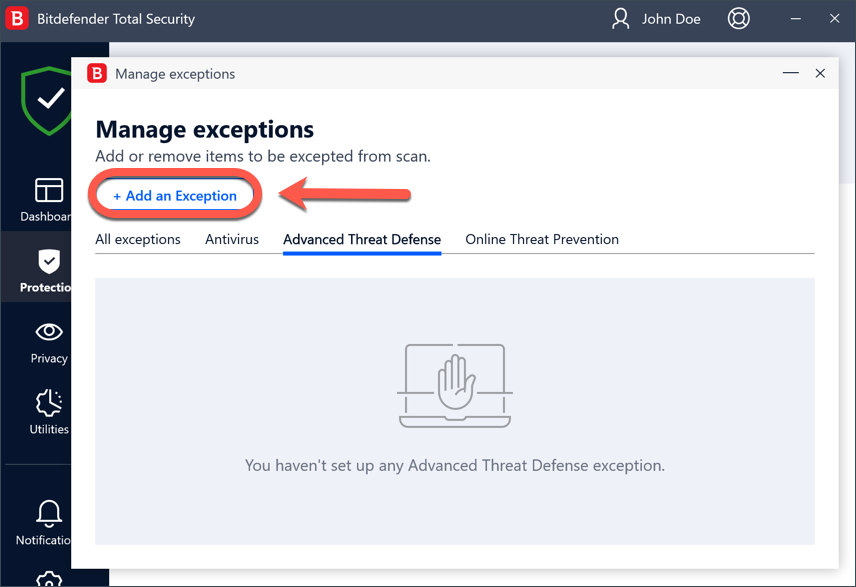
4. Next, click + Add an Exception.
5. Now, enter the path of the file or folder you want to exclude in the corresponding field.
Alternatively, you can also browse your computer to the file /folder and exclude it:
- click the magnifying glass on the right side of the Exceptions window
- follow the path to the folder where the application file is stored
- select the file or folder, then click the OK button
6. Turn on the switch next to Advanced Threat Defense.
7. Finally, click Save. The new rule will be added to the list of Advanced Threat Defense exceptions.
To remove an exclusion, simply click the trash can icon next to it.