Safer Messaging for Kids: How to Set Up a Parent-Managed WhatsApp Account for Your Child

March 12, 2026

WhatsApp is rolling out a major new feature designed to make the world’s most popular messaging service safer for kids: parent-managed accounts.
Key takeaways:
-
WhatsApp is formally expanding into the pre-teen space with built-in parental oversight
-
Parent-managed accounts are designed with expert and family input
-
Parents retain control over privacy and contact permissions, while core protections like end-to-end encryption remain intact
-
Advanced features such as Channels, AI tools, and Status may be restricted, limiting exposure to broader social features
-
The rollout is gradual and global, suggesting WhatsApp is testing and refining the feature based on feedback
Introducing parent-managed accounts on WhatsApp
“With input from families and experts, we're rolling out new parent-managed accounts that allow parents or guardians to set up WhatsApp for pre-teens, with new controls to limit their WhatsApp experience to messaging and calling,” the Meta-owned company announced this week.
Parents can now create and oversee a child’s WhatsApp account and control who can message or call their child, which groups they can join, and how privacy settings are configured.
Designed specifically for pre-teens, parent-managed accounts limit a child’s experience to core messaging and calling features while preventing access to advanced features like AI tools, Channels, and Status updates in some configurations.
WhatsApp’s move reflects growing industry pressure to improve child safety online.
Here are the step-by-step setup guides for both iPhone and Android devices on how to enable the feature.
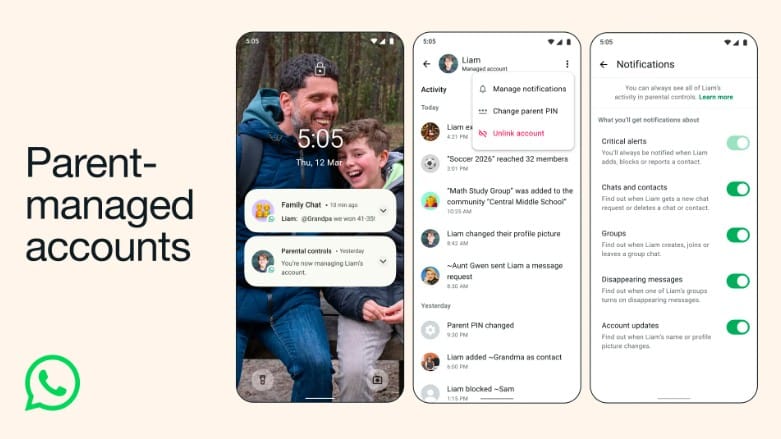
Before you begin, make sure you and your child have:
- Both devices (parent and child) nearby
- Active WhatsApp installed
- A phone number dedicated to the child’s account
On iPhone (iOS)
1. Open WhatsApp on the parent’s phone
2. Go to Settings → Account → Parent-Managed Accounts
3. Choose Set up a managed account
4. You’ll be prompted to enter your child’s phone number
5. WhatsApp will send a verification code to that number — enter it to verify
6. Follow the on-screen prompts to link your child’s device
7. Once the link is established, you’ll be asked to create a parent PIN
8. Confirm who can contact your child and set privacy choices
On Android
1. Launch WhatsApp on your device
2. Navigate to Settings → Account → Parent-Managed Accounts
3. Tap Create a managed account for a child
4. Enter your child’s phone number and complete the verification step
5. Follow the prompts to pair with your child’s phone using the QR code or PIN flow
6. Set up a parent PIN for managing settings
7. Customize contact permissions, group controls, and privacy filters
(Note: These steps are based on published help content from WhatsApp — exact labels may vary depending on app version or region.)
Tips for parents after setup
Once your child’s account is linked, consider these best practices:
- Review privacy settings periodically to ensure they still match your family’s comfort level
- Limit group chats to only trusted contacts
- Teach your child about online safety — including how to recognize suspicious contacts and not to share personal information
WhatsApp added during the Wednesday announcement that it looks forward to feedback as it gradually rolls out the parent management feature over the coming months, "so we can continue building WhatsApp to provide the safest and most private way for families to connect."
A video guide on “Parent-managed accounts on WhatsApp” is also available:
Frequently asked questions (FAQ)
Can you set up parental controls on WhatsApp?
WhatsApp does not offer built-in parental controls, but you can increase safety using privacy settings and device-level controls. Parents can restrict who can contact the child, disable profile visibility, and use third-party parental control apps to monitor usage and limit screen time.
How to set up Bitdefender parental control?
To set up Bitdefender Parental Control, install the Bitdefender app on the parent’s device and create a child profile. Then install the Parental Control app on the child’s device, log in with the same account, and link the device. From the dashboard, you can manage screen time, app usage, location tracking, and web filtering.
How to make your account parent-managed?
To make an account parent-managed, you typically need to create or link it through a parental control system such as Google Family Link or Apple Family Sharing. This allows a parent to supervise activity, set restrictions, approve downloads, and manage screen time from their own device.
You may also want to read:
How Kids Bypass Age Verification Online and what Families Can Do About It
YouTube Gives Parents More Control Over Teens’ Shorts and Screen Time
ChatGPT Now Has Parental Controls: What Parents Can Now Do and What They Can’t
tags
Author

Filip has 17 years of experience in technology journalism. In recent years, he has focused on cybersecurity in his role as a Security Analyst at Bitdefender.
View all postsYou might also like
Bookmarks
