How kids bypass parental controls on Android and what parents can do - 2027

October 30, 2026
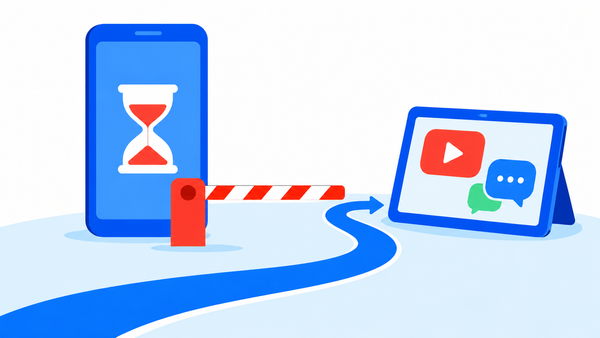
Children can bypass some Android parental controls by switching user profiles, moving between devices, or using apps their parents left unrestricted.
Google documents several of these limitations, and other reported methods involve interfering with supervision software. However, their effectiveness depends on the phone, software version, and permissions.
Key takeaways
- Family Link restrictions don’t automatically cover every user profile or create one shared screen-time allowance across devices
- Content filters, app limits and whole-device locks control different things
- Claims of unlimited time through permission changes or network-blocking tools need caution: a workaround reported on one phone may fail on another
Extra profiles and devices can mean extra time
Google warns that Family Link settings don’t apply to additional Android user profiles where the child’s supervised account isn’t signed in.
If a child can access an unrestricted profile, the limits on their own profile won’t apply. Google recommends protecting other profiles with a password or PIN.
A second phone or tablet can also extend screen time without bypassing any software. Family Link’s daily limits apply separately to each Android device or Chromebook.
Google’s example gives a child two hours on each device, rather than two hours shared across devices. An old, unsupervised phone creates an even simpler gap.
Review every device your child uses and protect other profiles with a PIN that your child doesn’t know. If additional users aren’t necessary, turn off permission to add them. Check whether the household’s agreed allowance corresponds to the way the software counts time.
Unrestricted apps can offer another route
Blocking a social app doesn’t necessarily block the same service’s website. Likewise, a child may communicate via a shared document when their usual messaging app is unavailable. These alternatives depend on which browsers, document tools, and sharing destinations remain accessible.
Family Link also lets parents designate apps for unlimited time. Google says these apps don’t count toward the daily limit and can remain available afterward. Parents can permit them during Downtime or School Time, too. This makes the exception list worth reviewing.
Web filtering has its own limits. Google says Family Link’s SafeSearch preferences can’t apply when a child uses alternative search apps, such as Google Go, or isn’t signed in to their account. That affects search filtering; it does not establish that the app can defeat a device lock.
Parents can keep necessary communication and schoolwork available while reviewing whether those exceptions also provide unrestricted entertainment. Check the unlimited-time list alongside browser access and alternative search tools.
A parent’s account can become the way in
A child who can use a parent’s signed-in phone or supervising Google account may gain access to the controls themselves. Google supports managing settings through Family Link and its web interface. If your child can access your signed-in account, they may be able to change the limits themselves.
Protect your own phone with a separate lock, keep account credentials private and enable two-step verification. An already unlocked, signed-in device can provide access without another password prompt.
Going offline can delay new restrictions
Google says a newly blocked app becomes blocked within about five minutes or when the child’s device connects to the internet. Disconnecting first can therefore delay delivery of a new app restriction. That doesn’t mean previously configured daily limits and bedtime schedules disappear.
Some online posts take this further, describing NetGuard, RethinkDNS or custom DNS blocklists as ways to interrupt Family Link communication.
NetGuard’s own documentation confirms that it can block network access per app. It does not establish that doing so permanently removes Family Link’s local limits.
VPNs and proxies present a separate issue: they can route traffic around DNS-based content filters. Cloudflare documents this limitation, but a DNS-filter bypass is not proof of a screen-time bypass.
Secure Folder and debugging tools need closer inspection
Samsung’s Secure Folder provides a separate protected space for apps and files. In a September 2024 reply in a support forum, a Samsung moderator said Family Link could not block Secure Folder. That older answer points to a potential supervision gap, but it does not establish how every current Galaxy model behaves.
Other posts describe using Android Debug Bridge, or ADB, and Shizuku to interfere with parental-control components. These are real developer and administration tools. Their capabilities depend on debugging access, authorization and available privileges; Shizuku’s documentation explicitly notes permission differences between Android versions. Their existence does not verify every claimed Family Link bypass.
The reported usage-access loophole
One Reddit post claims that revoking usage access from a component called System Parental Controls stops screen-time enforcement. The author reported success on a Pixel 9 running Android 16, and another commenter reported success on the same model.
The thread also contains failures: some users could not change the permission, others said it switched back on, and Samsung users disputed whether it stopped tracking. A user report is not enough to establish that the method currently works across Android devices.
Check the phone when reports don’t match reality
If reported usage suddenly drops while the phone remains in use, review the parental-control setup and required permissions. Missing activity reports alone don’t show that your child has cut back on screen time.
Look for unfamiliar firewall, VPN or DNS settings, separate app spaces and unexpected debugging access. Test whether supervision covers any separate environment your child uses, and keep Android and manufacturer software kept updated.
If you suspect a software failure, record the device model, Android version and what happened when the limit should have applied. Those details give support teams something specific to investigate.
Make the rules understandable as well as enforceable
A practical check is to test the limits together: what happens when the daily allowance ends, which apps remain available, and whether another device grants more time. Explain why the limits exist and agree when exceptions make sense.
For families managing several devices, Bitdefender Parental Control’s Daily Internet Time tracks online time across devices assigned to a child’s profile. Review that feature if your goal is a shared internet allowance, while remembering that internet time and total device screen time measure different activities.
FAQ
Does Family Link combine screen time across devices?
No. Google says daily device limits apply separately to each Android device or Chromebook. Two hours on one device does not create a shared two-hour allowance across all devices.
Can parents keep essential apps available after bedtime?
Yes. Family Link lets parents allow unlimited-time apps during Downtime or School Time. Review these exceptions so they cover the communication or schoolwork your child needs.
What should parents include in a report about a failed limit?
Include the phone model, Android version, affected app and the limit that failed. Explain whether the phone was online and whether the problem happens repeatedly.
tags
Author

Silviu is a seasoned writer who followed the technology world for almost two decades, covering topics ranging from software to hardware and everything in between.
View all postsYou might also like
Bookmarks
