Is my VPN working? 7 easy tests to see if it works

June 19, 2026
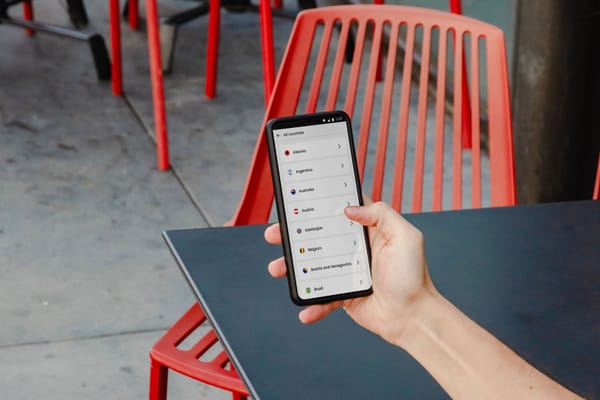
Simply seeing that your VPN is "Connected" doesn't necessarily mean everything is working as expected. Sometimes a VPN connection can drop without you noticing. In other cases, your real IP address, DNS requests, or other information may still be visible due to leaks or configuration issues.
Here are seven simple tests that can help you confirm your VPN is protecting your connection the way it should.
Key takeaways:
- A VPN should hide your real IP address and encrypt your internet traffic.
- A VPN can appear connected even when something isn't working correctly.
- Checking your IP address is the quickest VPN test.
- DNS, WebRTC, and IPv6 leak tests can help identify privacy issues.
- Most VPN problems can be fixed by reconnecting, updating the app, or changing servers.
How do I know if my VPN is working?
The easiest way to check if your VPN is working is to compare your IP address before and after connecting. If websites see the VPN server's location instead of your real location, the VPN is working.
For a more complete check, you should also run DNS leak, WebRTC leak, and IPv6 leak tests to make sure no information is being exposed outside the VPN tunnel.
Test #1: Check your IP address
Before connecting to your VPN, visit an IP lookup website and note your IP address and location.
Then connect to your VPN and refresh the page. If the VPN is working properly, you should see a different IP address. If your IP address remains the same, disconnect and reconnect to the VPN or try another server location.
Related: What is an IP address and why does it matter for your privacy?
Test #2: Check if websites see the VPN location
Connect to a VPN server in another city or country and then search online for "What is my location?" Most websites should show the location of the VPN server rather than your real location.
Keep in mind that some apps and websites use GPS data, especially on mobile devices. In those cases, a VPN may hide your IP address while the app can still determine your location through your device's location services.
Test #3: Run a DNS leak test
When you type a website address into your browser, your device sends a DNS request to find the correct server. When a VPN is working properly, these requests should be handled through the VPN.
What is a DNS leak?
A DNS leak happens when your DNS requests bypass the VPN and are sent through your internet provider instead. This can reveal information about the websites you visit to your internet provider, reducing some of the privacy benefits you expect from a VPN.
Related: DNS Leaks: What Are They and How do You Avoid Them?
How to perform a DNS leak test
Visit a DNS leak testing website while connected to your VPN and run the test. The results should show DNS servers associated with your VPN provider rather than your internet provider.
If the test displays your internet provider's DNS servers, your VPN may not be protecting DNS requests correctly.
Test #4: Verify your VPN Kill Switch works
Many VPN services, including Bitdefender Premium VPN, include a feature called a Kill Switch.
Its purpose is simple: if the VPN connection suddenly drops, internet traffic is blocked until the VPN reconnects. Without this protection, your device could continue sending traffic through your normal internet connection without you realizing it.
To test it, connect to your VPN and enable the Kill Switch feature. Then temporarily interrupt the VPN connection or switch servers.
If the Kill Switch is working properly, internet traffic should stop until the VPN reconnects.
Test #5: Check for WebRTC leaks
WebRTC is a technology that helps browsers support voice calls, video calls, and peer-to-peer connections. In some situations, it can accidentally expose your real IP address.
How to test for WebRTC leaks
While connected to your VPN, visit a WebRTC leak testing website and run the test.
The results should show only your VPN-assigned IP address. If your real IP address is visible, your browser may be leaking information outside the VPN connection.
Many VPN providers offer WebRTC leak protection, and some browsers allow you to disable WebRTC functionality.
Test #6: Check for IPv6 leaks
Some VPNs protect IPv4 traffic while failing to handle IPv6 traffic correctly. An IPv6 leak occurs when your IPv6 address remains visible even though your IPv4 address is protected by the VPN.
How to test for IPv6 leaks
Connect to your VPN and run an IPv6 leak test online. If your real IPv6 address appears, your VPN may not be fully protecting your connection.
Test #7: Repeat the tests after reconnecting
A VPN may work perfectly when first connected but develop issues after reconnecting, switching networks, or waking your device from sleep mode.
Disconnect your VPN, reconnect it, and repeat the IP, DNS, WebRTC, and IPv6 tests. This helps confirm that your VPN remains secure during normal day-to-day use rather than only during the initial connection.
Why Is my VPN not working?
If one of the tests above reveals a problem, there are a few common explanations.
Your IP address isn't changing. The VPN may not have connected properly, the server may be experiencing issues, or the connection may have dropped without you noticing.
DNS requests are bypassing the VPN. Incorrect settings or configuration problems can sometimes cause DNS leaks, reducing your privacy.
The VPN connection dropped. Unstable Wi-Fi, network changes, or server issues can interrupt the VPN tunnel.
The VPN app needs updating. Outdated software can cause connection problems and compatibility issues.
The network is blocking VPN traffic. Some workplaces, schools, hotels, and public Wi-Fi networks restrict VPN connections.
The VPN server is experiencing problems. Switching to another server is often enough to resolve the issue.
Related: Free VPN vs Paid VPN: Are Free VPNs Safe?
How to fix a VPN that isn't working
If your VPN isn't working properly, try these steps:
- Disconnect and reconnect to the VPN.
- Switch to a different VPN server.
- Restart the VPN application.
- Update the VPN software.
- Enable leak protection and Kill Switch features.
- Restart your device.
- Contact your VPN provider's support team if the issue persists.
How Bitdefender Premium VPN protects your privacy
The tests in this article can help you verify that your VPN is working correctly. But choosing a VPN with built-in privacy and security features can help reduce the risk of leaks and connection issues in the first place.
Bitdefender Premium VPN uses strong encryption to protect your internet traffic and includes features such as DNS leak protection and a Kill Switch to help prevent accidental exposure if the VPN connection drops. With servers in locations worldwide and a strict no-traffic-logging policy, it helps keep your browsing activity private across Windows, Mac, Android, and iOS devices.
Get Bitdefender Premium VPN and take control of your online privacy.
FAQs
How do i know if my VPN is working?
The easiest way is to compare your IP address before and after connecting. If your IP address changes and shows the VPN server location, your VPN is working. You can also run DNS leak, WebRTC leak, and IPv6 leak tests to make sure your connection is fully protected.
Why is my VPN not working?
Common reasons include connection drops, outdated VPN software, DNS leaks, network restrictions, or incorrect settings.
Can a VPN say connected but not be working?
Yes. A VPN can appear connected while still leaking DNS requests or exposing your real IP address. Running a few simple tests can help verify everything is working correctly.
What is the best VPN test?
A combination of IP address, DNS leak, WebRTC leak, and IPv6 leak tests provides the most complete picture of whether your VPN is working properly.
How do I check for VPN leaks?
You can use online DNS leak, WebRTC leak, and IPv6 leak testing tools while connected to your VPN.
What should i do if my VPN is not working?
Try reconnecting, changing servers, updating the VPN app, restarting your device, and checking for DNS or IP leaks.
tags
Author

Cristina Popov is a Denmark-based content creator and small business owner who has been writing for Bitdefender since 2017, making cybersecurity feel more human and less overwhelming.
View all postsYou might also like
Bookmarks
