This article explains how to download, install, and configure Bitdefender App on a macOS computer. Once installed, Bitdefender App will include all subscriptions active in your Bitdefender account. For details, see How do I activate my Bitdefender subscription?
System Requirements: macOS 12 (Monterey) or later
1. On the Mac you want to protect, go to https://central.bitdefender.com and sign in to your Bitdefender Central account.
- If you don’t have an account, create one. See How to create a Bitdefender Central account.
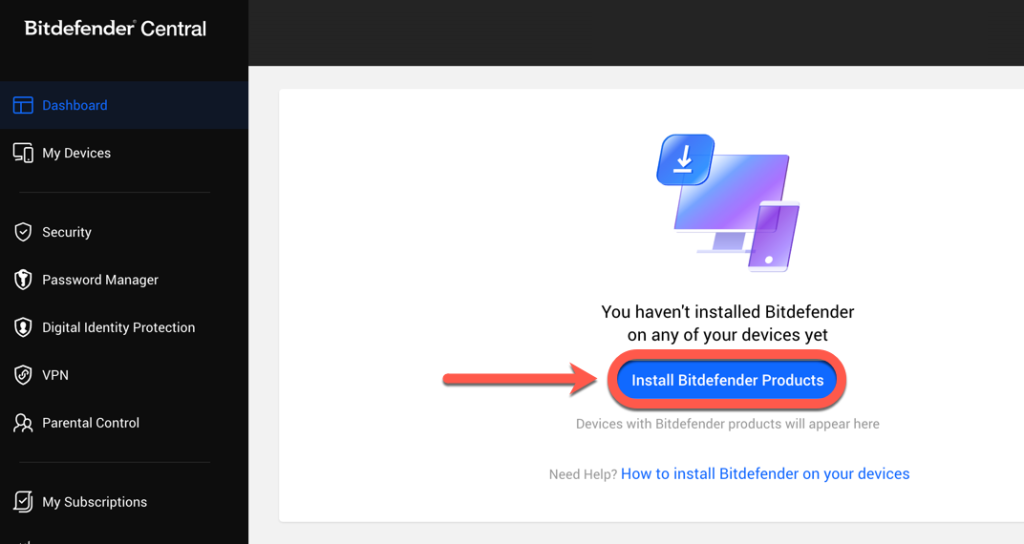
2. On the Bitdefender Central homepage, click Install Bitdefender Products.
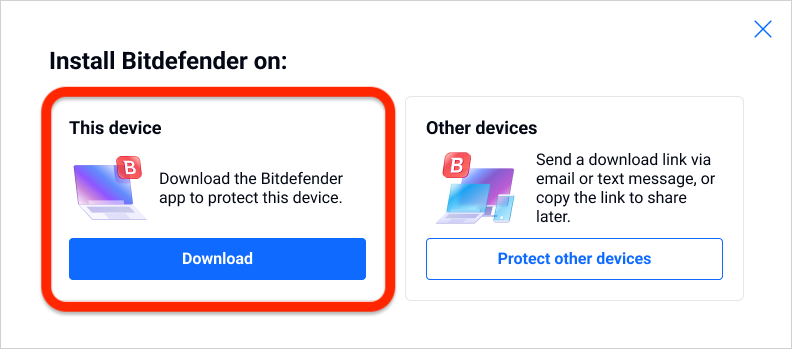
3. In the window that appears, click Download to save the Bitdefender installer to your Mac.
4. Once the download completes, double-click the downloaded file.
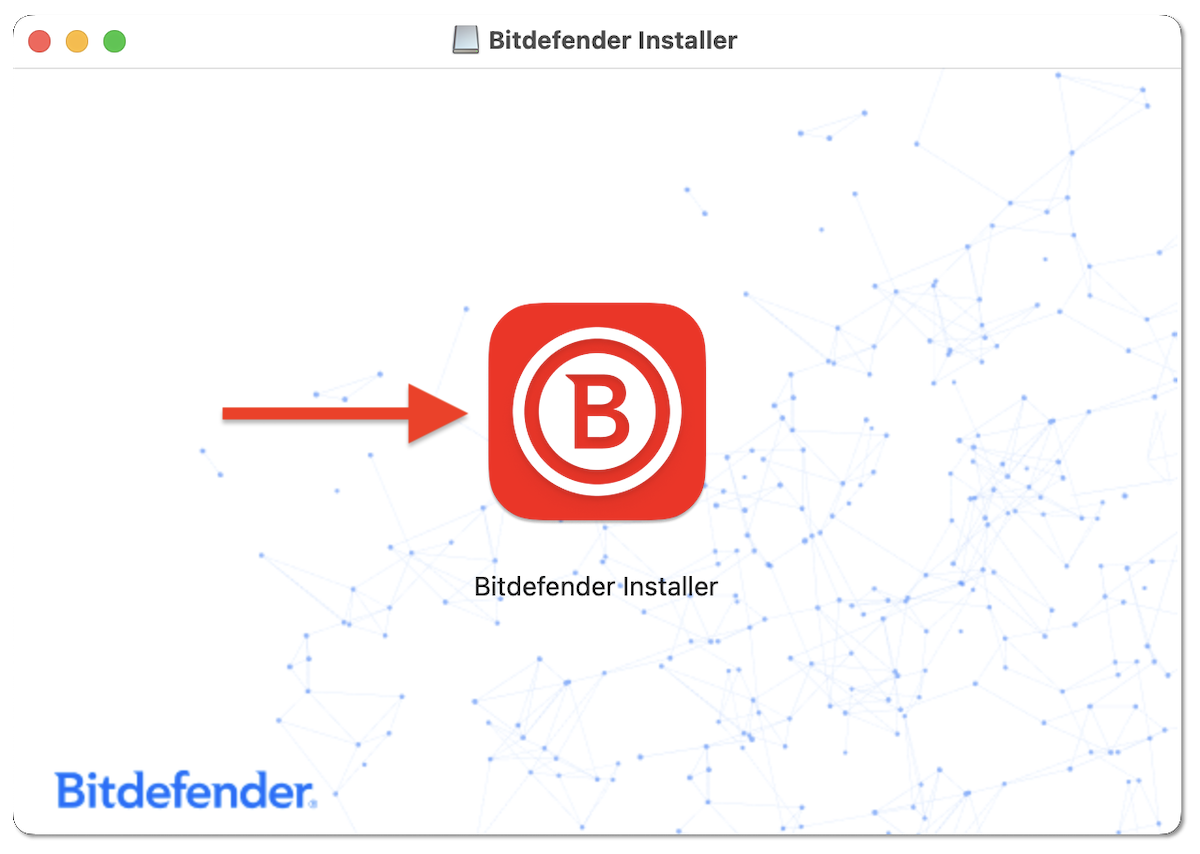
5. To start the installation, double-click Bitdefender Installer in the newly opened window.
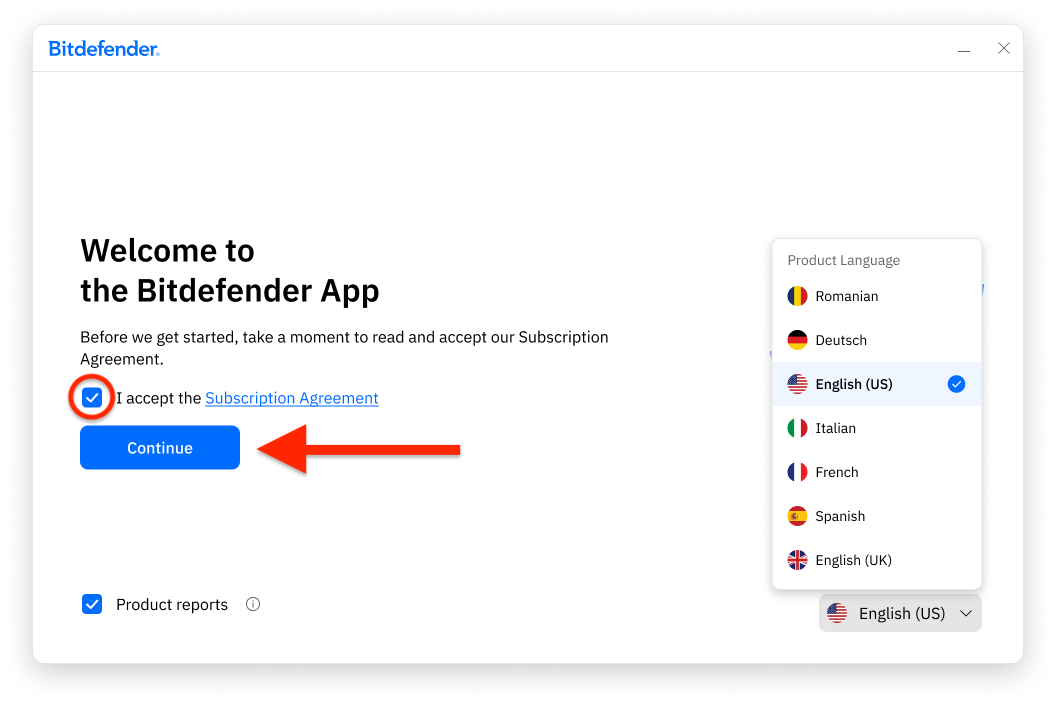
6. Check the box to accept the subscription agreement, then click Continue.
- (Optional) Use the language menu in the bottom-right corner to change the installation language.
7. Enter your Mac password when prompted to allow the installation.
8. Wait for Bitdefender to finish installing.
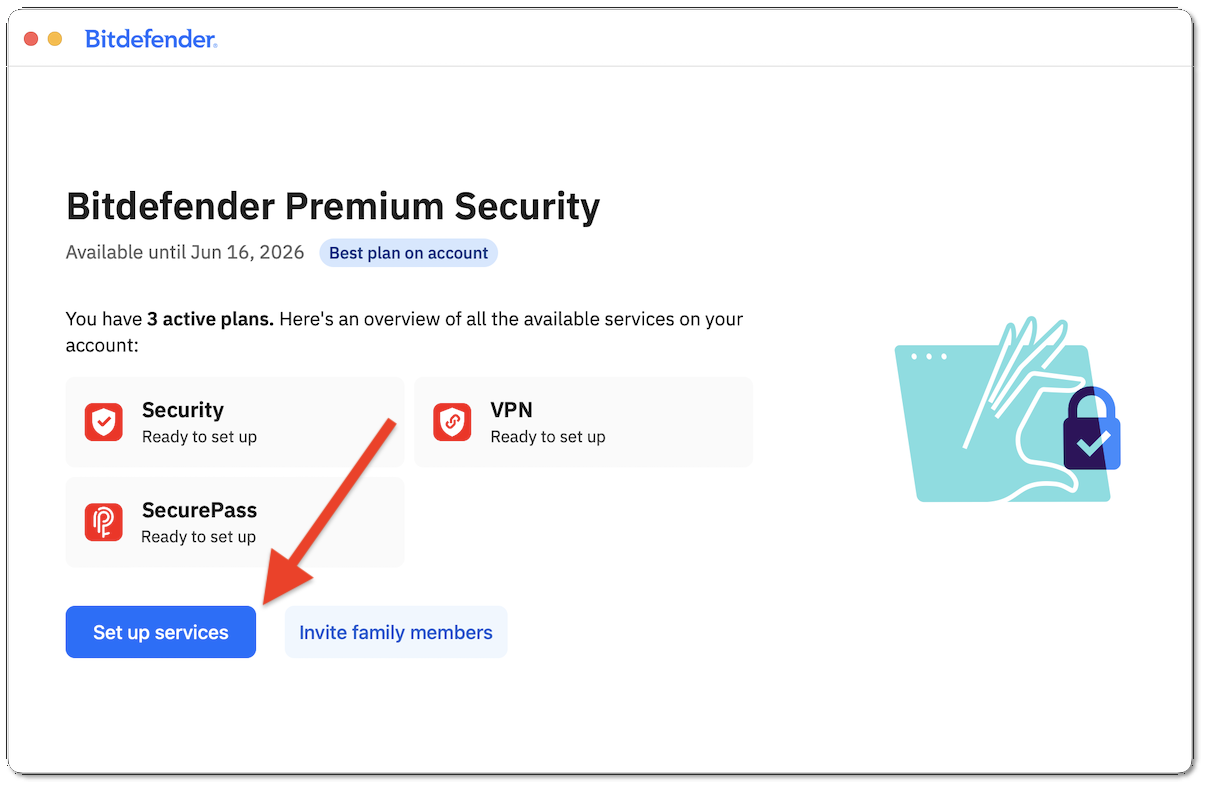
9. Click Set up services in the window that displays all services available on your account.
- If you have more than one subscription, Bitdefender will display the best one along with the expiration date.
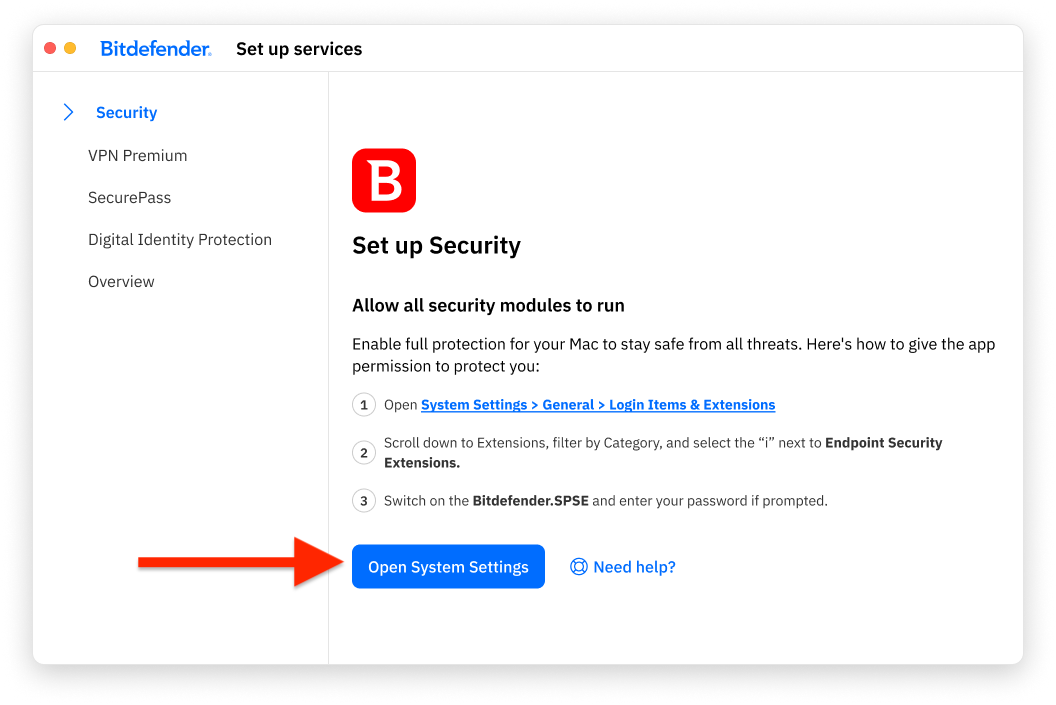
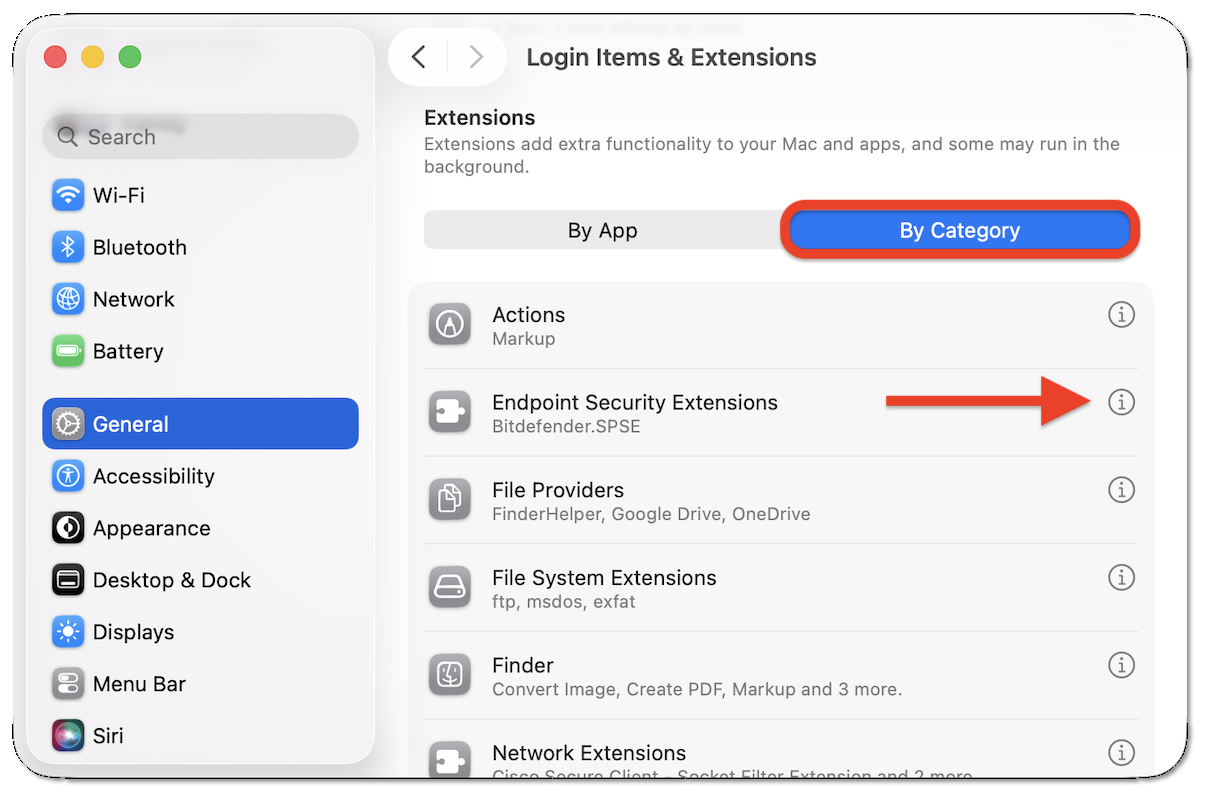
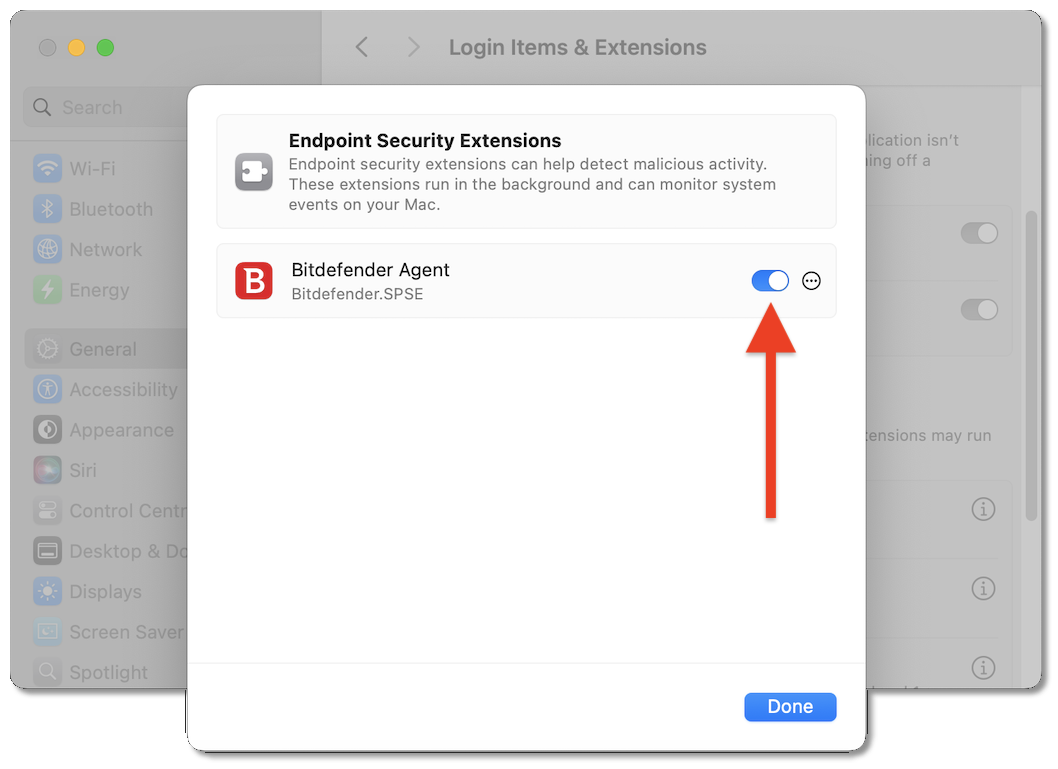
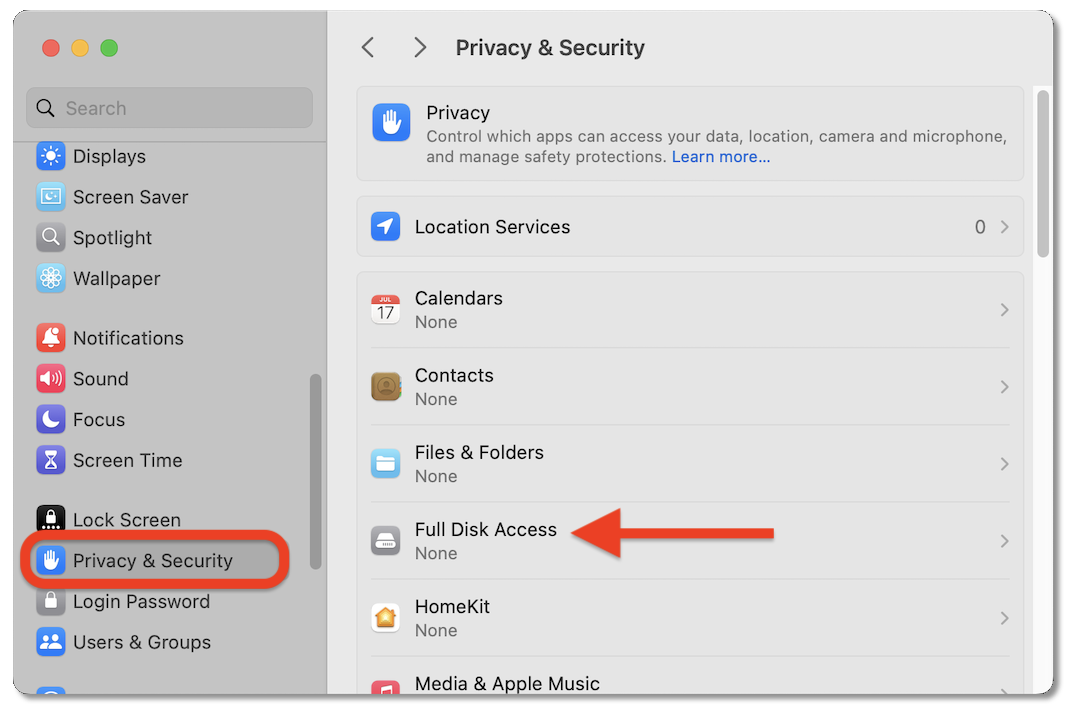
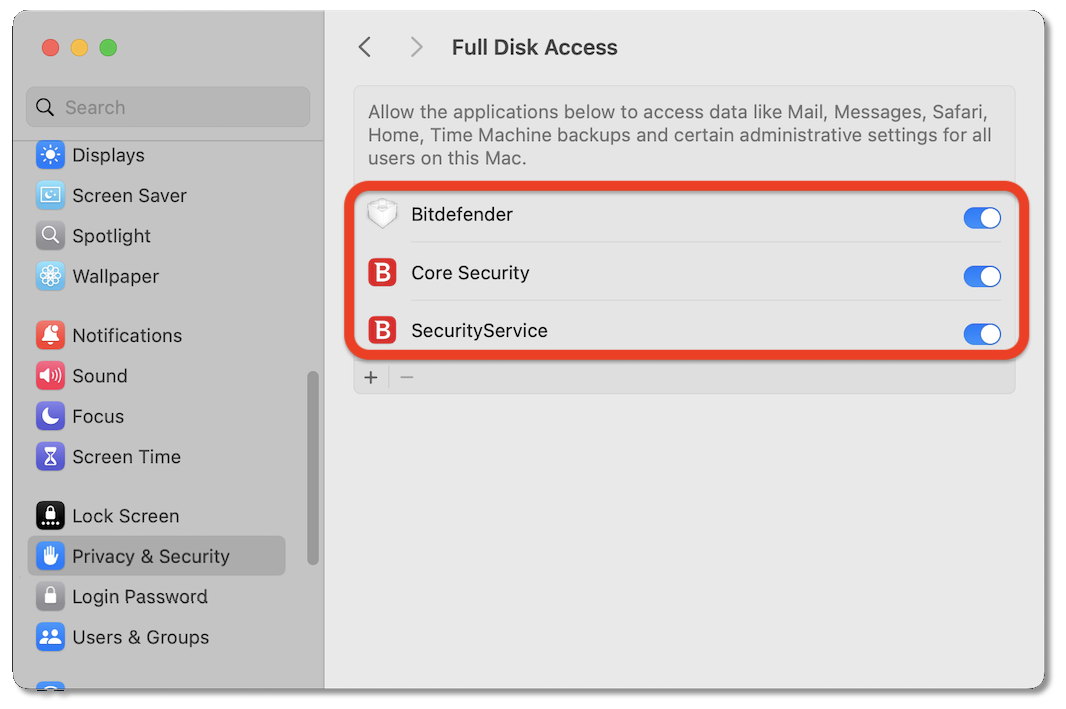
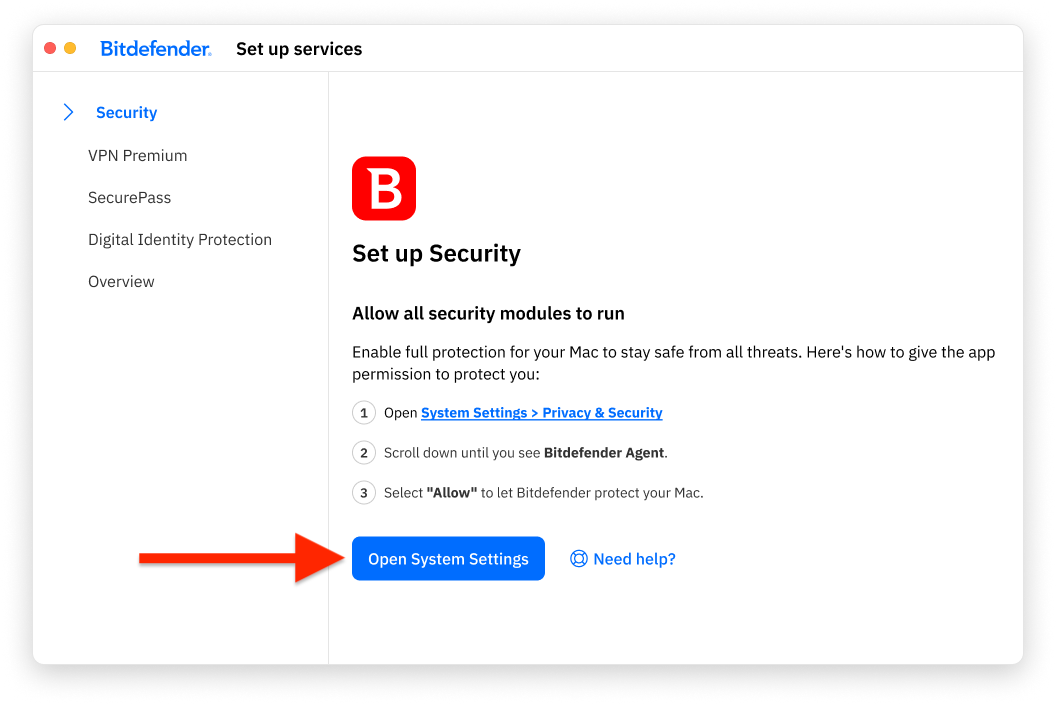
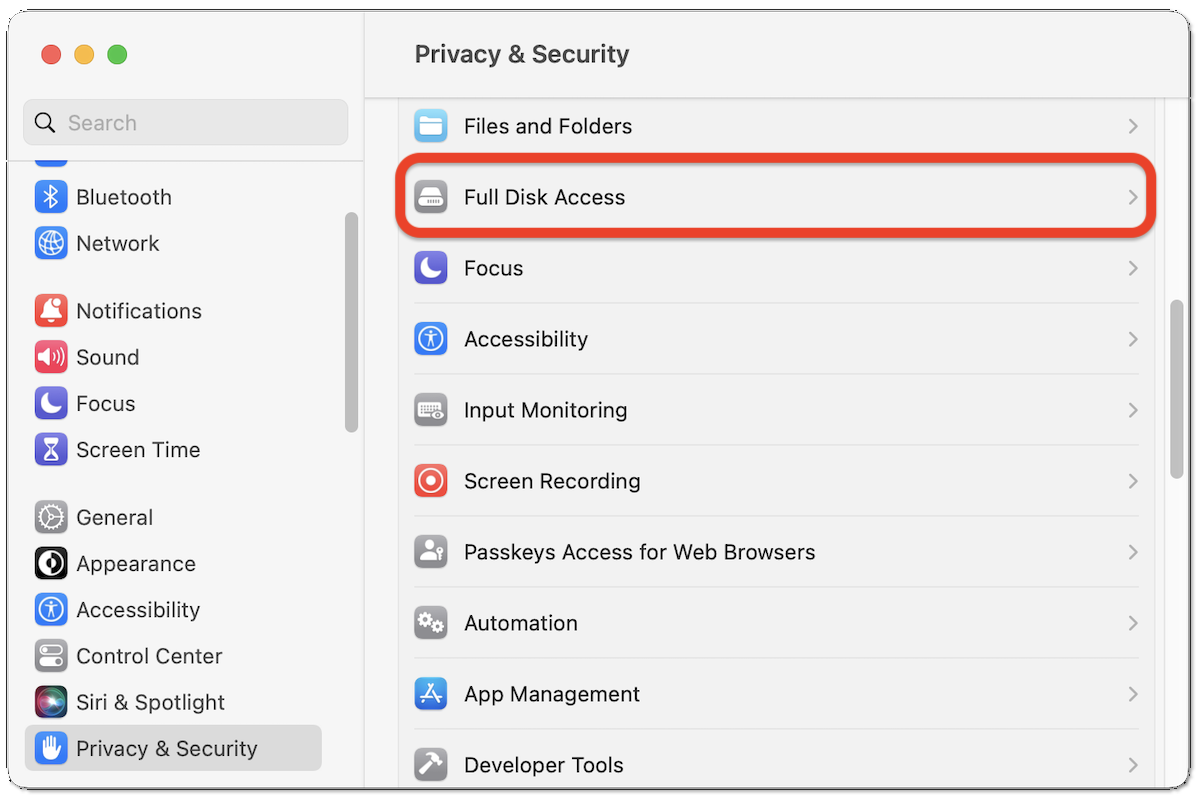
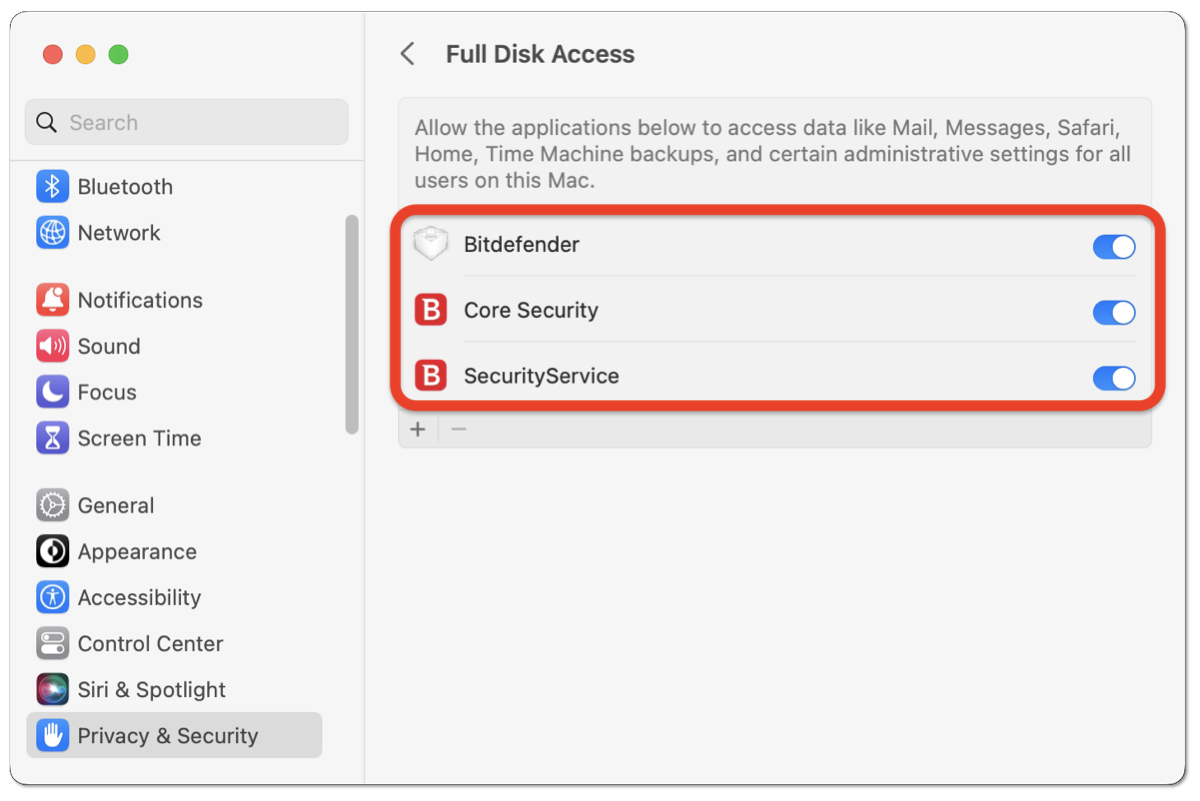
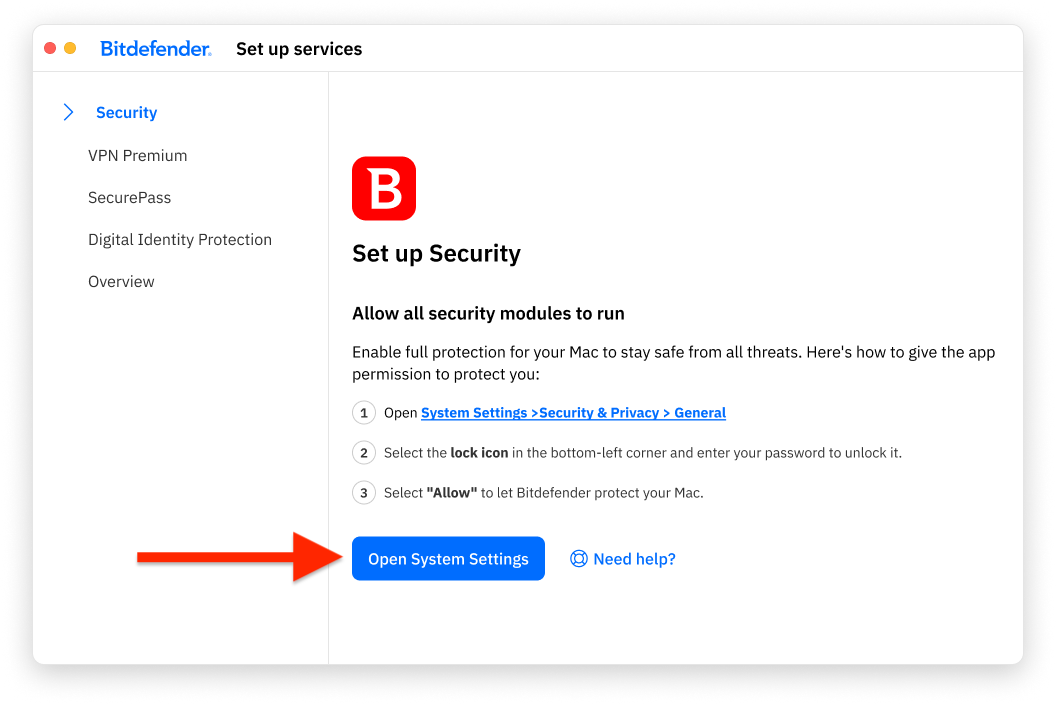
10. Follow the steps below to set up unconfigured services:
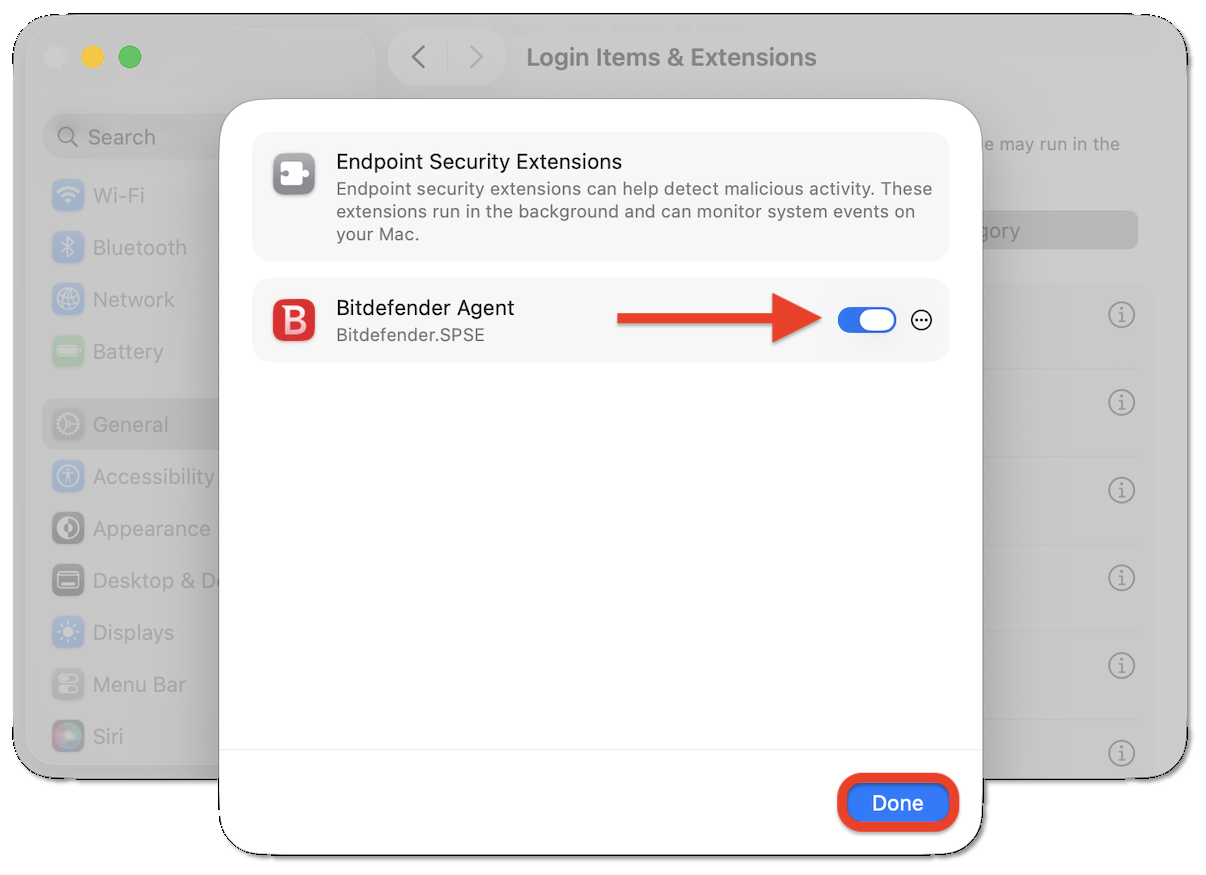
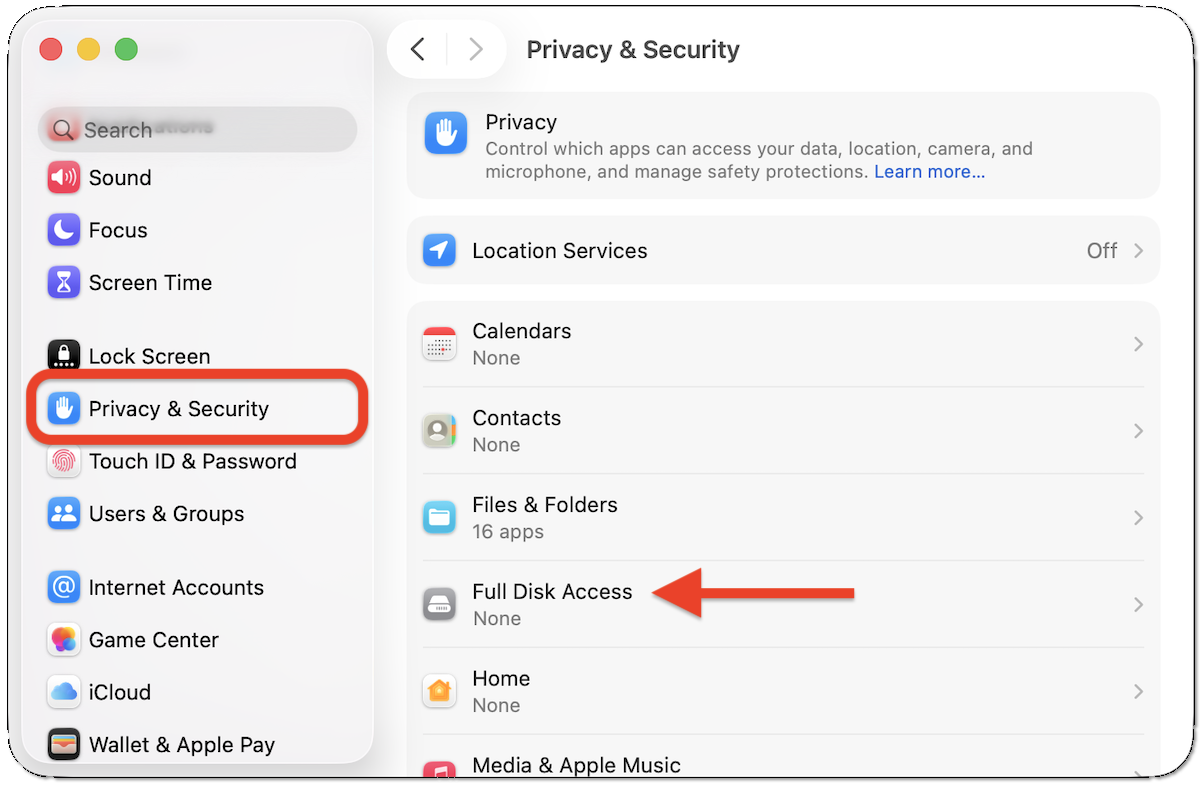
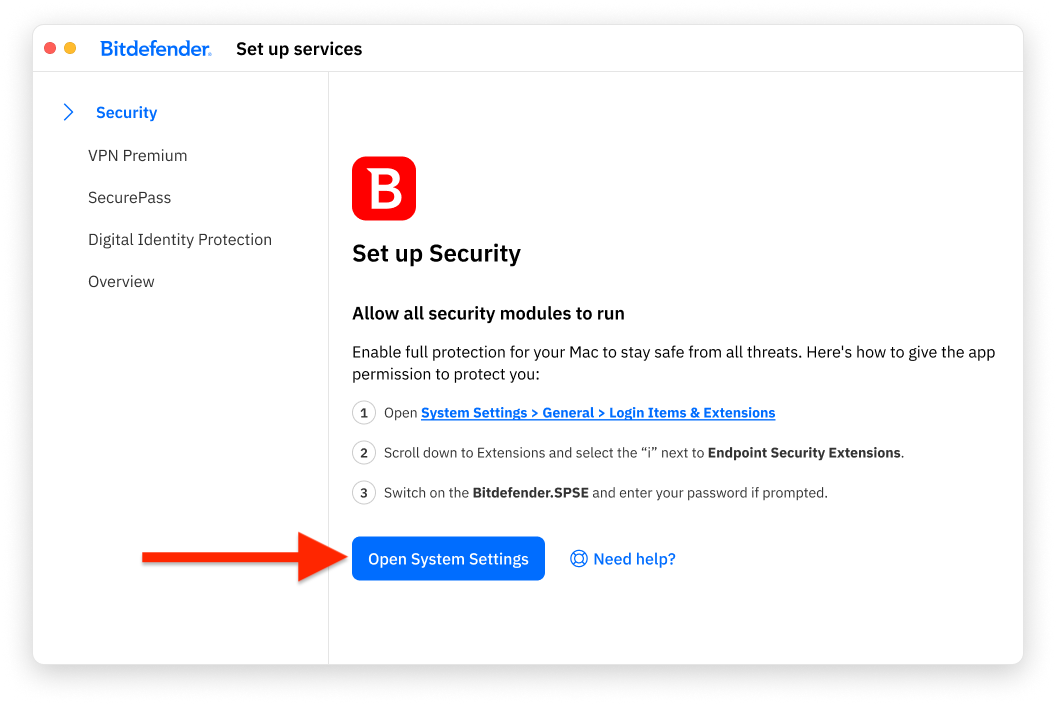
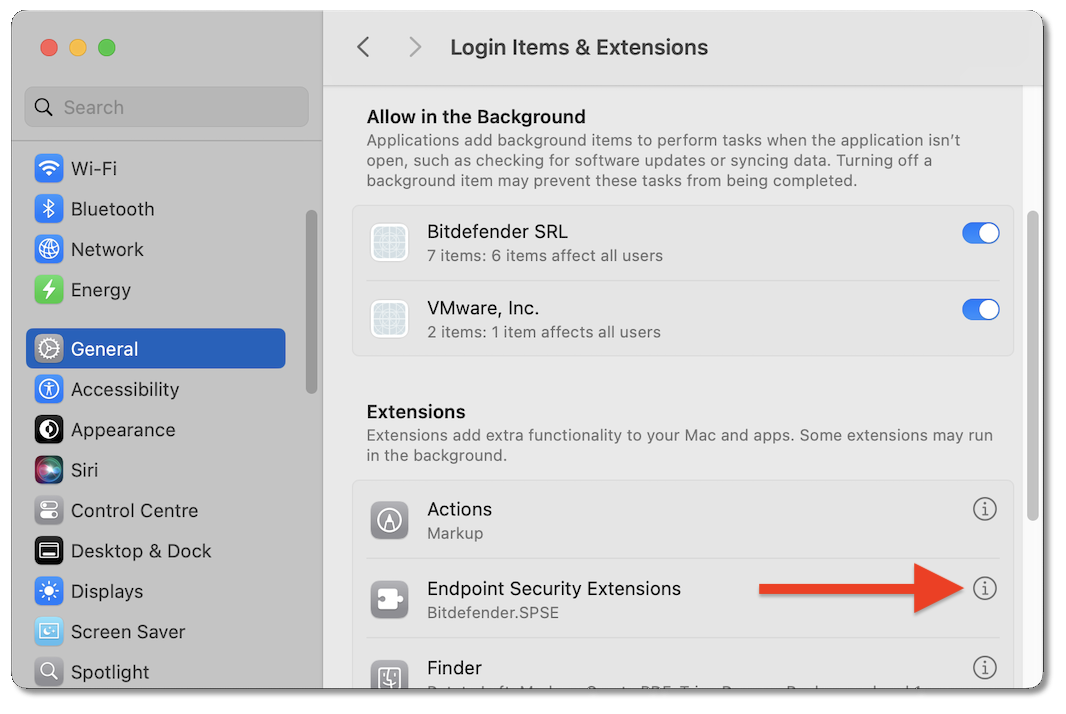
Security




VPN
SecurePass
Digital Identity Protection
After you finish all configuration steps, click Start using the app to open Bitdefender App.
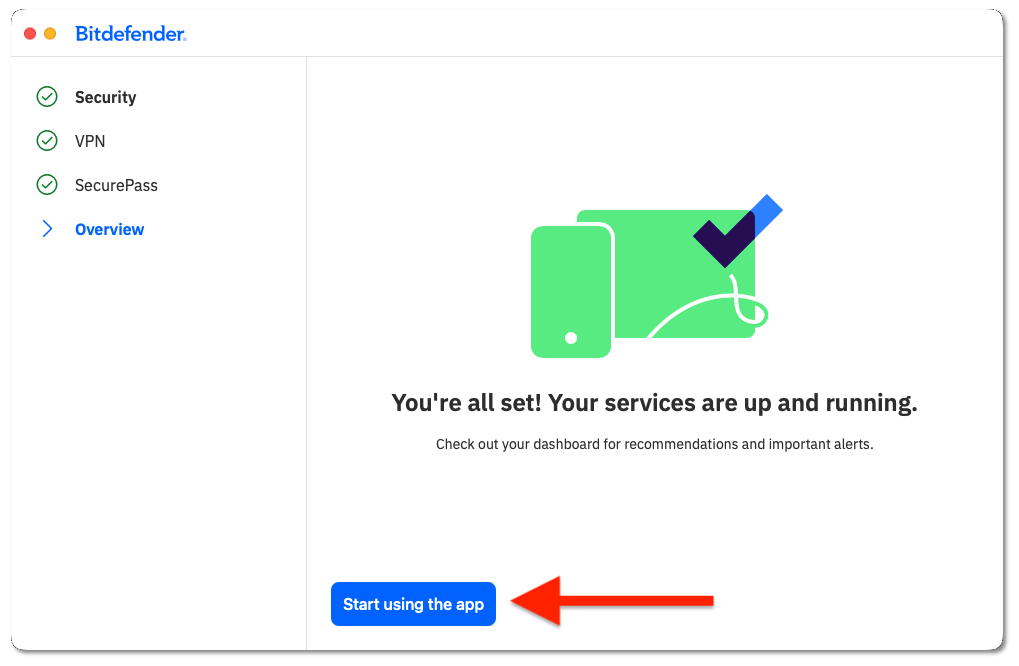
Start using the app
All done! You’ve successfully installed and configured the Bitdefender App on your Mac. To protect another device, perform the same installation steps on that device.