Ransomware is malicious software that seeks to encrypt files and hold them for ransom. Users must pay the hackers to regain access to files like pictures, videos, or important documents. Using the latest technology, Bitdefender Antivirus for Mac ensures system integrity by protecting critical system areas against ransomware attacks without impacting the system. Bitdefender Safe Files guards your personal information and allows you to choose which apps can make changes to the protected files and which ones cannot.
Default Protected Folders
By default, the following folders are protected:
Users/username/Desktop
Users/username/Documents
Users/username/Downloads
Users/username/Pictures
Note: Custom folders can be protected only for current users as those are considered the most vulnerable locations. External drives, system and app files cannot be added to the Safe Files list.
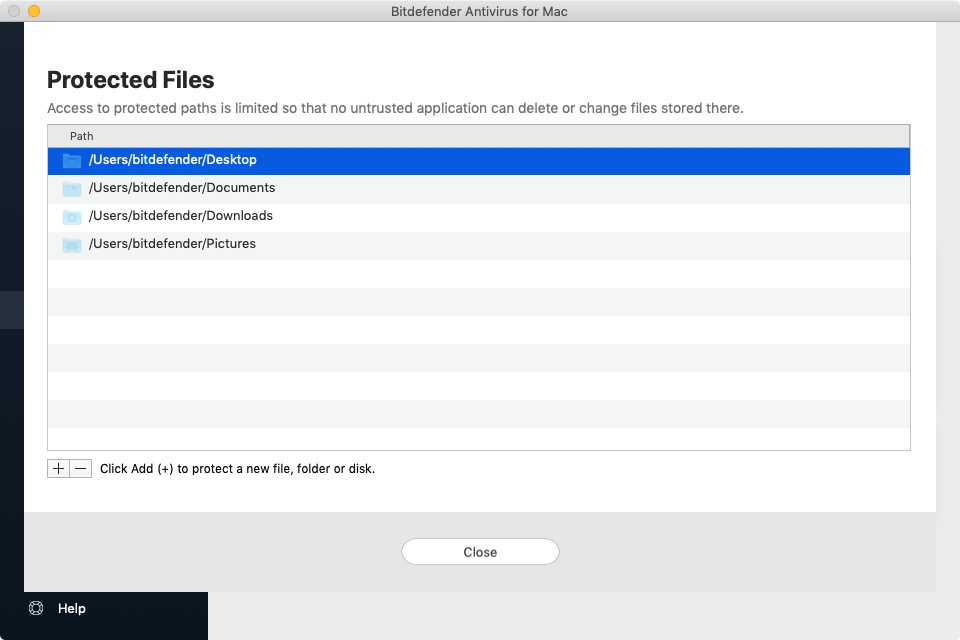
Accessing Safe Files
To access Safe Files:
- Open the Bitdefender Antivirus for Mac window and click Protection in the left-hand menu.
- Open the Anti-Ransomware tab at the top.


Adding Protected Files
You can add files to the protected environment by using the following method:
- Click on Protected Files within the Safe Files section.
- Click the button labeled with the plus sign (+), located under the protected files list
- Choose the file, folder or volume to be protected in case ransomware attacks will try access them.
Managing Application Access
You will be informed each time an unknown app with an unusual behavior will try to modify the files you added. Click Allow or Block to add it to the Managed Applications list. To add an application to the list:
- Click on the Application Access button.
- Click Add (+).
- Select the apps you want to manage.
- Click Open.
- If necessary, type an administrator username and password, then click OK to confirm the changes.
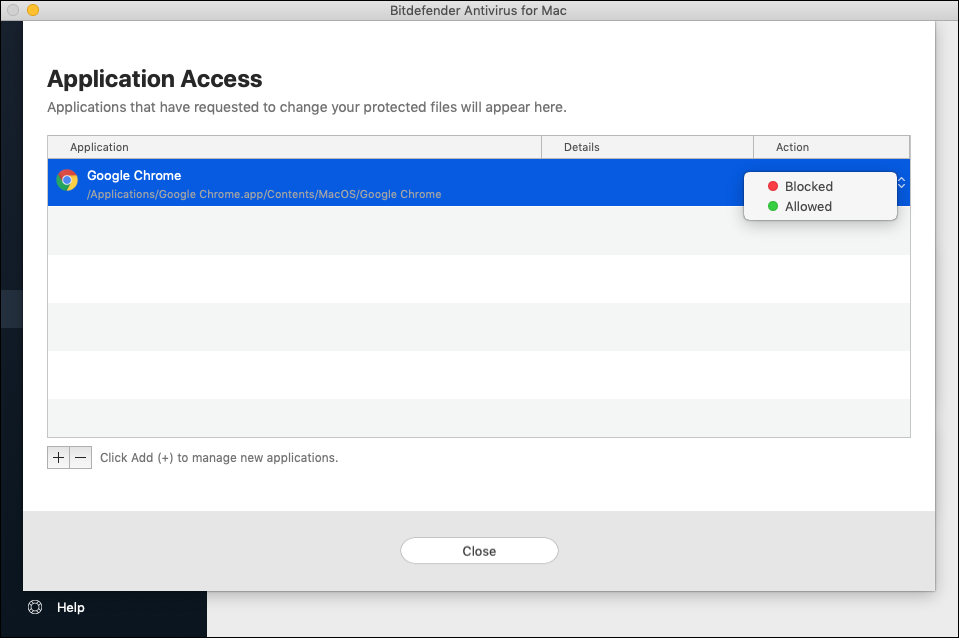
If, for example, you block Microsoft Word, the app will no longer be able to modify any files or save documents in the protected locations.