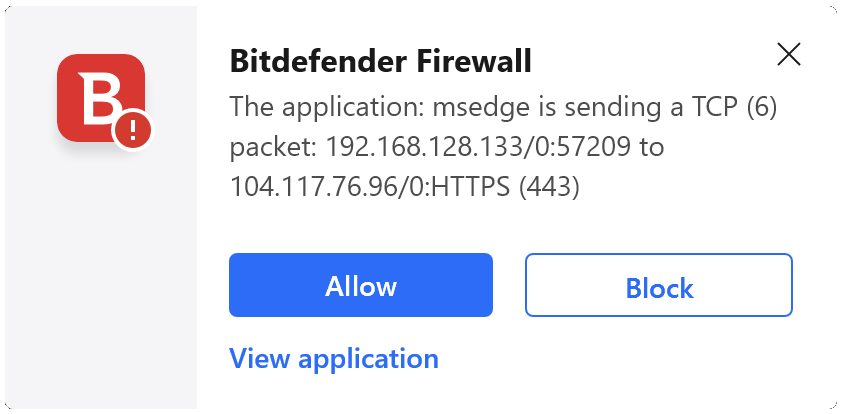
 If you’re seeing frequent Bitdefender Firewall pop-ups on Windows such as “The application […] is sending a TCP/UDP packet to […]” with Allow/Block options, it means Alert mode is turned on. When the Firewall is running in Alert mode, each time an application attempts to connect to the internet you are prompted to approve the connection, which can become overwhelming.
This guide explains why these notifications appear in the bottom-right corner and how to turn off Alert mode so Bitdefender can automatically create firewall rules without displaying constant prompts.
Why You’re Seeing Multiple Firewall Alerts
Bitdefender’s Alert mode is designed for advanced users who want full manual control over every network connection. With this mode enabled:
- Every application attempting an outbound or inbound connection triggers a pop-up
- You may see dozens of alerts while launching programs like Steam, web browsers, games, or any software that communicates online
- Alerts appear all day long because modern applications regularly check for updates, sync data, or send telemetry
If you did not intentionally enable Alert mode, these pop-ups may seem random or alarming, but they are expected behavior when this firewall option is active.
How to Stop the Firewall Pop-Ups (Disable Alert Mode)
To return the Firewall to normal automatic mode and stop the constant notifications, simply turn Alert mode off:
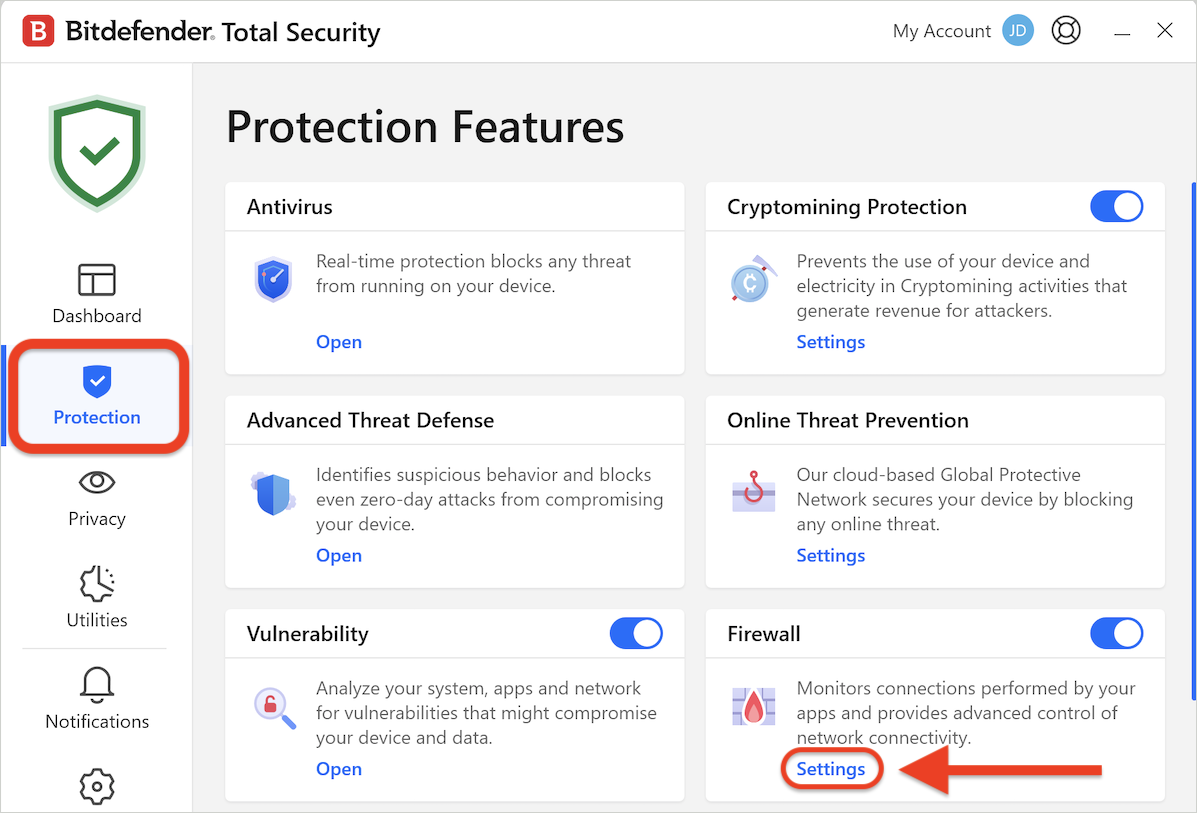
- Open Bitdefender on your Windows PC.
- Click Protection in the left-side menu.
- In the Firewall section, click Settings.
- At the top of the window, open the Settings tab.
- Turn off the Alert mode switch so that it appears gray.
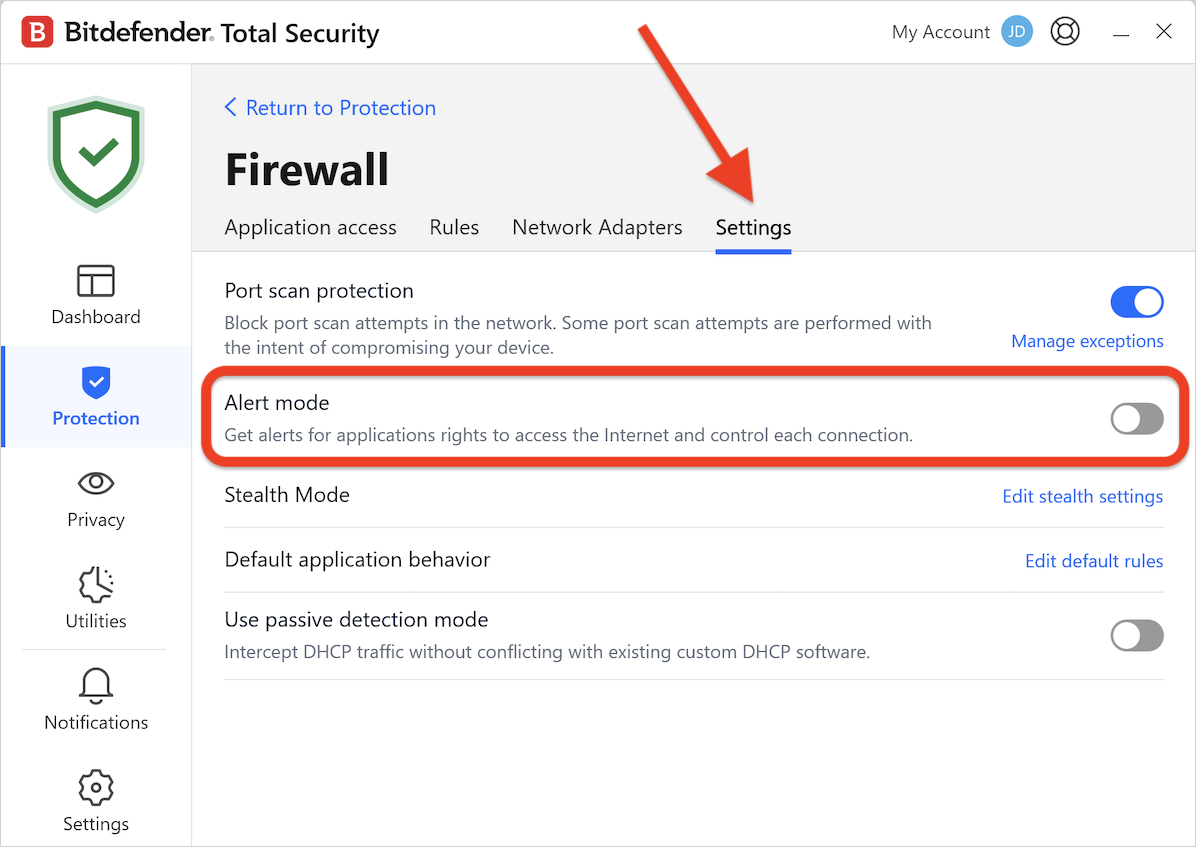
After disabling Alert mode, you should immediately stop seeing repetitive Bitdefender Firewall pop-ups. Bitdefender will automatically allow or block connections based on its security rules without asking for confirmation each time. Applications like browsers, online games, launchers, and update services will work normally again without interruptions.
If you prefer to manually control internet access for specific programs, you can still use the Rules tab under Firewall settings to adjust permissions individually, without re-enabling Alert mode.