If you’re an adult member of a Bitdefender Family plan, you have the option to leave the family group directly from your own user account.
Important: Leaving the Family group will remove you from the Family plan. Your devices will no longer be protected under the Family subscription, unless you have an active individual subscription or join another Family group.
How to Leave a Family Group
To exit a Family group:
- Sign in to your Bitdefender Central account associated with the Family plan at https://central.bitdefender.com/.
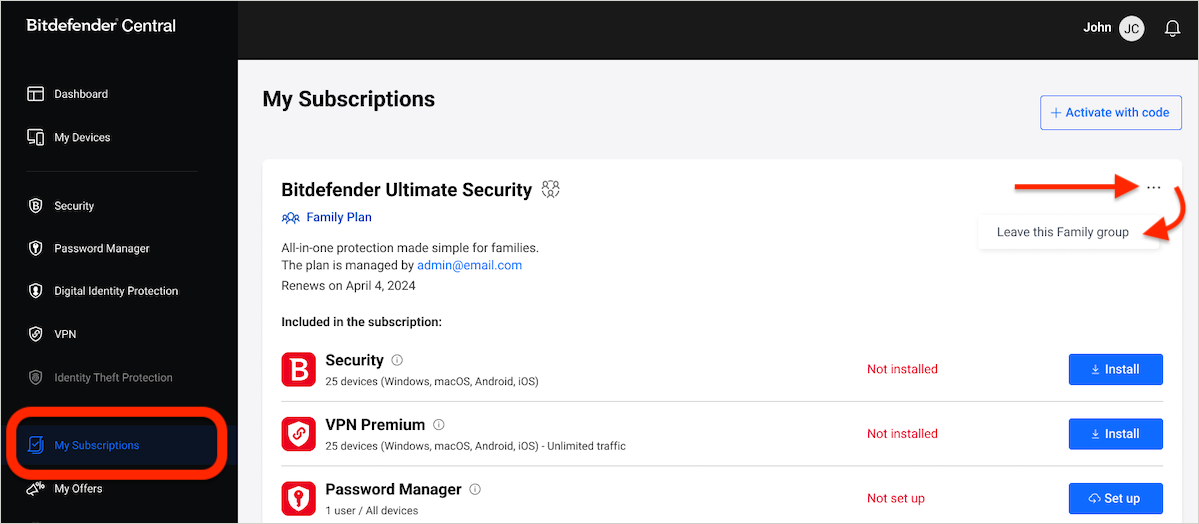
- From the left-hand menu, click My Subscriptions.
- On the Family plan card, click the 3-dot menu [ ••• ] and choose Leave this Family group.
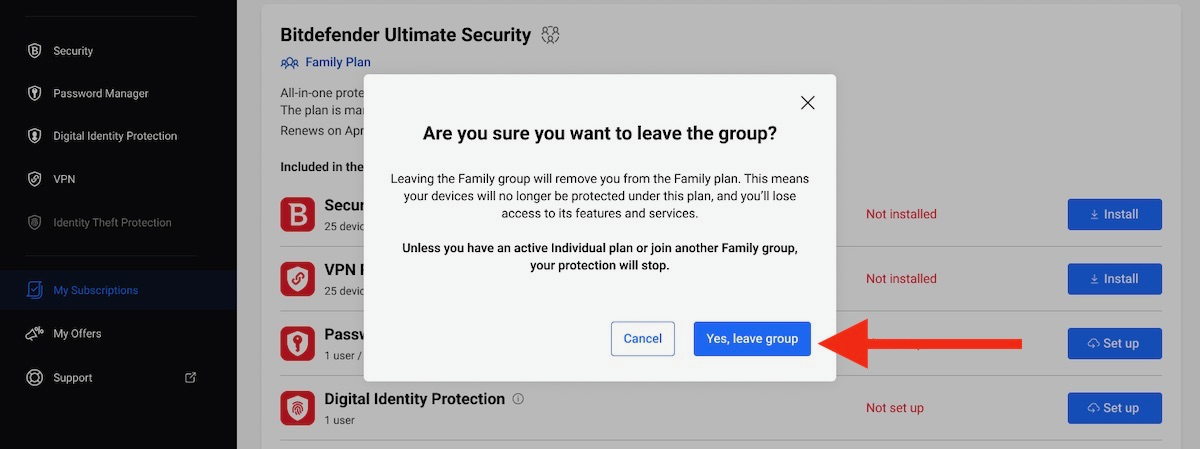
- Confirm by clicking Yes, leave group.
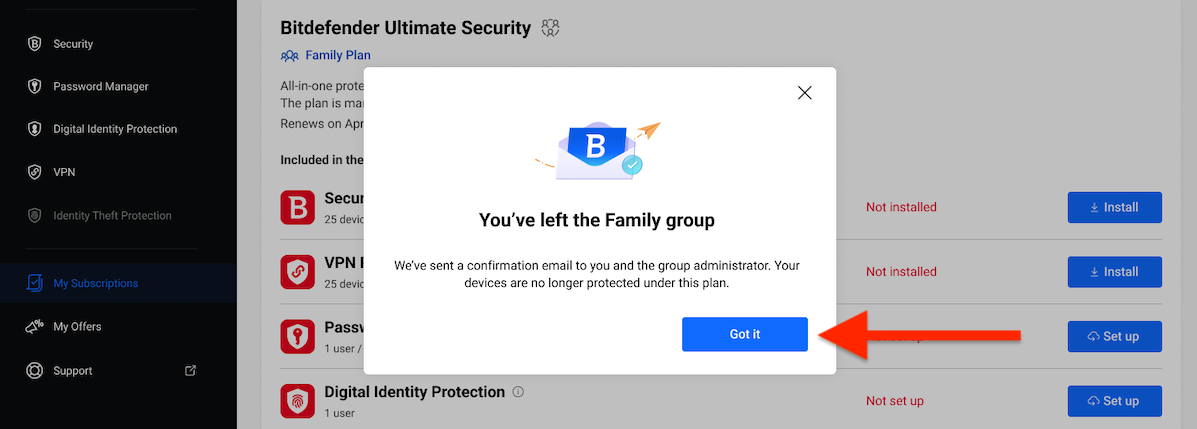
- You’ll see a confirmation message that you’ve left the Family group. You can then close the window.
What Happens After Leaving the Family Group
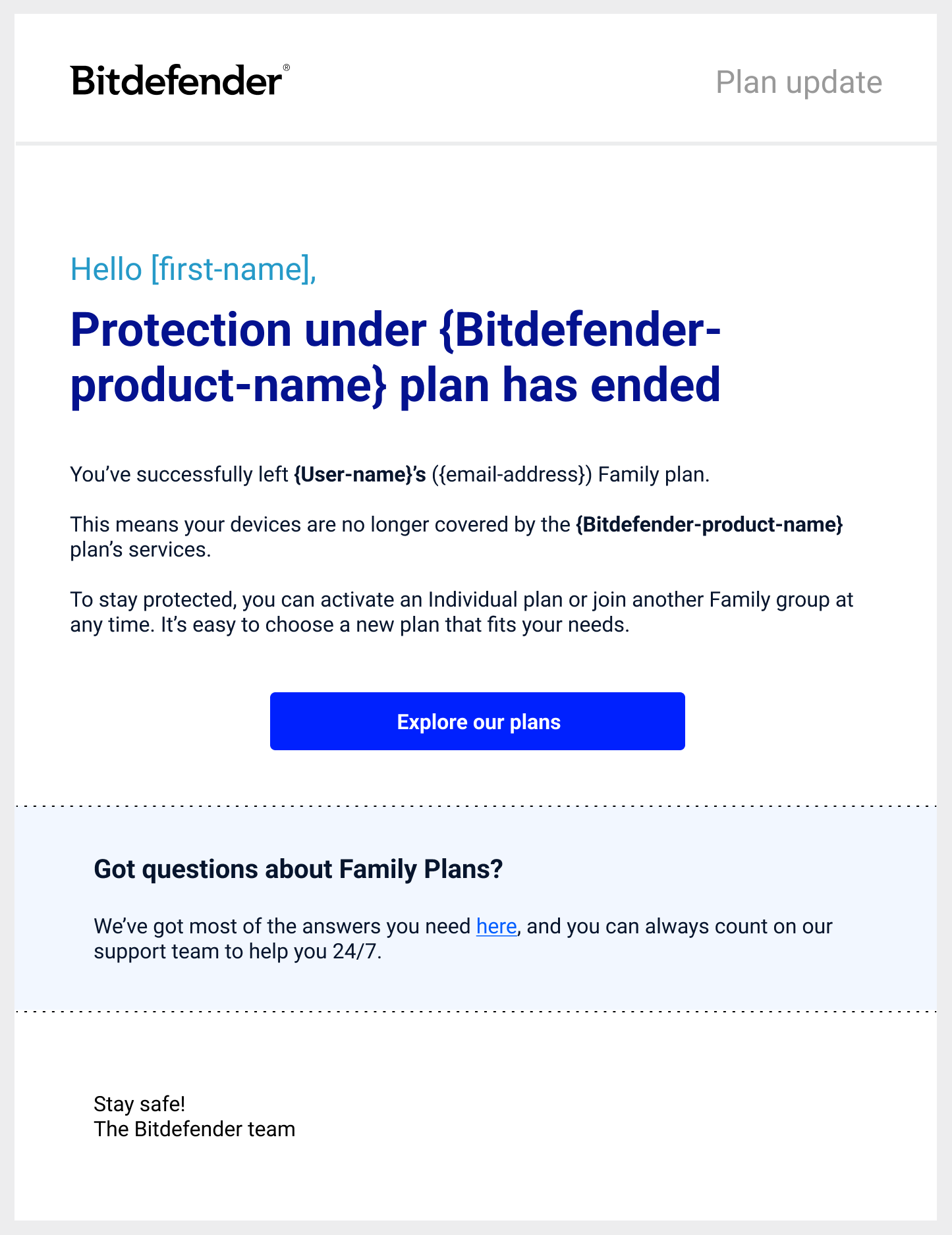
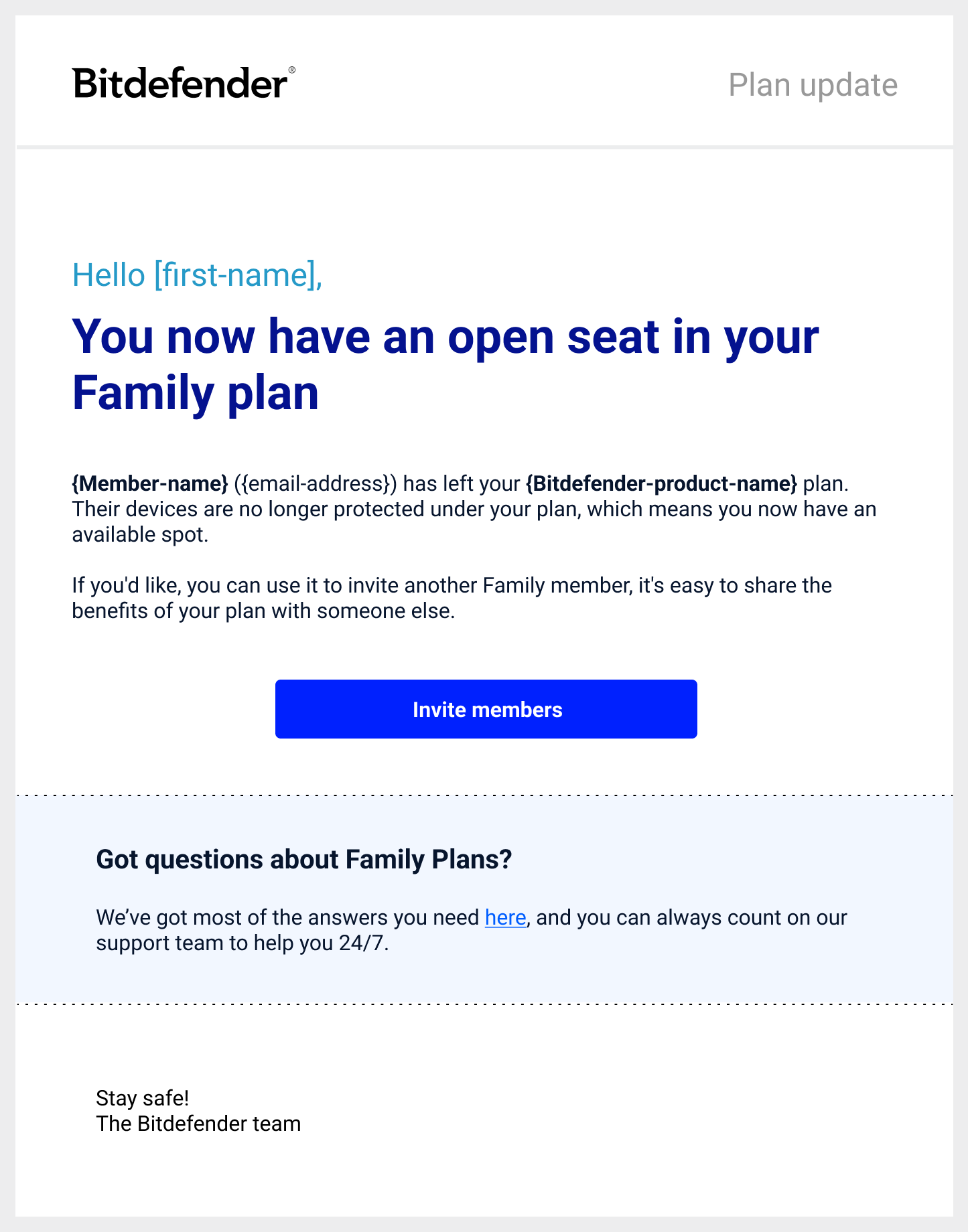
A confirmation email will also be sent to you and the family manager.
- For you (the member):
- You’ll receive a confirmation email stating you’ve successfully left the Family group.
- Your devices are no longer protected under this Family plan and you’ll lose access to its features and services.
- To stay protected, you can:
- Activate an Individual plan in your Bitdefender account.
- Join another Family group (you’ll need an invitation).
- For the Family Manager:
- They’ll receive an email notification that a spot has opened on their Family plan.
- The open seat can be used to invite another family member.