This guide explains how to add an antivirus exception in Bitdefender App for Windows to prevent it from scanning specific files or folders. Creating an exception can be useful when the Antivirus feature is incorrectly blocking or slowing down something you trust.
When to Add an Antivirus Exception
You may want to exclude an item from antivirus scanning in situations such as:
- False positives – A trusted file is mistakenly detected as infected.
- Development environments – Antivirus scan slows builds or locks files used by compilers and package managers.
- High-performance applications – Real-time protection interferes with apps that read or write many files quickly.
- Virtual machines – Large VM or container disk images are repeatedly scanned, causing performance issues (e.g. VMware Workstation, VirtualBox, Docker).
- Large trusted data folders – Antivirus repeatedly scans large collections of files that rarely change, like backups or media libraries.
Only exclude files or folders that you trust. Excluding items from scanning can reduce your system’s protection level.
Add an Antivirus Exception on Windows
Follow the steps below to exclude a file or folder from antivirus scans on Windows.
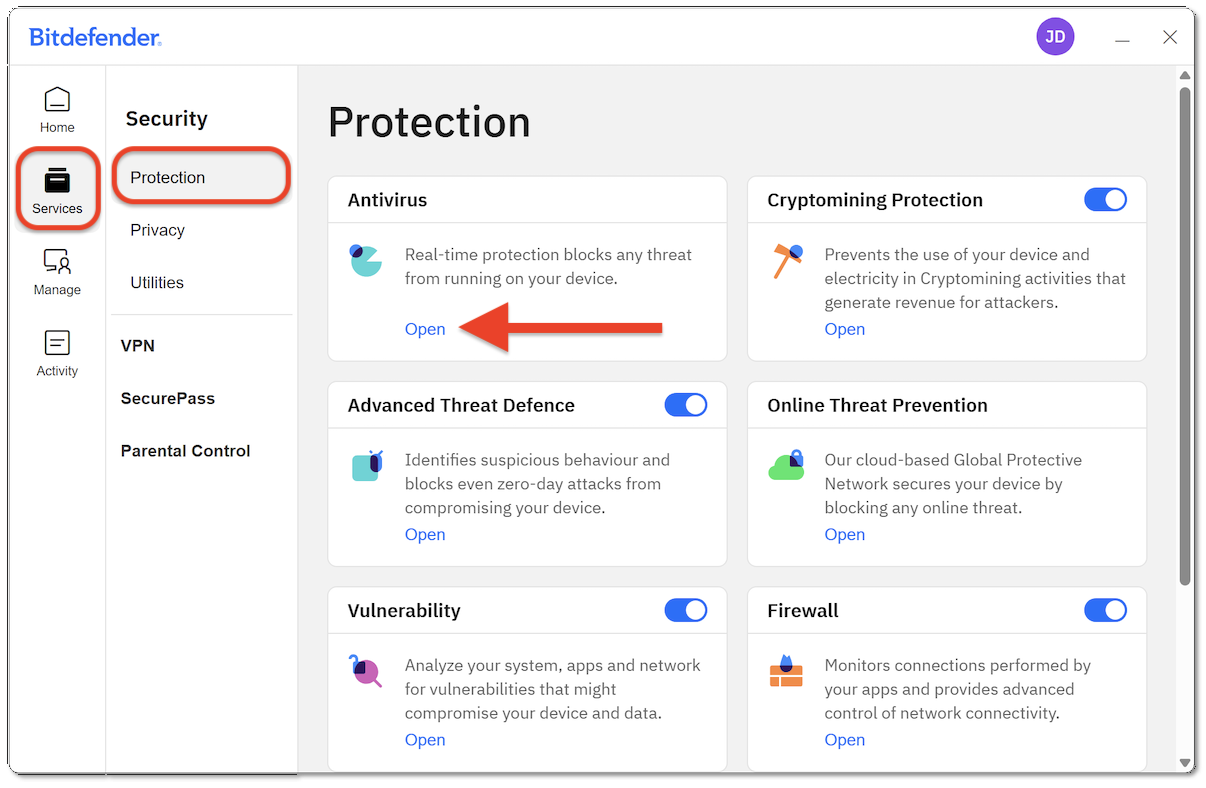
- Open Bitdefender App, then click Services in the left-hand sidebar.
- Next, go to Protection in the Security menu.
- In the Antivirus panel, click Open.
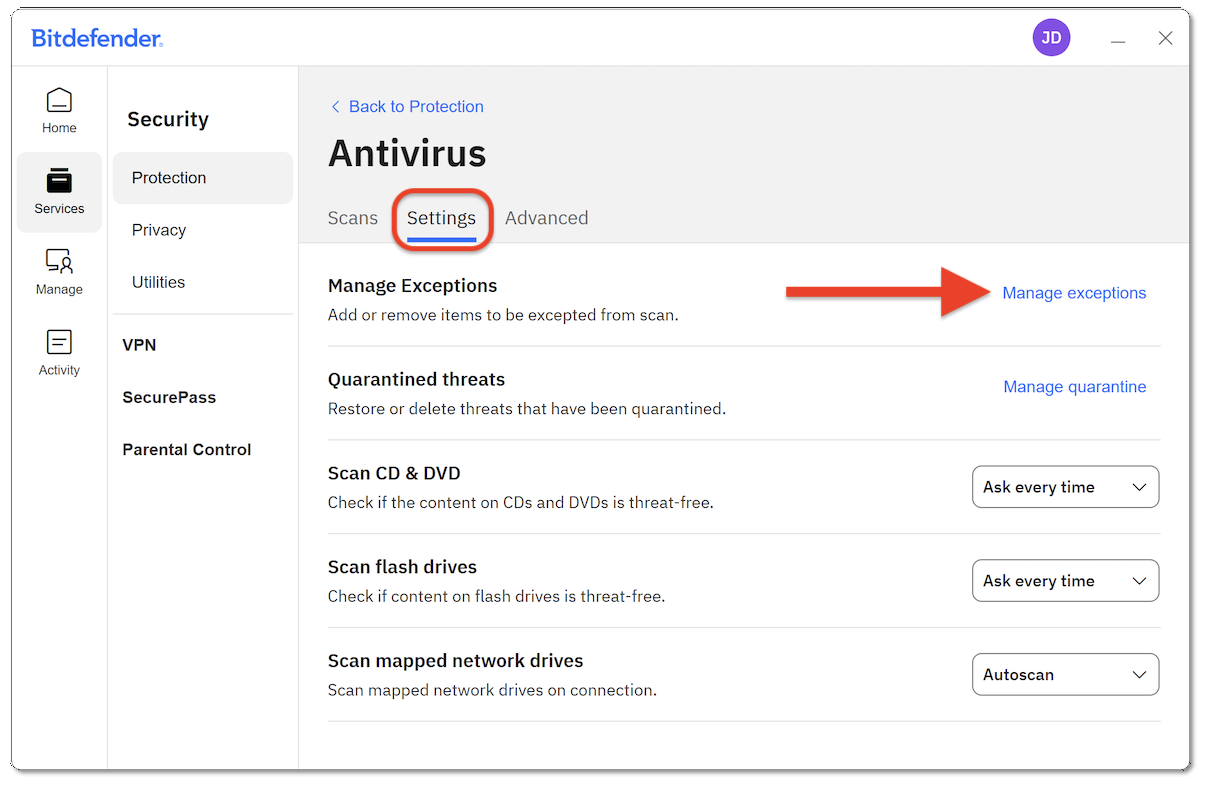
- Open the Settings tab, then click Manage exceptions on the right-hand side.
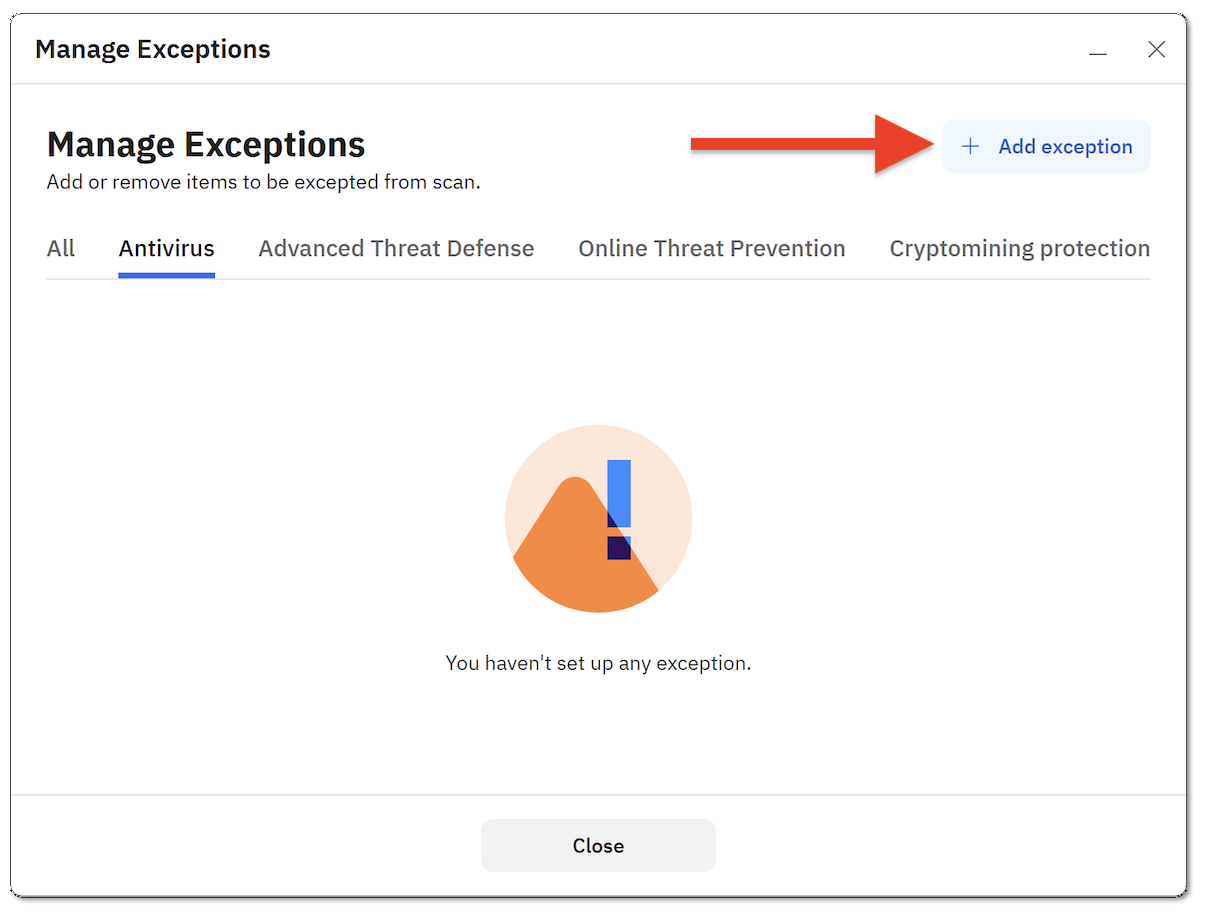
- In the new window, click + Add exception.
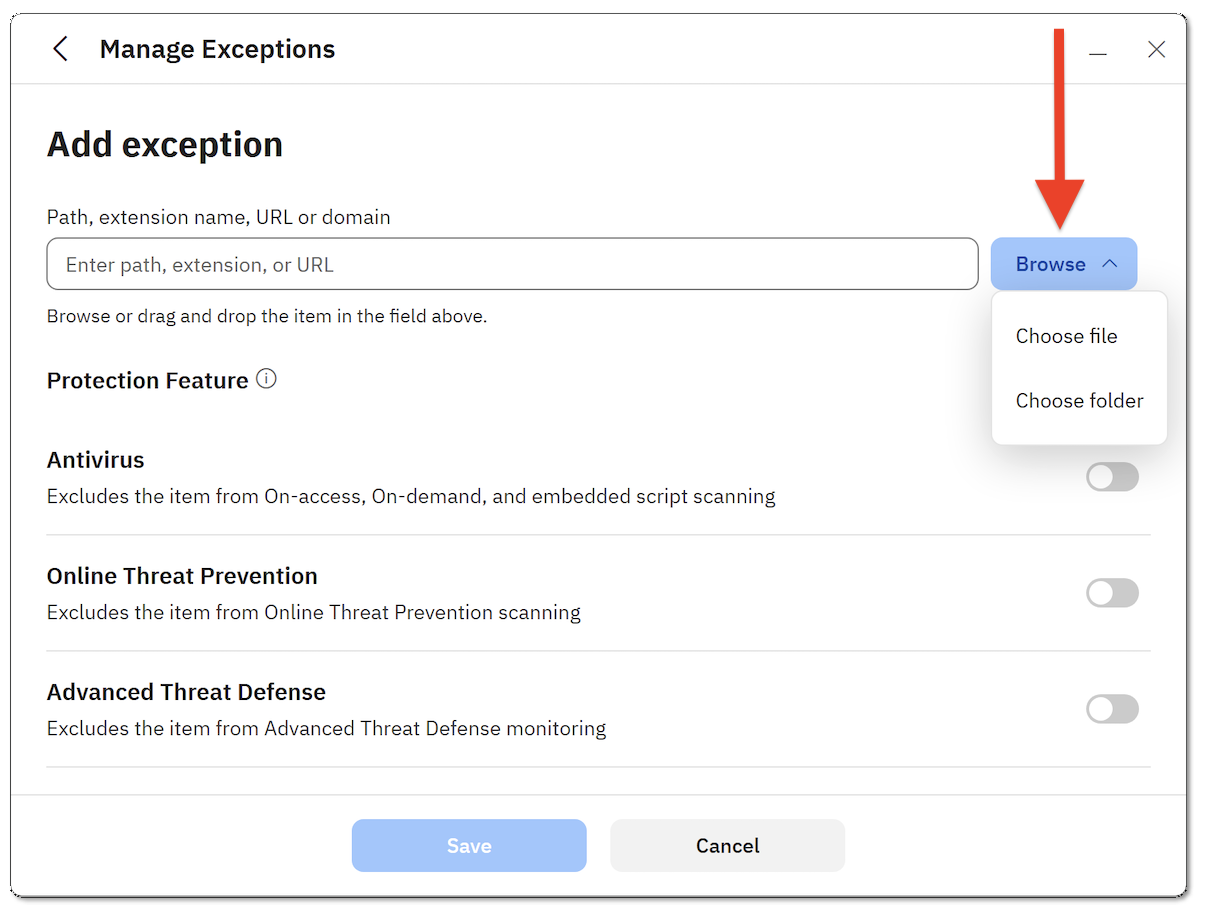
- Click the Browse button, then choose from the menu whether you want to add an exception for a file or folder.
- Alternatively, you can drag & drop the item you want to exclude from the antivirus scan into the designated field.
- Alternatively, you can drag & drop the item you want to exclude from the antivirus scan into the designated field.
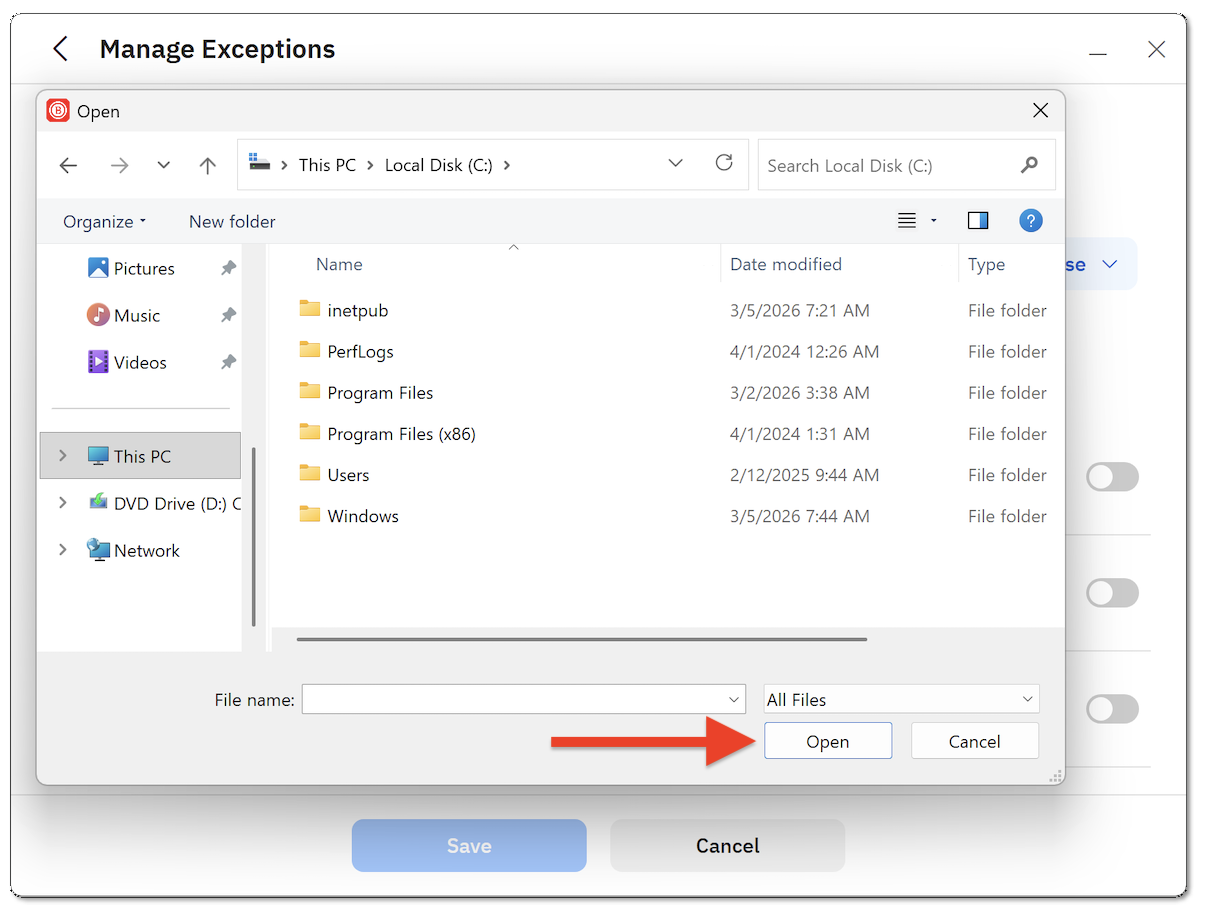
- Browse to the file, folder, or disk you want to exclude.
- Click on the item and click the Open / Select Folder button.
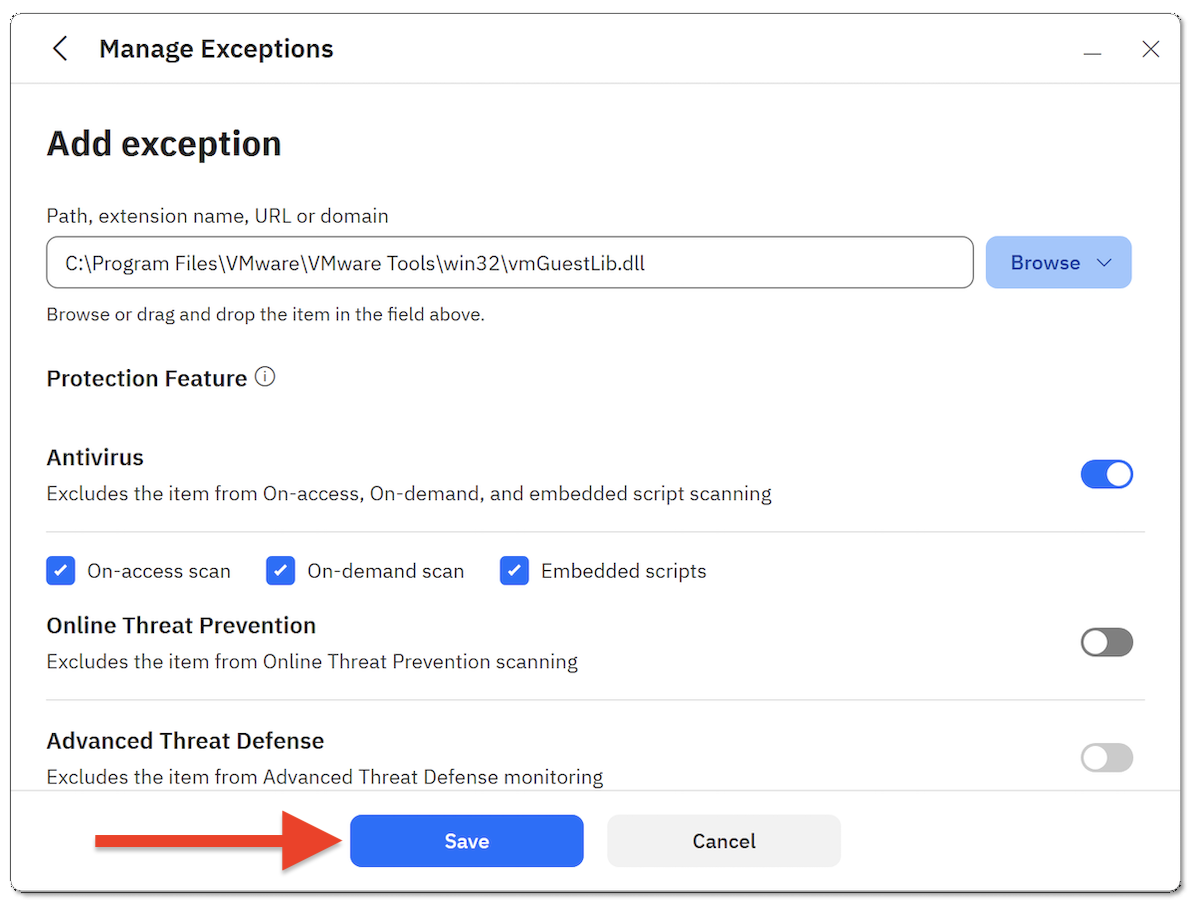
- Click the Save button to add the item to the antivirus exceptions list.
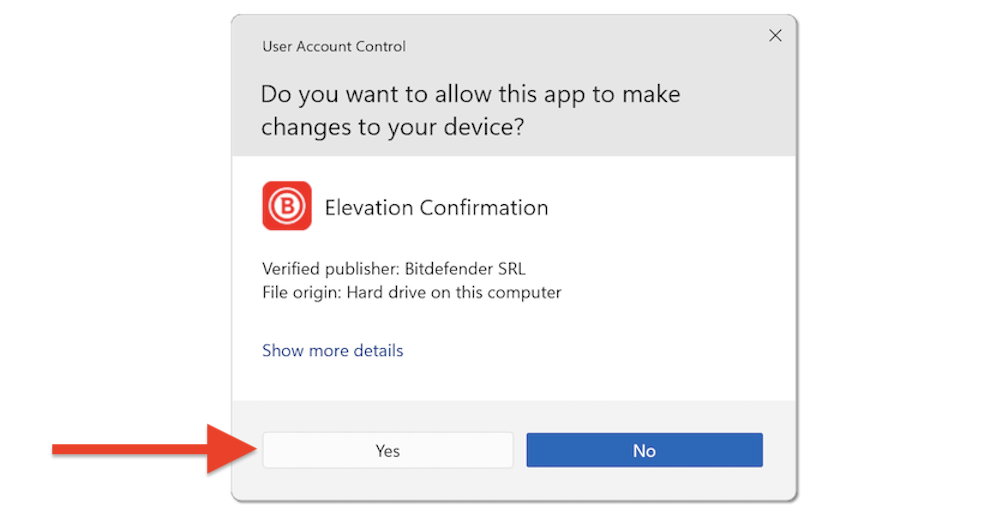
- Click Yes if prompted to allow the change.
- The item name and its path will appear in the exceptions list. Close the Manage exceptions window to return to the main Bitdefender interface.
Bitdefender will no longer scan the excluded location.
Remove an Antivirus Exception
If you no longer want to exclude an item from scanning:
- Open the Manage exceptions window by following the steps above.
- Click the trash bin icon next to the item you want to remove.
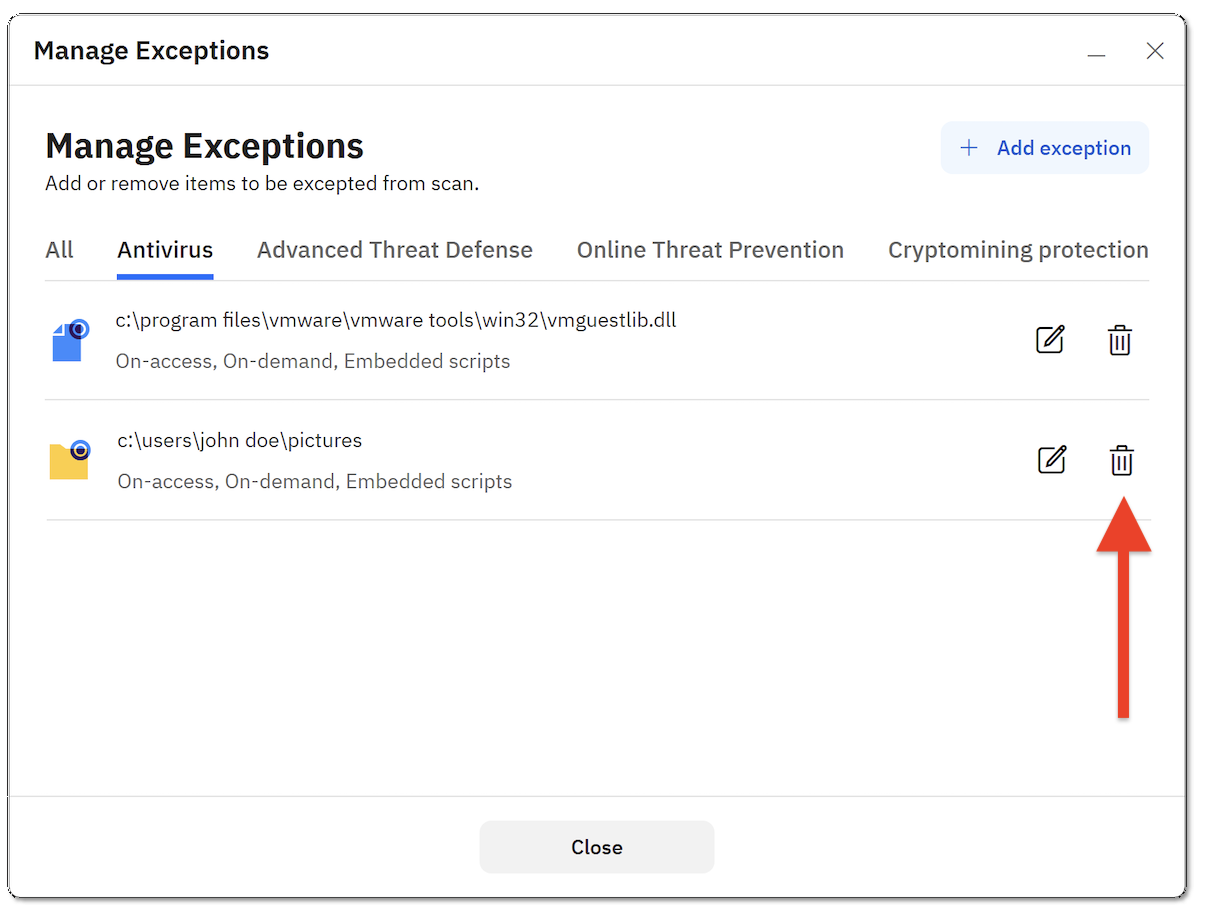
The item will be removed from the exceptions list and will again be included in antivirus scans.