This guide explains how to temporarily turn off protection in the Bitdefender App on macOS. You can either:
- Temporarily disable specific security modules, such as Antivirus protection, or
- Sign out of your Bitdefender account (which disables protection on the Mac)
Important: Disabling security features leaves your device unprotected. Only turn off protection if necessary and re-enable it as soon as possible.
Option 1: Temporarily Disable Antivirus Protection
If you only need to turn off real-time antivirus protection, disable Bitdefender Shield, the core protection component.
To briefly disable Bitdefender Antivirus on macOS:
- Click the B icon in the menu bar at the top right of your screen to open the Bitdefender App.

- Click Services in the left-hand sidebar.
- Next, go to Protection in the Security menu.
- In the Antivirus panel, click Open.

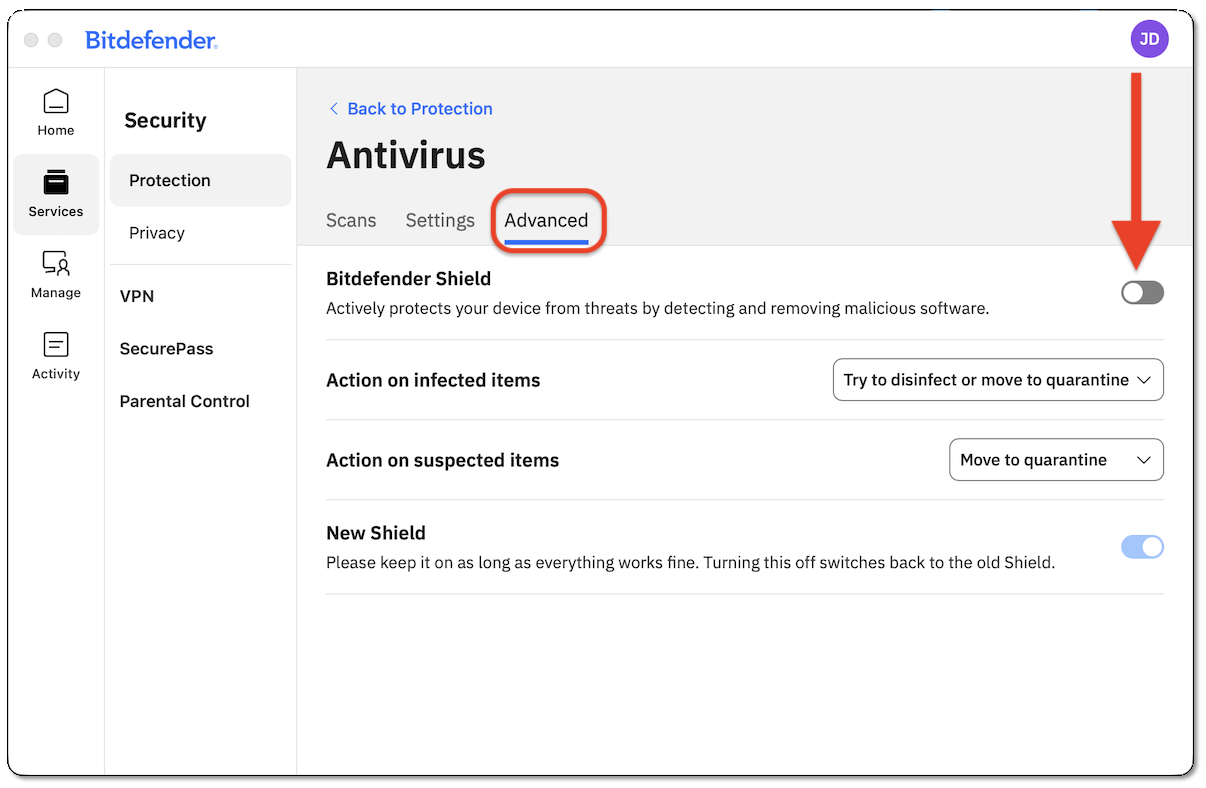
- Go to the Advanced tab and turn off Bitdefender Shield.
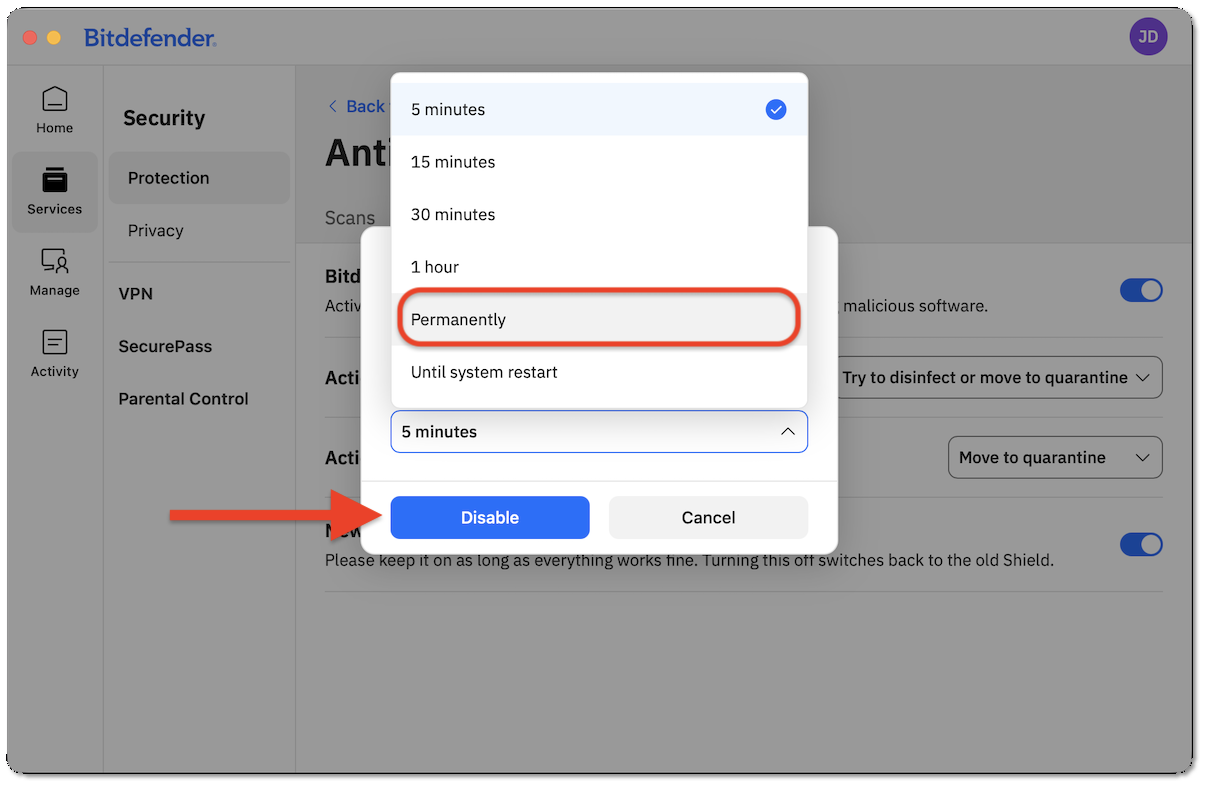
- When prompted to specify the period for which you want to disable protection, choose:
- Permanently, or
- Until system restart
- Click Disable to confirm.
- Enter your Mac password to allow the change, then click OK.
Antivirus protection is now disabled.
Re-enabling Bitdefender Protection
To restore antivirus protection on your Mac:
- Open the Bitdefender App.
- In the left-hand menu, go to Services → Protection → Antivirus.
- In the Antivirus panel, go to the Advanced tab.
- Turn Bitdefender Shield back on.
Option 2: Sign Out of Bitdefender (Disables Protection Completely)
Signing out of the Bitdefender app stops the device’s protection until you sign back in.
To sign out:
- Click the B icon in the menu bar at the top right of your screen to open the Bitdefender App.
- Click your profile icon in the top-right corner of the Bitdefender App.

- In the My Account menu, scroll down and click Sign out on the right-hand side.

- Click Sign out again to confirm.
The device will no longer be protected after signing out.
Re-enabling Bitdefender Protection
To restore protection, open Bitdefender and sign back in to your account.
Option 3: Disable All Bitdefender Features on macOS
If you need to turn off each protection module individually, follow the steps below.
1. Antivirus Settings
- Click the B icon in the menu bar at the top right of your screen to open the Bitdefender App.
- In the left-hand menu, go to Services → Protection → Antivirus.
- Go to the Advanced tab and turn off Bitdefender Shield.
- When prompted to specify the period for which you want to disable protection, choose:
- Permanently, or
- Until system restart
- Click Disable to confirm.
- Enter your Mac password to allow the change, then click OK.
2. Anti-Ransomware
- Go back to the Protection menu.
- In the Anti-Ransomware panel, click Open.

- Turn off the following options:
- Safe files
- Time Machine Protection
- When prompted, enter your Mac password to allow the change, then click OK.

3. VPN
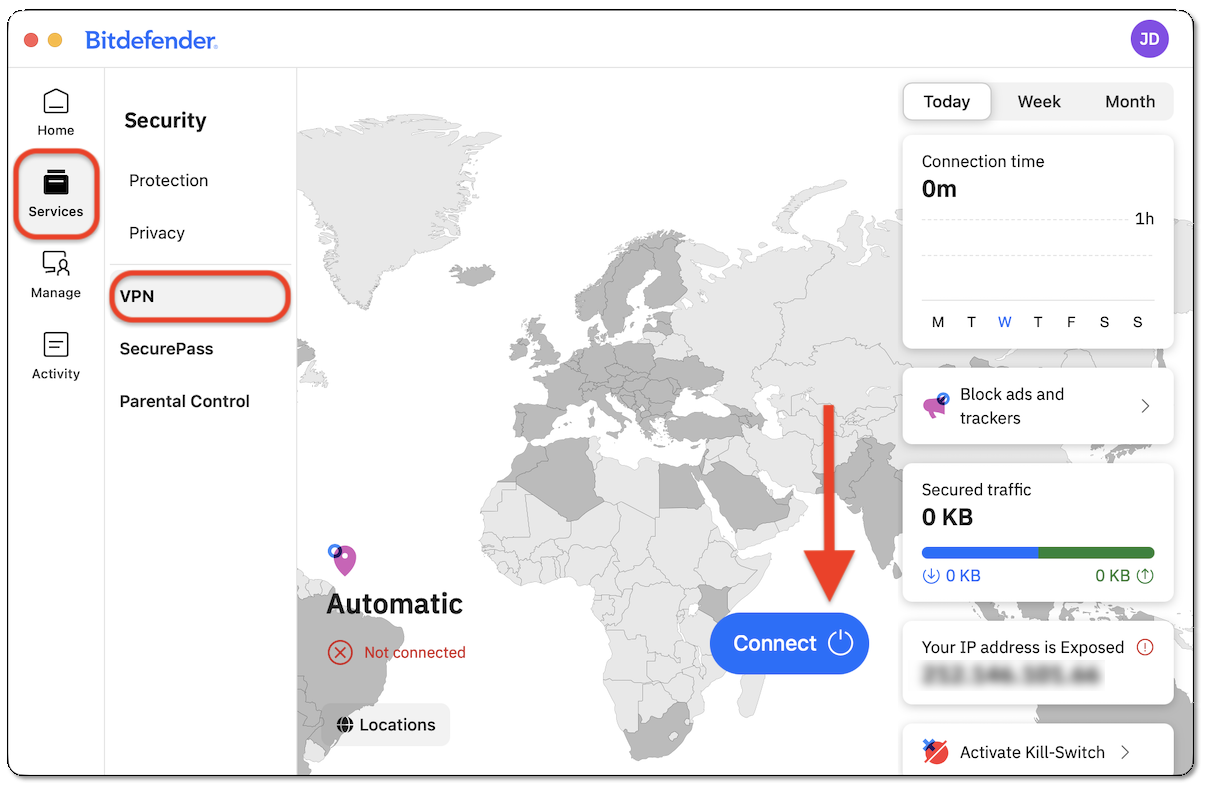
- In the left-hand menu, go to Services → VPN.
- If Bitdefender VPN is connected, disconnect it using the power button ⏻ on the right-hand side.
4. Web Protection
Follow the steps below for your browser to disable the Web Protection and Anti-tracker extensions.
Safari
- Open Safari and click Safari in the top menu bar.
- Click Settings (or Preferences, depending on your version).
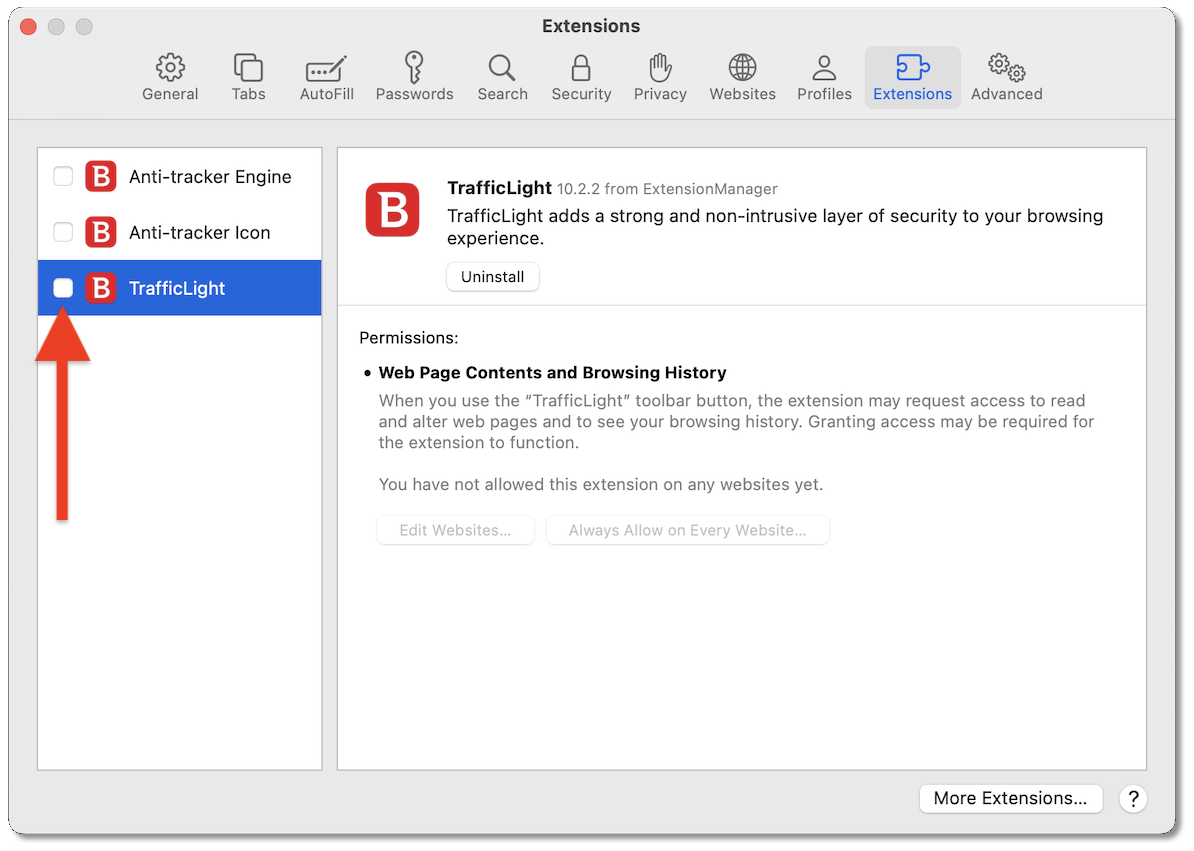
- Go to the Extensions tab.
- Uncheck all TrafficLight and Anti-tracker boxes to disable these extensions.
Firefox
- Open Firefox and click Firefox in the top menu bar.
- Click Settings (or Preferences, depending on your version).
- In the left-hand menu, go to Extensions & Themes → Extensions.
- Alternatively, type about:addons in the address bar and press Enter.
- Turn off the switches next to TrafficLight and Anti-tracker to disable these extensions.

Chrome
- Open Google Chrome and click Chrome in the top menu bar.
- Click Settings (or Preferences, depending on your version).
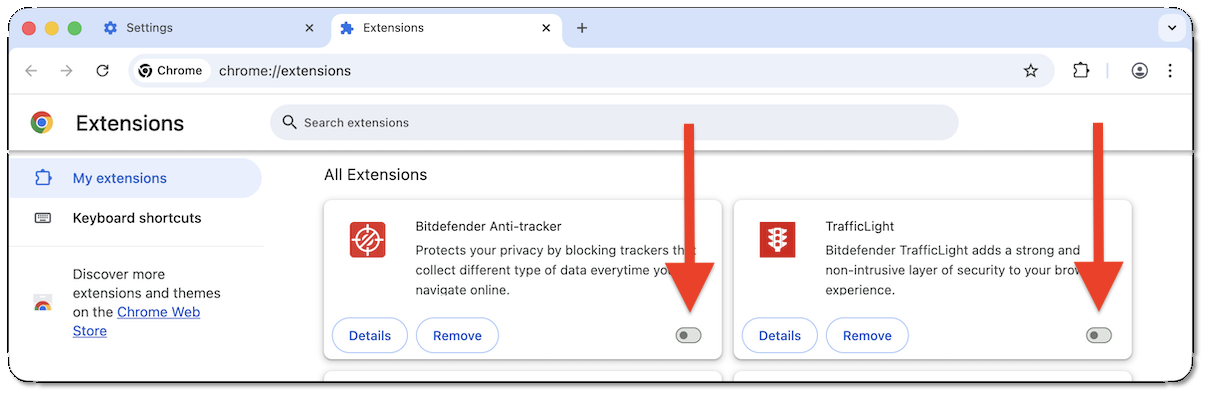
- In the left-hand menu, go to Extensions.
- Alternatively, type chrome://extensions in the address bar and press Enter.
- Turn off the switches next to TrafficLight and Anti-tracker to disable these extensions.
Re-enabling Bitdefender Features
You have now disabled all Bitdefender features on macOS. We recommend re-enabling all protection modules as soon as your task is complete to ensure your device remains secure.
To restore full protection:
- Open the Bitdefender App.
- Return to each section under Services → Protection.
- Turn the previously disabled switches back on.