SecurePass helps you stay in control of your account security with two features: Lock Account and PIN Setup. These tools allow you to protect your SecurePass vault across all devices, whether you suspect unauthorized access, are using a shared computer, or have misplaced a device. Explore the options below to learn how each feature works and how to use them.
How to Lock SecurePass on All Devices
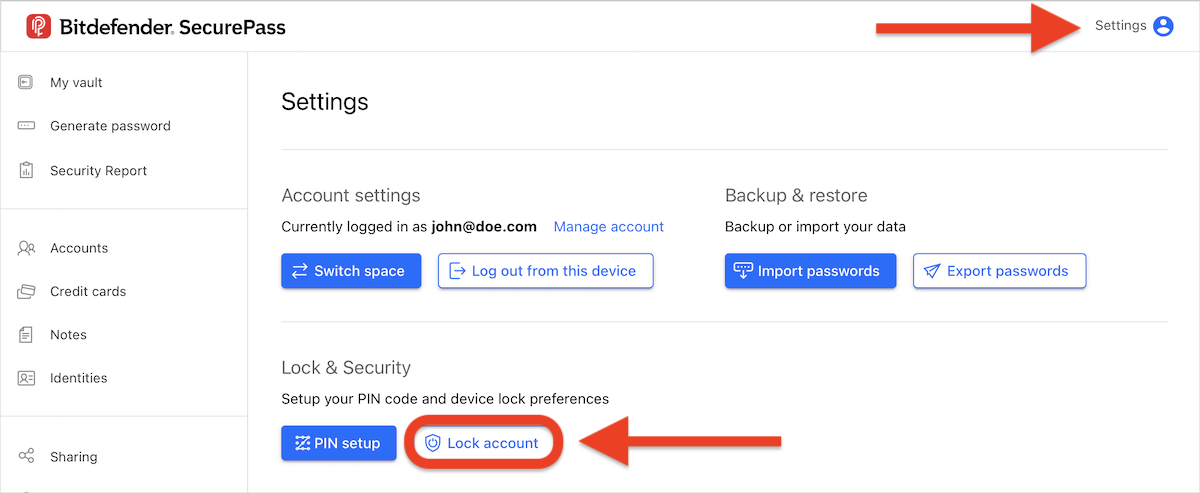
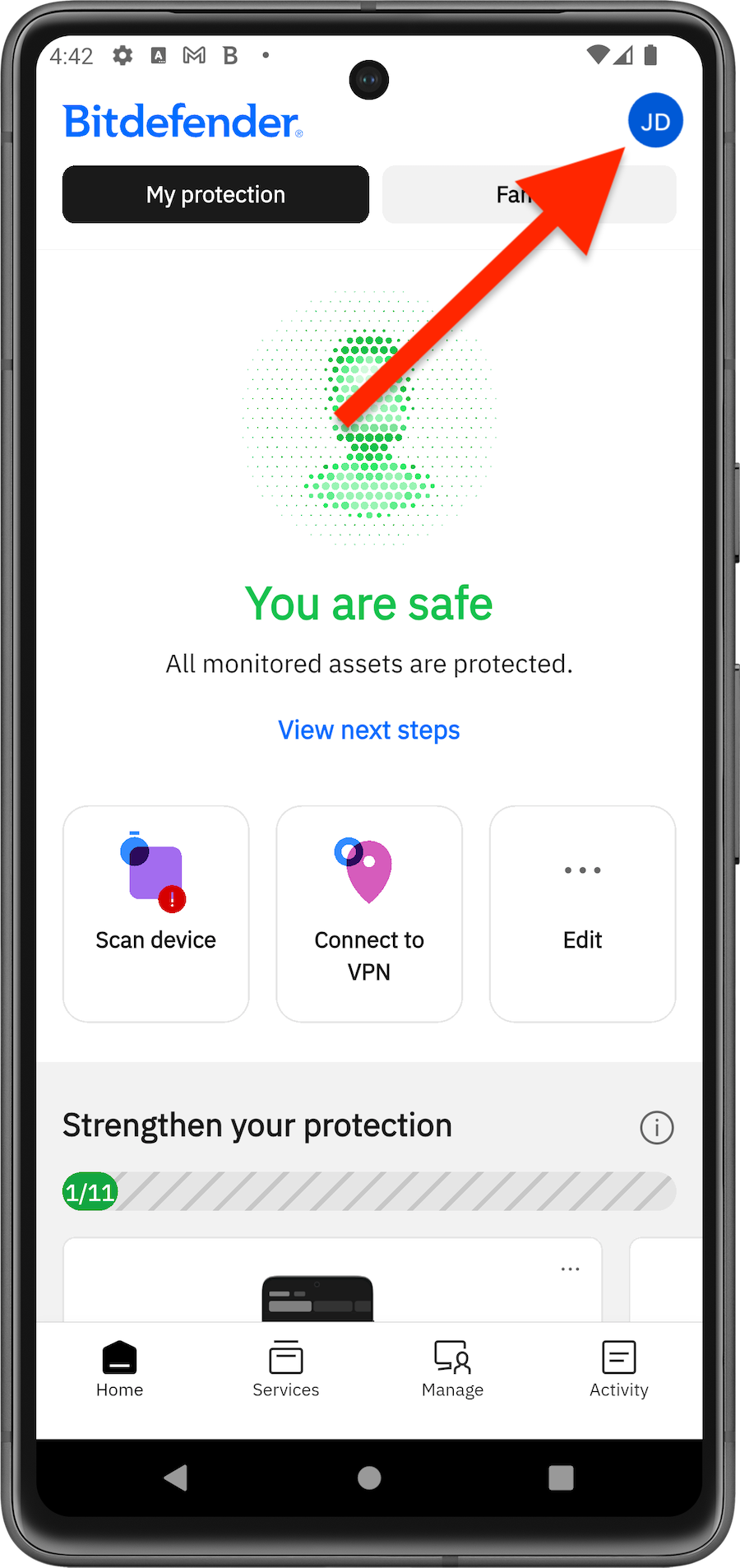
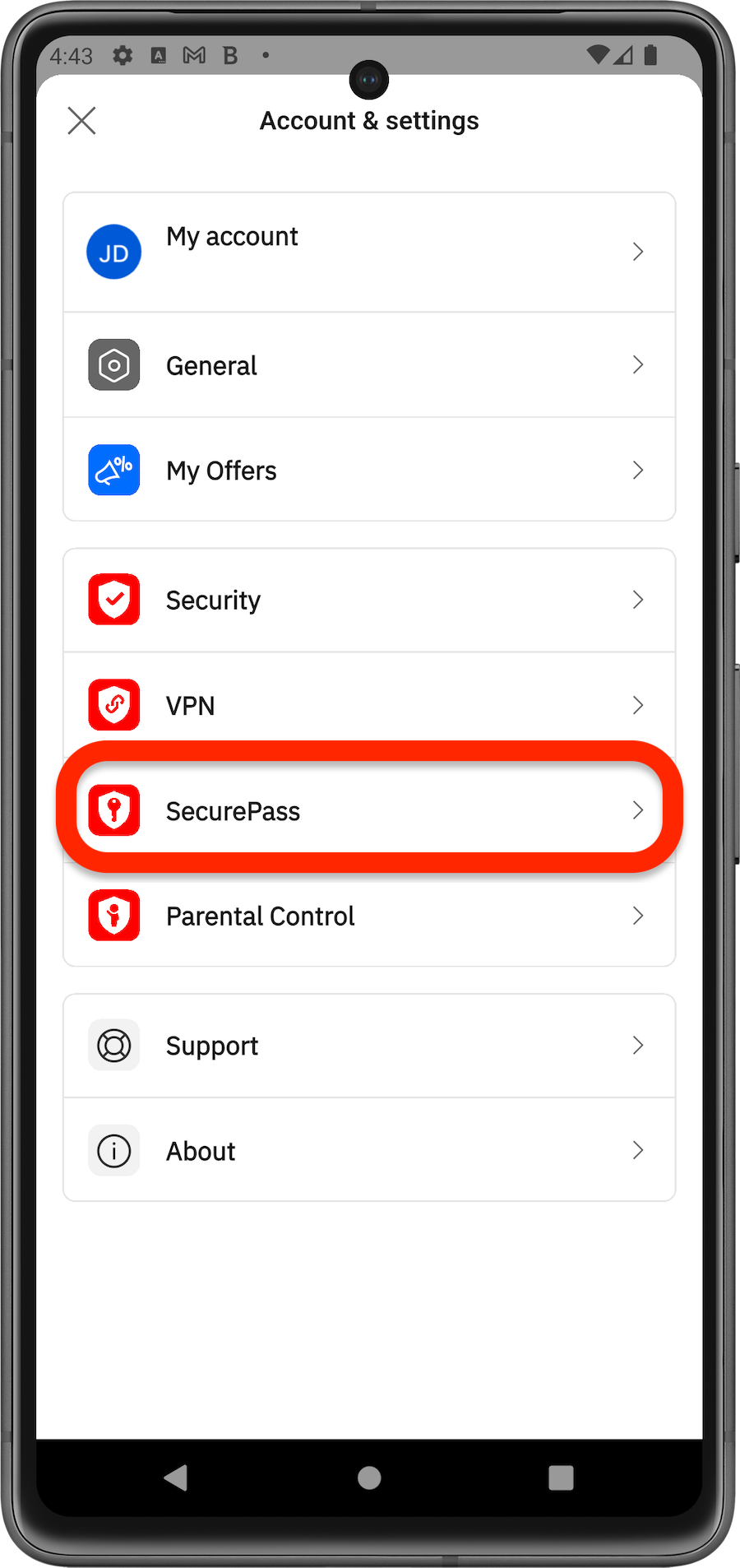
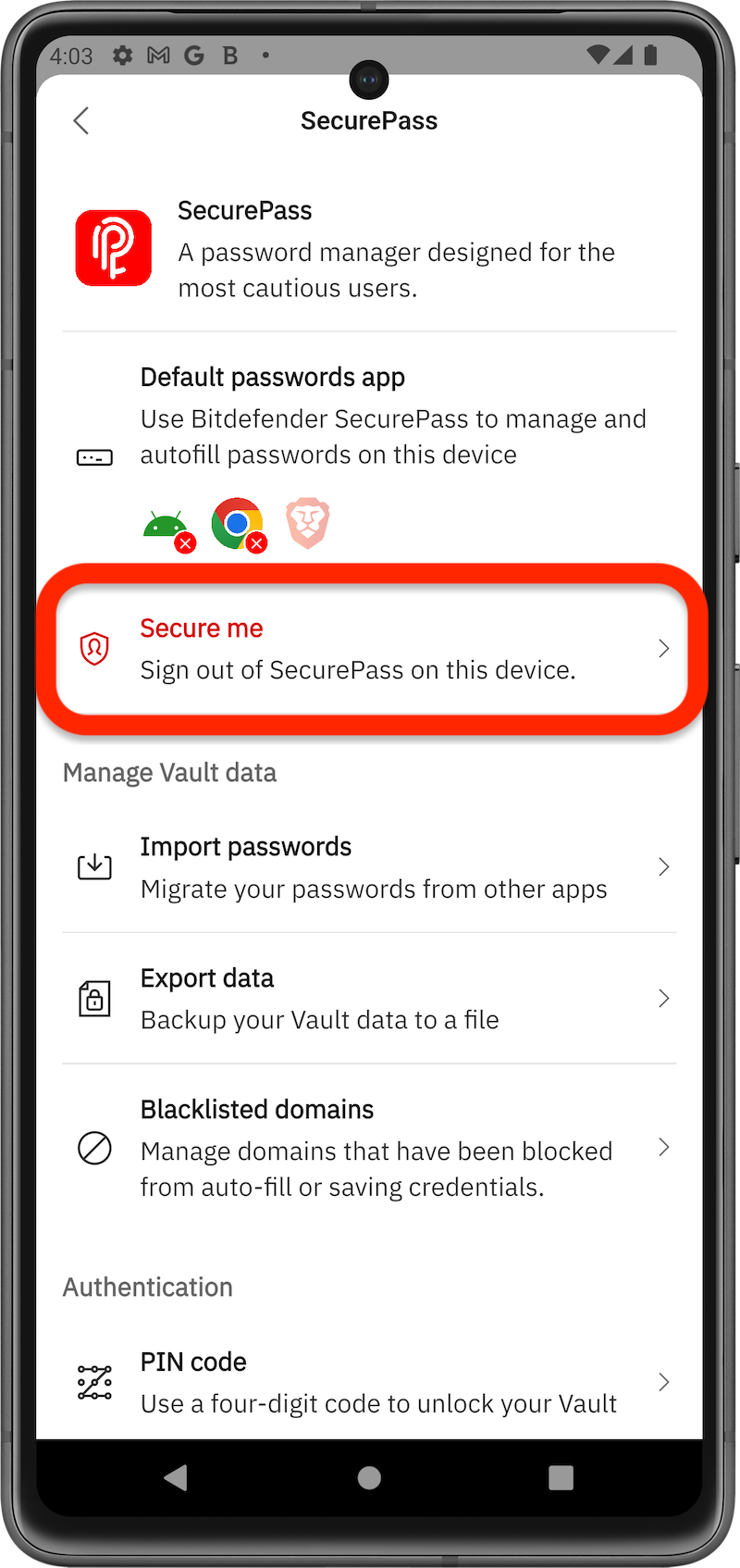
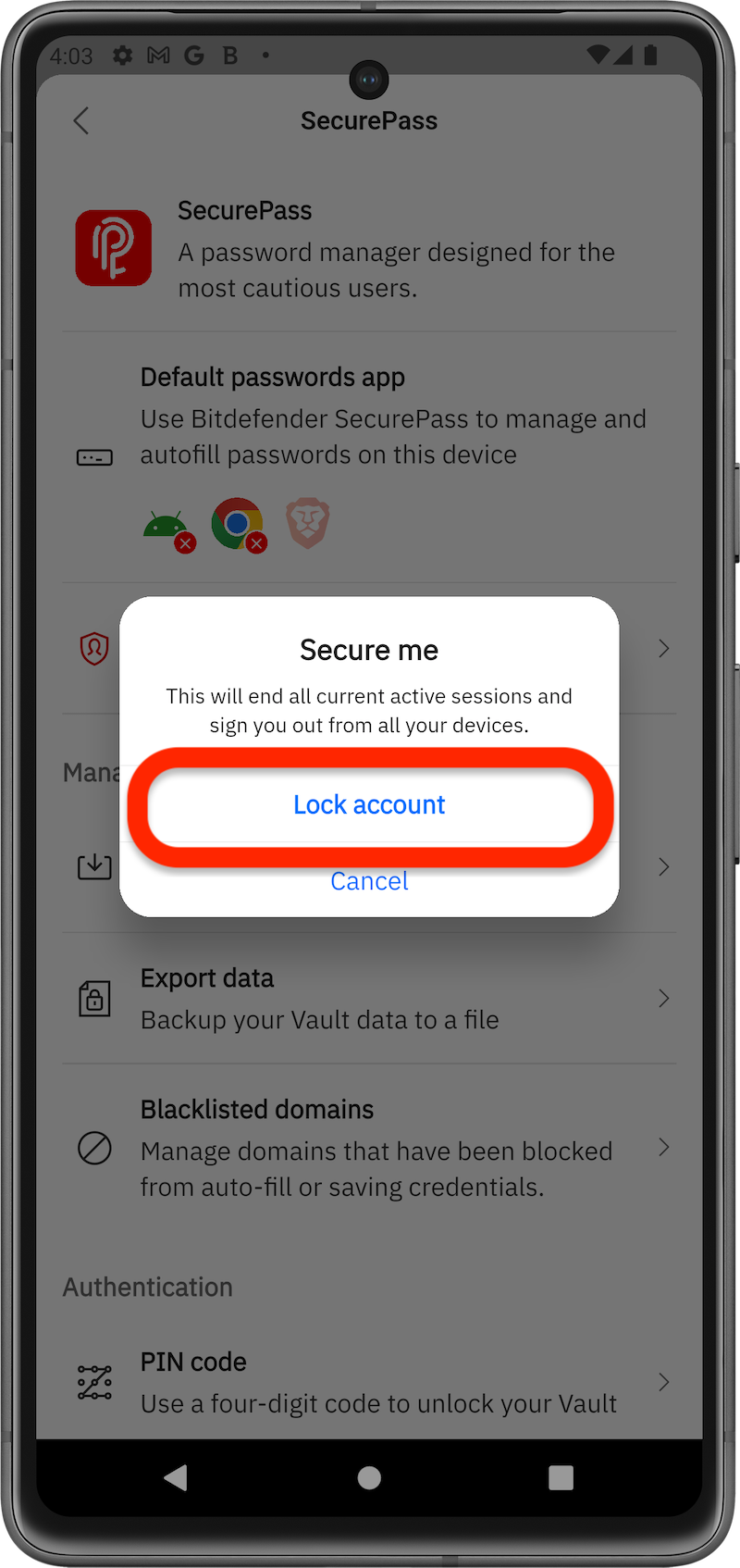
When you use the Lock Account feature, Bitdefender App immediately locks your SecurePass vault on all devices. You must enter your master password to regain access. This is the fastest way to secure your vault if you believe your account may be at risk.
via Browser
via Mobile App
How to Enable Auto-Lock and Set a PIN
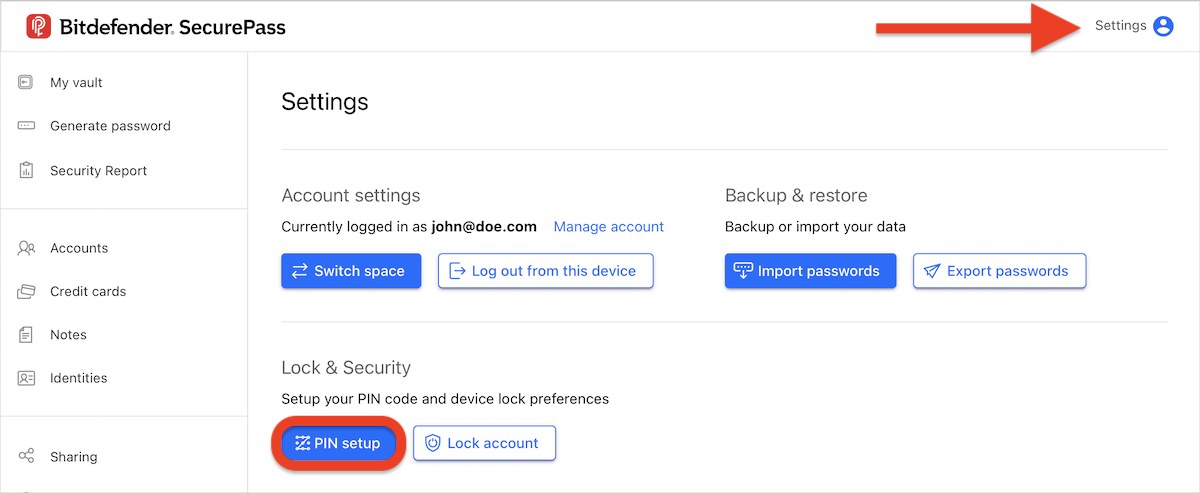
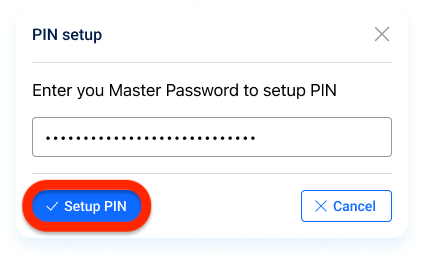
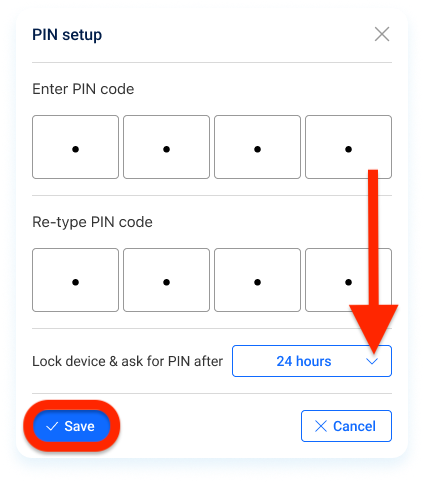
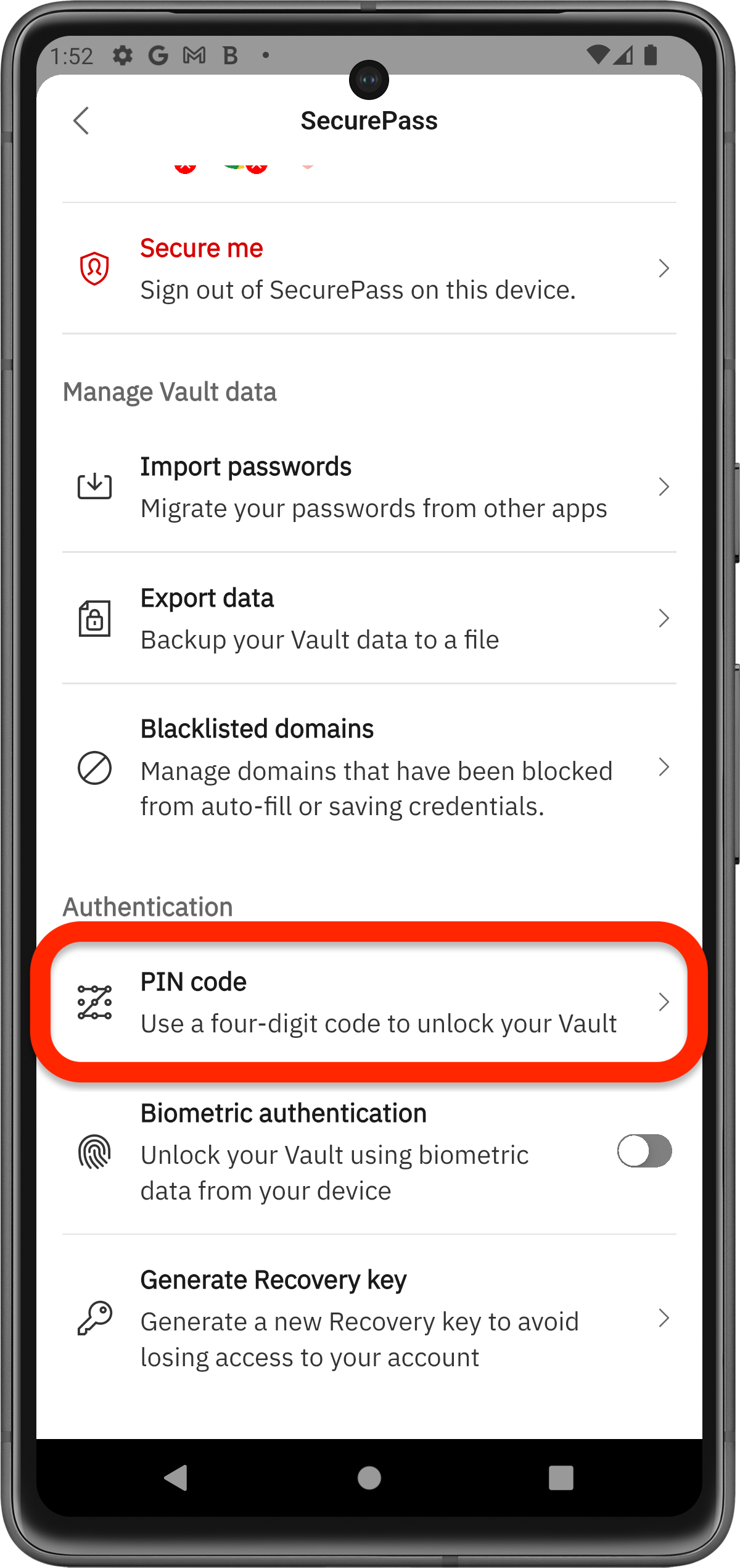
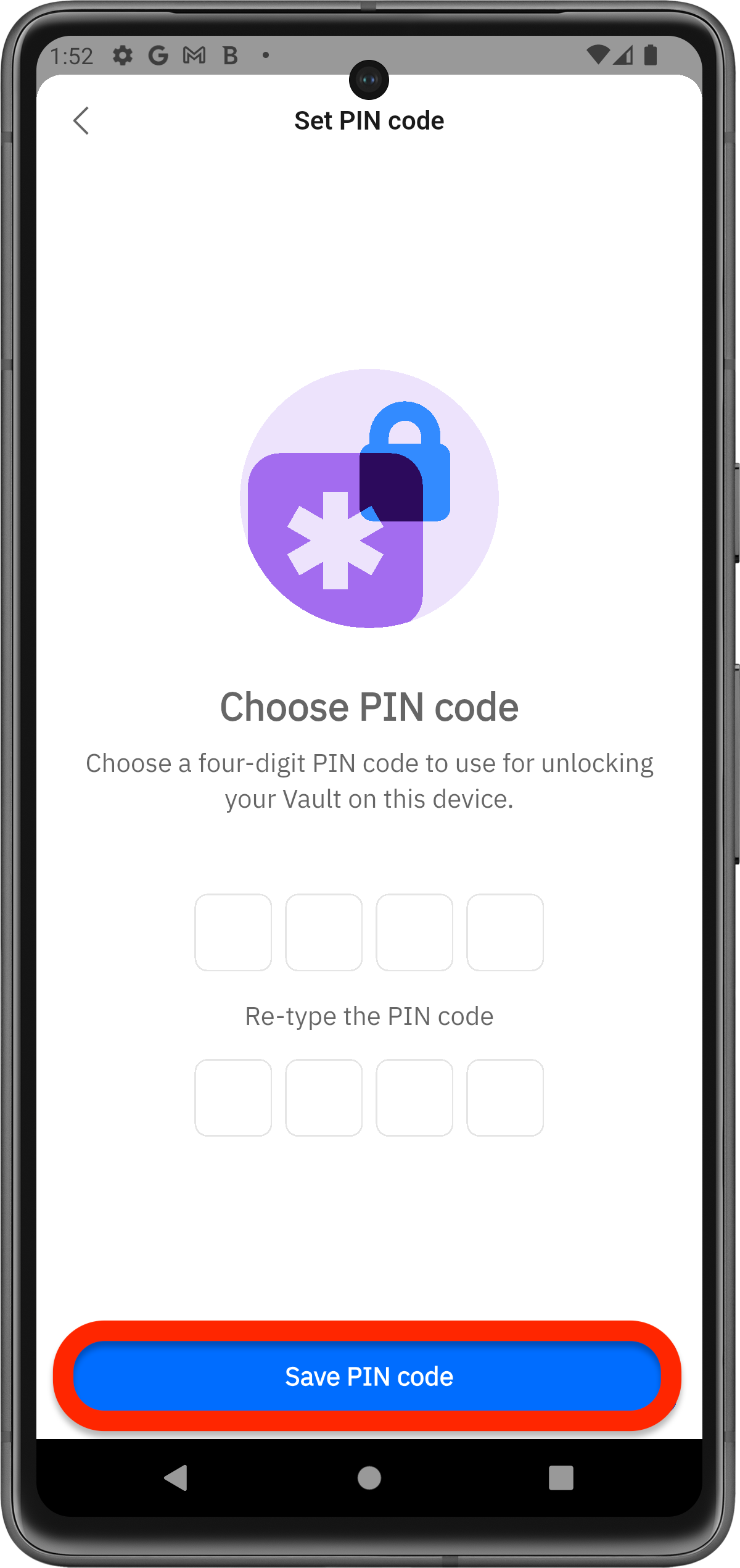
The PIN feature automatically locks your SecurePass vault on all devices after a period of inactivity you choose. You can unlock it using a four-digit PIN instead of typing your full master password each time. If you forget your PIN you can still unlock using your master password.
via Browser
via Mobile App
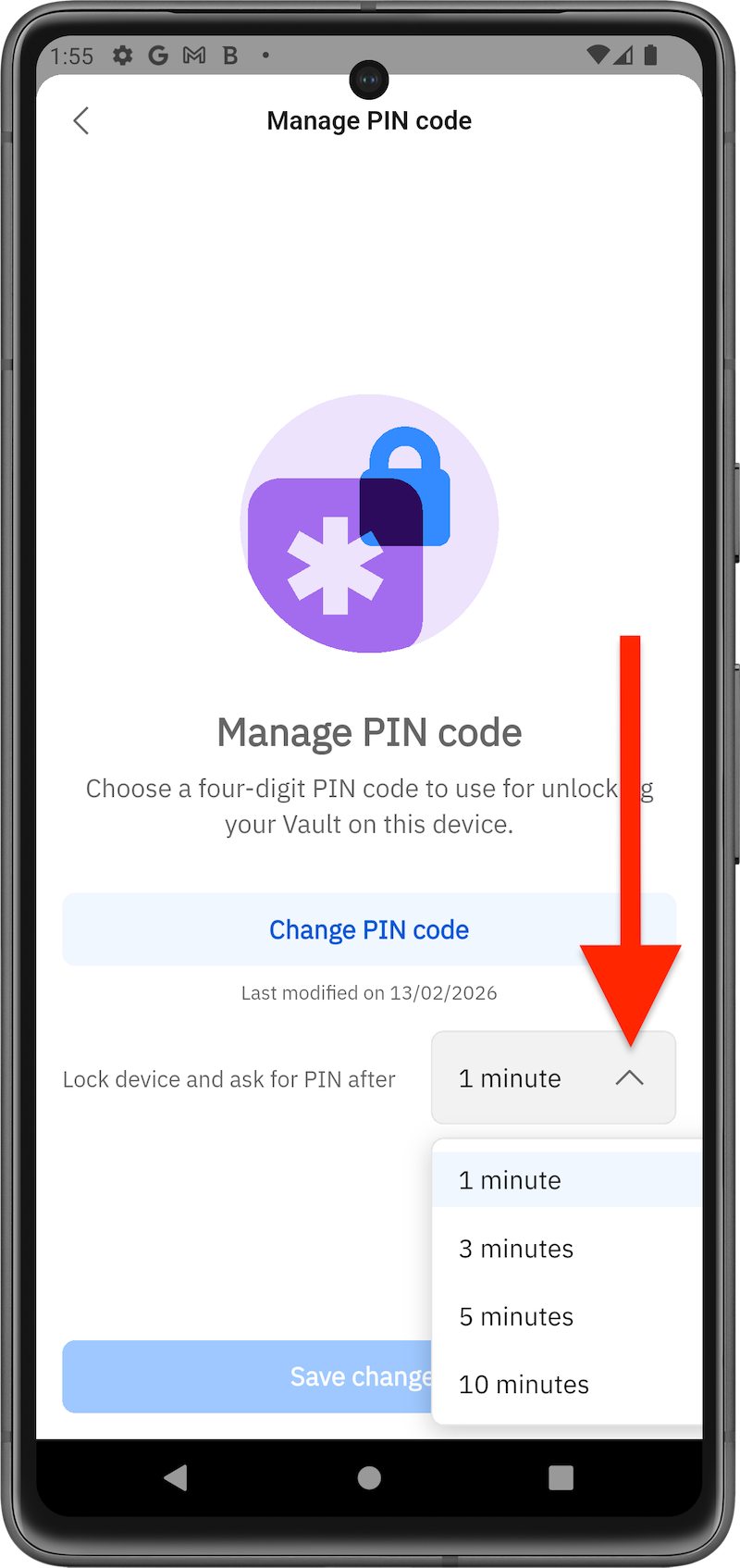
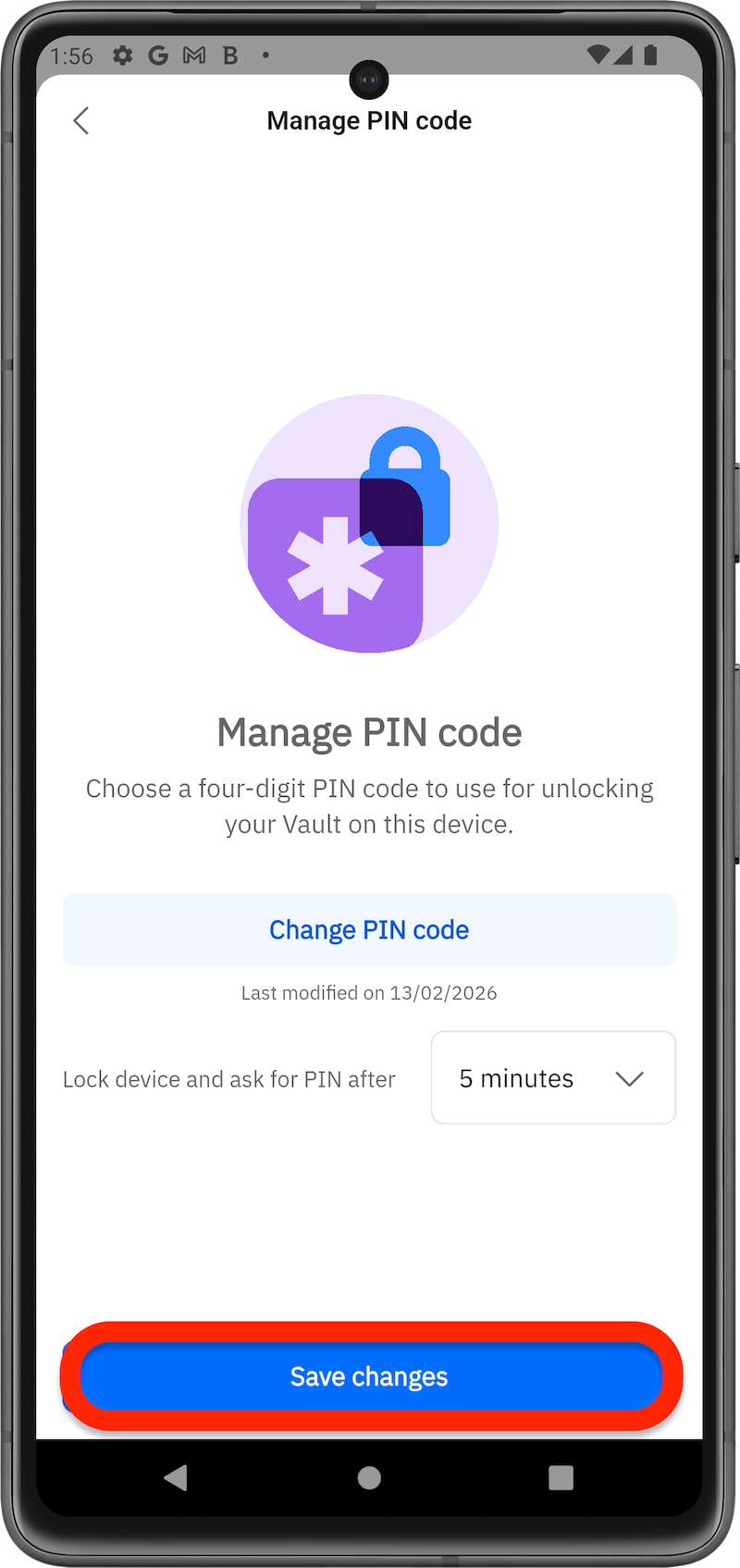
How to Change Your PIN
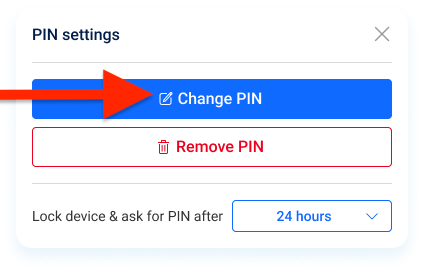
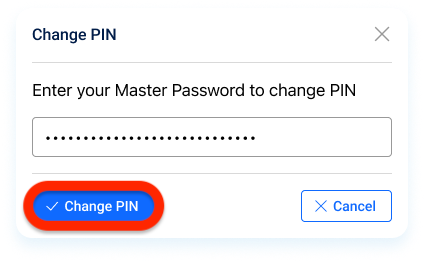
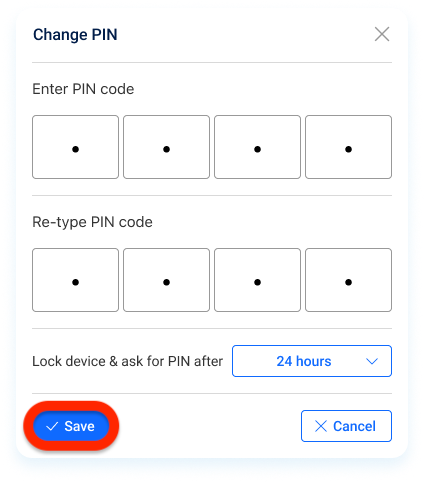
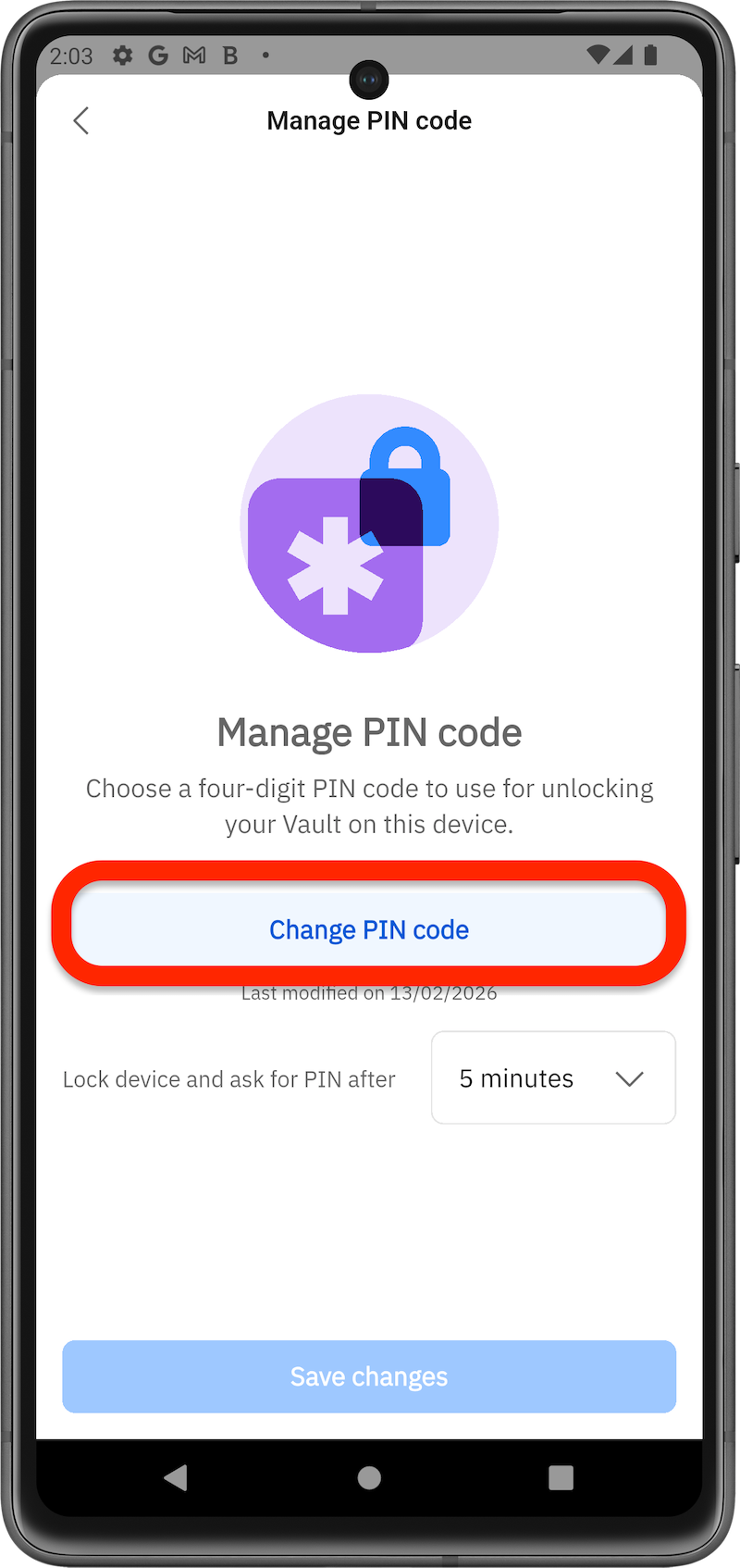
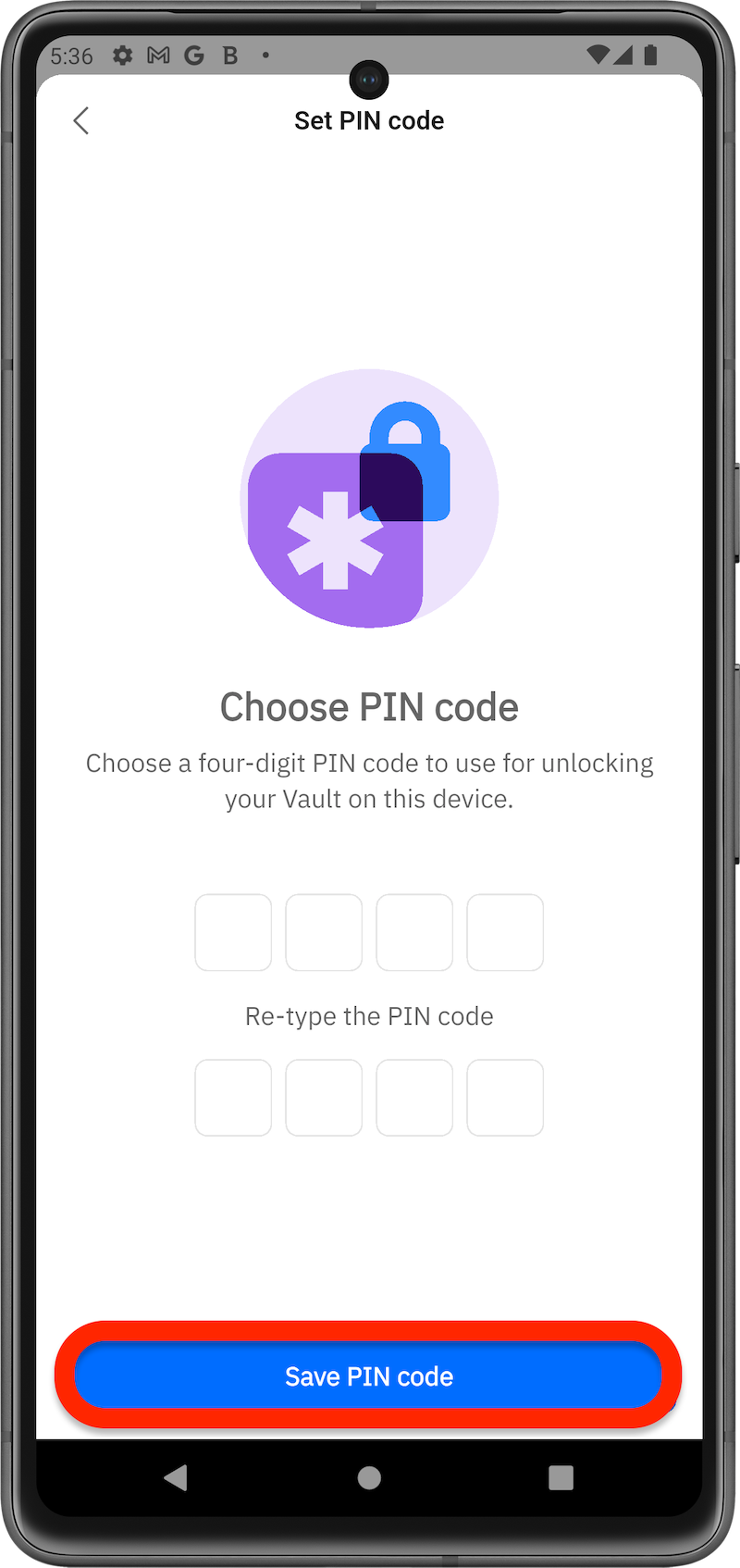
To change the PIN code you previously set up to auto-lock the SecurePass vault:
via Browser
via Mobile App
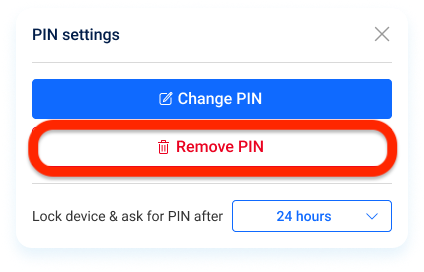
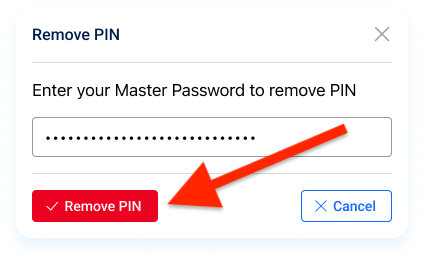
How to Remove the PIN (Browser Only)
Currently, removing the SecurePass PIN is only available via browser.