This article explains how to generate a debug log on your Mac using Bitdefender Profiler. This utility is used by the Bitdefender Support team to diagnose and troubleshoot issues such as application installation errors or other Bitdefender App issues. Bitdefender Profiler collects system logs and product usage information that are essential for further investigation by the support team.
When contacting Bitdefender Support, you may be asked to submit the following information:
- A detailed description of the issue you are experiencing
- A screenshot of any error messages displayed on your screen – How to take a screenshot on Mac
- A Bitdefender Profiler log – Use the method described below to generate a Bitdefender Profiler log on macOS.
Step 1: Download Bitdefender Profiler
Click the link below to download the Bitdefender Profiler tool to your Mac:
https://download.bitdefender.com/resources/files/KnowledgeBase/file/BitdefenderProfiler.zip
Step 2: Extract the Profiler Archive
Once the download is complete:
- Open your Downloads folder.
- Double-click the BitdefenderProfiler.zip file to extract it.
Step 3: Launch Bitdefender Profiler
In the same folder, double-click the Bitdefender Profiler application  to launch it.
Step 4: Run Diagnostics
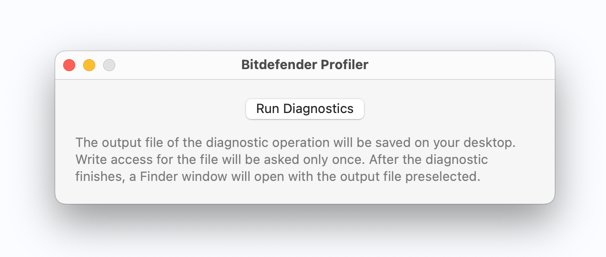
In the Bitdefender Profiler window:
- Click Run Diagnostics.
- Wait a few moments while the tool collects the necessary data.
Step 5: Allow Desktop Access
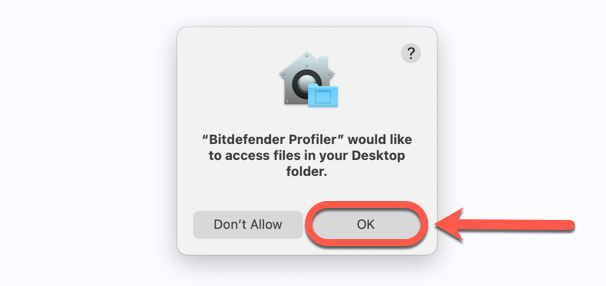
When prompted with the message “Bitdefender Profiler would like to access files in your Desktop folder”, click OK to allow access.
Step 6: Submit the Log File
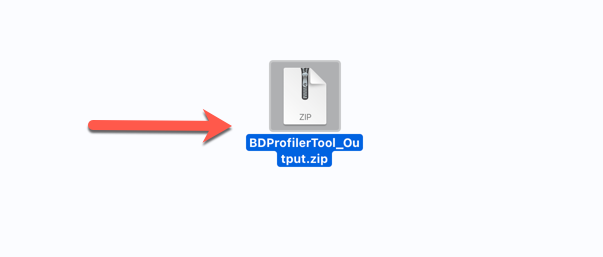
- A Finder window will open showing your Desktop files. The file BDProfilerTool_output.zip will already be selected.
- Attach this file to your support ticket for further troubleshooting.