The Bitdefender Web Protection (TrafficLight) extension for macOS keeps you safe online by scanning the websites you visit for malware and phishing attempts. It blocks dangerous websites and warns you about unsafe links directly in your search results. Bitdefender TrafficLight supports the following web browsers:
- Safari
- Mozilla Firefox
- Google Chrome
After installing Bitdefender App on your Mac, follow the steps below to add the Web Protection (TrafficLight) extension to your browser.
1. Click the B icon in the menu bar at the top right of your screen to open the Bitdefender app.

2. In the left-hand menu, go to Services → Protection → Web Protection.
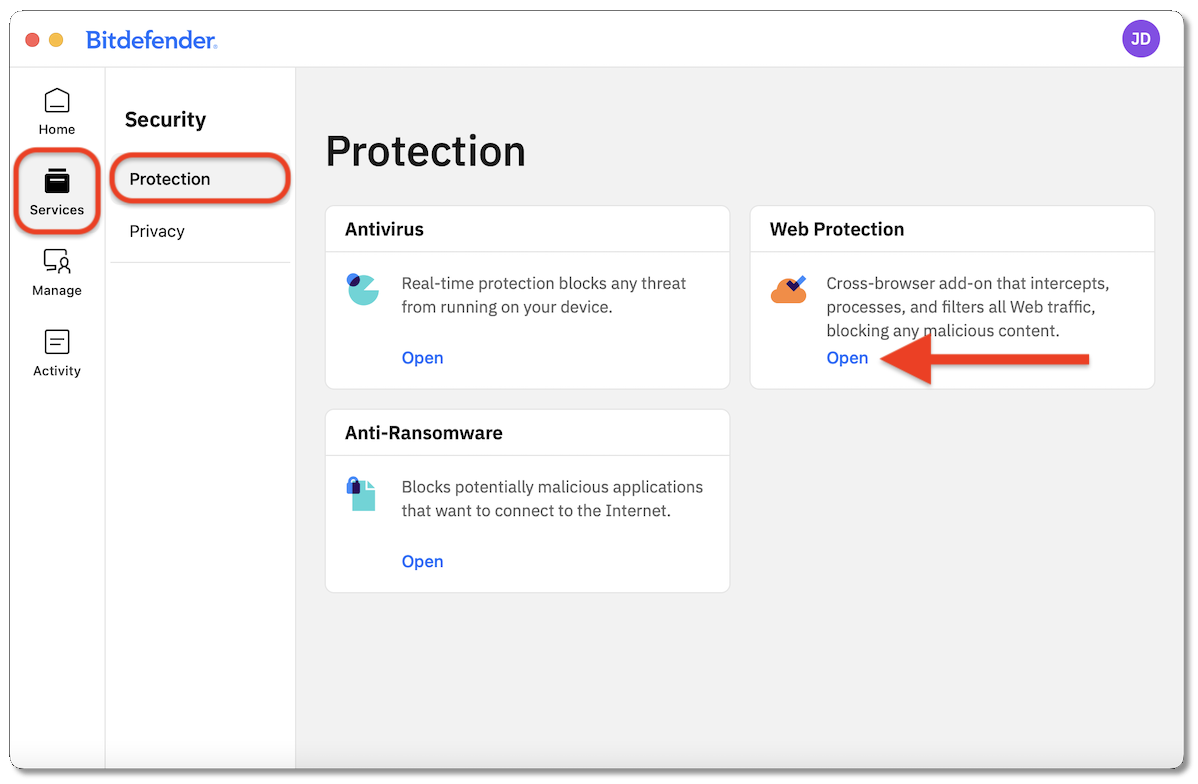
3. In the Web Protection panel, click Enable or Install next to your preferred browser (Safari, Firefox, or Chrome).
- Only supported browsers that are currently installed on your Mac will appear in this list.
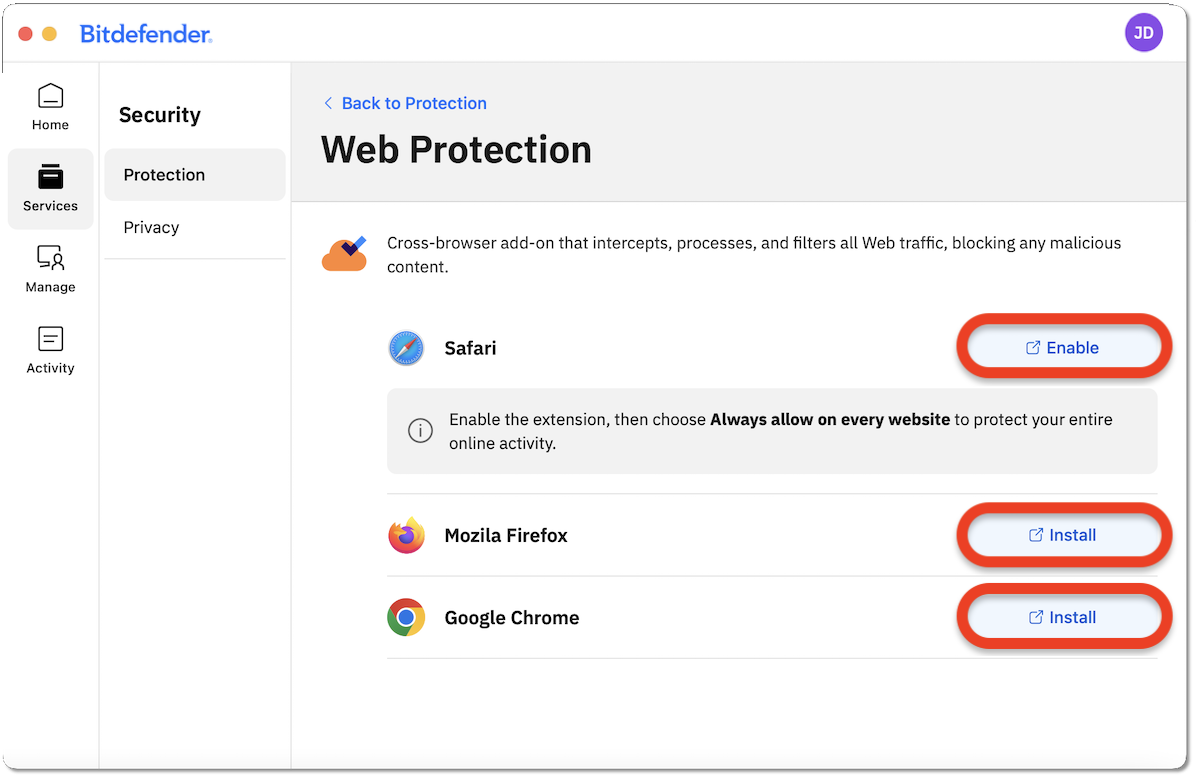
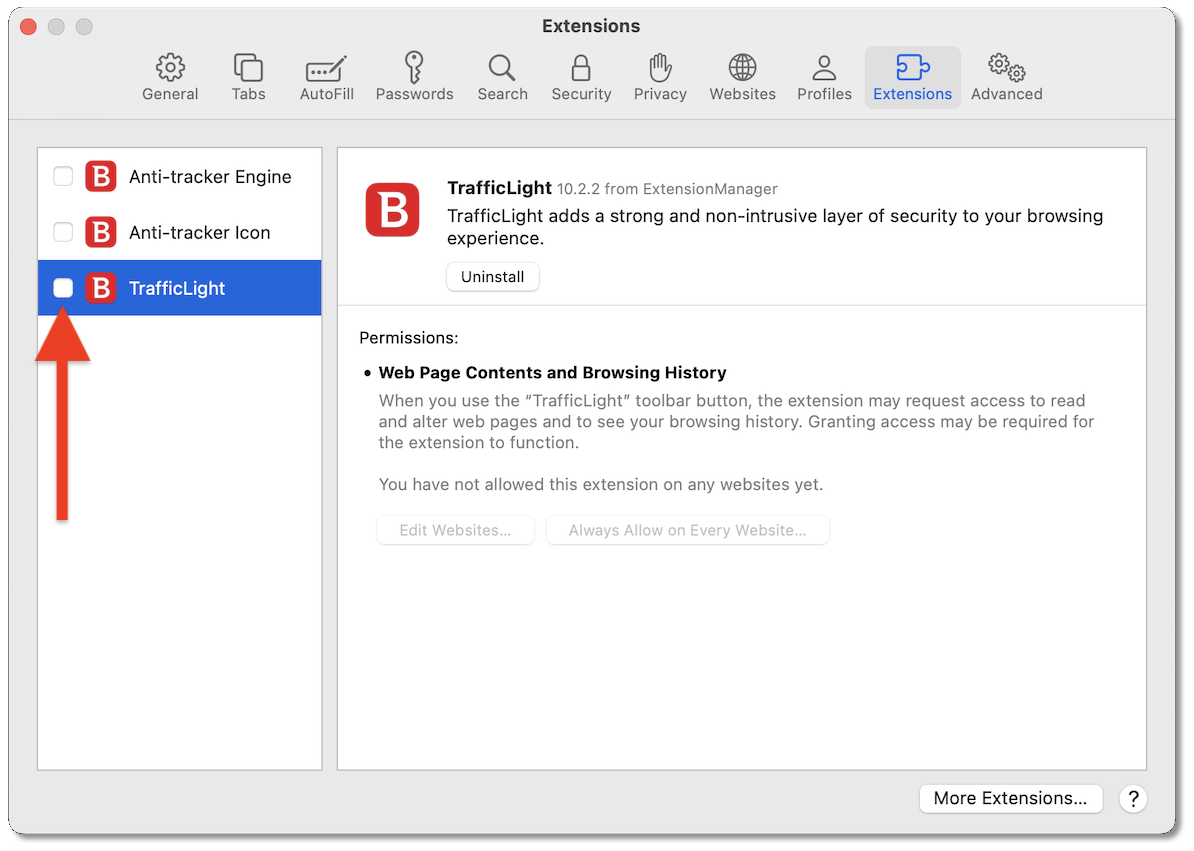
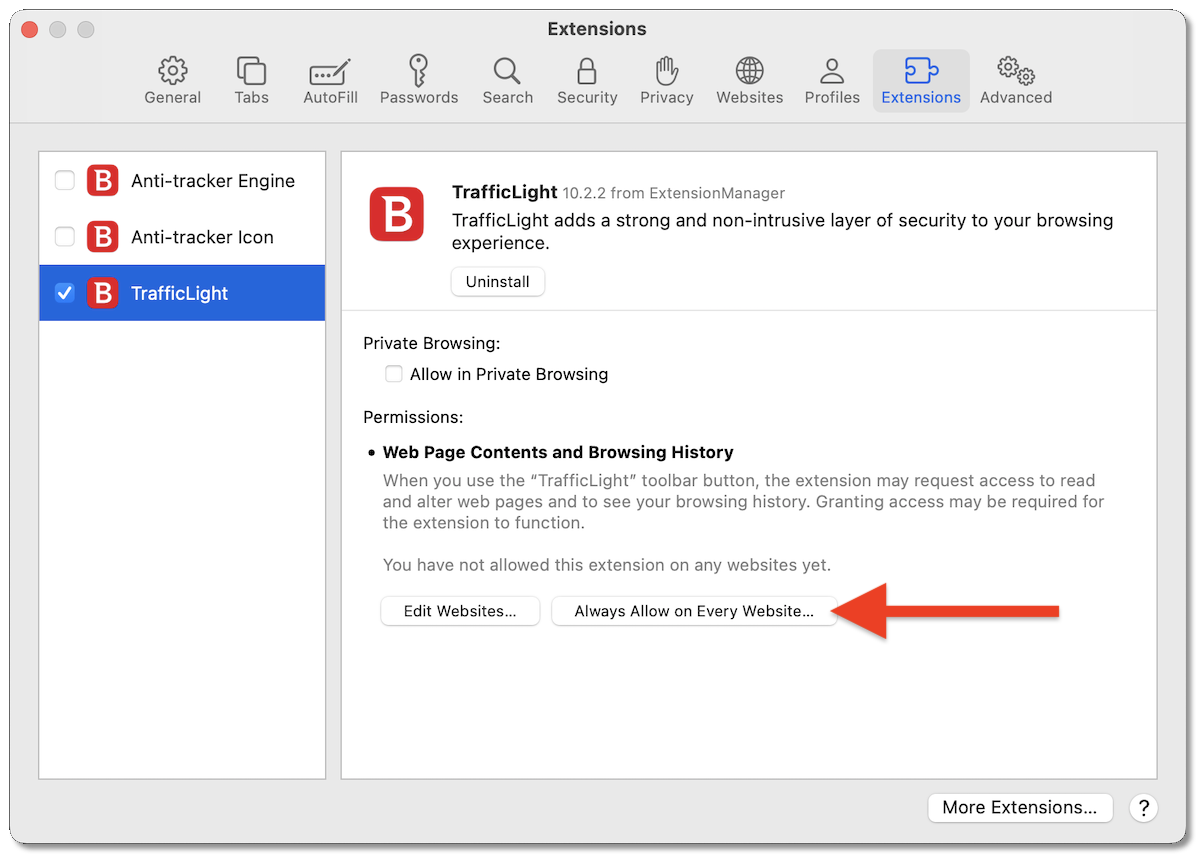
4. Follow the browser-specific instructions below to complete the installation.
Safari
Firefox
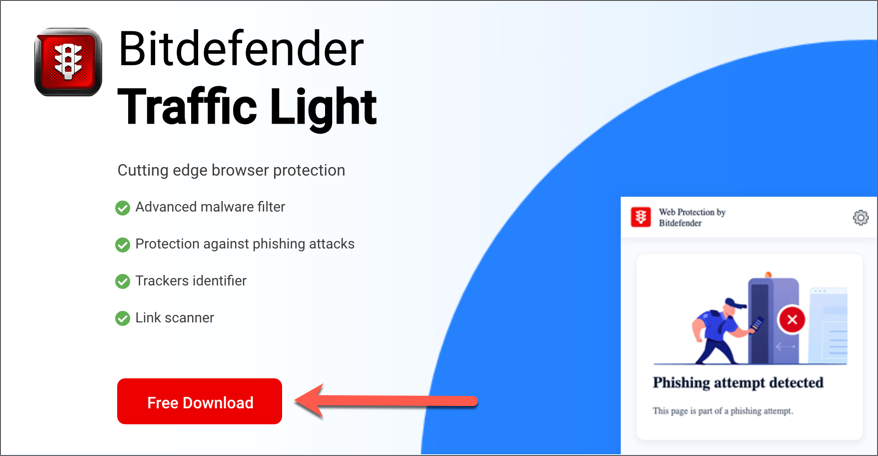
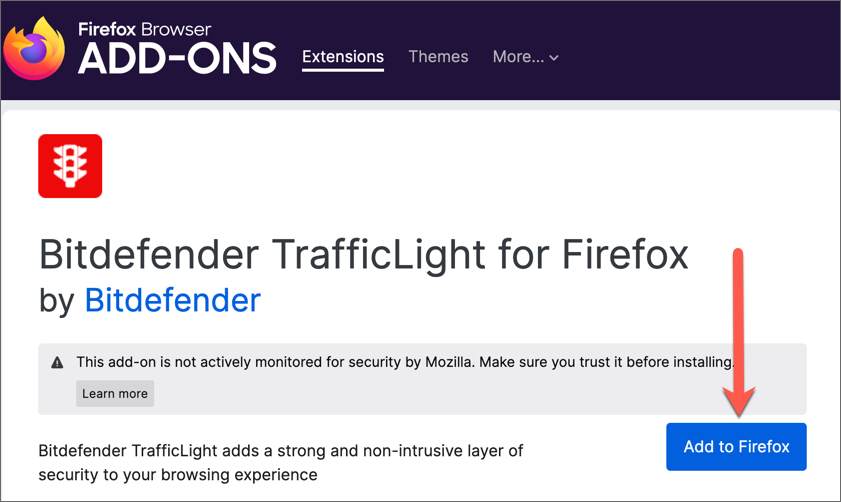
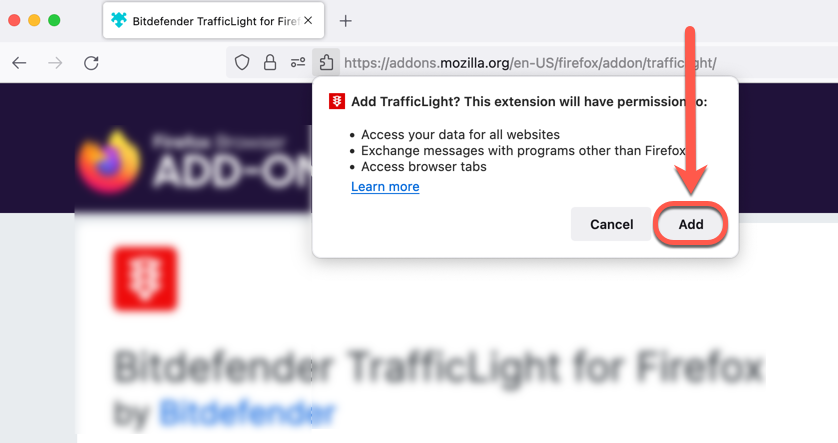
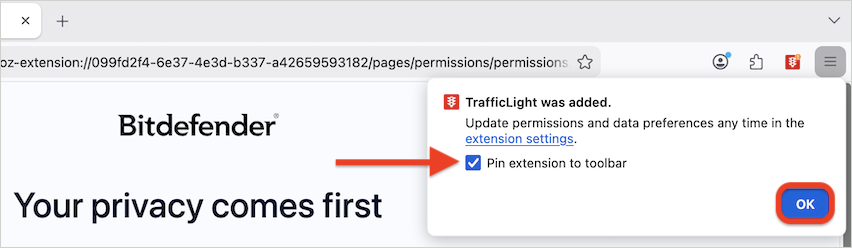
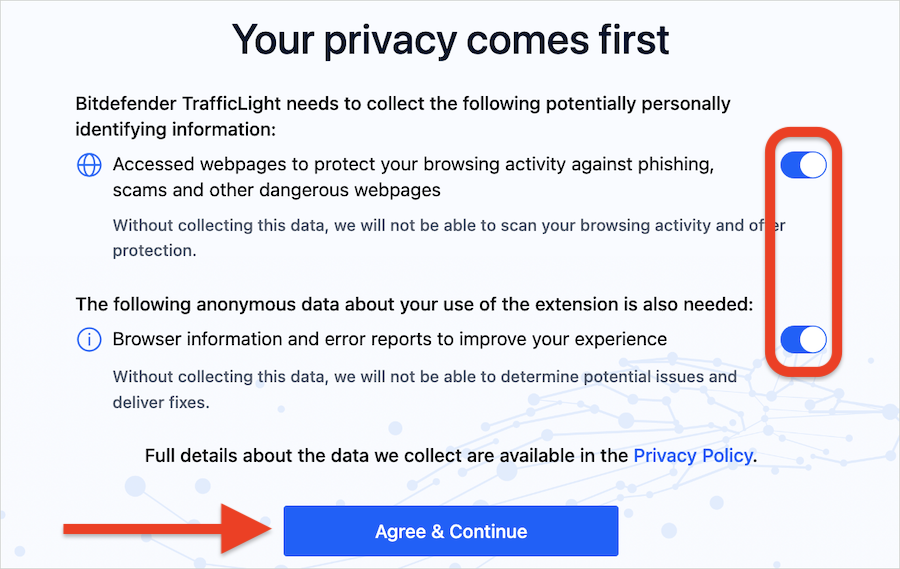
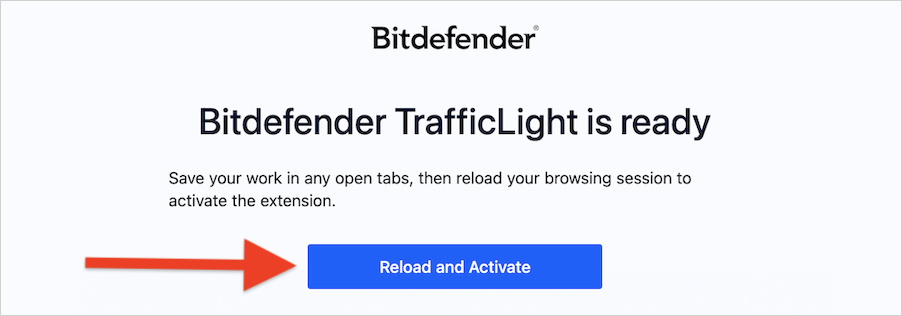
Chrome
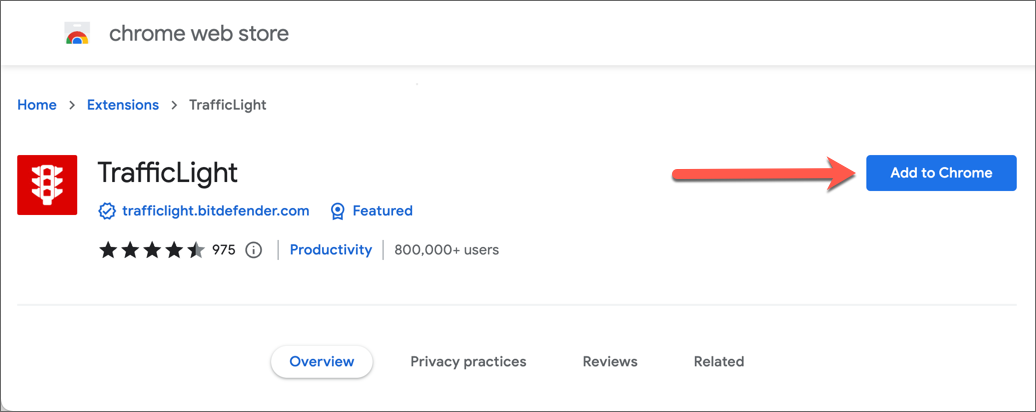
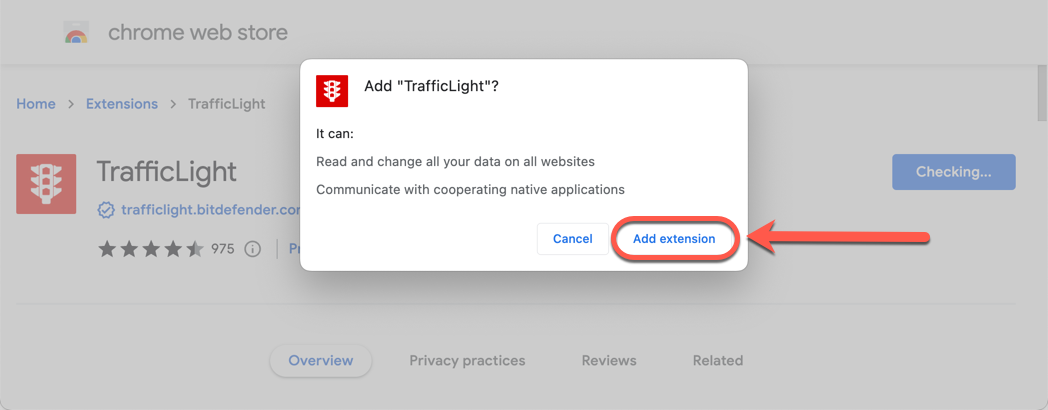
Once the Bitdefender TrafficLight extension is enabled, you’ll see a white checkmark inside a circle in your browser’s address bar. This indicates that web protection is active and your macOS browsing is secured.